Configure Administrative Credentials
Create the application instance credential that you use to set up and configure the application. This credential is a local application identity that secures the configuration mode. Use it only for initial access to the BigFix UI and for configuration.
About this task
Procedure
-
Click Launch BigFix UI Configuration Manager button from
the Legal Notes page.
If the credentials already exist, the Application instance credential screen shows a summary that confirms the configuration and lists the date on which the credential was last modified. To change the password, click the here link in the
Click here to change the password
text.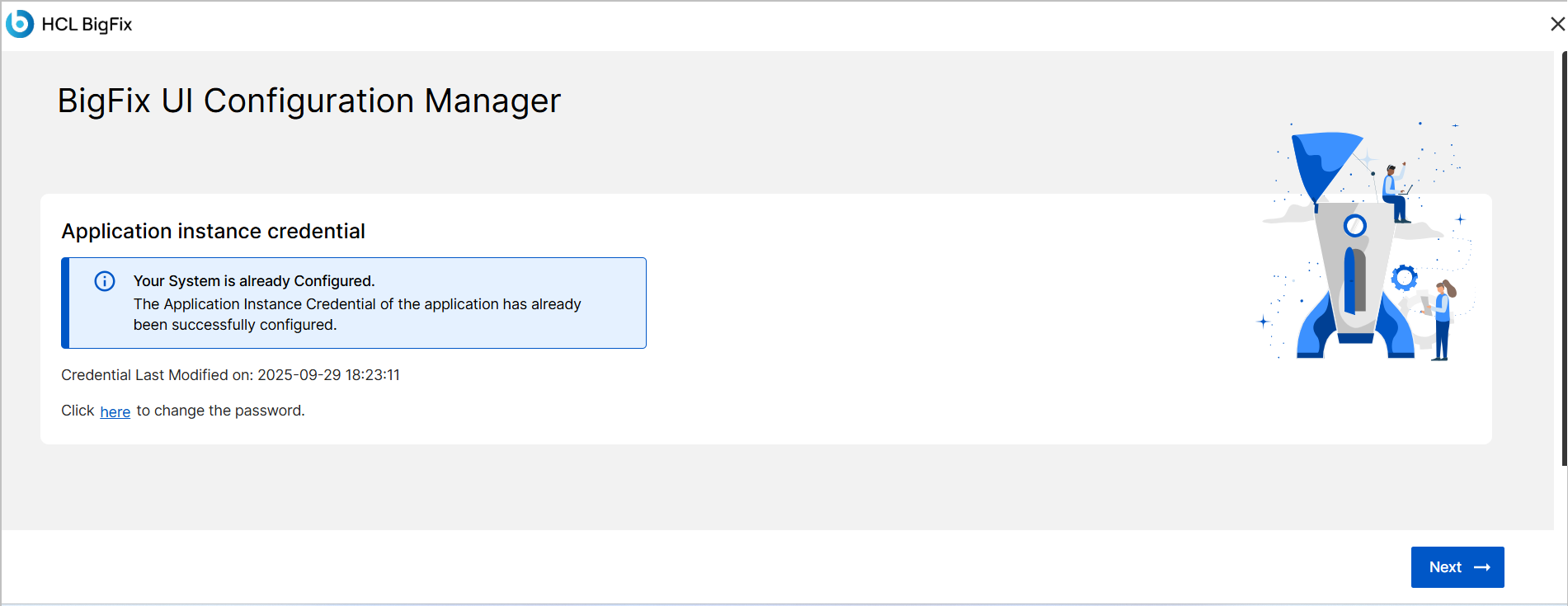
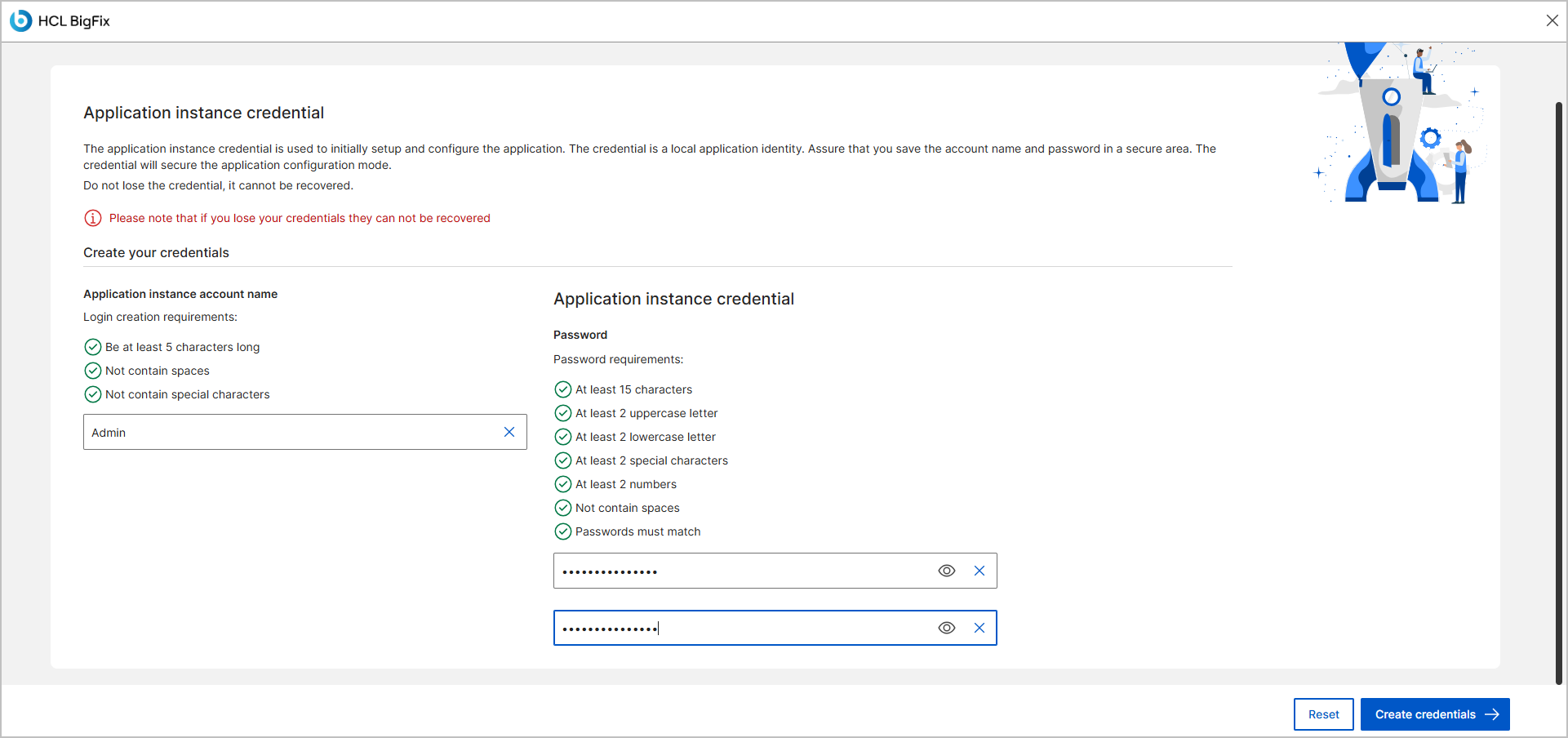
If no credentials exist, the Application instance credential screen appears with required fields to create a new account.
-
Enter the application instance account name.
In the Application instance account name field, type a user name that meets the following criteria:
- At least 5 characters long.
- Does not contain spaces or special characters.
Important:You can set the application instance account name only during the initial setup. You cannot change it later. You can change only the password. Choose the account name carefully the first time. -
Enter and confirm the password.
In the Password and Confirm password fields, enter a password that meets all of the following criteria:
- At least 15 characters or more.
- At least 1 lowercase letter.
- At least 1 uppercase letter.
- At least 1 number.
- At least 1 special character.
- No spaces.
- Password must match in both fields.
The screen marks each requirement with a green check mark when the password you type meets it.
-
Click the Create Credentials button.
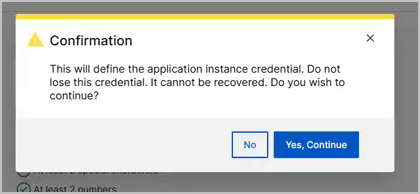
A confirmation dialog appears.
-
Confirm the credentials.
In the confirmation dialog, click Yes, Continue to define the application instance credentials.
If successful, a success message is displayed, and you are directed to the next configuration step.
 Note:Store the application instance credentials securely. These credentials cannot be recovered once lost.
If there is an error, an error message is displayed and you remain on the same screen.
-
If there is an error, reset the entered values.
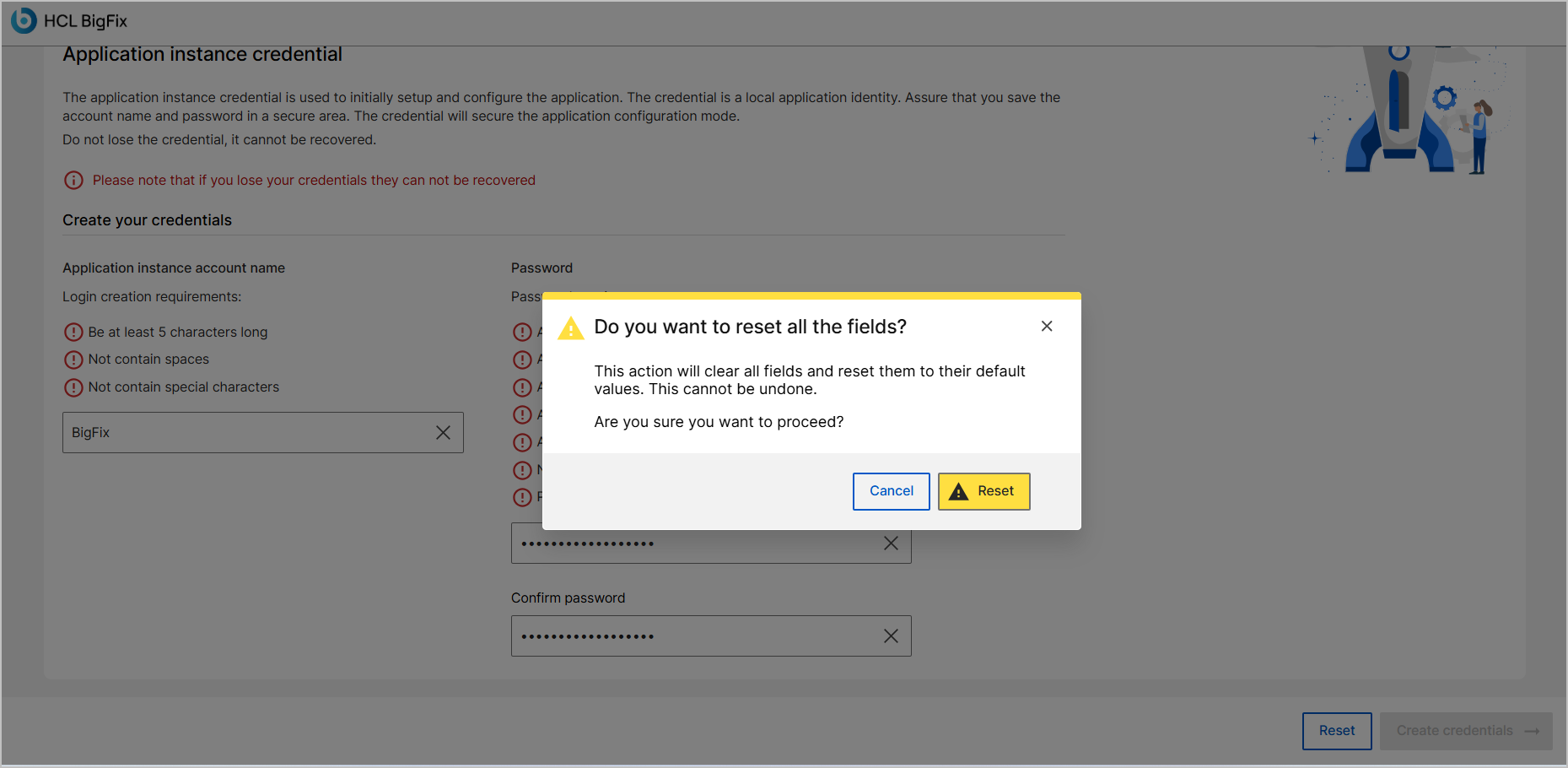
To reset the entered details on the Application Instance credential screen, click Reset button on the confirmation screen.
Click Cancel button to return without making changes.
- After the credentials are successfully configured, click the Next button to proceed to the Database Configurations.
- If you want to exit the setup process, click the X icon in the top-right corner of the screen.