Configure BES Explorer
Use this step to configure the BES Explorer instance for secure communication with the BigFix UI application.
About this task
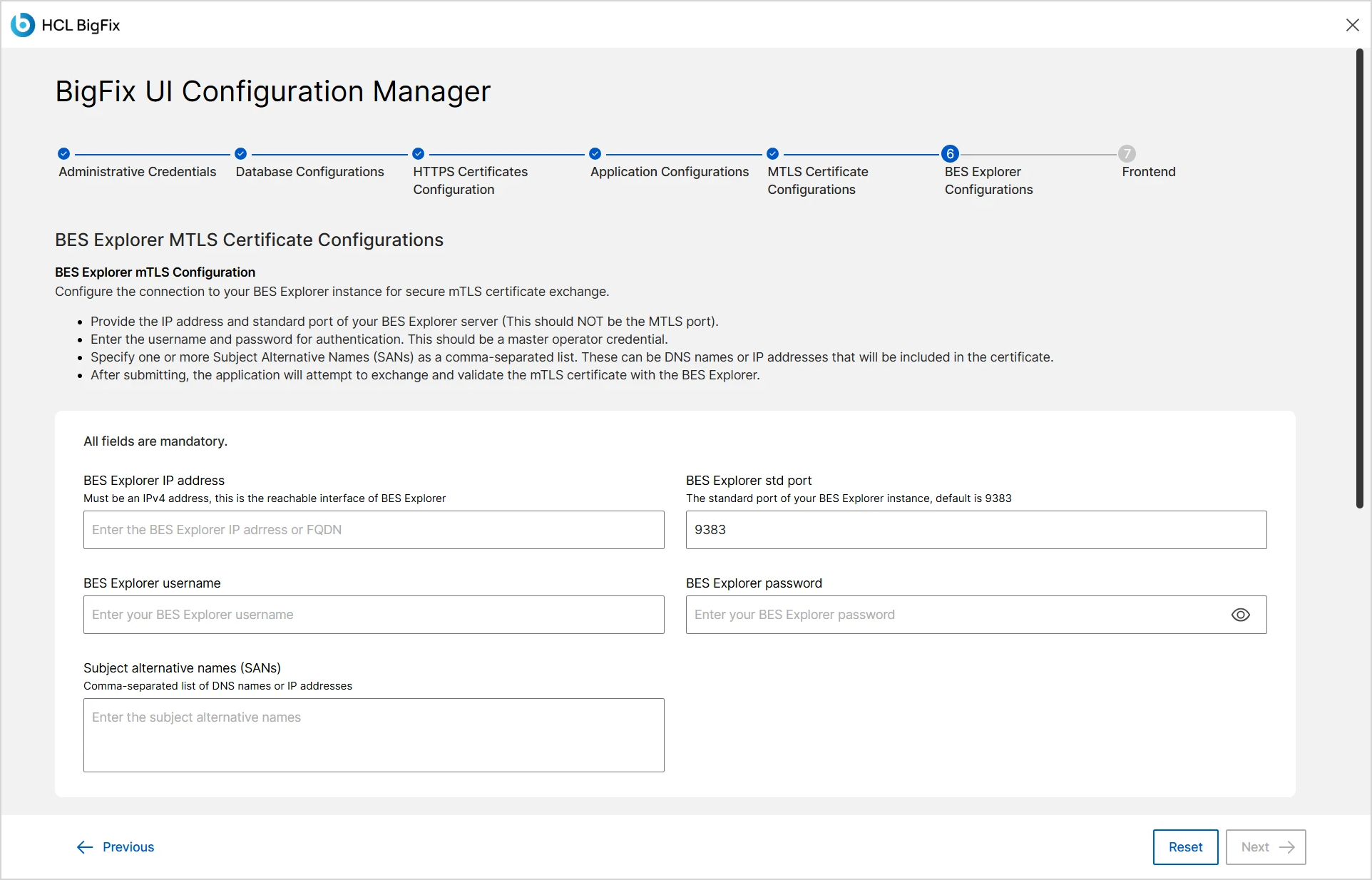
The BES Explorer MTLS Certificate Configurations step ensures
that the BigFix UI can connect to the BES Explorer instance with valid credentials,
host details, and port settings. The screen shows the subtitle BES
Explorer mTLS Configuration and the description Configure the
connection to your BES Explorer instance for secure mTLS certificate
exchange.
The screen lists the following guidance:
- Provide the IP address and standard port of your BES Explorer server (This should NOT be the MTLS port).
- Enter the username and password for authentication. This should be a master operator credential.
- Specify one or more Subject Alternative Names (SANs) as a comma-separated list. These can be DNS names or IP addresses that will be included in the certificate.
- After submitting, the application will attempt to exchange and validate the mTLS certificate with the BES Explorer.
All fields are mandatory.
Procedure
-
After completing MTLS Certificate Configuration, click
Next button to open the BES Explorer MTLS
Certificate Configurations screen.
-
If the BES Explorer mTLS certificate is already configured, review the
Current BES Explorer mTLS Configurations
summary.
The summary lists the following read-only values:
- ID
- Alias
- Type
- Std port
- mTLS port
- Masthead serial number
- Target
- Ip address
- Subject alternative names (SANs)
- Created at
- Gather url
- Certificate exchange API
- Issue chain hash
To validate the existing certificate, click Test mTLS certificate.
To change these values, click the here link in the
Click here to change your BES Explorer mTLS Certificate Configuration
text. To keep the current configuration, click Next. -
In the BES Explorer IP address field, enter the
reachable interface of the BES Explorer instance.
The field helper text reads
Must be an IPv4 address, this is the reachable interface of BES Explorer
. Enter an IPv4 address or an FQDN. -
In the BES Explorer std port field, specify the standard
port number for the BES Explorer instance.
The field helper text reads
The standard port of your BES Explorer instance, default is 9383
. The default port is 9383.Important:Enter the standard port. Do not enter the mTLS port.Note:This port is the default port used for the initial certificate exchange between BigFix and BES Explorer. After the certificate exchange is complete, communication with the BES Explorer uses port 9387.
If a custom port is specified for the initial certificate exchange, the port used for subsequent communication is the custom port + 4.
-
In the BES Explorer username field, type the BigFix
console operator username.
Note:Use a master operator credential.
-
In the BES Explorer password field, type the password for
the BigFix console operator.
To verify the value that you typed, click the eye icon at the end of the field.
-
In the Subject alternative names (SANs) field, enter one
or more DNS names or IP addresses.
The field helper text reads
Comma-separated list of DNS names or IP addresses
.- Separate multiple values with commas.
- These values are included in the certificate.
-
Verify all values, then click Next to proceed to the
Frontend Deployment step.
After you submit the values, the application attempts to exchange and validate the mTLS certificate with the BES Explorer.