
Patch Using Fixlets
From the console, select the action for the appropriate Fixlets that you want to deploy. The action propagates across your deployment and applies patches based on the settings that you make in the Fixlet work area and the Take Action dialog.
You can deploy the Ubuntu Fixlets from the BigFix Console.
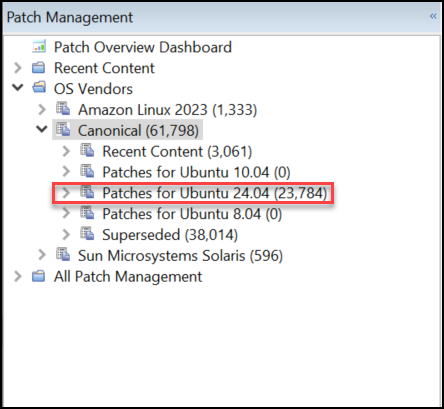
In the Patch Management domain, click OS Vendors from the navigation tree and click Canonical.
The navigation tree expands. Select the correct version of Patches for Ubuntu.
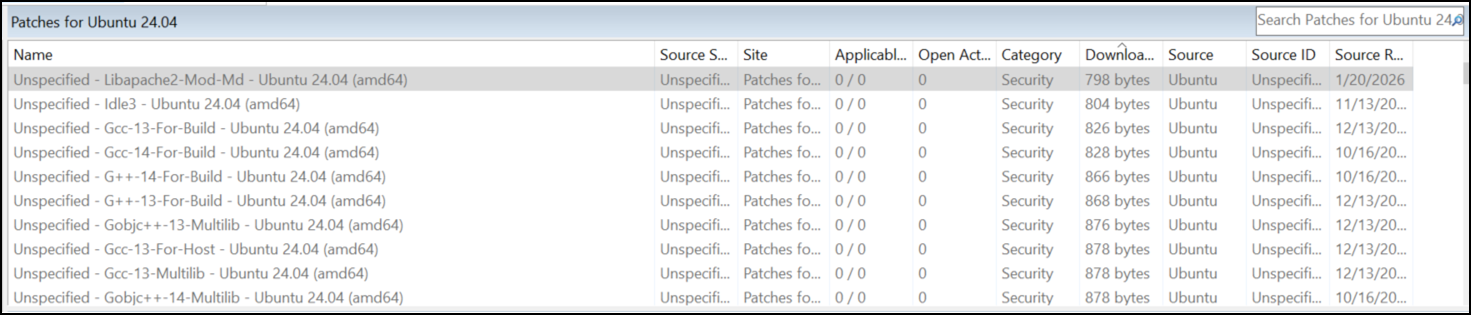
From the list panel on the right, double-click the Fixlet that you want to deploy.
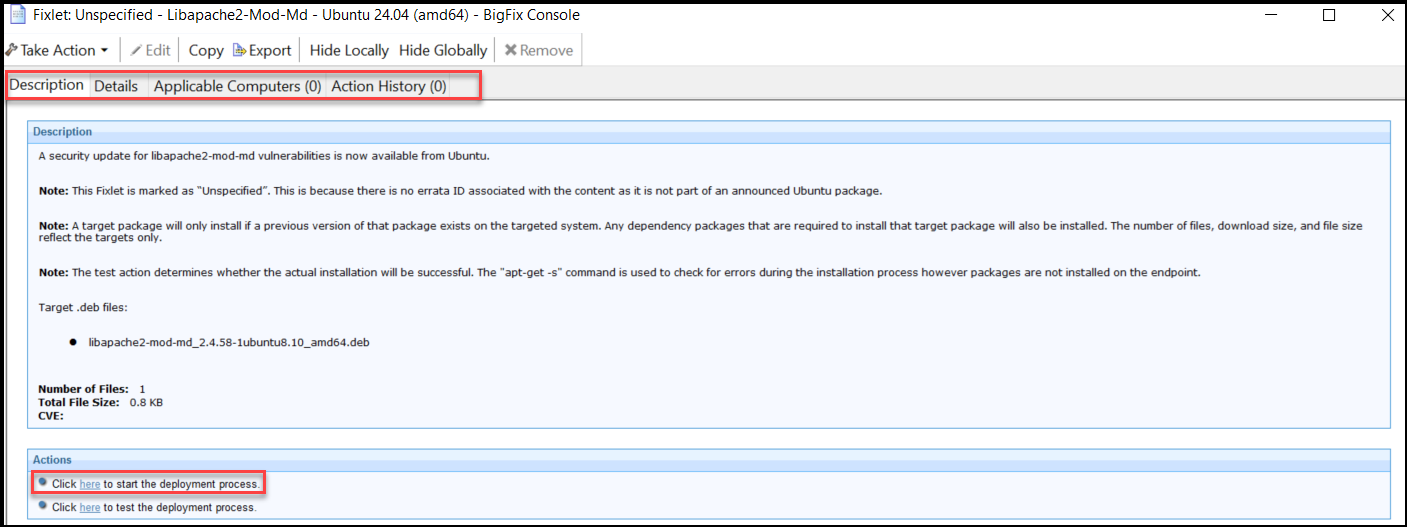
The Fixlet opens in the work area. Click the tabs at the top of the window to review details about the selected Fixlet.
Click the link in the Actions box to start the deployment. The Ubuntu website opens to display the package information and links to download files.
_BESClient_Ubuntu_AllowAPTDownloads=1. Each Ubuntu Pro endpoint
must also be registered with Ubuntu Pro services before patching. Registration
can be performed using the appropriate support Fixlet:- Ubuntu Pro 18.04:Enable Ubuntu Pro client on endpoints - Ubuntu Pro 18.04 (amd64)
- Ubuntu Pro 20.04: Enable Ubuntu Pro client on endpoints - Ubuntu Pro 20.04 (amd64)