
LLM/SLM Profiles
The LLM/SLM Profiles page is a central library for configuring and managing the specific AI models that your AI Agents can access. These profiles allow your AI agents to securely and efficiently interact with various model providers such as AWS Bedrock, Azure OpenAI, Google Vertex, and so on.
This interface allows you to define, manage, and organize specific instances of Large Language Models (LLM) and Small Language Models (SLM) by pairing valid credentials with specific model architectures (such as AWS Bedrock, Azure, or Google Vertex).
This centralized view ensures that you can efficiently track which models are available, which agents are utilizing them, and easily switch between different providers.
This interface allows users to efficiently view, search, add, edit, and delete profiles - ensuring that your agents can operate securely across different environments.
Profile Cards
Each Profile is represented by a tile (card), providing a quick overview and action controls. A typical profile card includes the following fields:
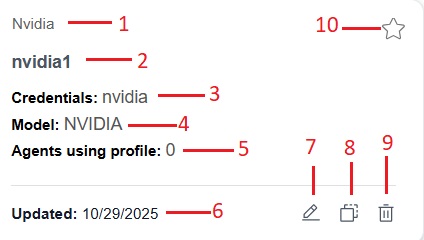
-
Profile Type: Displays the type of service provider (for example, Nvidia, AWS Bedrock, Azure, OpenAI, Google Vertex).
-
Profile Name: The specific name given to this configuration.
-
Credentials: The name of the specific authentication key (from the Credentials library) used to access this model.
-
Model: The specific technical model ID being used (for example., AWS_BEDROCK, VERTEX).
-
Agents using profile: The total number of AI agents currently using this profile.
-
Updated: The date of last modification.
-
Edit: Modify profile details.
- Duplicate: Creates a copy of the profile.
-
Delete: Remove the profile from the library.
- Preferred icon (star): Allows users to mark specific profiles as "preferred" or preselected for quick access.
Adding Profile
Adding a new profile enables you to onboard different Large Language Models (LLMs) or Small Language Models (SMLs) into your environment. This step establishes the connection between a model provider and your credentials, creating a reusable configuration for your agents.
To add a new profile:
-
Click the Add Profile button located next to the search bar.
The Create new profile dialog box will appear.
-
From the Select provider dropdown menu, select the type of profile you want to add (for example, Nvidia, AWS Bedrock, Azure OpenAI).
- In the Credential to connect with field, select an existing credential or click Add new credential. For details, see the Adding Credentials section of Credentials page.
-
Fill in all the required fields for the selected profile type. Required fields are marked with an asterisk (*).
- Click the Save button to save the new profile.
Result:The newly added profile will now appear as a card on the LLM/SLM profile page.
Preferred Profiles
You can mark an LLM/SLM profile as preferred by clicking the favorite icon (⭐) on the profile card.
When a profile is set as preferred:
- It will be preselected by default when you create a new agent.
- You can still change the selection if needed.