
FTP Session
In ZIE for Web Client, users can create an FTP Session to connect the Host machine and transfer files from Local to Host and vice versa. By default, FTP sessions will be disabled in ZIEWEB client. To see FTP sessions in ZIEWEB client “EnableFTPsession=true” parameter should be added in web.properties file. User can upload and download multiple files. Zip download is supported.Note: Users cannot download and upload folders but can download and upload multiple files.
Flow of events:
- Users can create an FTP session using the deployment wizard.
- Once the page is created successfully in the deployment wizard, access the page in the browser.
- Once the page is accessed, click on that FTP icon and start the session.
- Once the session is established, log in to FTP by using username and password.
- FTP Supports 3 protocols => FTP, FTPS, SFTP(SSH-FTP).
- FTPS use tls_keystore_path, tls_passphrase, wellknown_keystore_path,
wellknown_keystore_passphrase properties in prodConfig.properties
file for login.
- tls_keystore_path: By default, the value for this property is “default” which means it will take /ZIEWeb/CustomizedCAs.jks file for FTP-TLS login. If user wants to use different JKS, then the user must provide a complete path of the JKS.
- tls_passphrase: the password for the TLS keystore.
- wellknown_keystore_path: By default, the value for this property is “default” which means it will take / ZIEWeb/WellKnownTrustedCAs.jks file for FTP-TLS login. If user wants to use different JKS, then the user must provide a complete path of the JKS.
- wellknown_keystore_passphrase: the password for the Wellknown keystore.
- FTP-SSH support two types of authentication Password and Public Key
Authentication. For Password authentication user can give username and
password to login. For performing FTP-SSH Public Key Authentication provide
the following information:
- KeyStore Password
- Public Key Alias
- Keystore File
- User can either perform upload or download at a time. If transfer is in progress and user tries another transfer operation “Transfer in progress” message will appear.
Toolbar Icons:
In the FTP toolbar, users have Duplicate, Properties, ASCII, Binary, and Close icons.
Upload Section:
Users can upload files using this option.
Steps to upload the files:
- Click the Browse button.
- Browse and select the required files.
- File names will be displayed in the browse span.
- Click the Upload button.
- Users can see file transfer information in the transfer progress table.
- Users can also see the number of files added in files added.
- Click the Cancel button to remove all files from the browse span.
Remote Directory Section
Objects- Users will have Refresh, Home, Delete, and Download buttons in the Objects tab and a Host table to list files.
- In Addition, create folder and file icons were present for creating folder and file.
- Users have options for sorting the files and changing the view of the table to Sort by and View by.
- Users can see the host table in a more readable format by clicking the Maximize icon.
- Users can rename and delete a single file by right-clicking it.
Sharing
In this tab, the user will see limitations for the file transfer for both uploads and downloads.
The user can choose the maximum file size up to 2GB (combined size of selected files) and at a time maximum 3 files can be transferred(upload/download). Zip and Parallel file transfer modes are available in the download section. The default is Zip. Use the resetbutton to reset values to default.Transfer Progress Table:
This table gives information about the transfer. By default, the table is minimized, use maximize icon to display the table. The following are the fields in the table:- TaskID
- Source
- Destination
- Status
- Percentage
Zip file download progress is indeterminant.
FTP/VT Backend:
FTP Backend service must be started externally in the server side. User can use start and stop scripts provided for FTP Backend service by changing the appropriate path in those files.
VT Backend service can be started using Admin Console “Service” tab. User can perform start and stop operation here.Note: If user wants to restart the NCServiceManager, VT service should be stopped first before restarting the NCServiceManager.To configure the FTP/VT backend user must specify some configuration details in the prodConfig.properties.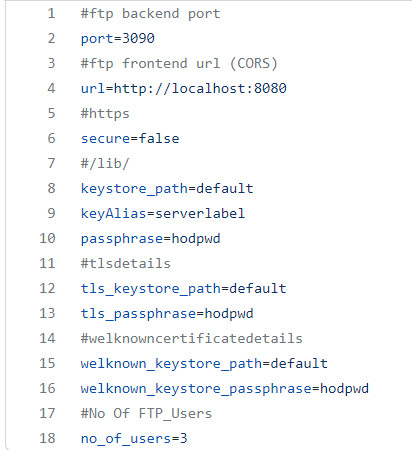
- port: Port on which the FTP/VT backend (Node js) is running.
- url: User can add multiple app server URLs separated by comma(,) and
this is used for CORS mechanism. Only specified URLs are authenticated to
access FTP backend.
Syntax: http://AppserverMachineIp:AppserverPort
Example: http://127.0.0.1:8080
- secure: Boolean variable is used to enable the https in backend server.
- keystore_path: By default, the value for this property is “default” which means it will take /bin/ServerKeyStore.jks file for https. If user wants to use different JKS, he/she must give complete path of the JKS.
- keyAlias: Alias to the key that needs to be used for https.
- tls_keystore_path: By default, the value for this property is “default” which means it will take /ZIEWeb/CustomizedCAs.jks file for FTP-TLS login. If user wants to use different JKS, he/she must give complete path of the JKS.
- tls_passphrase: the password for the TLS keystore.
- wellknown_keystore_path: By default, the value for this property is “default” which means it will take / ZIEWeb /WellKnownTrustedCAs.jks file for FTP-TLS login. If user wants to use different JKS, he/she must give complete path of the JKS.
- wellknown_keystore_passphrase: the password for the Wellknown keystore.
- no_of_users: Number of concurrent users login that backend can support. (If user try to login but concurrent login capacity was already occupied -> then ‘Number of users exceeds’ error will be thrown) .
-
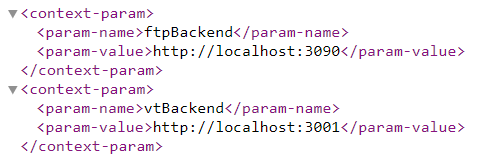
Make sure that user should add FTP and VT backend URL in ftpBackend and vtBackend params in web.xml of ZIEWEB client respectively.
Syntax: http://FtpBackendIP:FtpBackendPort and http://VtBackendIP:VtBackendPortExample: http://127.0.0.1:3090 and http://127.0.0.1:3001
- CN(Common Name) of the certificate for must match Destination address for FTP-TLS login.
- Supported algorithms for SFTP and VT-SHH are =>(Dummy Link).
- JKS holding your private key for public key authentication of SSH protocol will be transferred from client machine to server machine.
- Minimum requirement for FTP Backend Service=> 10 users -> 8GB RAM , 500 GB memory.
FTP Caching of the Delta Changes
Starting of FTP as a Java Admin Console service:
To start FTP and VT services in Admin Console, enable AUTO-START for FTP and VT service in HOD_Distribution/private/NSMprop.
- Make sure FTP and VT service ports are available. Once the HOD service is started, users can see the FTP and VT service status in AdminconsoleàServices.
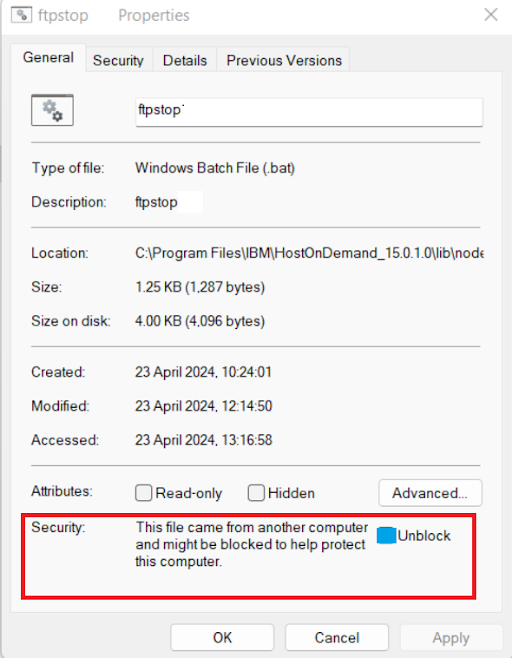
- After pasting the files, ensure that the ftpstop.bat and vtstop.bat file
properties are enabled using the settings below.
Enabling FTP and VT Backend Server Configuration from Admin Console:
- FTP - BE Server Configuration:FTP Backend will be running on the HOD server. For the initial release, make the required changes to the server configuration properties and save the configuration under <distribution Directory>/lib/node/ftp_build/config based on the environment.

To configure FTP Backend Server Properties:
- Login to the Admin Console.
- Click the Services tab in the Admin Console.
- Click the FTP Backend Server Configure button, and a popup appears with all the FTP server configuration properties.
- Update the required configuration properties and Click Save.
- Restart the server to reflect the modified configuration.Note: requstTimeout: Timeout for the request sent.
VT Backend will be running on the HOD server. For the initial release, make the required changes to the server configuration properties and save the configuration under configuration under <distribution Directory>/lib/node/vt_build/config based on the environment.
To configure VT Backend Server Properties:
- Login to the Admin Console.
- Click the Services tab in the Admin Console.
- Click the VT Backend Server Configure button, and a popup appears with all the VT server configuration properties.
- Update the required configuration properties and Click Save.
- Restart the server to reflect the modified configuration.