Removing Language Packs using GUI Mode
This section describes the procedure for removing the language packs using GUI mode.
Execute the following steps to remove the language packs:
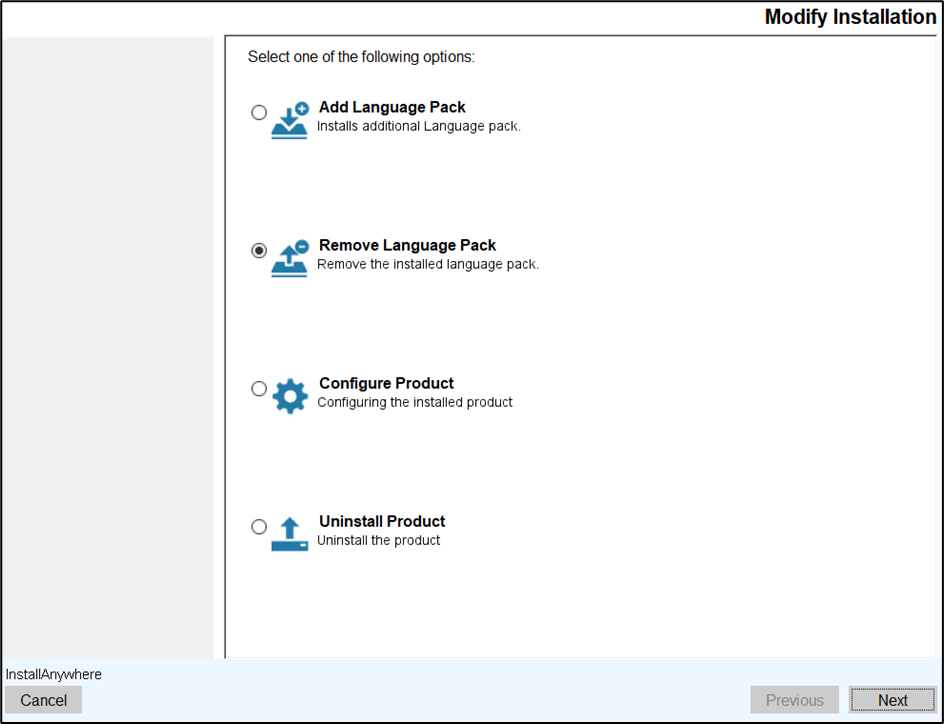
- Navigate to the Modify Installation screen.
- Select the Remove Language Pack option and click Next.
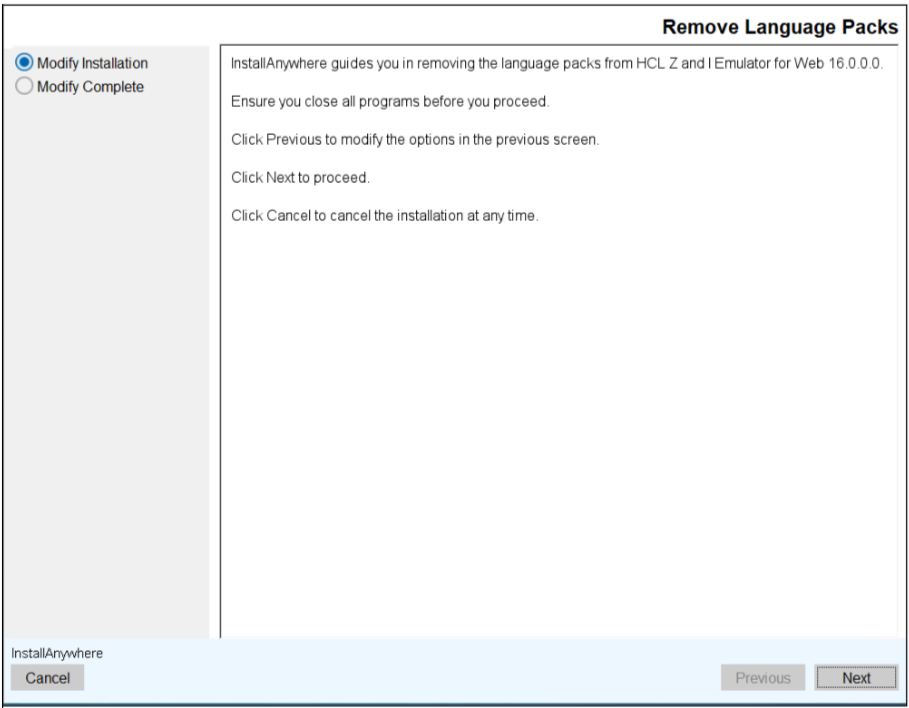
- The Remove Language Packs screen appears.
- Read all the instructions carefully and click Next.
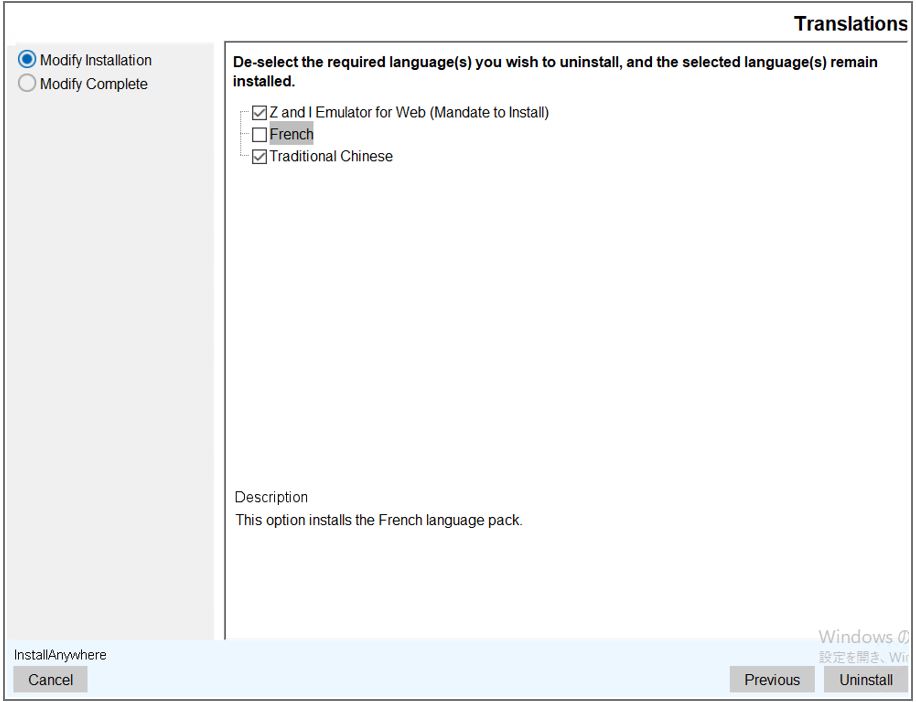
- The Translations screen appears.
- De-select the required language(s) you wish to uninstall and click the
Uninstall button.
 Note: The Z and I Emulator for Web option is mandatory and cannot be removed. If you clear the Z and I Emulator for Web language pack checkbox an error message will appear as shown below.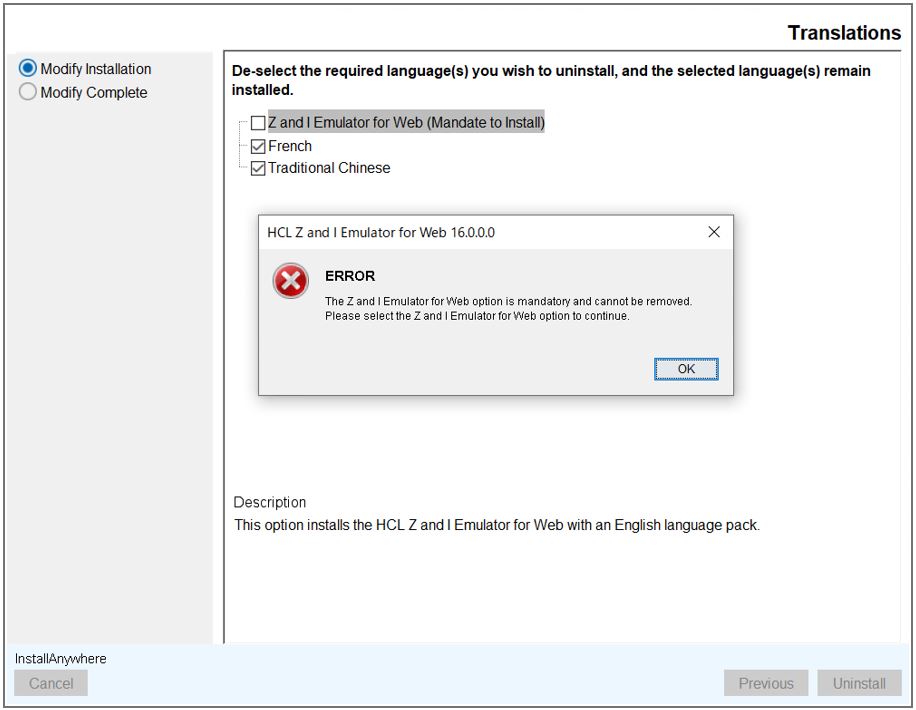
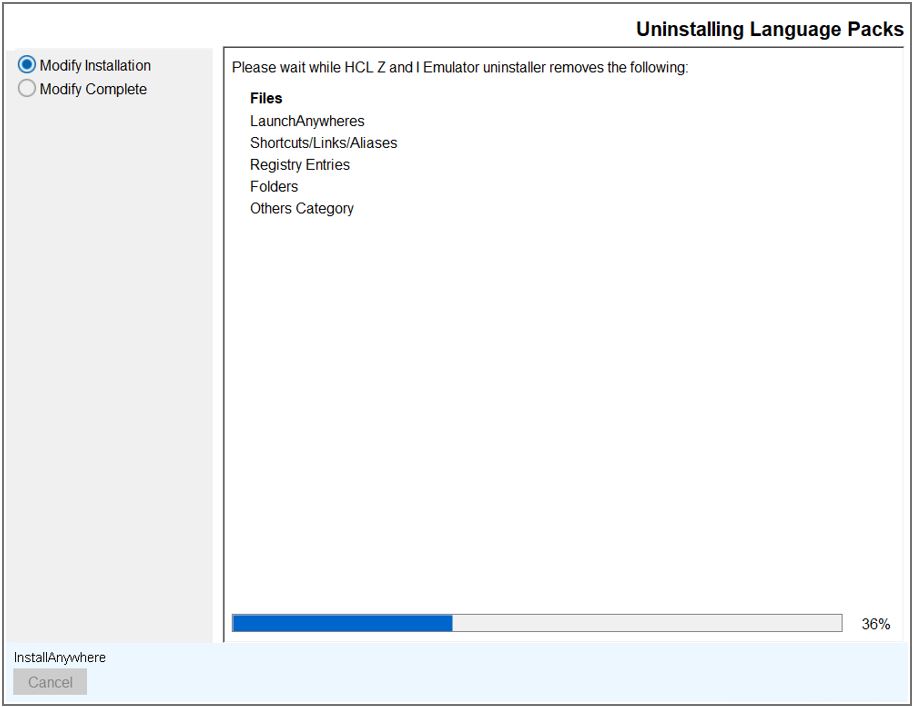
- The Uninstalling Language Packs screen appears which displays the
uninstallation progress.
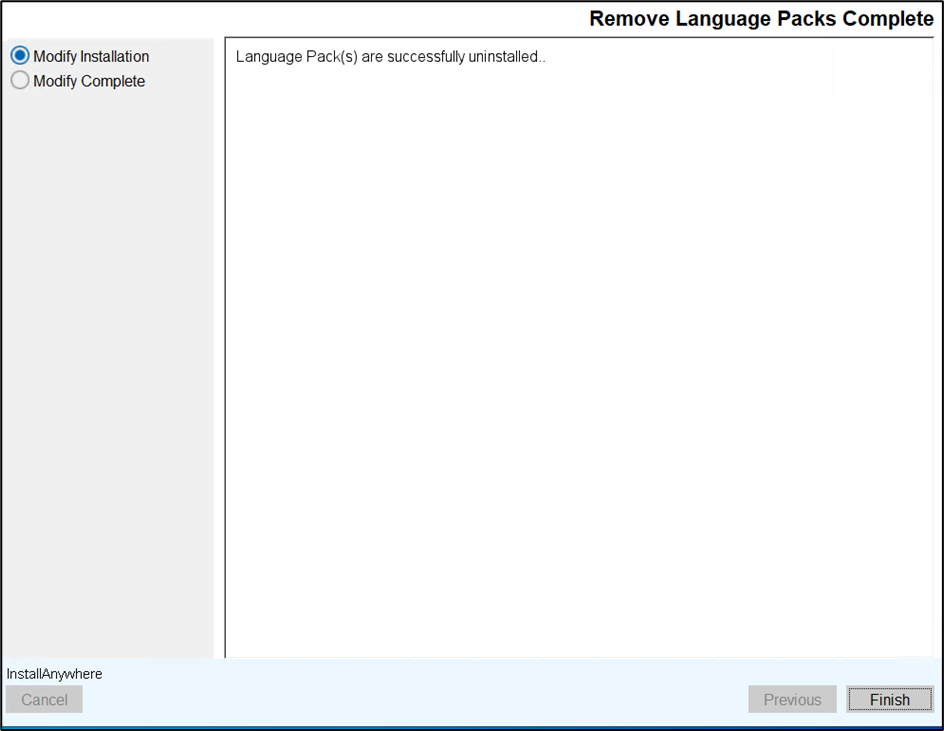
- After successfully removing the language packs, the Remove Language Packs Complete screen appears.
- Click Finish to close the installer.