Adding Language Packs using GUI Mode
This section describes the procedure for adding the language packs using GUI mode.
Execute the following steps to add language packs:
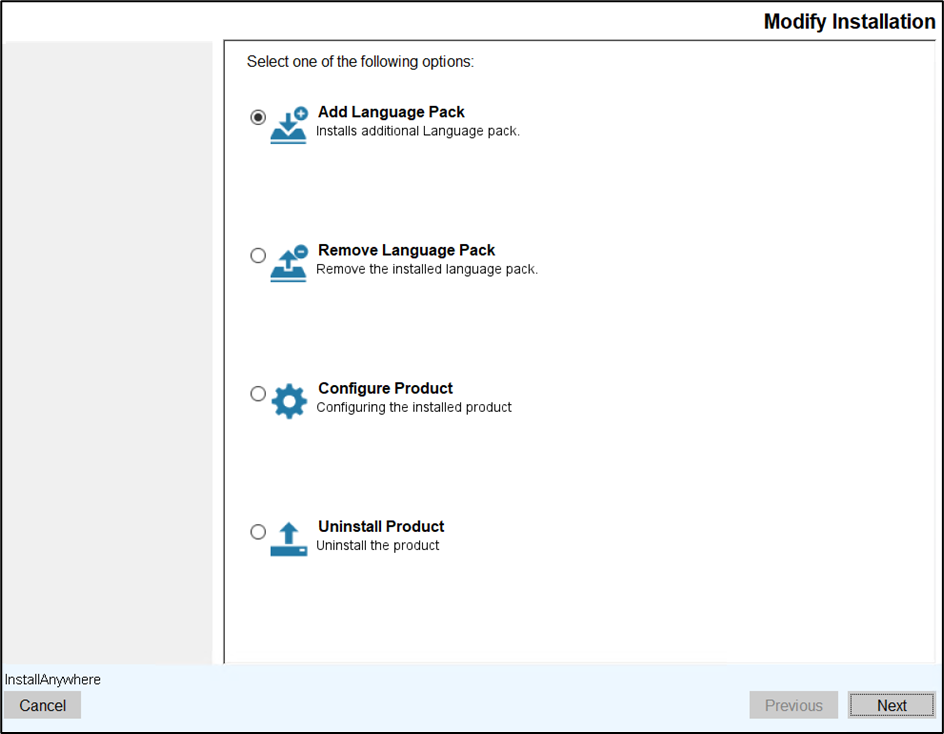
- Navigate to the Modify Installation screen.
- Select Add Language Pack option and click Next.
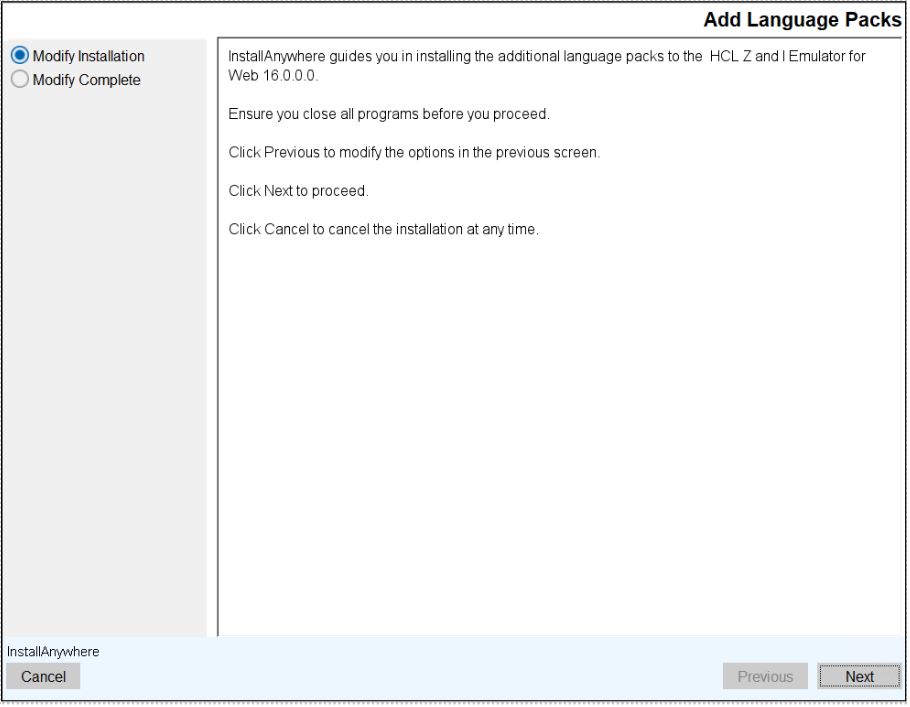
- The Add Language Packs screen appears.
- Read all the instructions carefully and click Next.
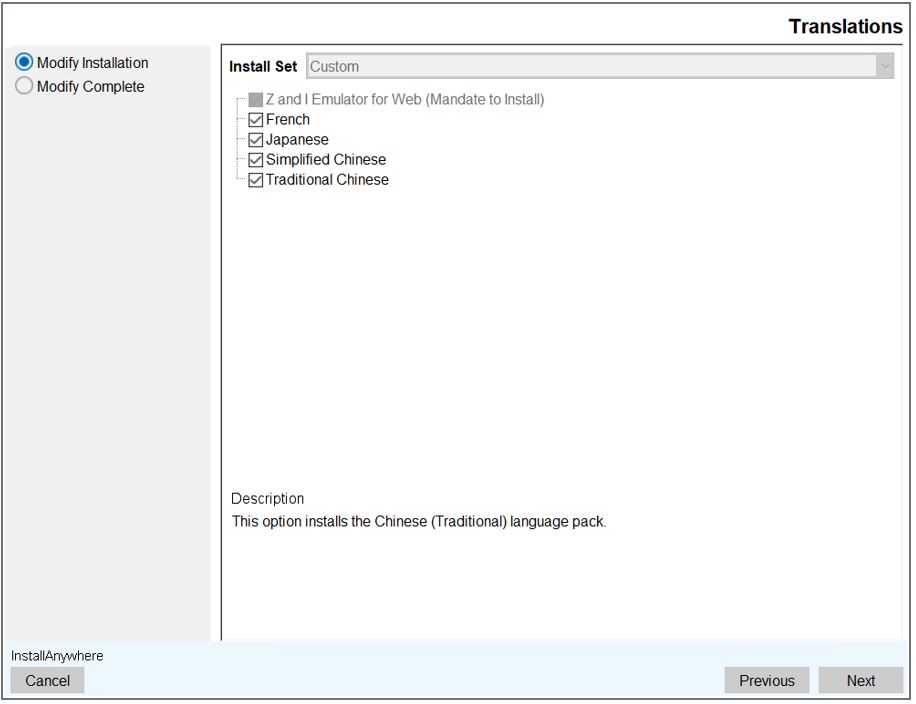
- The Translations screen appears.
- As shown in the image below, the already installed language pack(s) will be disabled.
By default, the remaining languages will be enabled. De-select the languages which are
not required.
- The Pre-Installation Summary screen appears.
- Review the installation summary carefully and click Install.
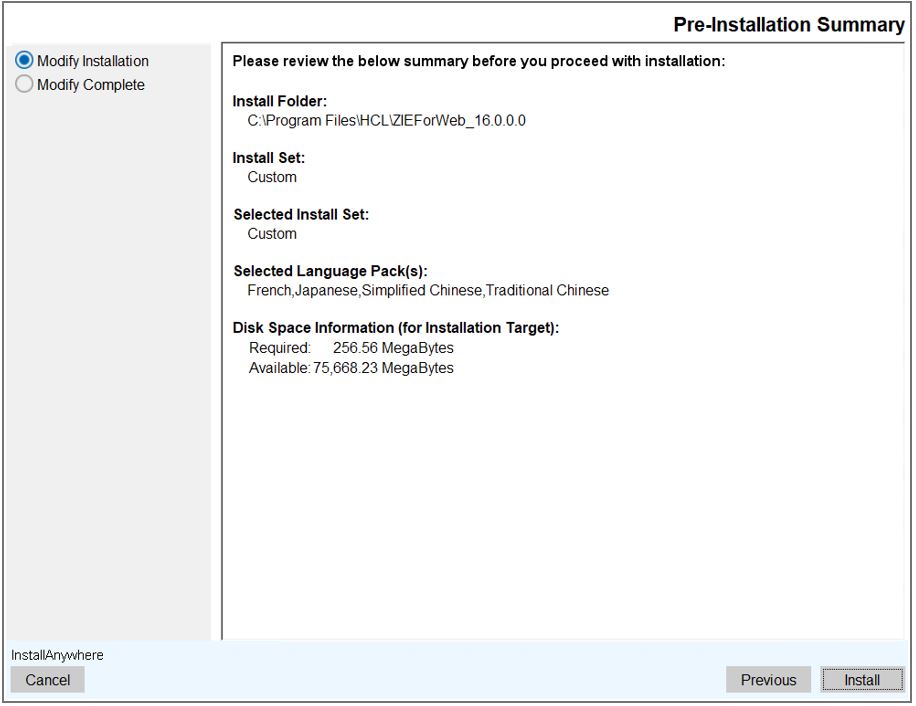 Note: To modify the options in the previous screen, click the Previous button.
 - The Installing Language Packs screen appears, which displays the installation
progress.
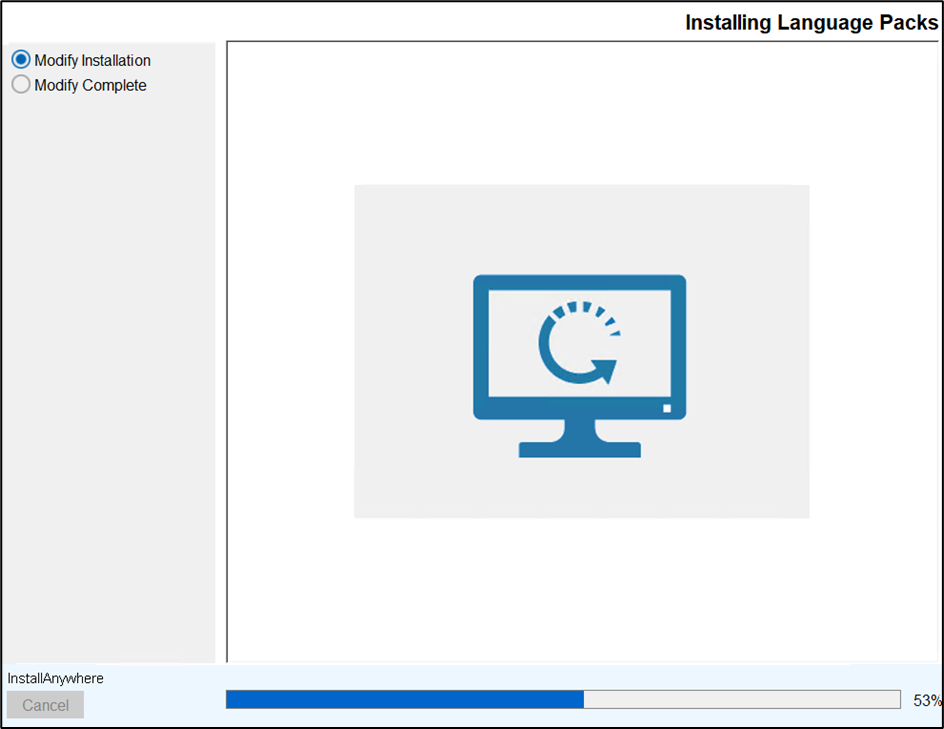
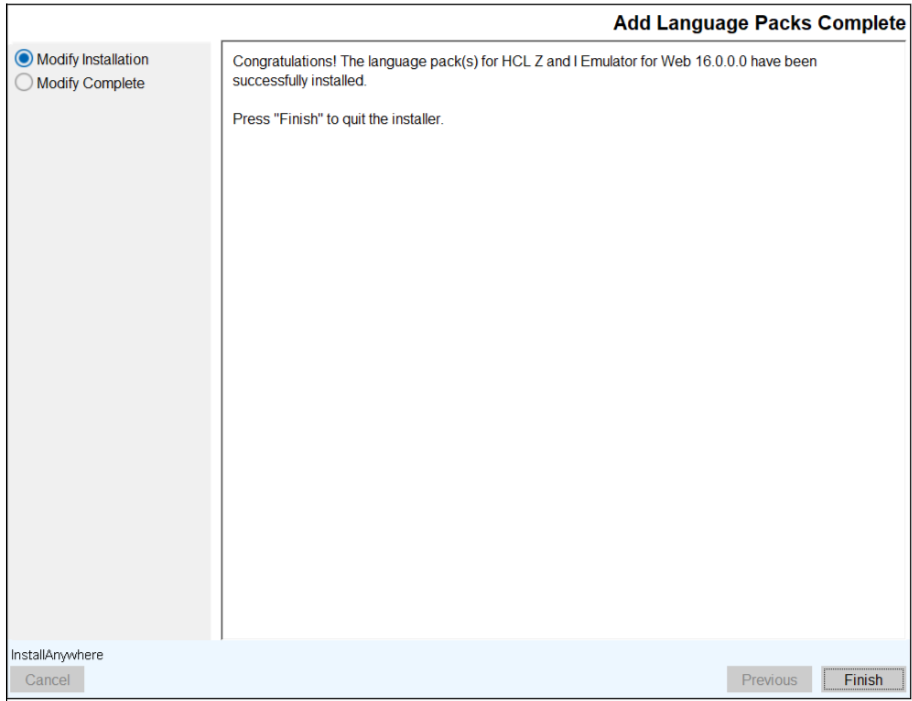
- After successful installation, the Add Language Packs Complete screen appears.
- Click Finish to close the installer.