Modifying Web Server Configuration using GUI Mode
This section describes the procedure for modifying the web server configuration using GUI mode.
Execute the following steps to modify the web server configuration:
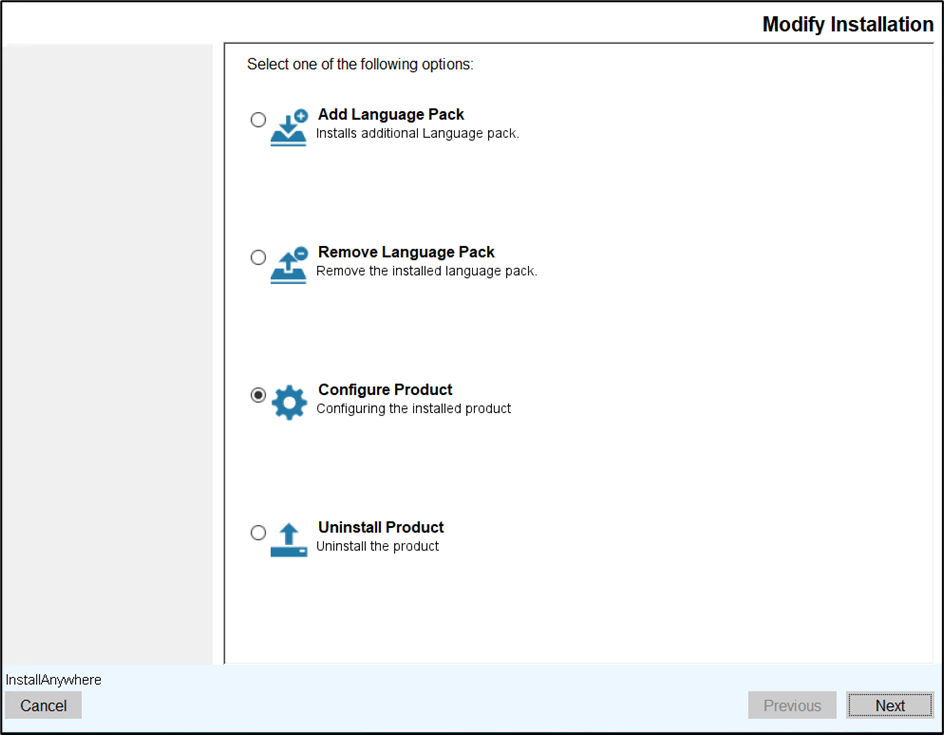
- Navigate to the Modify Installation screen.
- Select the Configure Product option and click Next.
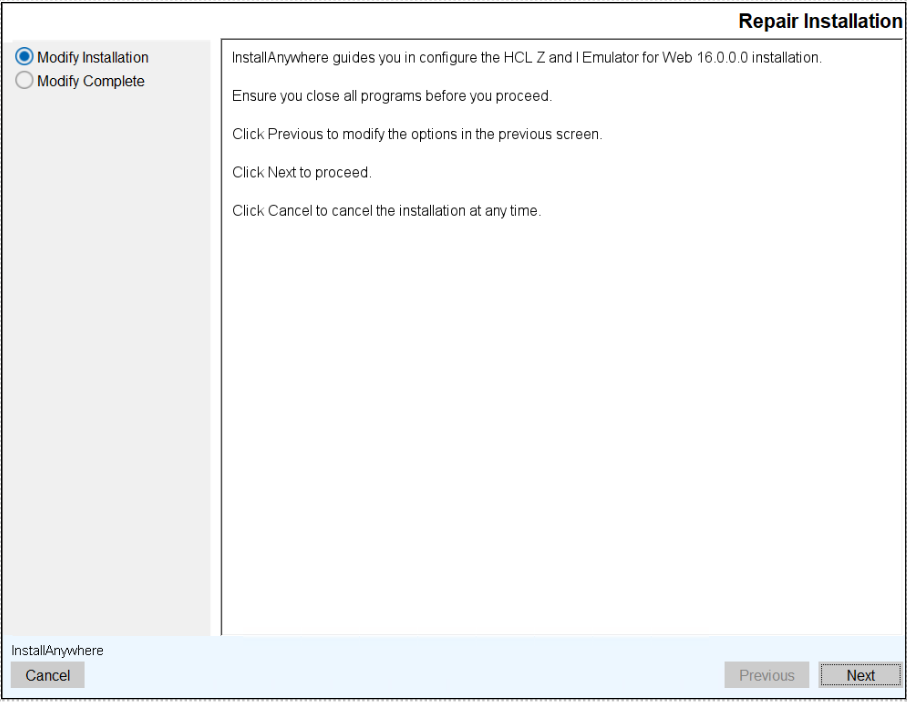
- The Configure Installation screen appears.
- Read the instructions carefully and click Next.
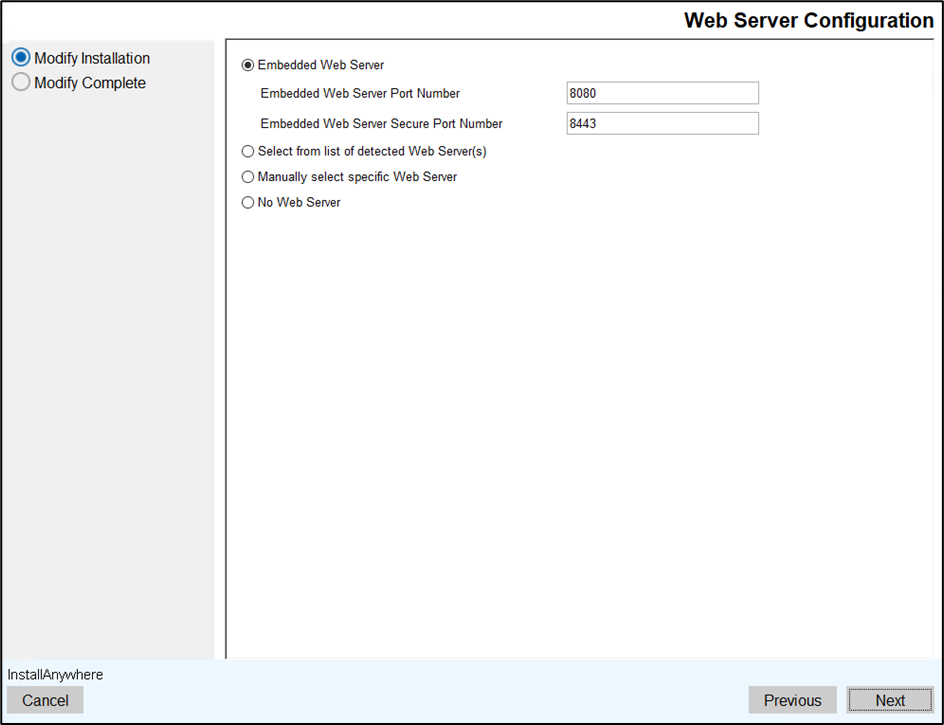
- The Web Server Configuration screen appears.
- Modify the existing Web Server information and click Next.
- The Z and I Emulator for Web Client Configuration screen appears.
- Select the Z and I Emulator for Web Clinet configuration check box, if you want
to install Z and I Emulator for Web Client during ZIEWEB installation.
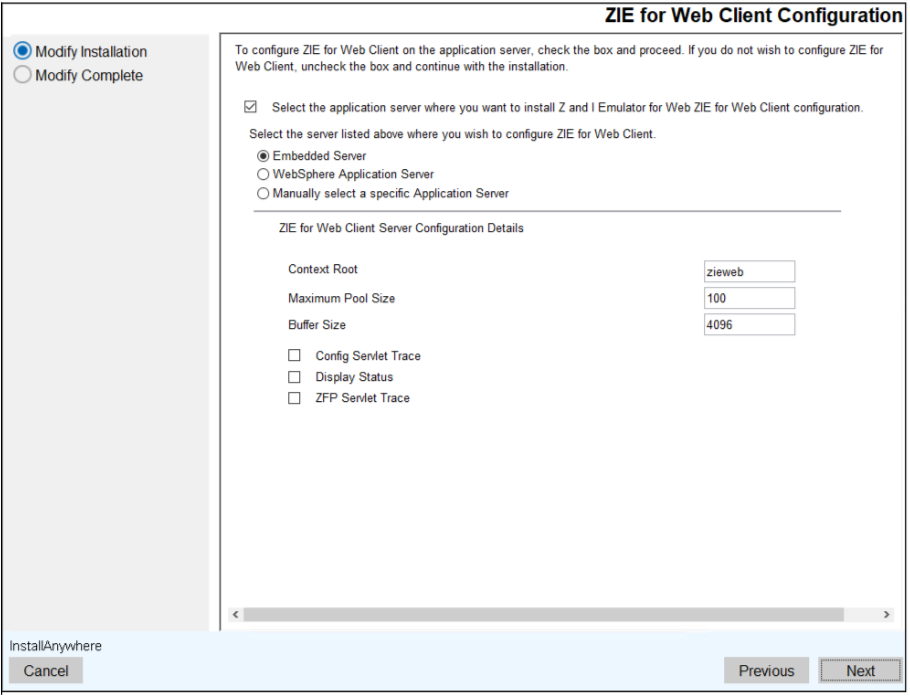
- Select the reuqired server and enter the required details.
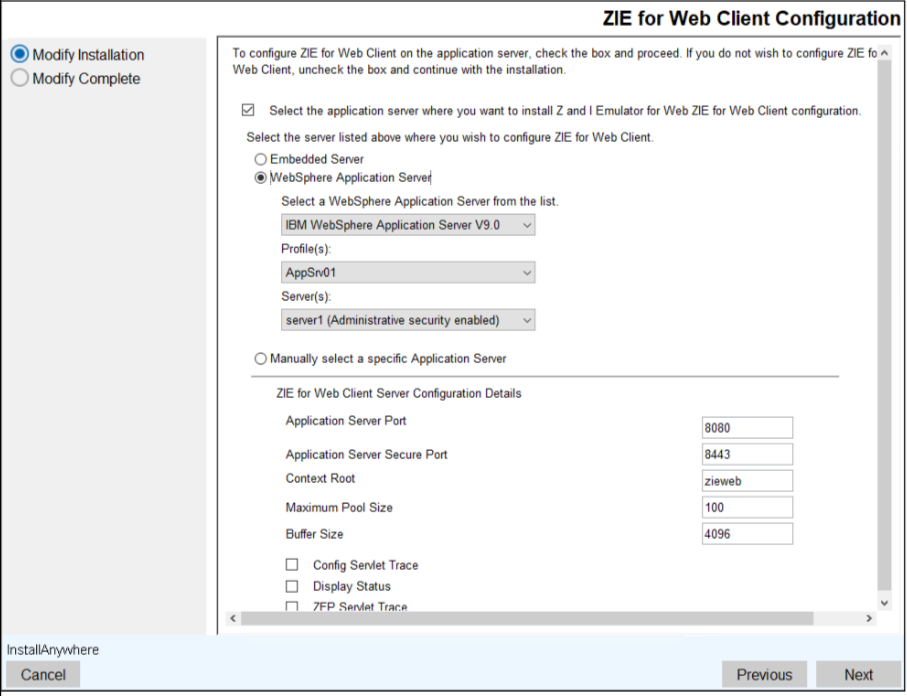
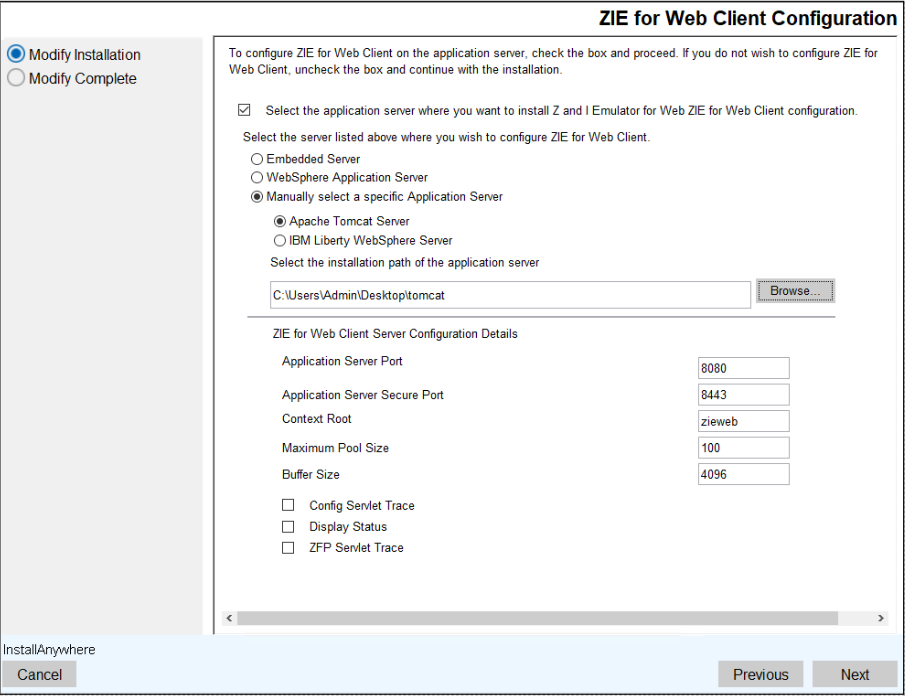
- To configure the server manually, select the Manually select a specific Application
server option.
- Select the License Manager Configuration check box, if you want to install License
Manager during ZIEWEB installation.
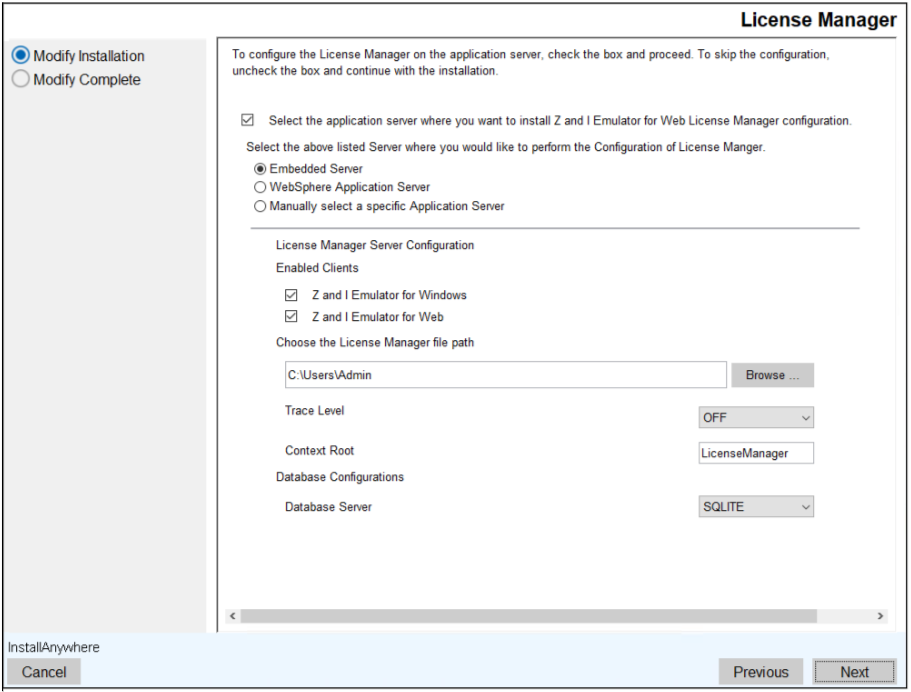
- Select the reuqired server and enter the required details.
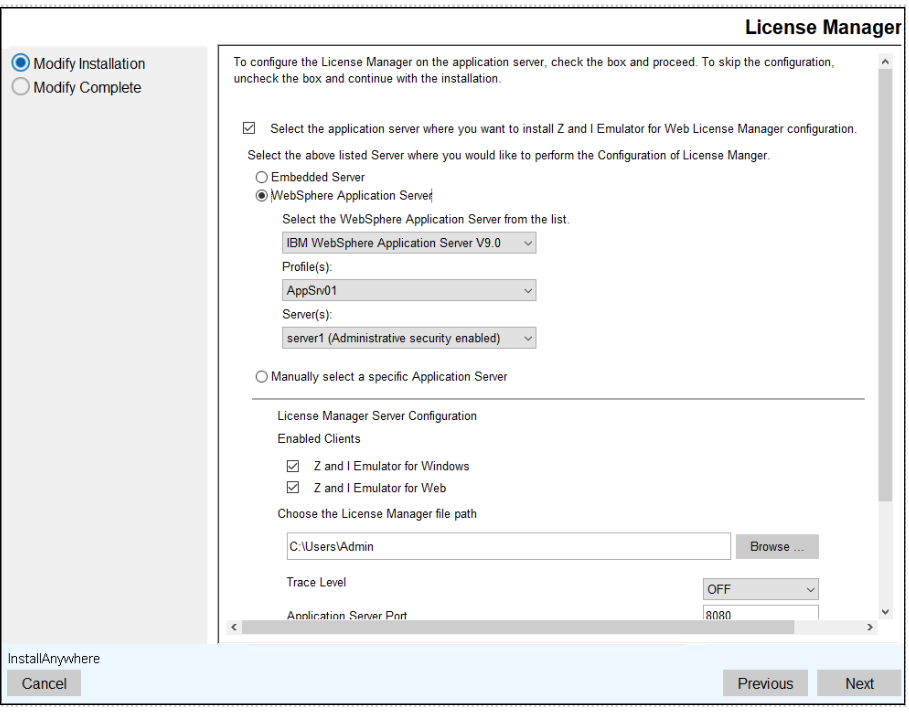
- To configure the server manually, select the Manually select a specific Application
server option.
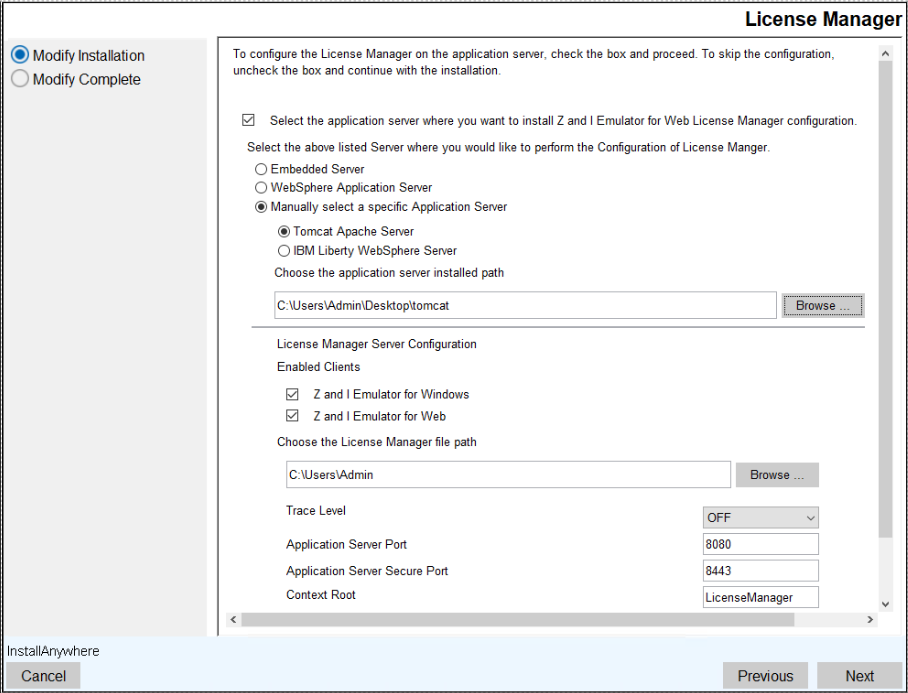
- Click Next to continue.
- The Pre-Installation Summary screen appears.
- Review the installation summary carefully and click Install.
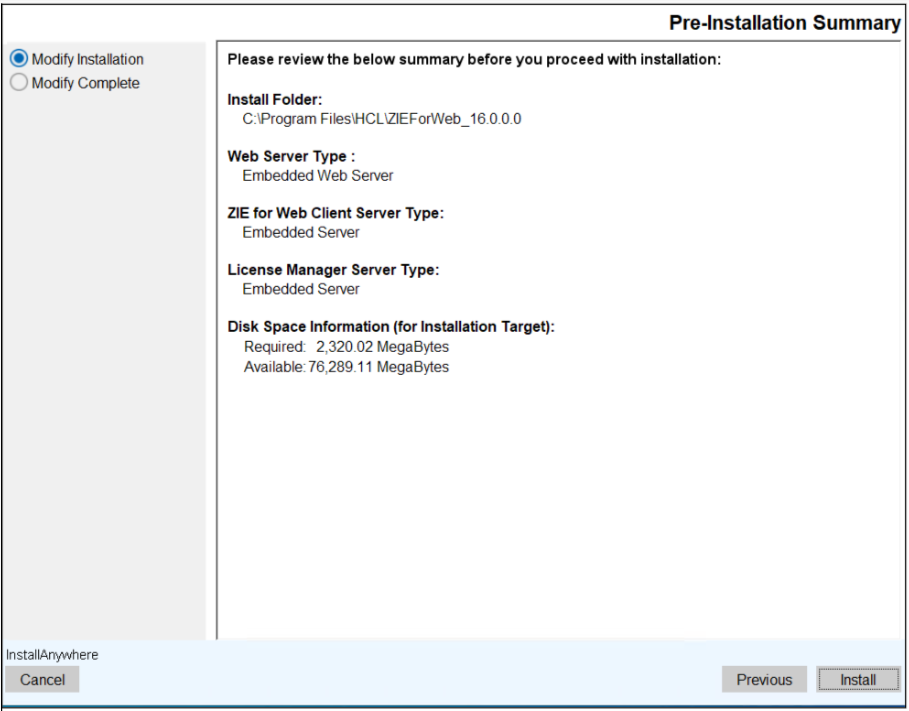 Note: To modify the options in the previous screen, click the Previous button.
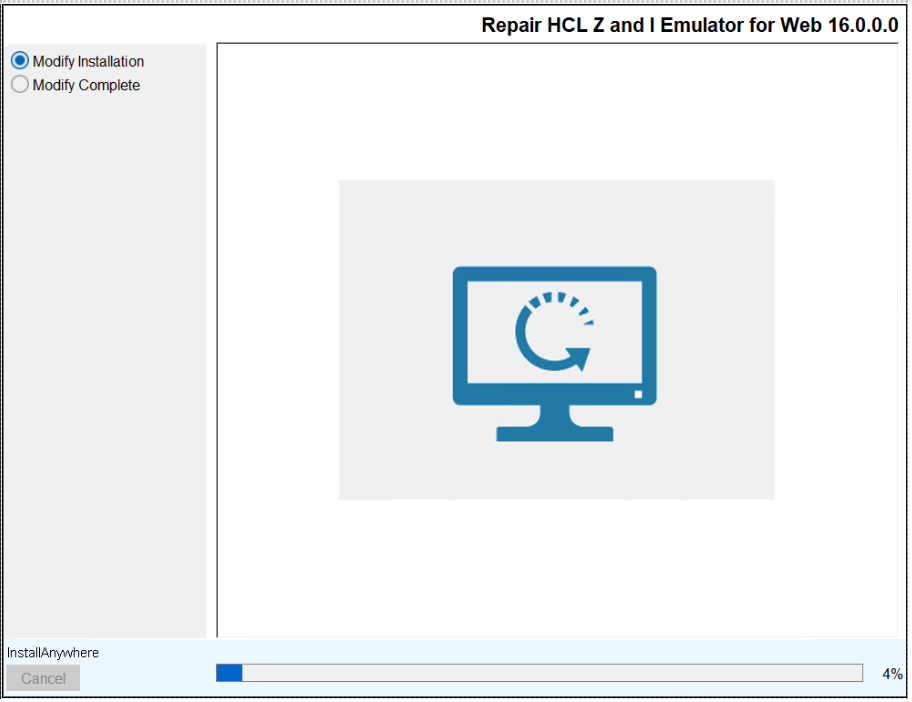
 - The Repair HCL Z and I Emulator for Web 16.0.0 screen appears, which displays
the installation progress.
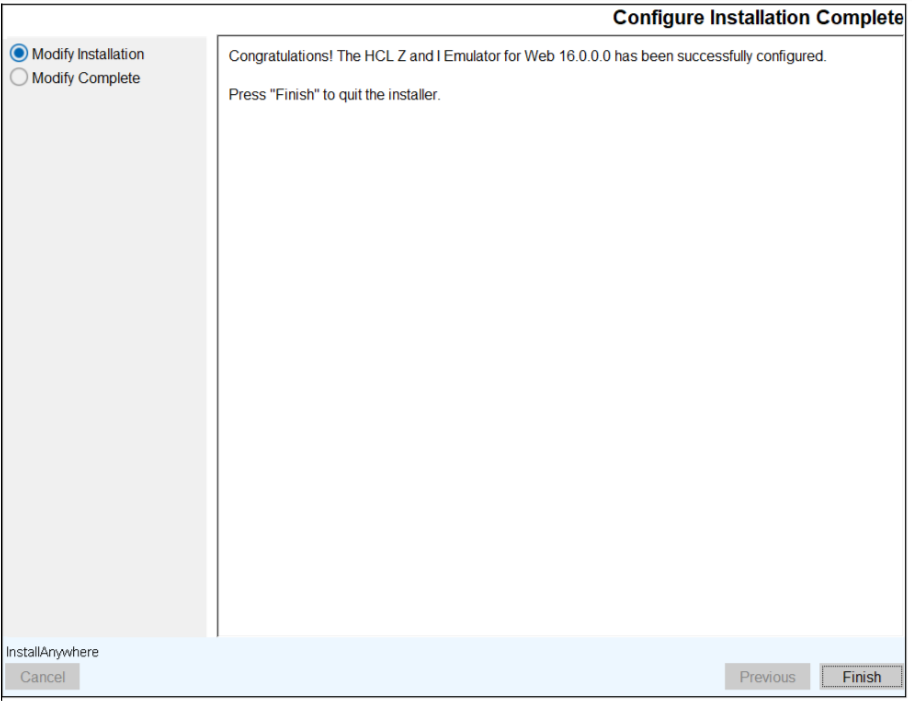
- After successful configuration, the Configure Installation Complete screen appears.
- Click Finish.