You are here: Download Volt MX Foundry Installer
Pre-Installation Tasks
Download Volt Foundry Installer
You can download Volt Foundry from My HCLSoftware (MHS).
Download Volt Foundry from My HCLSoftware (MHS)
Download Volt Foundry from My HCLSoftware (MHS) and extract the file. To download the Volt Foundry installer from MHS, follow these steps:
- Log in to MHS. MHS uses the same HCLSoftware ID and single-sign on (SSO) system used for other portals such as the HCLSoftware Customer Support. See here for instructions on obtaining a user name and password if needed.
- Once logged in, navigate to HCL Volt MX and select Volt Foundry.
Steps before installing (or) upgrading Volt MX Foundry with the existing database
Perform the following activities before installing (or) upgrading Volt MX Foundry with the existing database:
- Take database backup
- Make sure you have previously installed directory
- Take a backup of applications deployed at the server level. (Post installation, take backup of the changes done to the binaries).
- Post installation (or) upgrade process, replace old authService.key, workspaceService.key, and ACCOUNTS_ENCRYPTION_KEY (applicable only for identity and workspace components).
Add a User in Local Group Policy (Log on as a Service)
Before installing Volt MX Foundry in a new Windows node, ensure that you have privileges to log on as a service. The log on as a service privileges are required to start a service by a user.
When a user name does not have privileges to log on as a service and is tries to install Volt MX Foundry in a new Windows box, the system gives the following error:
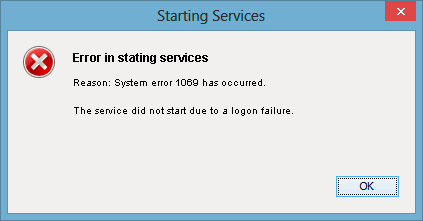
To grant log on as service to a user, follow these steps:
- Click Start, and then click Run (Win+R).
- In the Run box, type gpedit.msc, and then click OK. The Local Group Policy Editor window appears.
-
In the left pane, under Local Computer Policy, expand Computer Configuration > Windows Settings > Security Settings > Local Policies > User Rights Assignment.
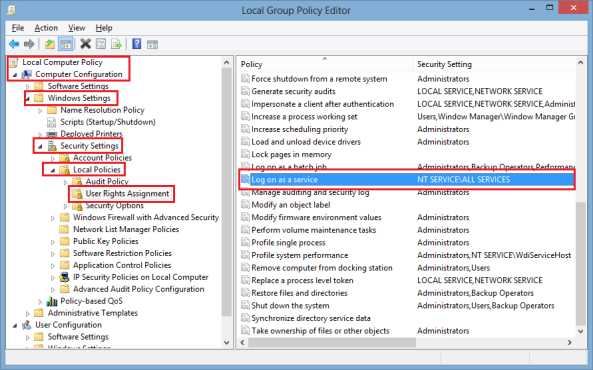
-
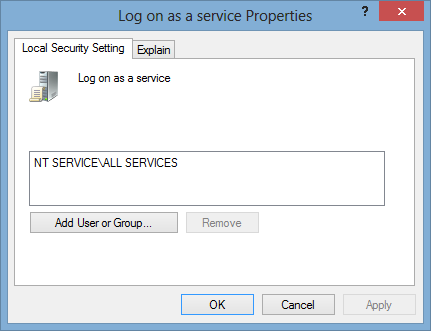
In the right pane, double-click Log on as service. The Log on as a service Properties window appears.
-
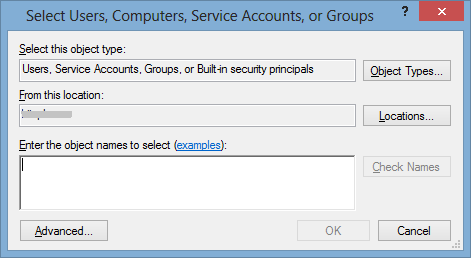
In the Local security setting tab, double-click Add User or Group to display the Select Users, Computers, Service Accounts, or Groups window.
-
In the Enter the object names to select text box, enter the user name, click OK. The system adds the user name in the Local security setting tab.
Install Memcached Server
Memcached is a high-performance, distributed memory object caching system, generic in nature, but intended for use in speeding up dynamic web applications by alleviating database load.
To install Memcached Server, follow these steps:
- Download the memcache server. For more information, refer to https://memcached.org/.
- Extract the zip file.
- From the command prompt, navigate to
memcacheddirectory. -
Run the following command:
memcached.exe -d installFor example,
c:/memcached/memcached.exe -d install -
Start the server from the Services or by running one of the following commands:
c:/memcached/memcached.exe -d start-
net start memcached ServerNow your memcached server is installed and is listening to port 11211.
-
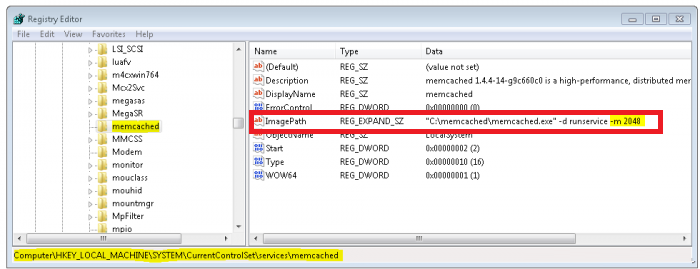
By default, the server is set to 64MB memory limit, which is too small. To add the extra memory allocation, edit the registry to add the information. To increase the default memory size, in the Windows Run windows, type Regedit to display the Registry Editor window:
-
In the Registry Editor window, navigate to the following key:
HKEY_LOCAL_MACHINE/SYSTEM/CurrentControlSet/Services/memcached Server. -
In the key, change the ImagePath entry with the following:
C:/memcached/memcached.exe -d runservice -m 2048This way you will use 512 MB memory limit for your server.
If you now go back to the service section you should now see memcached installed, shown below:
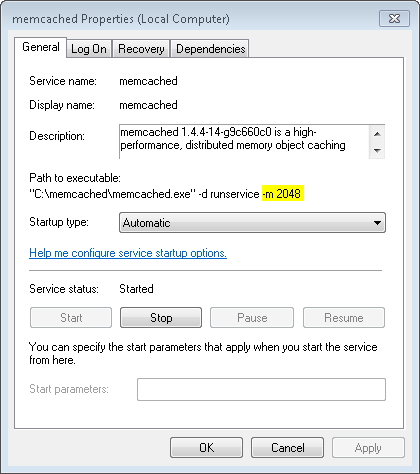
If you are not seeing the above result, restart your computer. You now have memcached running.
Configure Load Balancers for Sending Host Information in Multinode
When user is installing Volt MX Foundry on multinode environment, the user should check whether the parameter: proxypreserveHost is set to On in the Loadbalancer configuration file to send host in the headers.
If the proxypreserveHost is not configured, the loadbalancer will not send host in the headers. Users cannot launch Volt MX Foundry Console.
The above configuration is based on the loadbalancer.
For example:
- For Apache: preserveHost On
- For HAProxy: preserve host flag is not required.
Configure Hibernate Dialect in WebLogic (only for WebLogic)
For the Engagement Services to work with Oracle DB, set the following parameter in the setDomainEnv.cmd and run the setDomainEnv.cmd before starting the WebLogic server.
-Dhibernate.dialect=org.hibernate.dialect.Oracle10gDialect
Download and Install the Unrestricted JCE Policy Files
In accordance with the United States of America export restrictions, Java that is bundled with the server has limited encryption key sizes that can be used in the server operation. In order to successfully convert signed client certificates or sign server Certificate Signing Request for use in the server, you must download the following bundled encryption policy .jar files and replace them with the unrestricted files published by the Java vendor.
local_policy.jarUS_export_policy.jar
To Configure Unrestricted JCE Policy Files for Tomcat, JBoss, or WebLogic, follow these steps:
-
Go to the Oracle Java SE download page http://www.oracle.com/technetwork/java/javase/downloads/index.html.
-
Scroll down to Additional Resources section. You will find Java Cryptography Extension (JCE) Unlimited Strength Jurisdiction Policy File.
-
Download the JCE version that matches your installed JVM, for example, UnlimitedJCEPolicyJDK<Version>.zip
-
Extract the downloaded zip file. The UnlimitedJCEPolicyJDK<Version>.zip file contains the following files:
local_policy.jarUS_export_policy.jarREADME.txt
-
Copy the .jar files (
local_policy.jarandUS_export_policy.jar) to <JAVA_HOME>\jre\lib\securityNote: These jars will be already there so you have to overwrite them. Back up the existing jars before you overwrite them with new jars.
-
Restart your application server.
After the encryption policy files are installed, you should be able to successfully convert signed client certificates for use in the server.
Steps before installing (or) upgrading Quantum Foundry with the existing database
Perform the following activities before installing (or) upgrading Quantum Foundry with the existing database:
- Take database backup
- Make sure you have previously installed directory
- Take a backup of applications deployed at the server level. (Post installation, take backup of the changes done to the binaries).
- After the installation or upgrade process, replace the old
authService.key, workspaceService.key, andACCOUNTS_ENCRYPTION_KEYkeys (applicable only for the identity and workspace components).
For Database and App Server related pre-installation tasks, refer to the following sections:
MCP Server prerequisites (optional component)
Complete these steps only if you plan to enable the MCP Server. Skip if MCP will not be installed.
- Application server — Select the bundled Tomcat or bundled JBoss option during installation. MCP is not supported with WebSphere, WebLogic, or externally managed Tomcat/JBoss.
- HTTPS — Configure Foundry to use HTTPS. The MCP Server refuses to bootstrap against a plaintext HTTP Foundry base URL.
- Python 3.12 or 3.13 — Install CPython in the 3.12.x – 3.13.x range on the target machine.
- Linux: install via the OS package manager (for example,
python3.12) or from python.org; ensurepython3.12(orpython3.13) is onPATH. - Windows: install from python.org and select Add python.exe to PATH in the installer.
- Linux: install via the OS package manager (for example,
- pip on the same interpreter — Verify pip is bound to the same interpreter:
Both commands must succeed and report the same 3.12.x or 3.13.x version. On Linux you may need to install
python --version python -m pip --versionpython3-pip(orpython3.12-pip) via the OS package manager. - Port 9093 free — Ensure TCP port 9093 (or your chosen
MCP_PORT) is not in use and is opened on the host firewall for the clients that will connect. - (Optional) Redis — If you plan to use Redis for MCP state, install and start Redis, and record its URL in the form
redis://:password@host:6379/0.
Scope reminder:
- MCP is supported only with the bundled Tomcat and bundled JBoss application servers. It is not available with WebSphere or WebLogic, and is not supported on external / pre-existing Tomcat or JBoss installs.
- The MCP Server requires HTTPS on the Foundry base URL.
- The target machine must have Python 3.12 – 3.13 with pip on the same interpreter (
python -m pip --versionmust succeed and report the same version). - MCP is never auto-selected. It must be explicitly enabled.