Volt Foundry MCP server for AI coding clients
» Foundry MCP Server for AI Coding Clients
The Foundry MCP server connects an AI coding client to Volt Foundry. After the server is connected, you can ask the client to create and manage Foundry applications and services through the Model Context Protocol (MCP).
Foundry MCP server capabilities
The Foundry MCP server provides tools for the following Foundry workflows:
Creating applications
- Create a Foundry application: Create the application in the selected workspace for configuring its services and workflows.
- Publish an application: Validate and publish the configured application to the selected environment account after its services and settings are ready.
Managing services
- Configure identity services: Set up an identity service based on the type of the users who are allowed to access your application.
- Configure object services: Create application models for business objects, storage objects, and service-driven objects, including the data and operations exposed for those objects.
- Configure integration services: Define backend services and operations that allow the application to communicate with external systems.
- Configure orchestration services: Coordinate multiple services and expose them as a single service.
- Configure rule services: Create or update rules that evaluate application conditions and determine the appropriate action.
- Configure workflow services: Build and update workflows that organize application steps, service tasks, events, and object-related operations.
- Configure push channels: Configure channels for delivering application events or push notifications to subscribed consumers.
Connect the Foundry MCP server
Add the following remote MCP server to your client:
https://mcp-foundry.hclvoltmx.com/mcp
The server uses the HTTP transport. If the client supports OAuth, complete the sign-in flow when the client requests authentication.
Configure the Foundry MCP server
Use the configuration format supported by your client. Do not put client secrets, access tokens, or other credentials in configuration files. Use the client's authentication flow instead.
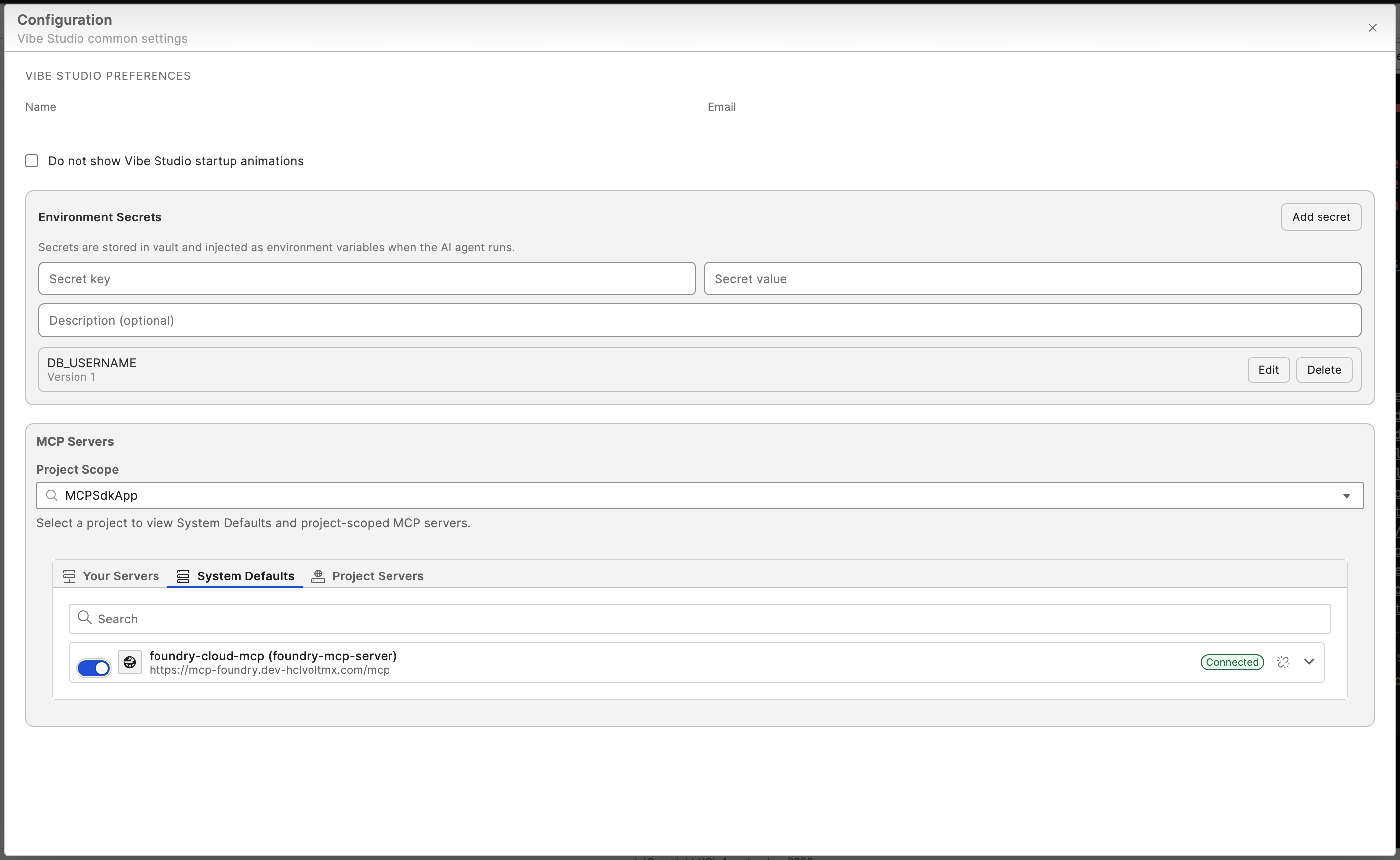
- Open the account menu and select Configuration.
- Select MCP, then select System Defaults.
- Locate
foundry-cloud-mcpand enable the server. - If the server shows Needs Authentication, select its authentication control and complete the sign-in flow.
- Confirm that the server status is Connected.
Add the server to .vscode/mcp.json:
{
    "servers": {
        "foundry-cloud-mcp": {
            "type": "http",
            "url": "https://mcp-foundry.hclvoltmx.com/mcp"
        }
    }
}
Add the server to the MCP configuration used by your Devin environment:
{
    "mcpServers": {
        "foundry-cloud-mcp": {
            "url": "https://mcp-foundry.hclvoltmx.com/mcp"
        }
    }
}
Add the server to the project .mcp.json file:
{
    "mcpServers": {
        "foundry-cloud-mcp": {
            "type": "http",
            "url": "https://mcp-foundry.hclvoltmx.com/mcp"
        }
    }
}
Alternatively, add the server from the Claude Code command line:
claude mcp add --transport http foundry-cloud-mcp https://mcp-foundry.hclvoltmx.com/mcp
Foundry MCP headers
Configure the following headers to specify the workspace or environment account used by the operations:
x-workspace-id: The ID of the workspace where the application and services are configured. If it is not provided, the client asks you to specify a workspace.x-account-id: The ID of the environment account used for publishing and other environment-related operations.
For clients that support custom headers, add them to the server entry. For example:
{
    "mcpServers": {
        "foundry-cloud-mcp": {
            "type": "http",
            "url": "https://mcp-foundry.hclvoltmx.com/mcp",
            "headers": {
                "x-workspace-id": "your-workspace-id",
                "x-account-id": "your-account-id"
            }
        }
    }
}
Check your client's MCP documentation for the exact location and schema for custom headers.