
How can I search my workspace?
You can easily search the Notes applications on your workspace, either from the workspace page or from the Notes search center.
The workspace search bar displays by default. If you want to remove the workspace search
bar, you can go to Workspace and uncheck the Search
This View menu on View tab.
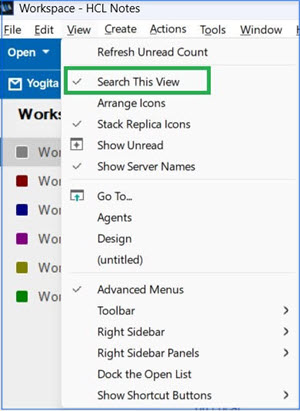
- Search for your Notes applications in one of the
following ways:
- On your workspace: Type a search term in the search bar and click the
search button.The relevant application icons become highlighted on the page.
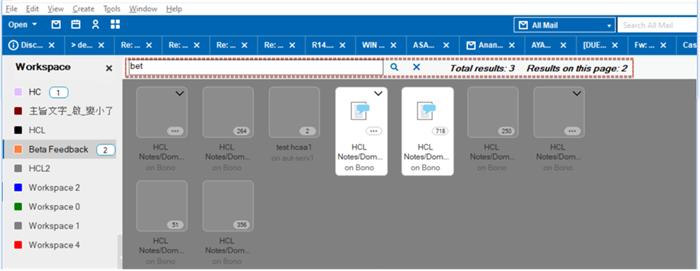 Tip: If you don't find the application you want on the current page, check the navigation for other workspace pages that show a number beside them, indicating search results.
 - From the Notes search center:Tip: If you want to disable the search feature in Workspace, you can you uncheck the Workspace in the Search preferences.
- In the field beside the search bar, change the search scope by
selecting Workspace from the list. Then type
a search term and click the search button.
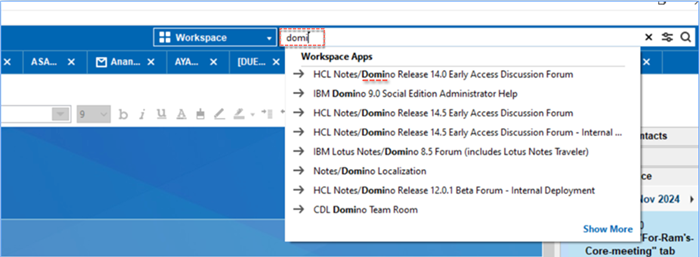
- The names of applications found are displayed in a list right in the search center. To go directly to an application, click the icon beside its name.
- In the field beside the search bar, change the search scope by
selecting Workspace from the list. Then type
a search term and click the search button.
- On your workspace: Type a search term in the search bar and click the
search button.