Save All Events
The steps provide information on how to save all events data.
- In the top navigation bar, click on Data View and click on All Events.
- User can click the save button.
Figure 1. Save All Events 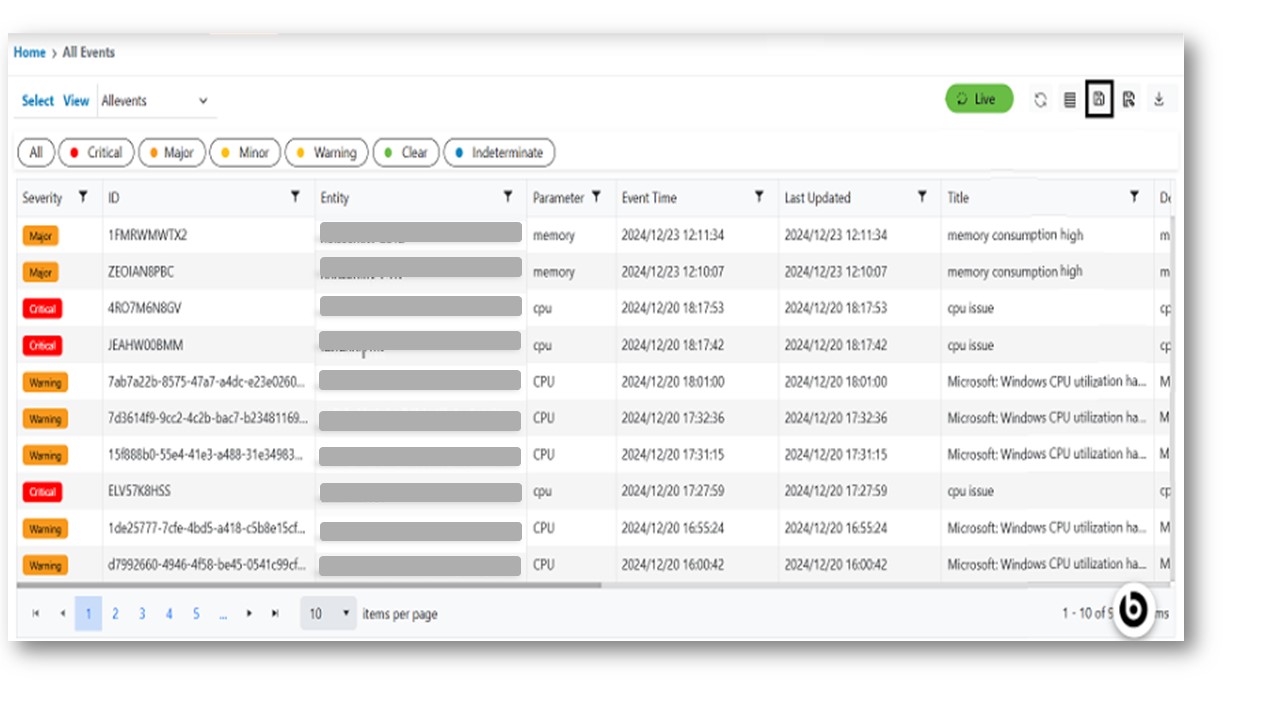
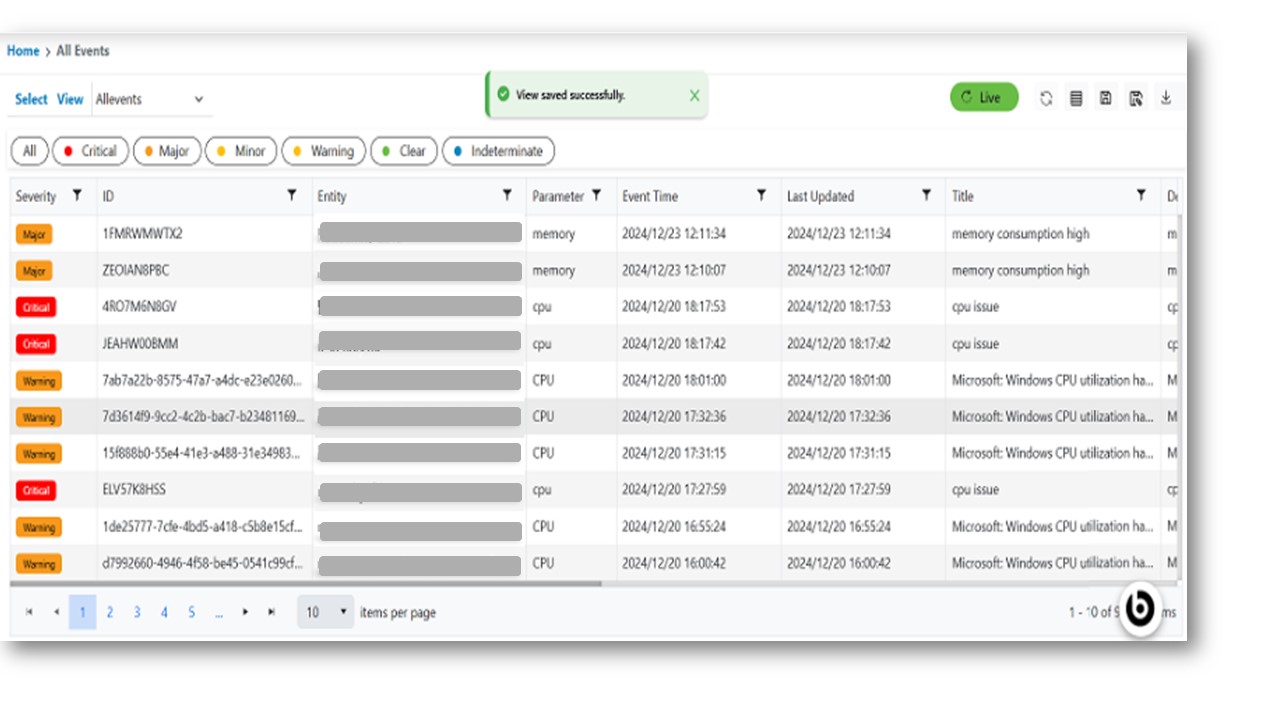
- After saving, the all-event data appears in the grid and a success popup appears on the screen.
- On clicking the Confirm button, a success message appears on the screen.
Figure 2. All Events Message