
Solution
- Open iAutomate Web URL and login with Super Admin credentials.
- Go to Advance Configuration -> Workbench and click Recommends Analysis.
Figure 1. Workbench Recommendation Analysis 
- Go to Actions -> Manage Jobs and enable the Recommendation Job.
It starts with prefix FetchUniqueRecommendation and includes your organization name.
Figure 2. Recommendation Analysis (Cont.)  Note:
Note:Before enabling recommendation job, ensure that the unique analysis for the organization for whom you are adding the new iteration, is published. Then enable the recommendation job from the Manage Jobs page.
- Go to Advance Configuration -> Workbench and click Recommendation Analysis.
- Click Run new Iteration to run a new iteration for Recommendation Analysis for
MyCompany.
Figure 3. Recommendation Analysis (Cont.) .png)
- A popup window for Template Version(s) appears.
Figure 4. Template Version 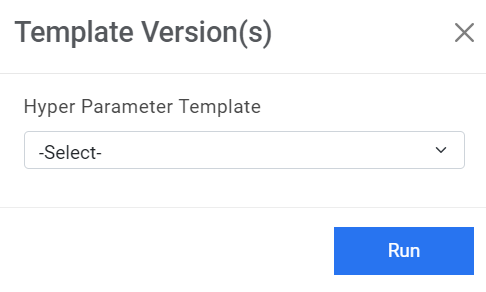
- Select a template from the Hyperparameter Template dropdown list.
- Click Run. A confirmation dialog box appears.
Figure 5. Confirmation Message 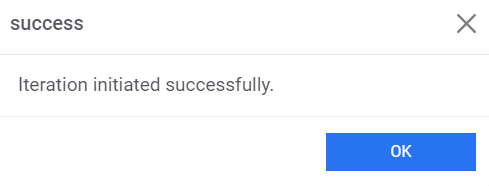
The new iteration is added and appears at the bottom of the list in the grid below-
Figure 6. Addition of New Iteration 
- To view the recommendation analysis results, click
 next to analysis for MyCompany.
Figure 7. View Analysis .png)
- Users can even validate and enrich recommendation results. Below
figure shows list of relevant runbooks for corresponding ticket categories. If you are fine
with the recommendation results, then proceed with publishing a hyperparameter configuration
template.
Figure 8. Enrich Recommendation 
- Go to Advance Configuration -> Workbench -> Recommendation
Analysis. Click
.png) next to the
analysis for MyCompany to publish.
next to the
analysis for MyCompany to publish.Figure 9. Publish Analysis 
- A confirmation dialog box appears.
- Click OK.
Figure 10. Confirmation Message .png)