
Solution
- Open iAutomate Web URL and login with Super Admin credentials.
- Go to Advance Configuration, click Hyperparameter Configuration. The Hyperparameter
Configuration page appears.
Figure 1. Manage Hyper Parameters 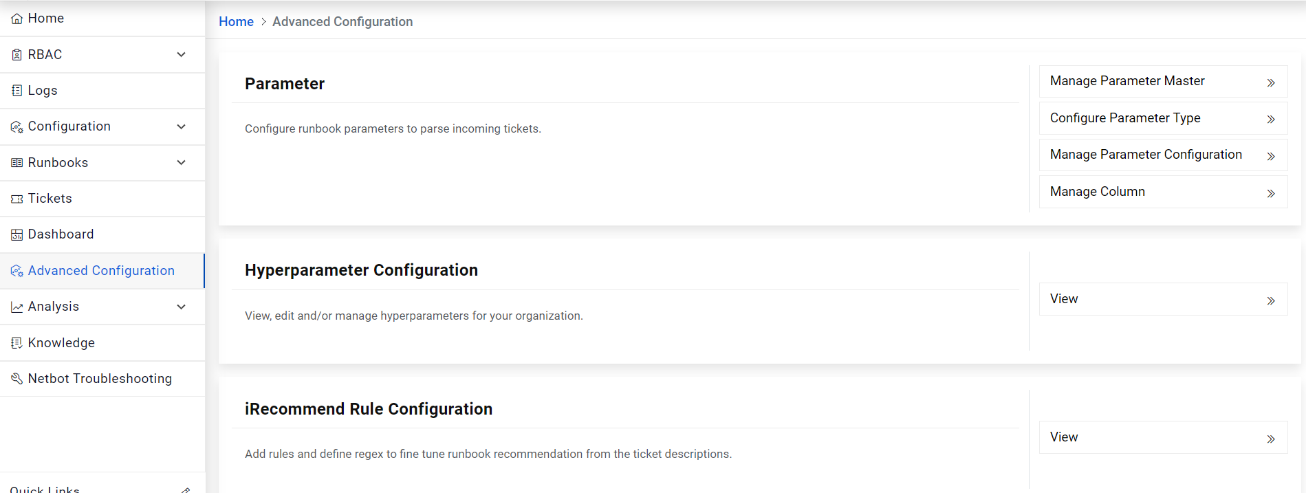
- Select Recommendation or Unique Clustering component.
Figure 2. Hyperparameter Configuration 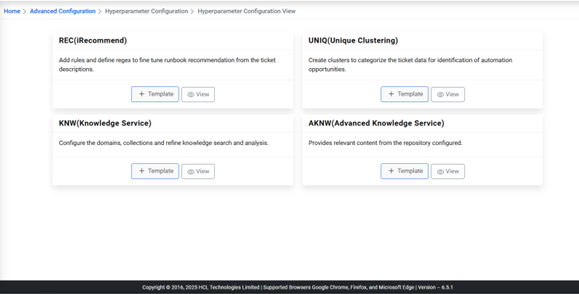
- To add a new template for Recommendation, click on
 .
.
Figure 3. Clone Configuration 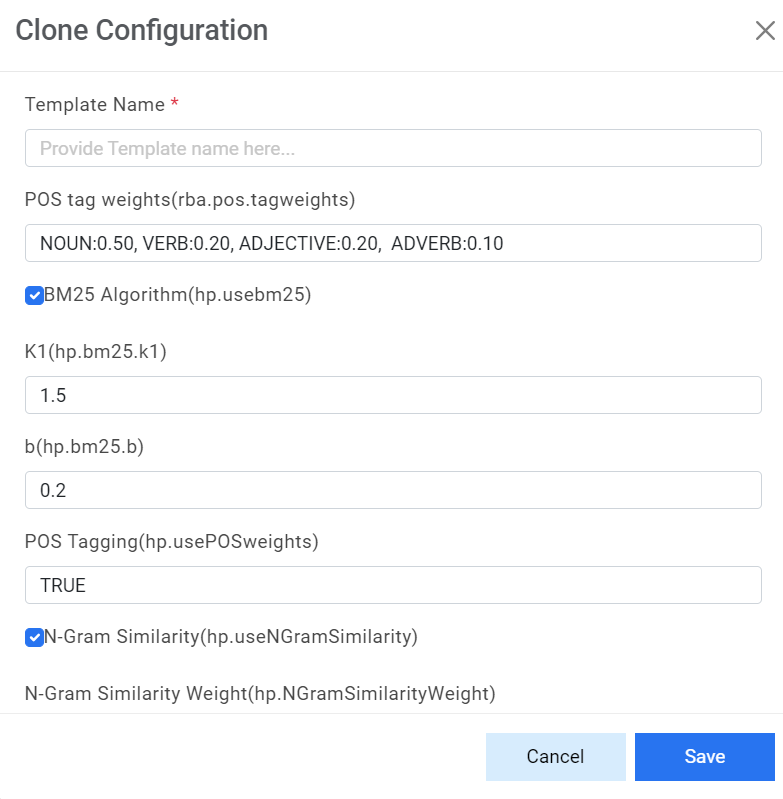
- Type the Template Name.
- Type in the values for each of the following parameters:
- rba.pos.tagweights: It specifies the weightage for each tag that is the part of a speech in a ticket. Refer to below table for default tag values.
Default Tag Values
Tag Default Value Noun 0.50 Verb 0.20 Adjective 0.20 Adverb 0.10 The values defined in the table represent the default values. Users can change them based on the requirement. The sum of these values must be 1.
- Usebm25: Use a toggle button with options such as True or False to enable this
parameter. Enabling this parameter prompts you to specify the values following
parameters.
- K1: The user can provide any value of less than 2.0. The Default value is 1.5.
- B: The user can provide any value of less than 1.0. The Default value is 0.2
Figure 4. Clone Configuration (Cont.) 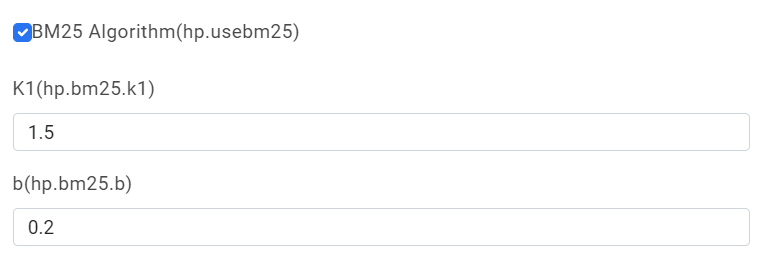
- usePOSWeights: Uses true or false values to enable or disable rba.pos.tagweights parameter.
- NgramSimilarity: Administrators can activate or deactivate the functionality with the help of a toggle button in terms of True or False.
- Selecting True prompts highlights the following parameters:
- SimilarityWeight: Specifies the value for the combined weightage of bm25 and textrank score. The value should be less than 1.
- TextRank.n: Specifies the number of words to be considered for summarizing similarity weight. The number should be equal to or greater than 1.
Figure 5. Clone Configuration (Cont.) 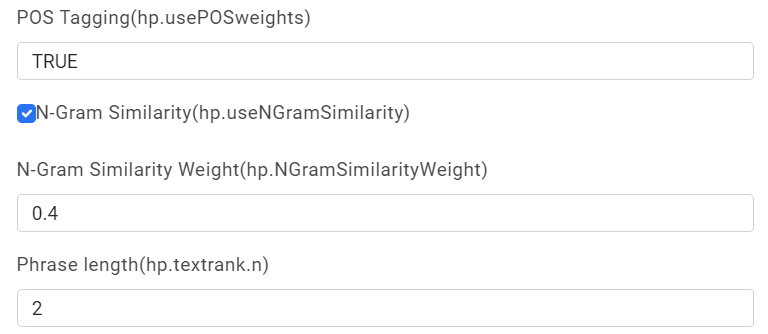
- EntityModel: Specifies whether to use the entity model or as True or False conditions for runbook recommendation.
- KMeasure: Specifies the weightage given to the entity model and recommendation model
for runbook recommendation.
- 0 indicates that the entity model will be used for runbook recommendation.
- 1 indicates that the recommendation model will be used for runbook recommendation.
- Between 0 and 1 indicates that the recommendation model and entity model will be used for runbook recommendation.
Figure 6. Clone Configuration (Cont.) 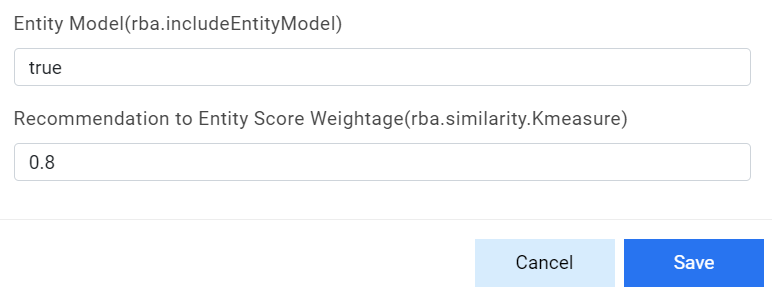
- Click Save.
- To create a template for Unique Clustering, click
 next to the template selected for cloning.
 - The Clone Configuration page appears.
Figure 7. Clone Configuration 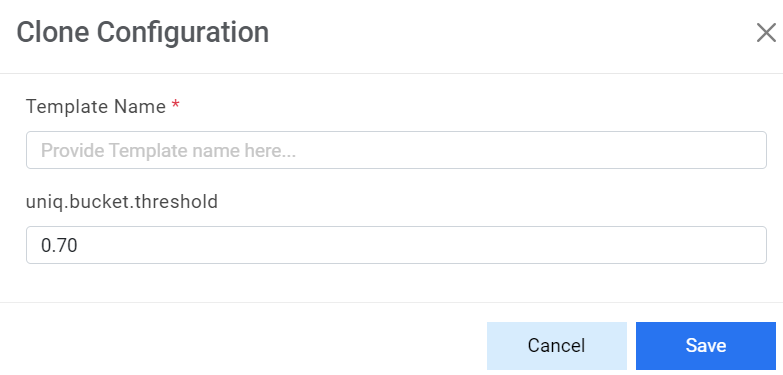
- Type the Template Name. i.e. ‘MyCompany_unique_v1’.Note:
Type in the value for Uniq.bucket.threshold field carefully to set up the threshold value of the bucket for runbook recommendation. Value of this parameter should be between 0 and 1.
If user increases the threshold value, the number of buckets will increase, and user will find more buckets with a similar description. If user decreases the threshold value, the different descriptions may be assigned to a single bucket.
- Click Save.
The new template is added and listed at the bottom of the template list. The templates created will be used on the Workbench.