Instructions
Connectivity to VPN
This section describes a step-by-step procedure to connect to MyCompany Labs VPN (Virtual Private Network) to access the iAutomate Portal. To do so, the user needs to meet the below requirements:
- Cisco AnyConnect Secure Mobility Client 4.5.05030
- Open Internet Connection
To setup the VPN connectivity, follow the below mentioned steps –
- Connect to open internet and open Cisco AnyConnect Secure Mobility Client 4.5.05030.
- Enter the IP address in VPN: tab and click Connect.
Figure 1. Setup the VPN Connectivity 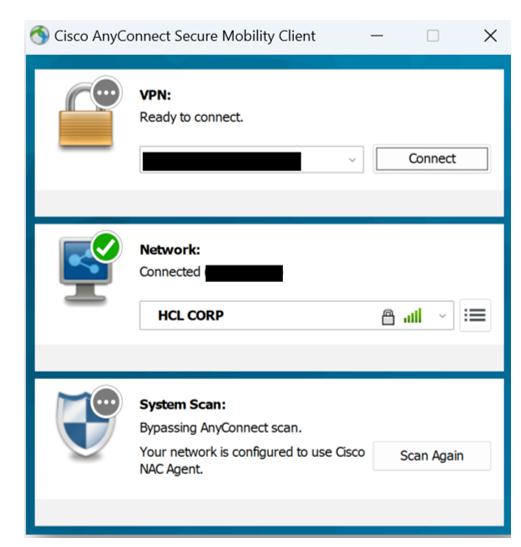
- A security warning message will pop-up.
- Click Connect Anyway.
Figure 2. Connectivity to VPN 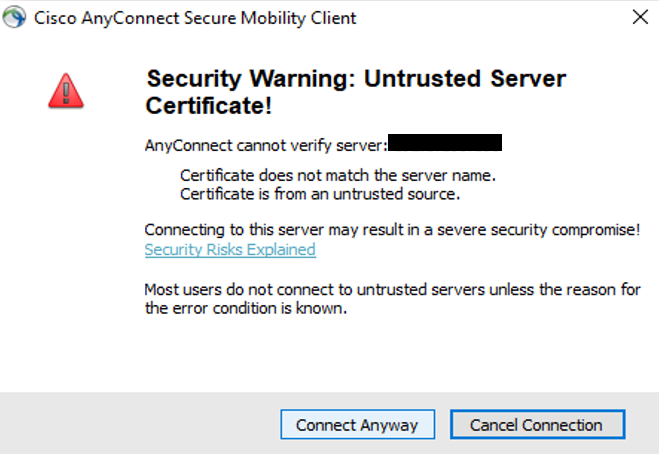
- Enter the username in Username and Password in the respective fields. Note:
You will be provided with the credentials by the Instructors during the training.
- Click OK.
Figure 3. Connectivity to VPN (Cont.) 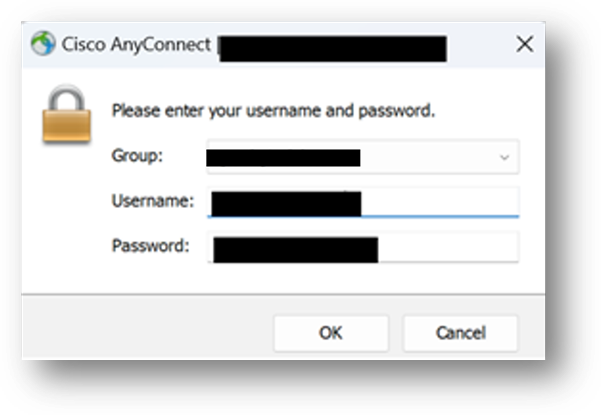
- Users will be connected to the VPN.
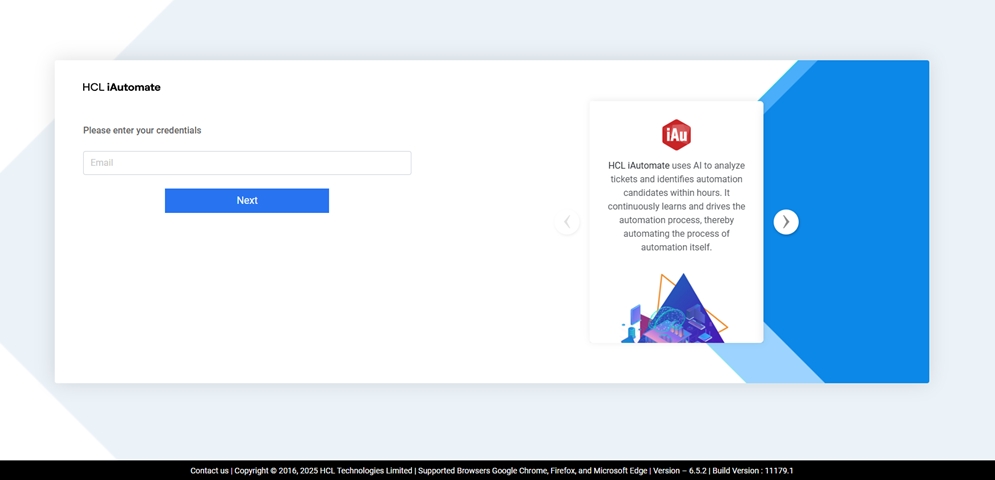
- Open a browser using the URL provided during the training.
- It redirects you to the iAutomate Login Page.
Figure 4. iAutomate Login Page