
Open Tickets
This section describes how total open tickets in iAutomate are executed in either Auto or Manual mode.
To view Open tickets,
- Click Tickets on the main menu bar, and then click tab Open Tickets.
- The Open Tickets screen appears, displaying the summary and status of all tickets.
It also lists the in-progress or failed tickets, either auto-executed or manually executed,
in the following tabs:
- Open Tickets: Lists of all the tickets that are unassigned.
- My Tickets: Lists only the tickets assigned to the current user, including in process or failed tickets.
- Assigned Tickets: Lists all the tickets that are assigned to the users.
- Released Tickets: Lists of all the tickets that are released.
Figure 1. Open Tickets 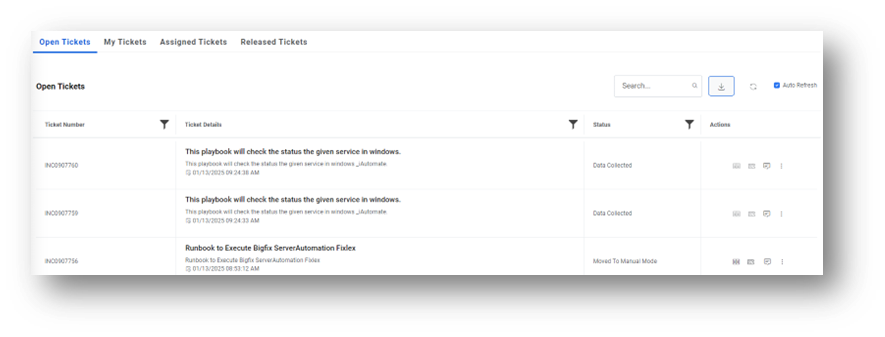
- Ticket Details: Provides information about a request, including the ticket description, summary, identification number, and creation date.
-
Action Details:
- Select Runbook: Show recommended runbook
- Release Ticket:
It enables the Release button in specific circumstances:
- If the execution criteria for a ticket, as detailed in the Runbook Execution, are not met, a Release button appears next to the ticket so the user can release the ticket from the iAutomate queue.
- For manual execution, the Release button is always active. Click Release to follow the steps as configured in the environment. See Runbook Execution for detailed information.
-
Chat With Us: It is an interactive chat option that enables users to see the
summarized display of the ticket, view the related tickets and related articles for the
ticket, generate knowledge article for that ticket and publish the same on ITSM.
Figure 2. Chat Prompt 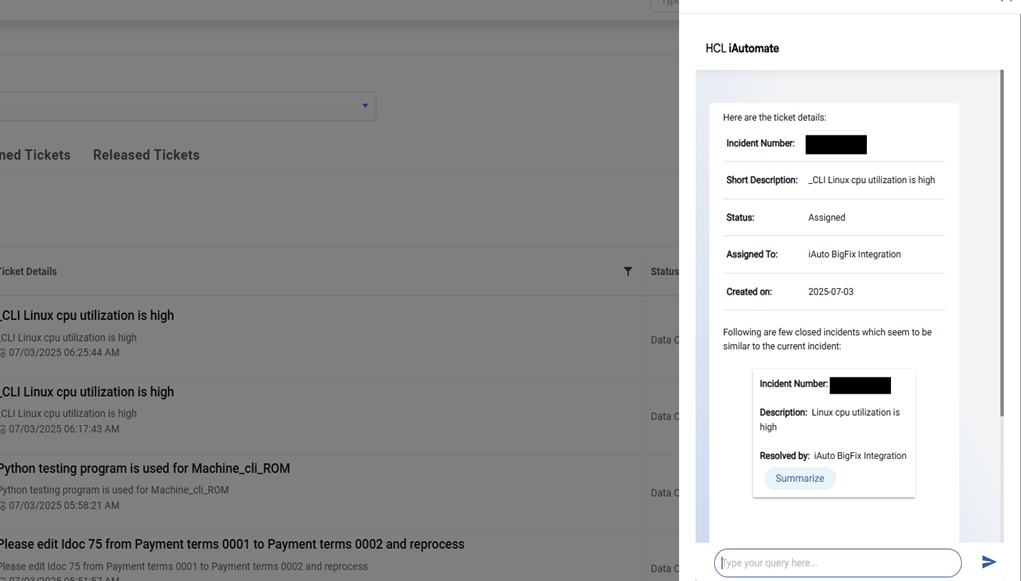
- Playbook Generation on Chat: Using the chat option, users can generate a playbook
for such tickets whose automation is not available in iAutomate. Once a playbook is
generated, a user with a runbook approver role needs to approve the generated playbook. Post
successful approval, the runbook can now be used in execution for the next ticket of similar
description.Note:The playbook can only be generated by a user with the ‘Runbook Generator’ role. And playbook generation is only supported for Ansible Tower/AWX and Ansible CLI.
-
To generate a playbook, click on the chat option and click on Generate a fix.
Figure 3. Generate Playbook on Chat 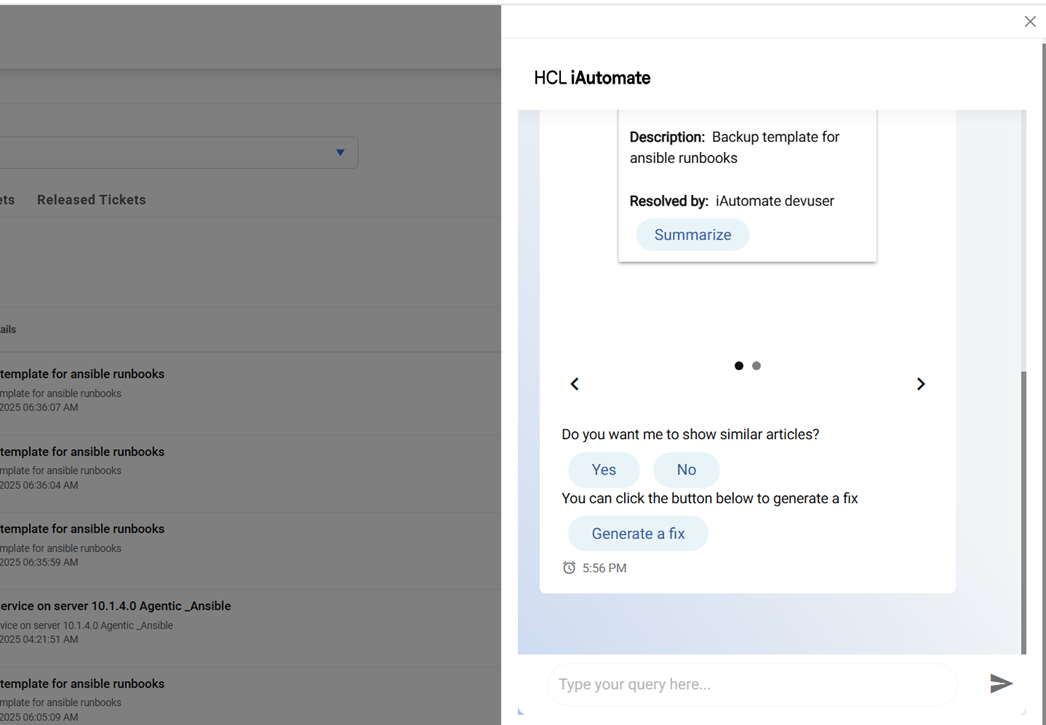
- Once the script is generated, the user can proceed if the script appears to be valid
else he can put some remarks to modify the script.
Figure 4. Add Remarks to Chat 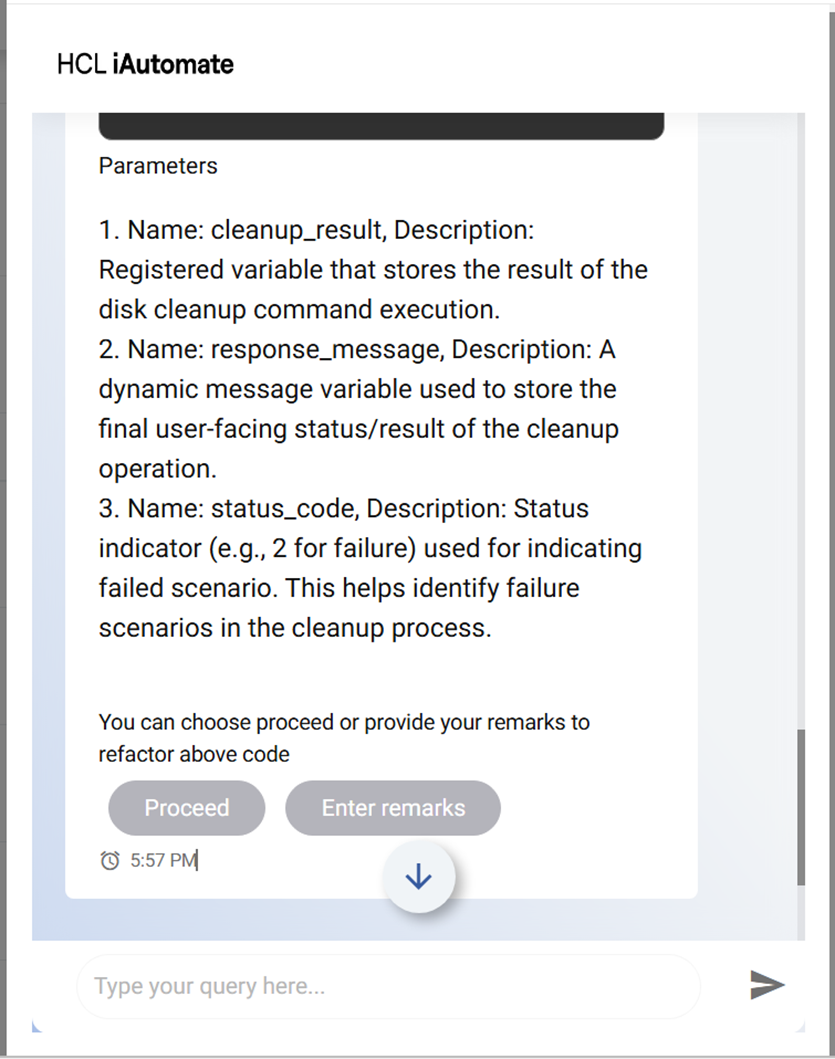
- Complete all the steps during the generation and at last a message appears that
runbook is generated.
Figure 5. Successful Message 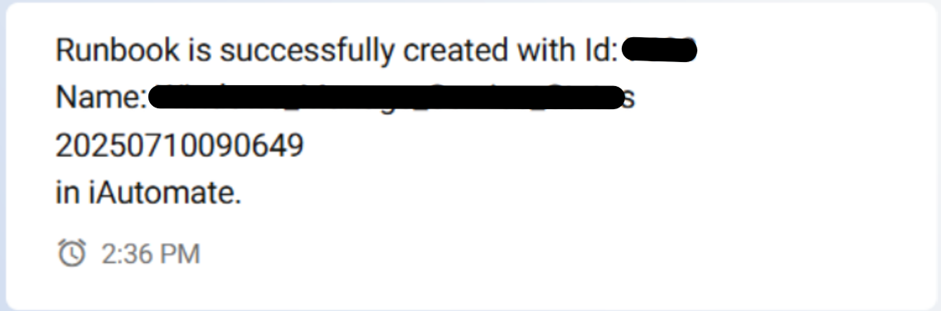
- To approve the runbook, login with a user having runbook approver Role. Go to the
Runbook summary page.
Figure 6. Runbook Summary Page 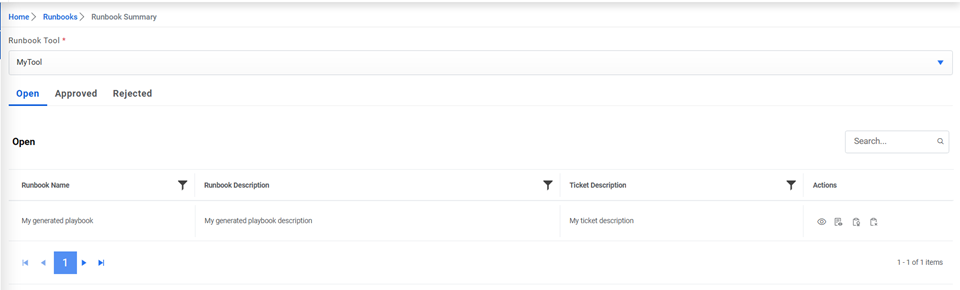
- Select the runbook tool.
- Click on the icon
for which the playbook has to be approved. Provide the remarks and click Approve.
Figure 7. Adding Approval Remarks to the generated Playbook 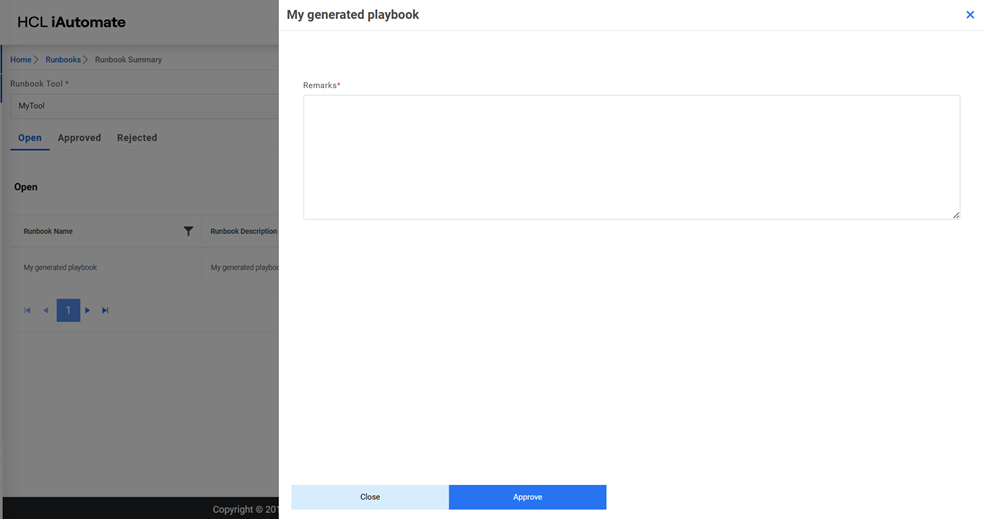
-
The runbook will be automatically mapped with the organization and is ready for the execution on ticket. Users can also reject the playbooks if they are not relevant for the product by clicking on the icon
and providing the remarks.
-
- View more Dropdown:
- Knowledge Guide: Show related guide
- Logs: Show Logs related to tickets
- Related Tickets: Show related runbooks
- Knowledge Graph: User can see the details of a particular Ticket and related Tickets corresponding to that Ticket.
- Change Status: To change the status of ticket in service now to Resolved without any work on it along with providing feedback details.
Note:
The chat option is only enabled if the configured ITSM tool is
ServiceNow or KB generation is enabled under the Gen AI details menu.
Note:
This chatbot may collect personal information that you voluntarily
provide, such as your name, email address, or any other information you choose to
share.
Remember:
The features utilizing GenAI service such as KB
generation on Chat, Playbook Generation on Chat, Related Tickets, Knowledge Guide, works only
for the Incident Management module.