
Solution
To resolves such issues, configurational changes are required to be done in following sections:
- Manage Parameter Master – Defines regular expression for parameter to be parsed. It should be unique to parameter type.
- Configure Parameter Type – Defines type of parameter i.e. for IP address, parameter type is IP.
- Manage Parameter Configuration – Configure actual parameter which is being used in runbook and should be parsed from ticket description.
- Update Runbook – Make changes to runbook configuration to whom parameter is associated.
- Open iAutomate Web URL and login with Super Admin credentials.
- To make the changes in Manage Parameter Master, perform the steps below:
- Go to Advance Configuration->Parameter and click Manage Parameter Master.
Figure 1. Manage Parameter Master 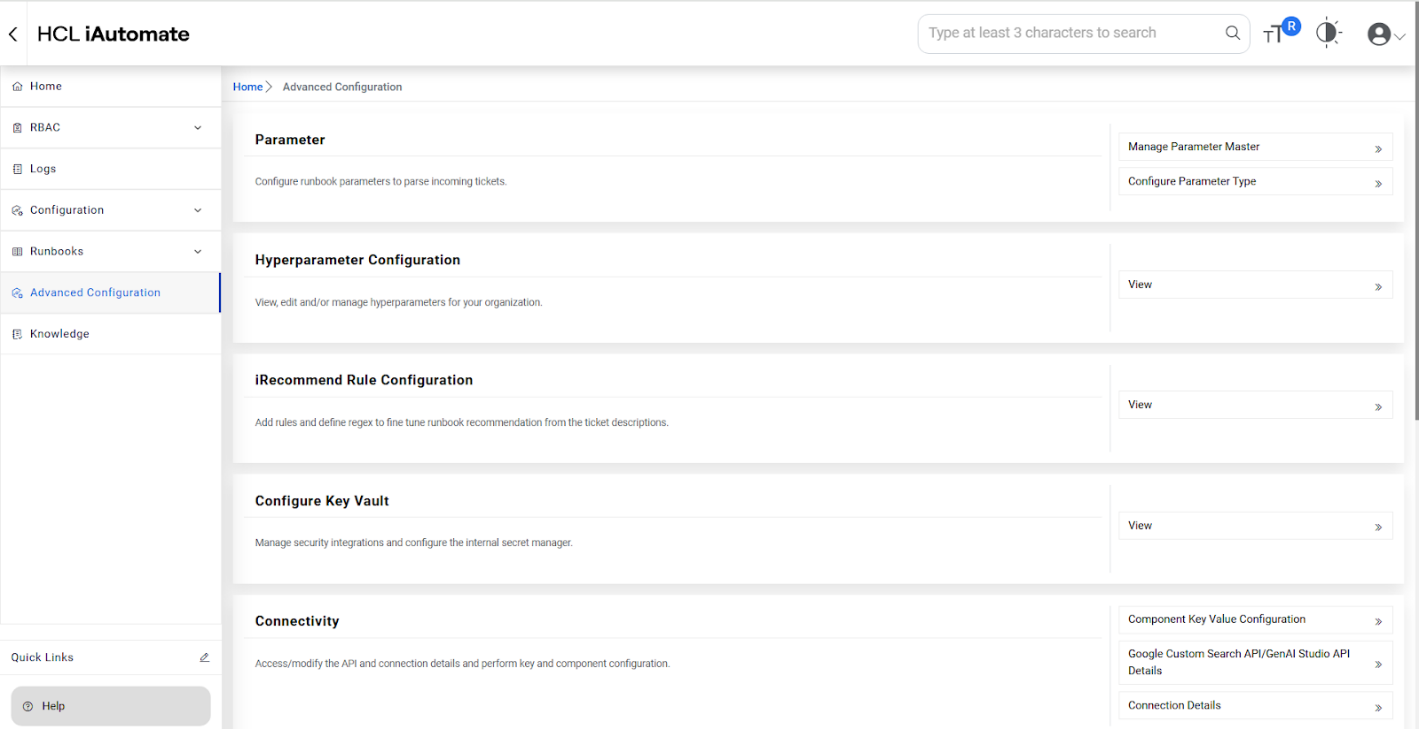
- Select Code from the drop-down list.
- Click Create New Parameter.
Figure 2. Create New Parameter 
- The Manage Parameter page appears.
Figure 3. Create New Parameter (Cont.) 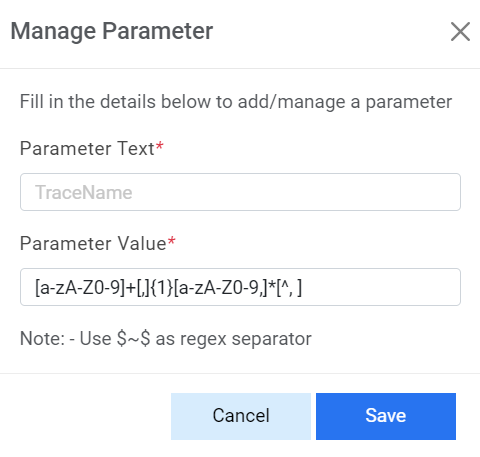
- Enter the below mentioned attributes:
- Parameter Text - This is used to identify a new parameter i.e. GenericIPAddress
- Parameter Value - This describes the regular expression for a parameter under the selected code i.e. xxxxxxxx
- Click Save.
- Go to Advance Configuration->Parameter and click Manage Parameter Master.
- To make the changes in Configure Parameter Type, perform the steps below:
- Go to Advance Configuration->Parameter and click Configure Parameter Type.
Figure 4. Configure Parameter Type 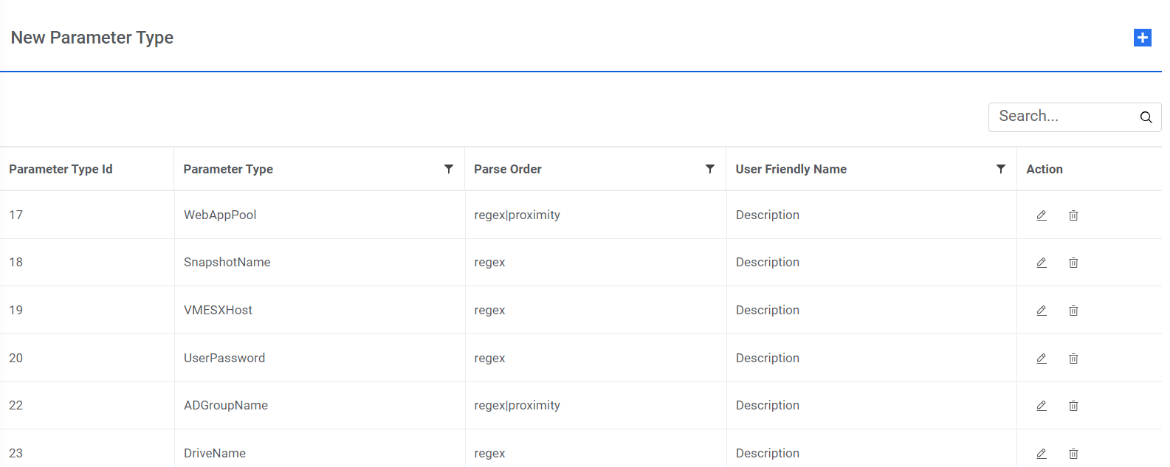
- Expand New Parameter Type. The Configure Parameter Type page appears.
Figure 5. Configure Parameter Type (Cont.) 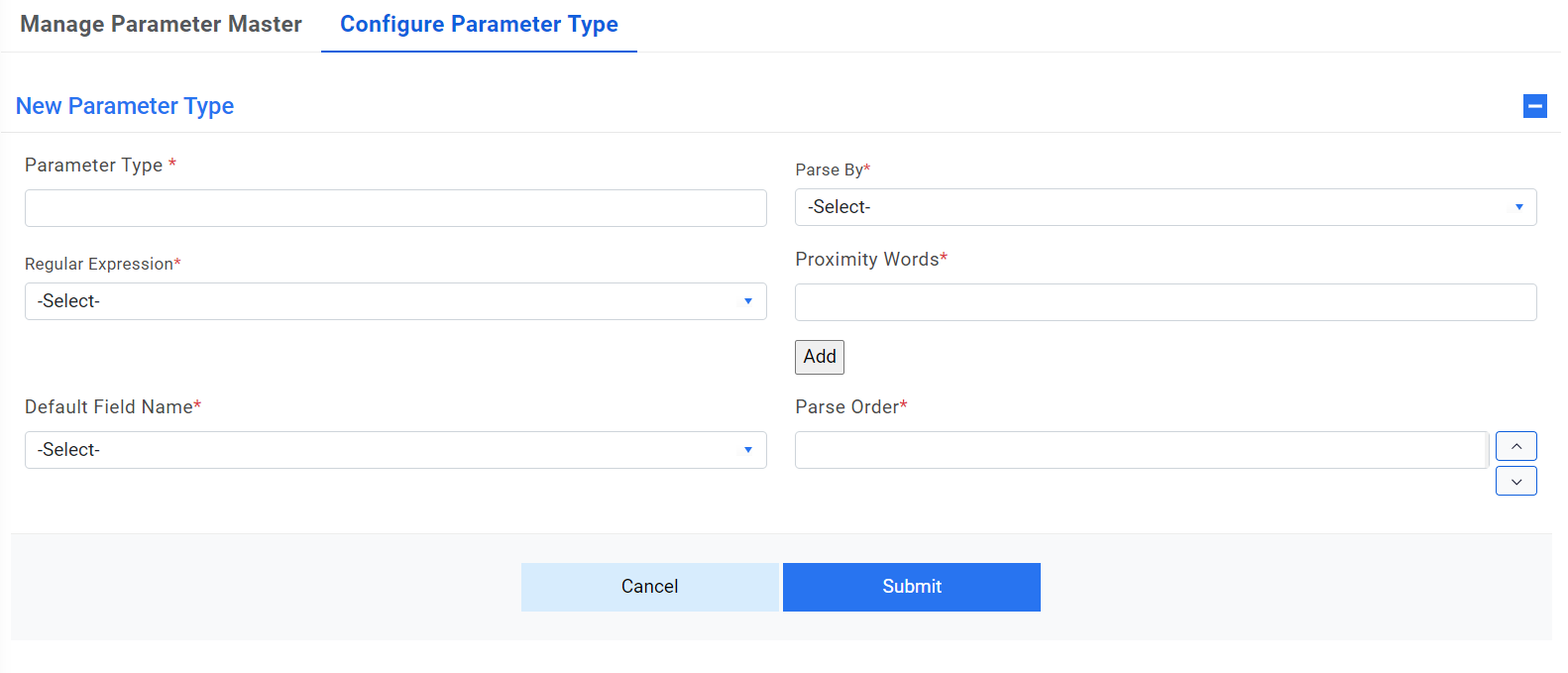
- Enter the following information:
- Define Parameter Type as ‘IP Address’.
- Select Parse by field value as “Only Regex” i.e. tickets will be parsed only using
regular expression.
Figure 6. Configure Parameter Type (Cont.) 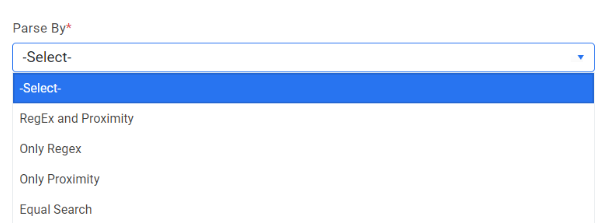
- Select value for Regular Expression field as
“GenericIPAddress” which was added in section Manage Parameter Master.
Figure 7. Configure Parameter Type (Cont.) 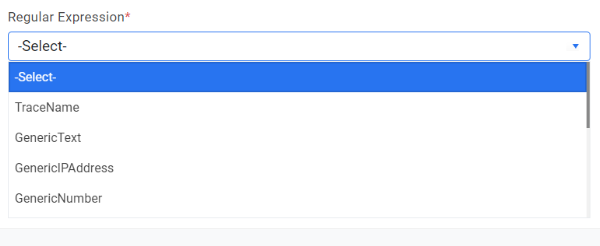
- Value for Proximity Words field is optional as parse by type
is “Only Regex”
Figure 8. Proximity Words 
- Select the Parse Order to prioritize the parsing methods
i.e. In our case, Regex should come before than proximity.
Figure 9. Parse Order 
- Select value for Default Field Name as “Description” as this will be used for parsing IP address from ticket description.
- Click Submit to save the new parameter.
- Go to Advance Configuration->Parameter and click Configure Parameter Type.
- To make the changes for configuration of an IP address for MyCompany organization in
Manage Parameter Configuration, perform the following steps:
- Login with Organization Admin credential and Go to Advance Configuration->Parameter
and click Manage Parameter Configuration.
Figure 10. Manage Parameter Configuration 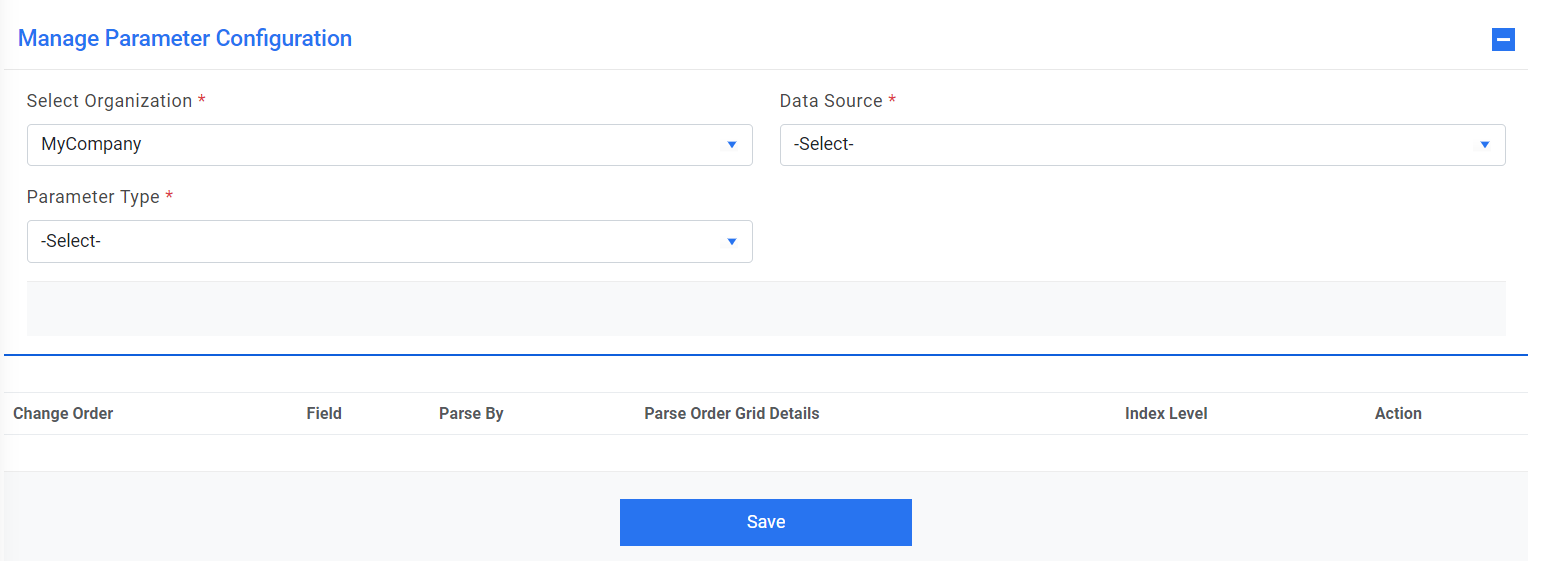
- Select Organization from Organization field.
- Select the Data Source from where the data will be fetched for parsing.
- Select the Parameter Type as GenericIPAddress, to be used for data parsing.
This populates the existing configuration for the selected organization in a grid.
Figure 11. Existing Configuration 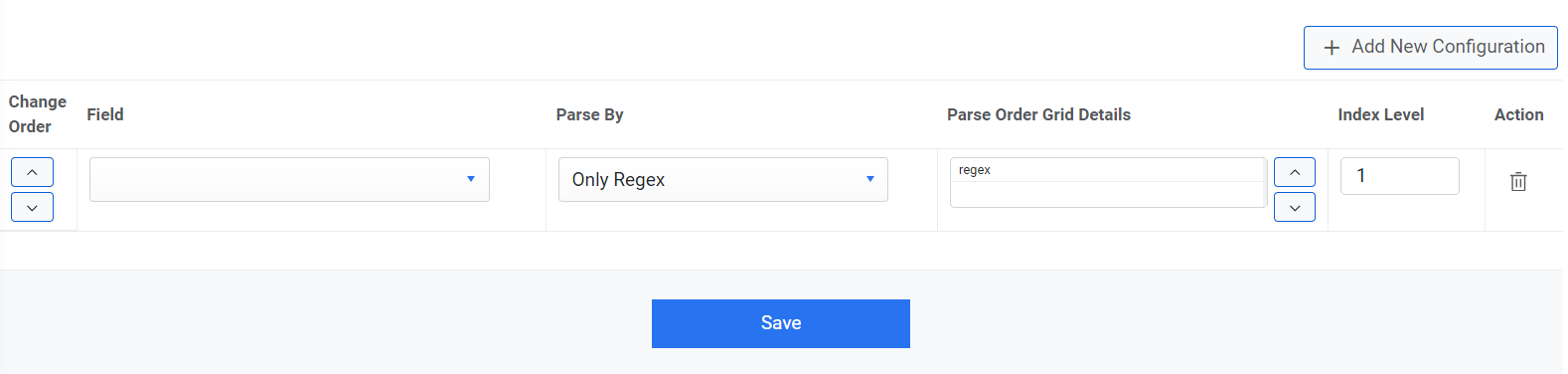
- Login with Organization Admin credential and Go to Advance Configuration->Parameter
and click Manage Parameter Configuration.
- Click Add New Configuration. This adds a new row below the existing
parameter configurations.
Figure 12. Add New Configuration (Cont.) 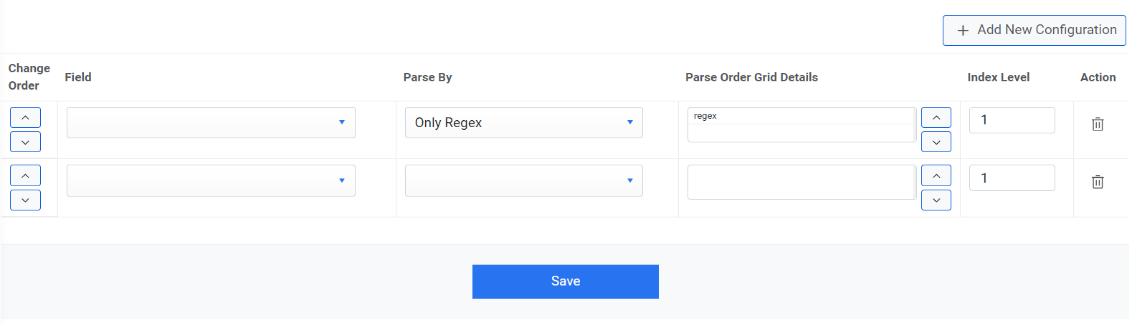
- Select a value for column Field. It defines what ticket information needs to be processed. It may be a description or a short description.
- Select a value for Parse By column value as Only Regex.
- Select a value for Parse Order Grid Details columns as Regex.
- Select Index Level value as 1.
- Click Save to update the configured parameter.Note:
Users can rearrange the order of parameter configuration using Change Order in the left column of the parameter grid.
- A confirmation dialog box appears. Click OK.
Figure 13. Confirmation Message 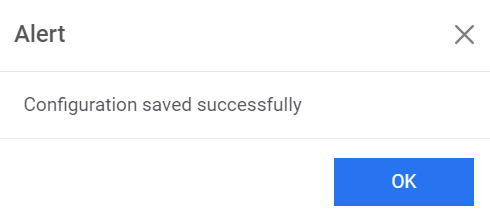
- To update the runbook corresponding to the newly configured
parameter i.e. IP Address, perform the following steps:
- Go to Runbooks and click Manage Runbooks.
Figure 14. Manage Runbooks 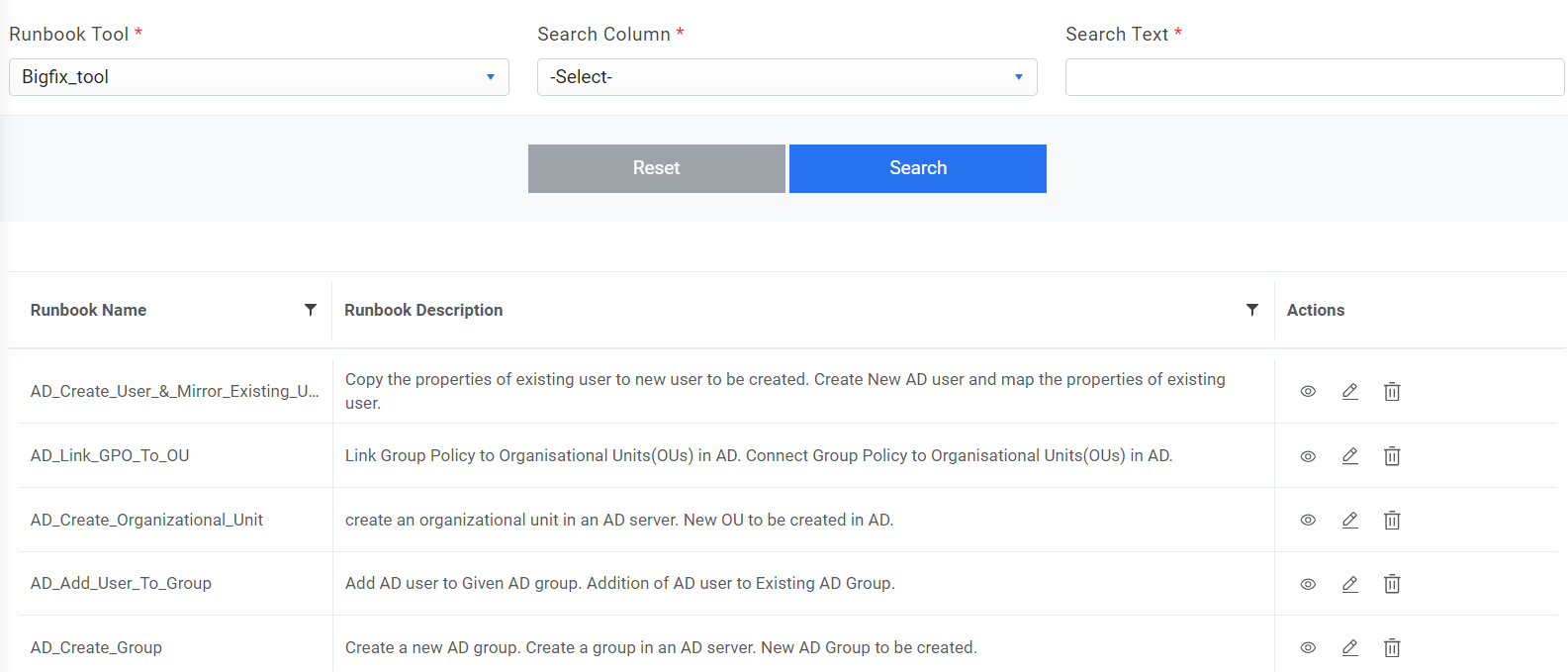
- Select value for Runbook Tool.
- Click
 next to the runbook
which need to be updated.
next to the runbook
which need to be updated.Figure 15. Manage Runbooks (Cont.) 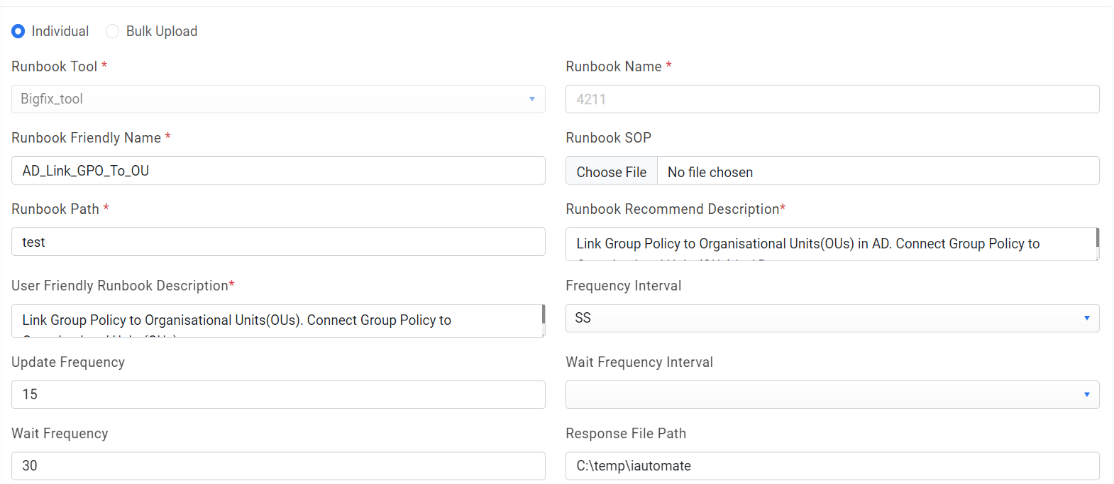
- Add required parameter i.e., IP Address as shown in below
figure.
Figure 16. Add Parameter 
- Click Update to save the changes. A confirmation dialog box
appears.
Figure 17. Confirmation Message 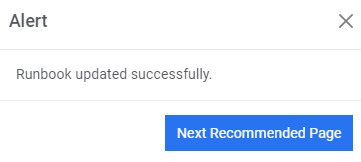
- Go to Runbooks and click Manage Runbooks.