
Change Password
To change the password, perform the following steps -
- Launch the web browser and provide the HCL iAutomate Web Portal URL.
Figure 1. SaaS based Ticket Analysis – Sign-In Page .png)
- Enter the Email Id and Password and click Sign in to login.
- Expand the panel on the top right corner and click on Change Password.
Figure 2. SaaS based Ticket Analysis – Change Password 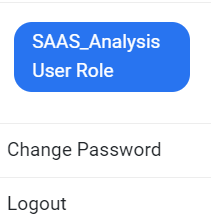
- Enter the User Email, Old Password, New Password and Confirm
Password details.
Figure 3. SaaS based Ticket Analysis – Change Password (Cont.) .png)
- Click Submit. A confirmation message is displayed.
Figure 4. SaaS based Ticket Analysis – Change Password (Cont.) 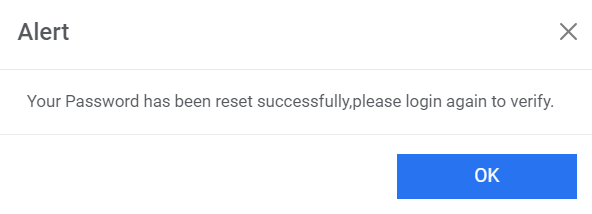
- Click OK and the user will be redirected to the Sign in page.
Figure 5. SaaS based Ticket Analysis – Sign in Page .png)