
Upgradation Procedure
- Download the latest file OpenSSL-Win64.zip from the Path mentioned in the source field of Open SSL Package .
- Press “Win+R”, type “services.msc” and press Enter.
Figure 1. SSL Package Upgradation 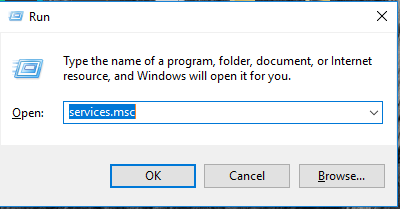
- Click on “Apache2.4” service and then click “Stop” the service on the left panel to stop
the service.
Figure 2. SSL Package Upgradation (Cont.) 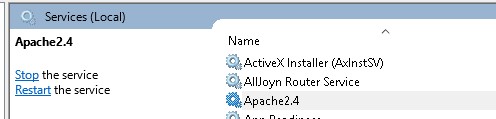
- Stop all the services created using Apache. You can find them by looking at the description pane of the service.
- The description would start with “Apache/2.4….”.
(e.g., “HCL.iAutomate.EntityModel”, “HCL.iAutomate.iCrawler”, “HCL.iAutomate.iKnowledge”, “HCL.iAutomate.iKnowledgeIndexer”, “HCL.iAutomate.iKnowledgeScreen”, “HCL.iAutomate.iKnowledgeSearch”, “HCL.iAutomate.iParse”, “HCL.iAutomate.iRecommend”, “HCL.iAutomate.iScript” , “HCL.iAutomate.iUnique”, “HCL.iAutomate.RatingMongo”).
Figure 3. SSL Package Upgradation (Cont.) 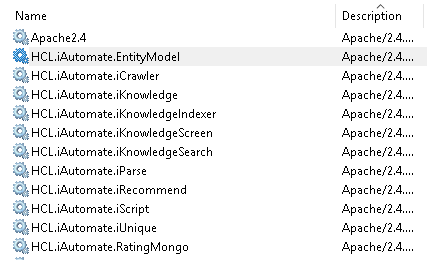
- Go to “C:\” in the file explorer. Take backup of the previous version by renaming the folder from “OpenSSL-Win64” to “OpenSSL-Win64_Old”.
- Extract the downloaded Zip file named “OpenSSL-Win64.zip” mentioned in the step 1.Note:Make sure the OpenSSL-Win64 folder contains multiple files and folders not another folder named OpenSSL-Win64
- Open the extracted folder and COPY the OpenSSL-Win64 folder to the desired
location.
e.g.: C:\OpenSSL-Win64
Figure 4. SSL Package Upgradation (Cont.) 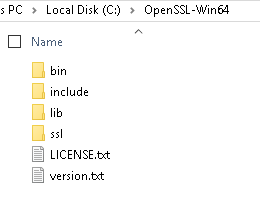
- Move inside the folder to the path “OpenSSL-Win64 > bin” and copy the files named “openssl.exe”, “libcrypto-3-x64.dll” and “libssl-3-x64.dll” to the path “C:\Apache24\bin”.
- Go to Control Panel 🡪 System and Security 🡪 System 🡪 Advanced System Settings. Click Environment Variables.
- A new dialog box appears. Click New under System Variables section.
- Delete the old Environmental variables OPENSSL_CONF and in “Path” delete the old openssl variable occurrence. For example, delete this variable “C:\OpenSSL-Win64\bin”.
- Set the system environment variable with name OPENSSL_HOME with the path
as:
C:\OpenSSL-Win64 - Set the system environment variable with name OPENSSL_CONF with the path as
(.cnf):
C:\OpenSSL-Win64\ssl\openssl.cnfFigure 5. SSL Package Upgradation (Cont.) .png)
- Go to Control Panel 🡪 System and Security 🡪 System 🡪 Advanced System Settings. Click Environment Variables.
- A new dialog box appears.
- In the system environment variable name as “Path”, add the
following:
%OPENSSL_HOME%\binFigure 6. SSL Package Upgradation (Cont.) .png)
- Restart the Apache2.4 service. Expand the description of the Apche2.4 service. You can
verify the OpenSSL version from the description.
Figure 7. SSL Package Upgradation (Cont.)  Note:Apache version should be upgraded to 2.4.62 before restarting all the services. After upgradation, check Apache2.4 service “Description” in services.msc. It should be like this “Apache/2.4.x (Win64) OpenSSL/3.4. X.”
 - Press “Win+R”, type “services.msc” and press Enter.
Figure 8. SSL Package Upgradation (Cont.) .png)
- Click on “Apache2.4” service and then click START the service on the left panel to start
the service.
Figure 9. SSL Package Upgradation (Cont.) 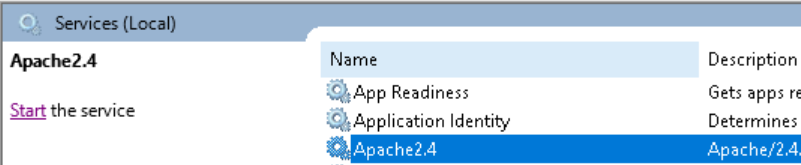
- Similarly, start all the Apache services that you stopped in step 4. If the services are not getting started, then follow the steps covered in the following section.