Installation Procedure
- Download the file Apache24.zip from the Path mentioned in source field of Apache Server.
- Extract the contents of zip file and place it in desired location e.g.: C:\Apache24 .
- Go to Control Panel System and Security System Advanced System Settings. Click Environment Variables. A new dialog box appears. Click New under System Variables section.
- Add the system environment variable name ANT_HOME with the path where Apache is unzipped C:\Apache24
- To the system environment Variable Path, add the below installation paths:
- C:\Apache24\bin
- C:\Apache24
- Download the certificates from the Path mentioned in Apache Server. After unzipping the certificates, copy them to the desired location or folder. e.g.: (C:\Program Files\Certificate or E:\certificate)
- Create system environment variable name PythonCertificate with path value as the above
path where certificates are pasted. In the figure below we pasted the documents in
E:\certificate which can be any path
Figure 1. Apache Server Installation (Cont.) 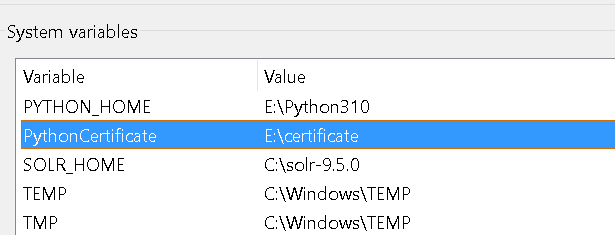
- By default, TLS1.3 will be enabled on Apache, if needed to go with any specific version open httpd.conf file in ANT_HOME/conf path.
- Follow these steps to enable specific TLS version else cont. with step 10.
- Check for the version which needs to be enabled, from the
lines
# To enable SSL protocol TLS1.1 uncomment the below line #SSLProtocol -all +TLSv1.1 # To enable SSL protocol TLS1.2 uncomment the below line #SSLProtocol -all +TLSv1.2 # To enable SSL protocol TLS1.3 uncomment the below line #SSLProtocol -all +TLSv1.3 # To enable and integrate SSL protocol TLS1.2 and TLS1.3 uncomment the below line #SSLProtocol -all +TLSv1.2 +TLSv1.3 # To enable SSL protocol till TLS1.2 uncomment the below line #SSLProtocol +SSLv2 +SSLv3 +TLSv1 +TLSv1.1 +TLSv1.2 - If needed to go with TLS1.2 then uncomment, and copy paste the line in the specified
conf file just below the line “SSLEngine on” and save the file. E.g.: TLS 1.2 enabled in
the below screenshot.
Figure 2. Apache Server Installation (Cont.) 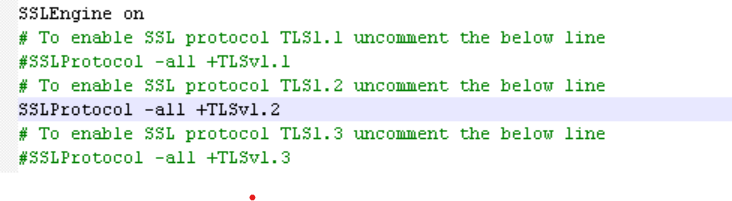
- Check for the version which needs to be enabled, from the
lines
- Open the Command Prompt as Administrator and run the following command to
install the Apache
Service:
httpd -k installFigure 3. Apache Server Installation (Cont.) 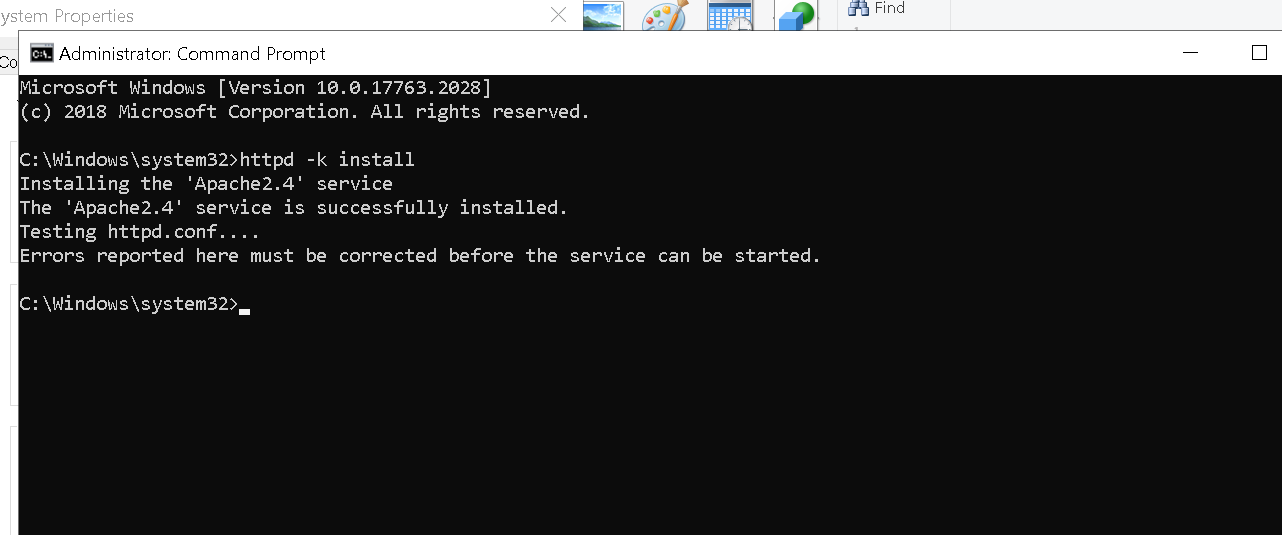
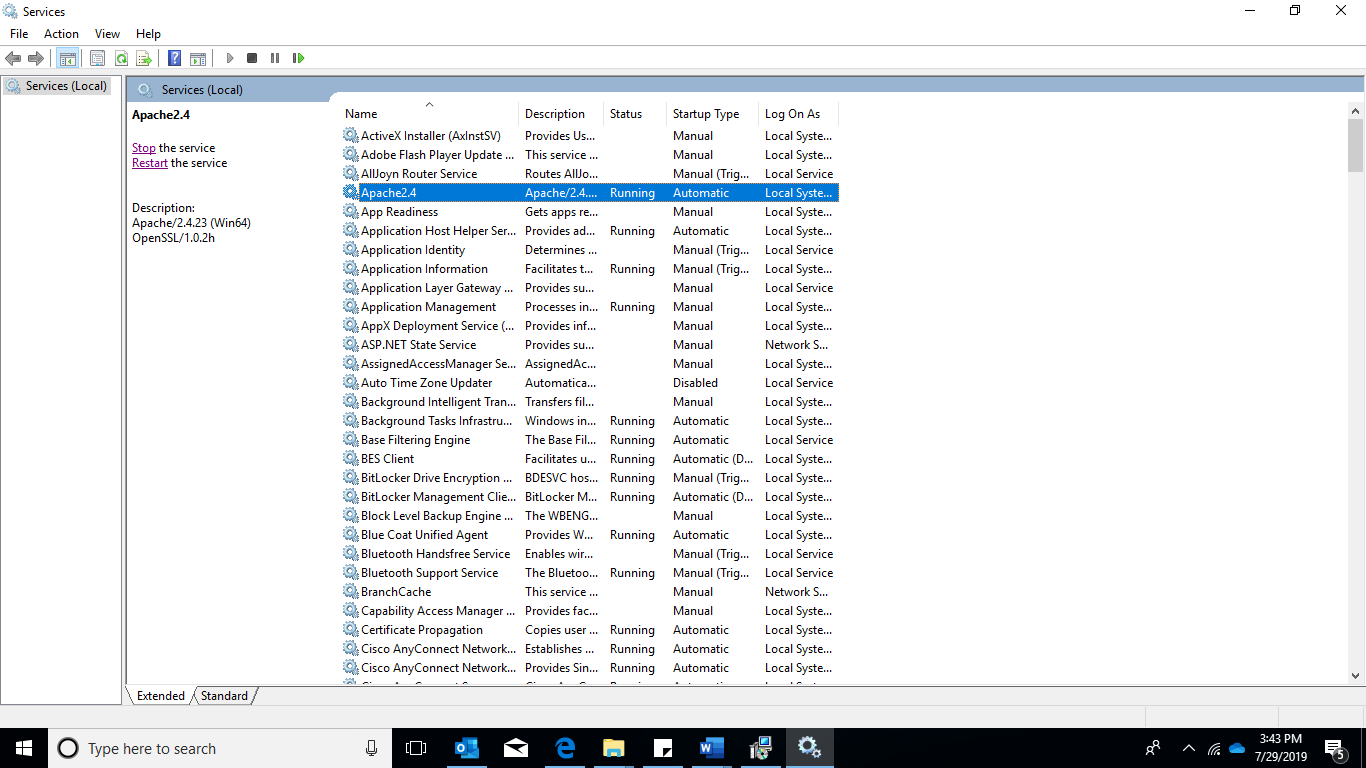
- Go to Run (Windows + R) and type services.msc and start the Apache service
if the status is not already Running.
Figure 4. Screenshot of the Apache Service