
Enable Authentication
To enable the authentication, perform the following steps:
- Go to the server where MongoDB service has been
installed. Open the Command Prompt as Administrator and execute the command
below.
mongosh --host x.x.xx.x1 --port 27017 - Execute the command
below:
MongoDB> use admin - Make the following changes in the values before execution:
-
user:<username>
-
pwd :<password>
Note:(Choose any password for the corresponding user for MongoDB authentication.)MongoDB adminMongoDB> db.createUser( { user: "<username>", pwd: "<password>", roles: [ {role: "userAdminAnyDatabase", db: "admin" }, { role: "root", db: "admin" }, "readWriteAnyDatabase" ] } ) On successful execution, You will get {ok: 1 } message. -
- Make the following changes in mongod.cfg. Refer the screenshot below:
Figure 1. Enable Authentication 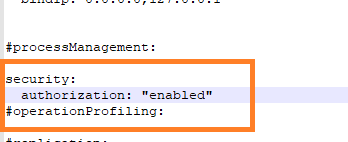
- Restart the MongoDB service on the server.
- Re-open the Command Prompt as Administrator and open the
MongoDB terminal using the following
command:
mongosh --host <IP> --port <Port> -u <username> -p <password> --authenticationDatabase "admin"
For e.g. - mongosh --host x.x.xx.x --port 27017 -u <username> -p <password> --authenticationDatabase "admin"
Connection with MongoDBMongoDB should be successfully established.