
Build Models
To make the configuration changes, please follow the below steps:
- Login into BigFix Runbook AI console with Super Admin credentials.
- On the main menu bar, click Configurations. Click Build Models. The
Build Models page appears and lists the available build models with their status,
the associated organization, module, and the Runbook tool in a tabular view.
Figure 1. Build Models 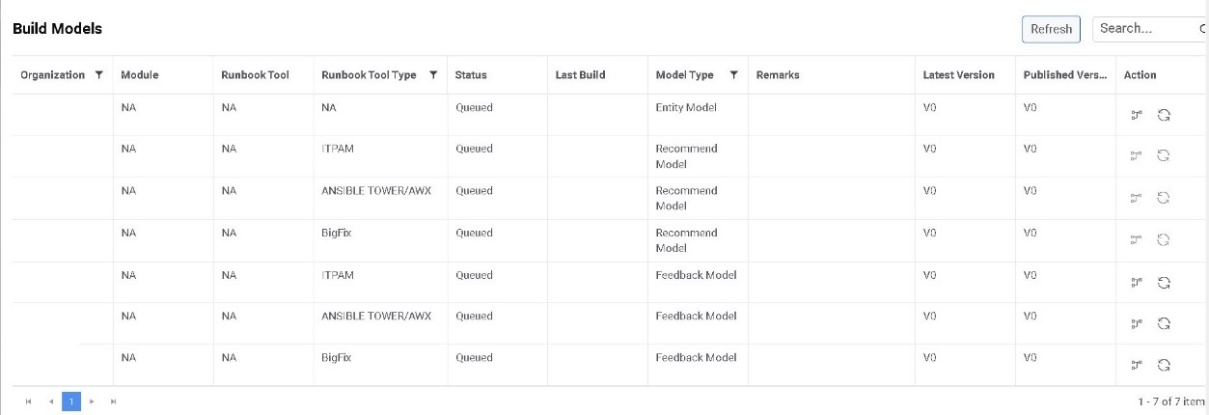
- On the Build Models page, click
 next to the
Inventory Entity Model to build the model. A message confirming the
initiation of model build appears.
next to the
Inventory Entity Model to build the model. A message confirming the
initiation of model build appears. Figure 2. Build Models (cont.) 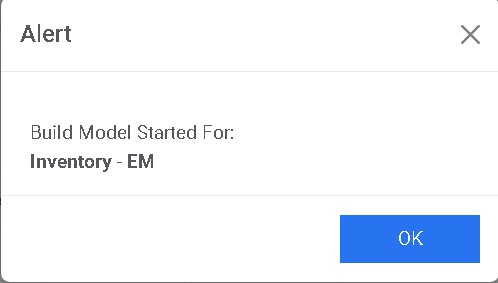
The status of the build changes from Queued to Initiate.
Figure 3. Build Models (cont.) 
- Once the build is successfully created, the status changes from Initiate to
Successful and the Remarks column is updated.
Figure 4. Build Models (cont.) 
- On the
Build Models page, click
.png) next to the Inventory
Recommend Model to build the model.
next to the Inventory
Recommend Model to build the model. - A message confirming the initiation of model build appears.
Figure 5. Build Models (cont.) 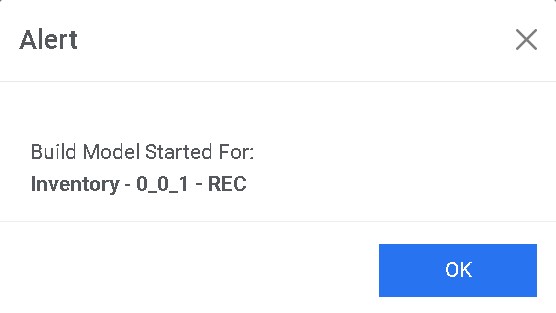
- The status of the build changes from Queued to Initiate.
Figure 6. Build Models (cont.) 
- Once the build is successfully created, the status changes from Initiate to
Successful and the Remarks column is updated.
Figure 7. Build Models (cont.) 
- Logout from the portal and proceed further.