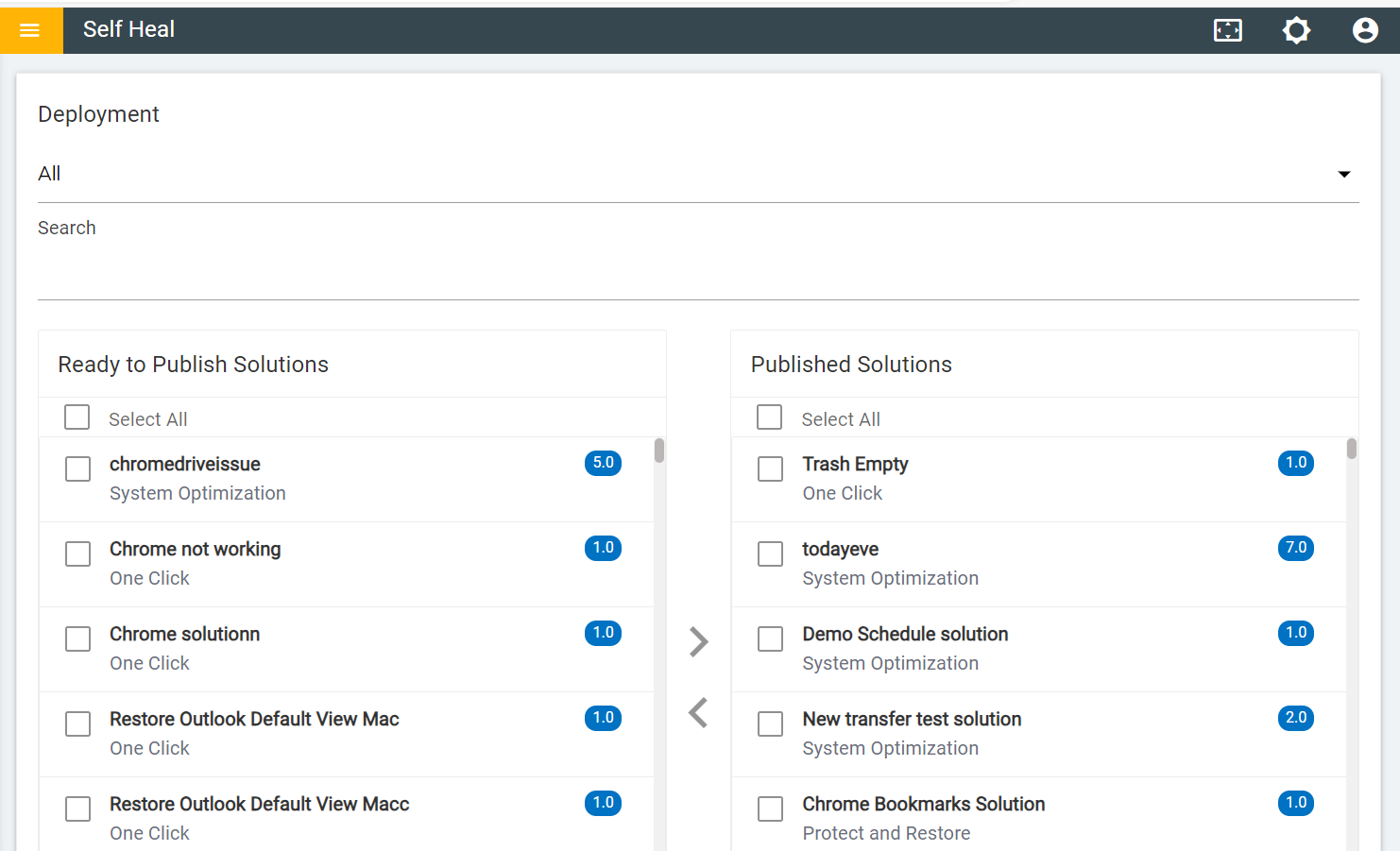
The deployment section is used to publish and unpublish different types of solutions.
Once a solution is published, admins will not be able to edit or modify it. After publishing
the solution, if an admin wants to make any changes to a particular solution, he needs to
unpublish that solution. Figure 1. Deployment Page
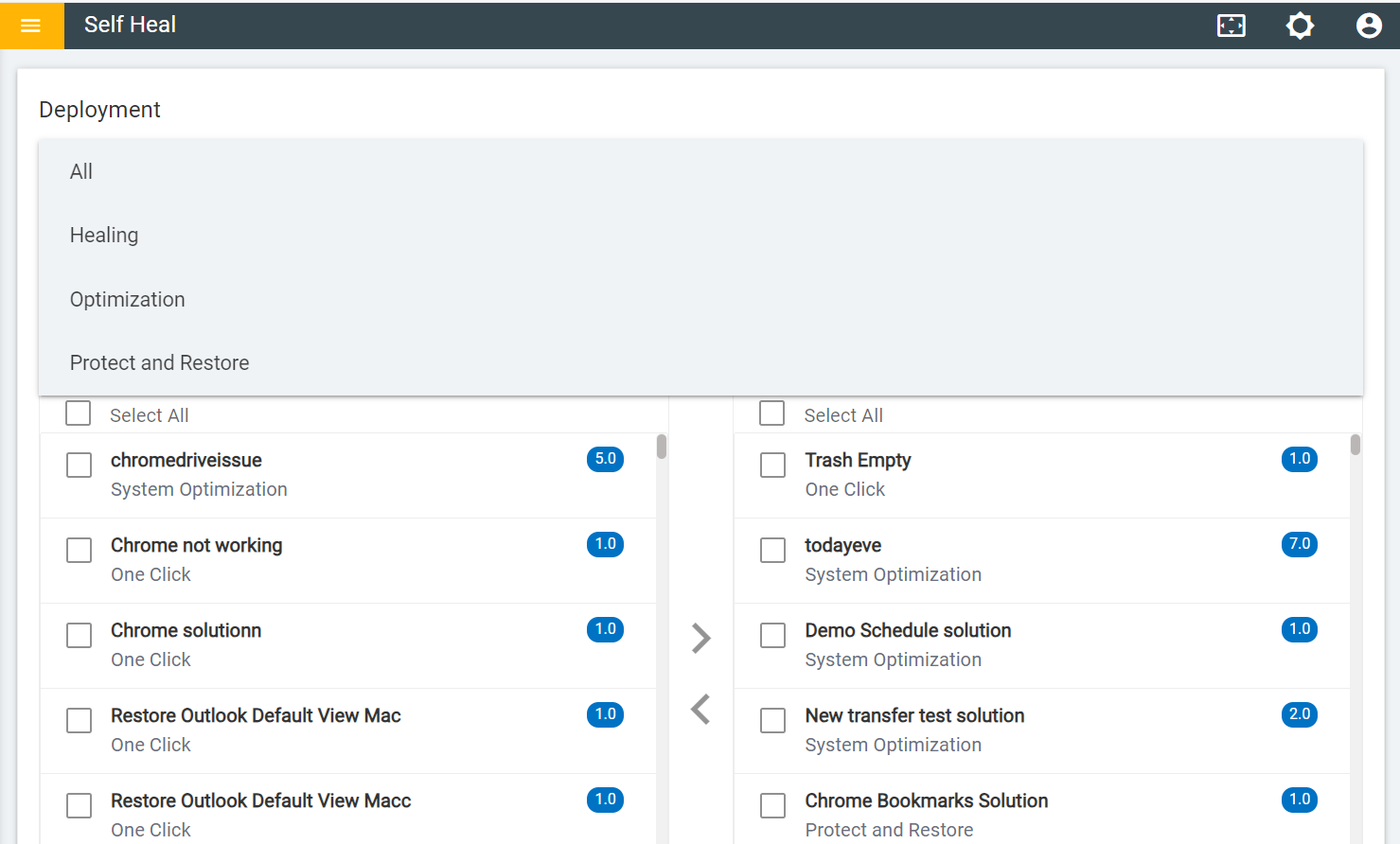
The following solutions are available:
Healing: Healing is a solution where the user can click and run the
solution on their own.
System Optimization: Solution which has system optimization of that type
that can be shown here.
Protect and Restore: This type of solution can help users to create back-up
copies of their browser favourite's / bookmarks and restore them in case these get
inadvertently removed / deleted. Using this tab, Users can protect and restore their
favourite webpages as bookmarks on Google Chrome, Internet Explorer, Microsoft edge, etc.
This feature helps users to create back-up copies of the browser.
Figure 2. Solution Types
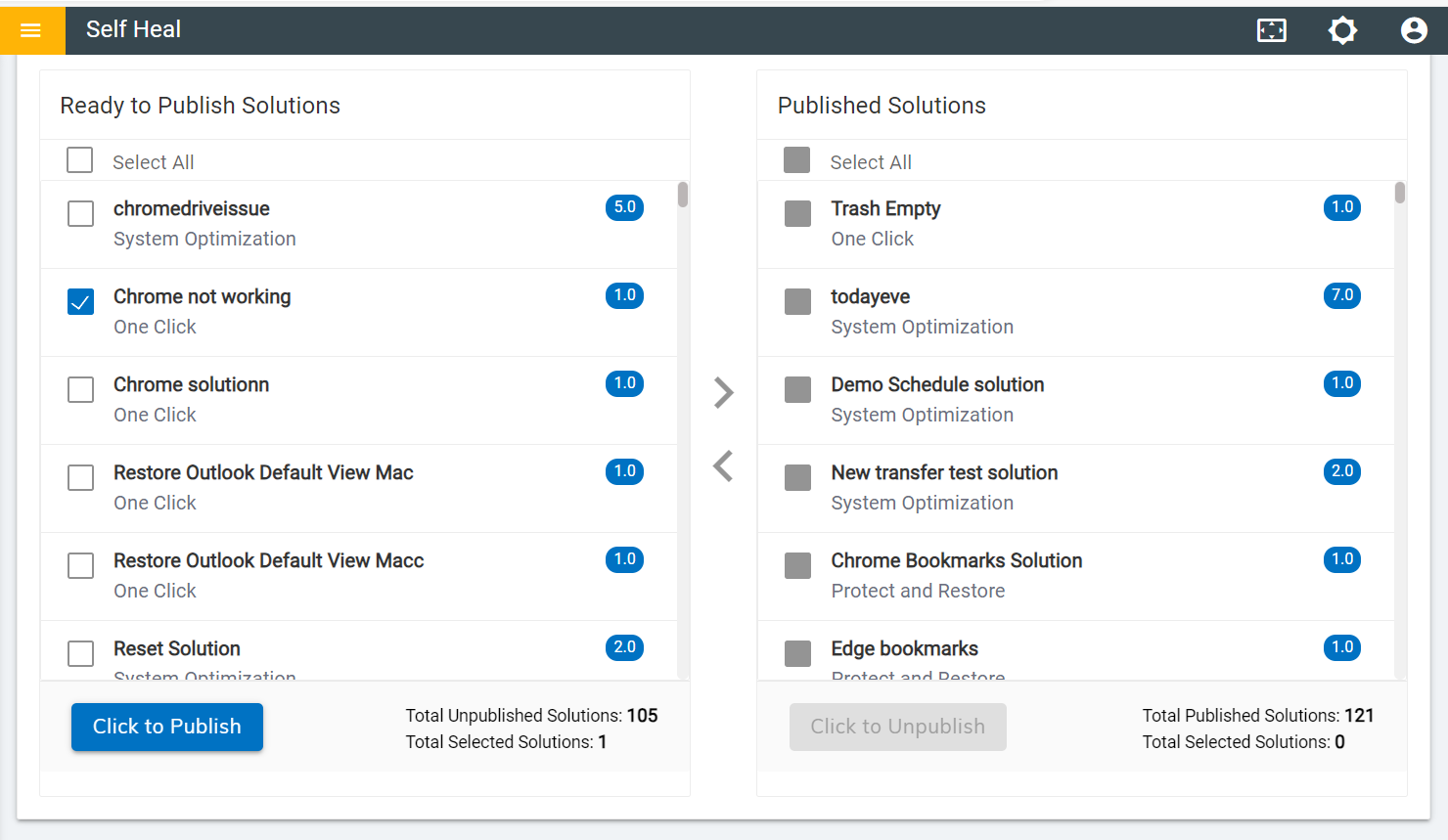
When the automation module is created with a Solution Type, it appears in the
Ready to Publish section. To publish the solution, click the "Click to
Publish" button. Figure 3. Ready to Publish
The following success message appears on the screen.
When a solution is published successfully, it moves to the Published
Solutions section. Figure 4. Published Solutions
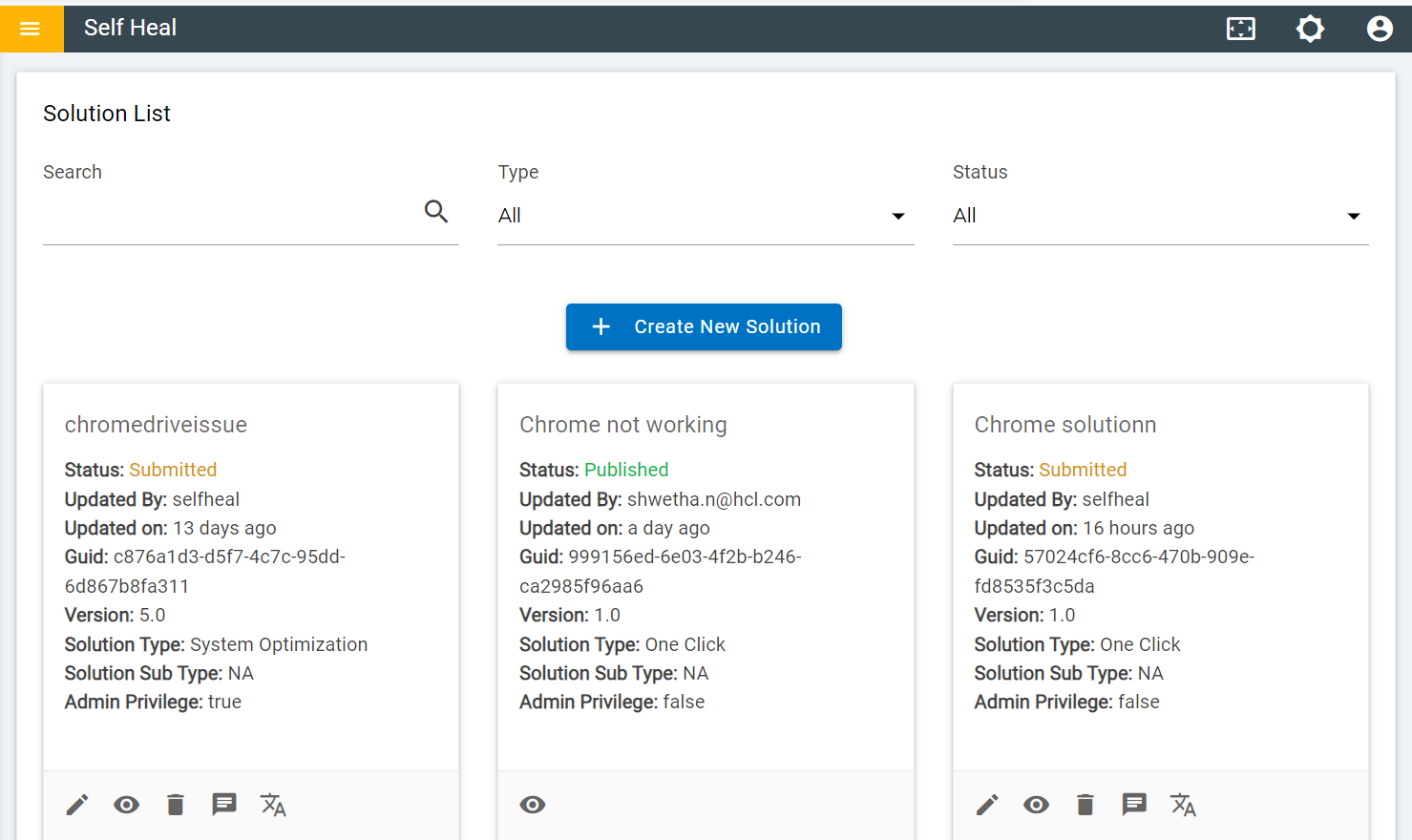
A successfully published solution starts reflecting in the automation module with
Status as “Published”. Figure 5. Published Status
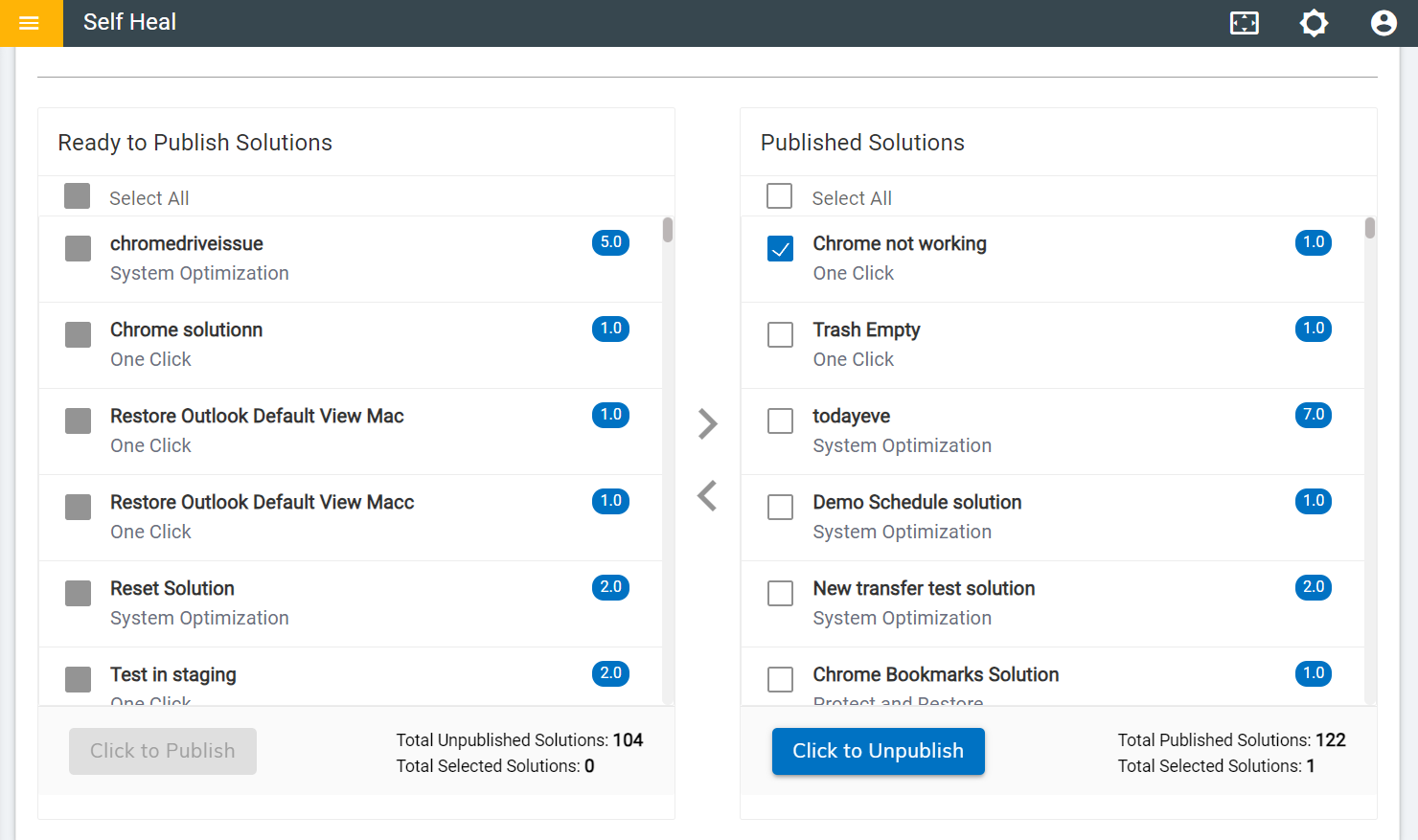
To edit the solution, the user needs to unpublish the solution, by clicking on the
Click to Unpublish button. Figure 6. Unpublished a Published Solution
The following message appears on successfully unpublishing the solution.
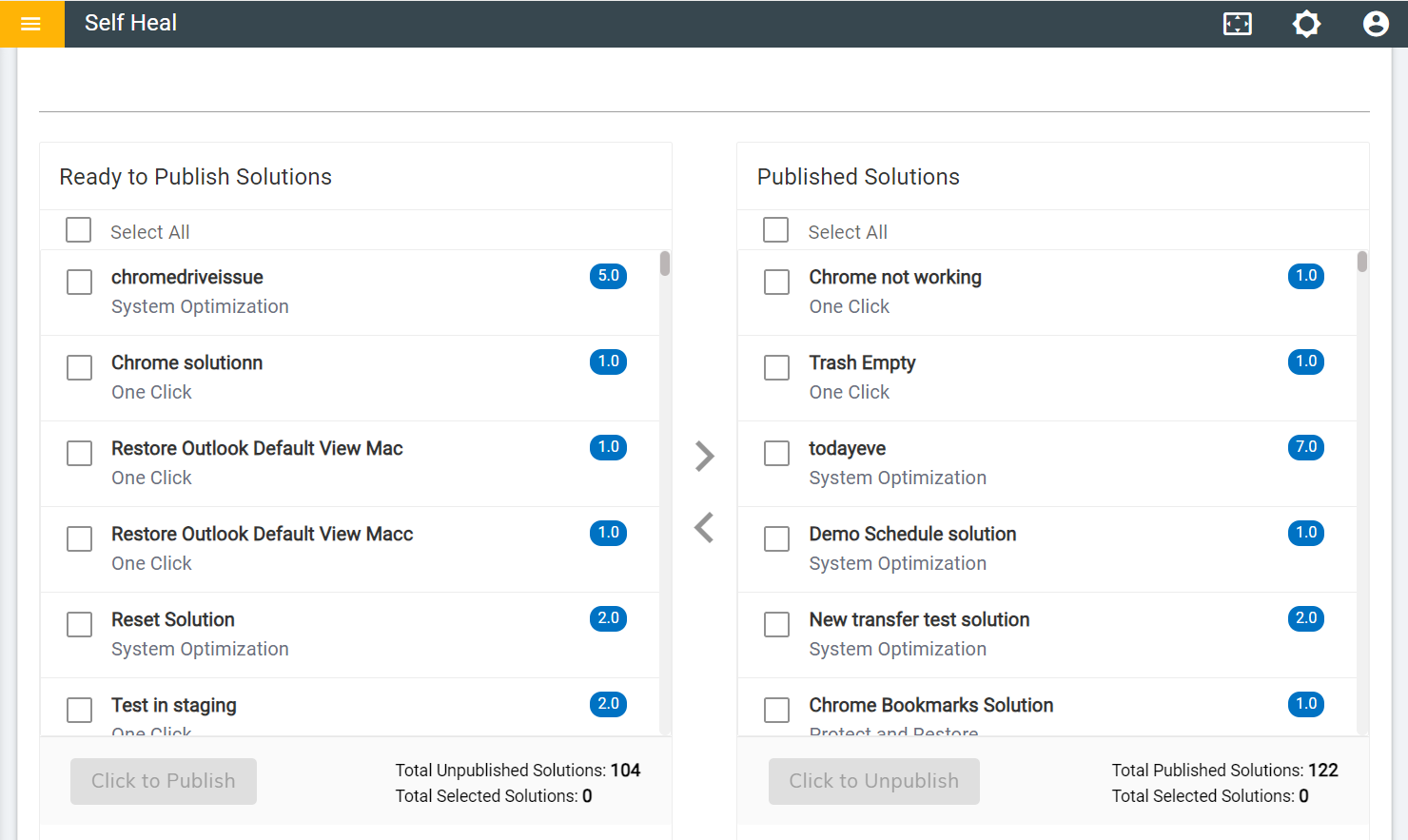
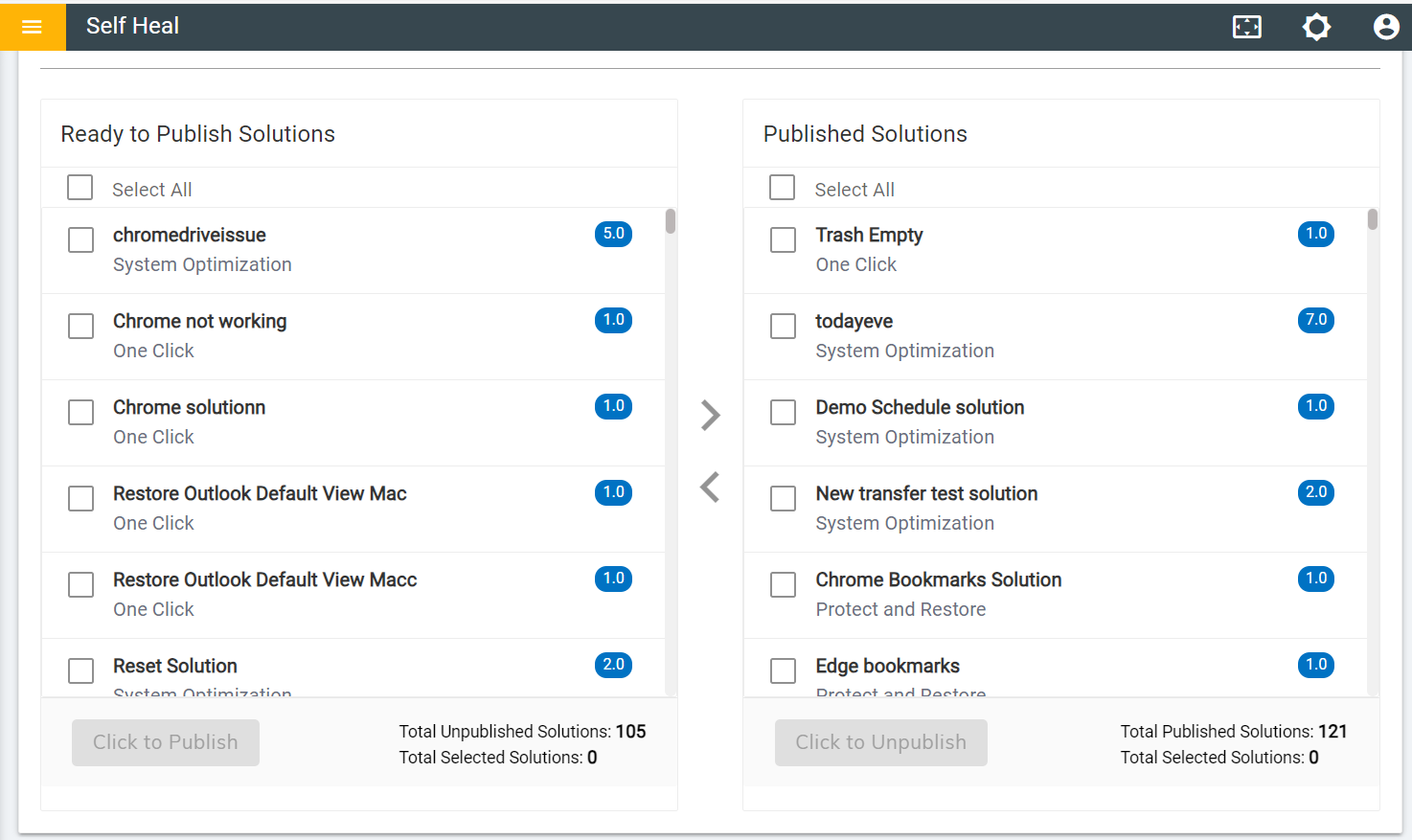
The solution moves to the Ready to Publish Solution section. Figure 7. Ready to Publish
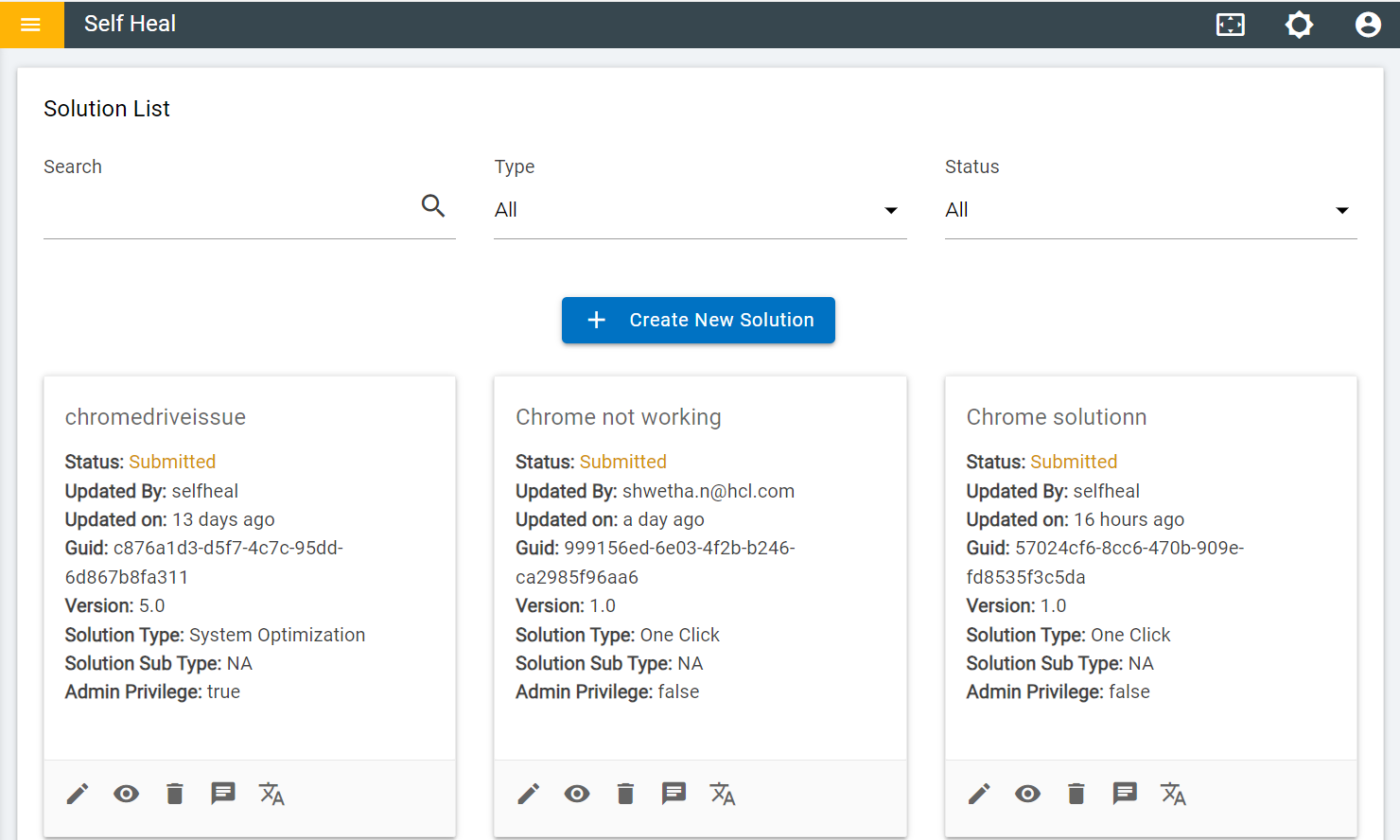
Once the solution is successfully unpublished, it will show a "Submitted"
status in the Automation Module.Figure 8. Submitted Status