Automation
The Automation module is used to create automated solutions, which are executed on client machines. Under automation there are two sub-modules:
- Solutions
- Apps
Figure 1. Automation Module 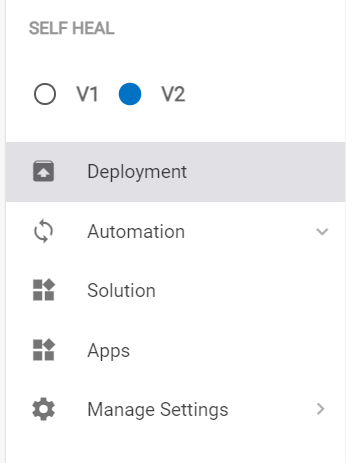
Solutions
The admin can develop automated solutions within the global admin panel, designed for running scripts in the client application. Every solution includes a CAB file, which encloses the script necessary for the solution's execution. These solutions require categorization and grouping into collections to distinguish which category and collection each solution belongs to.
The admin can perform the following actions for an individual solution to the users only when solutions are in Submitted state (Unpublished solution). To perform all these operations, the user must first unpublish the solution.
- Create Solution
- Edit Solution
- View Solution
- Delete Solution
- Message
- Translation
Create Solution
- To create a solution, click on Create New Solution on the Solution page.
Figure 2. Solution Page 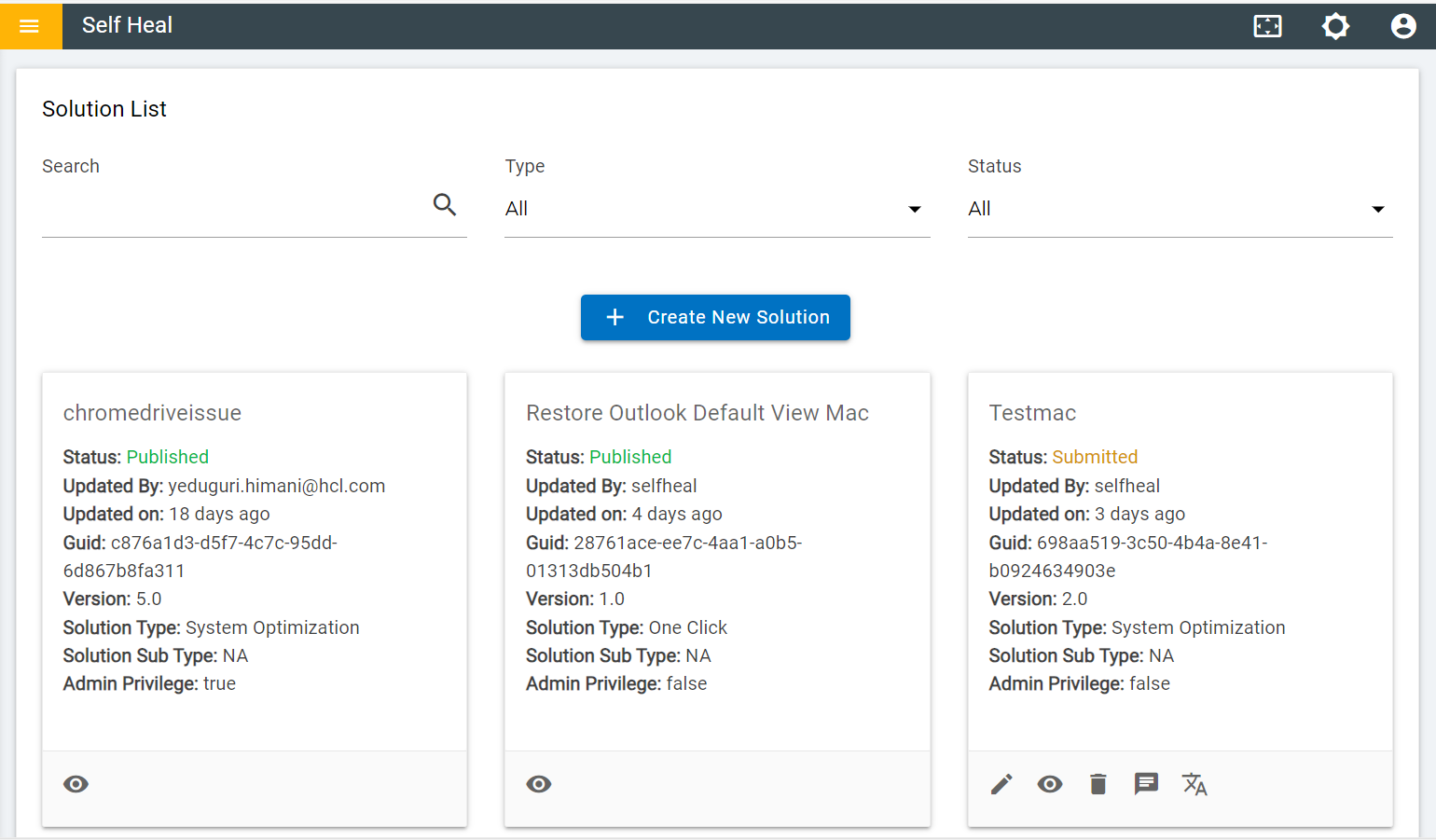
- The Following page appears on the screen:
Figure 3. Create New Solution 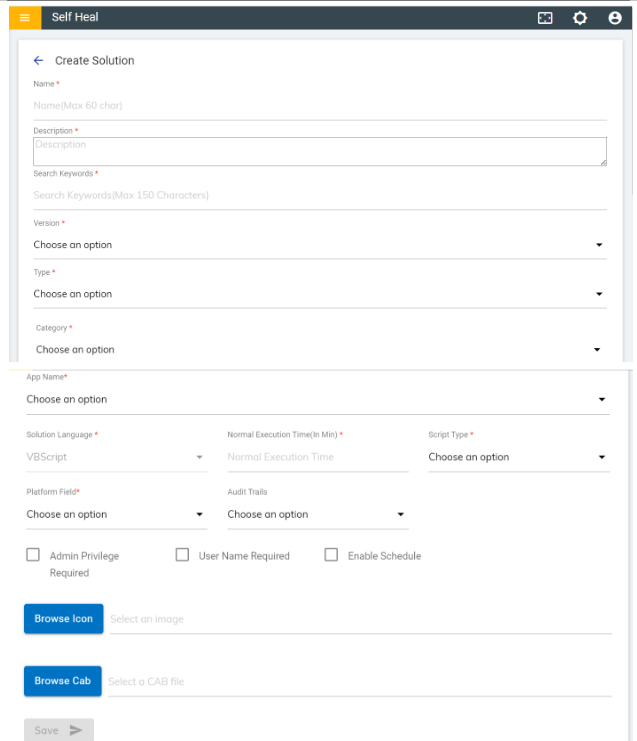
- Fill in the required fields and click Save button.
Figure 4. Populate the Fields 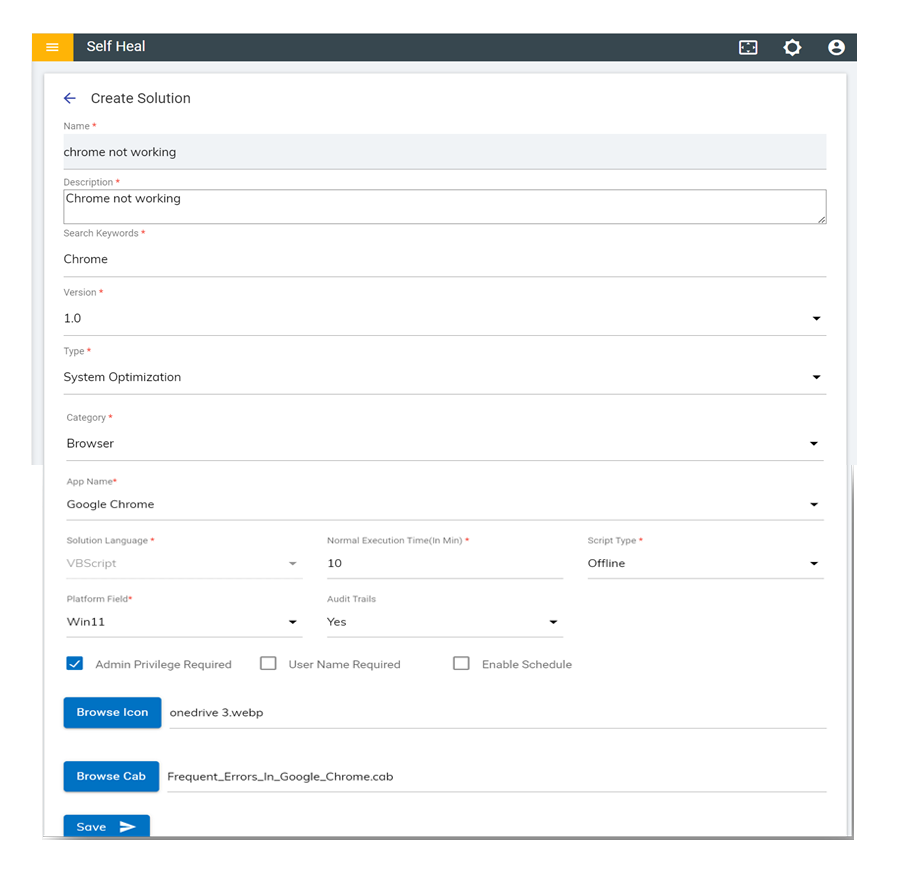
- Click Save. A success message appears on the screen and a solution is created.
Solution Customization on Tenant Admin Portal
Objective: Implemented a customization capability in Self Heal, enabling tenant admins to update solution titles, descriptions, and associated images. This feature supports client-specific configurations, improving relevance and user experience across tenants.
To access the Global Admin Console.
- Open the global admin console URL https://bigfixaex.com
- Navigate to the Self-Heal section under V2 in the side panel, then choose a solution.
- From the Solution page, select the 'Create Solution' button
Figure 5. Solution Page 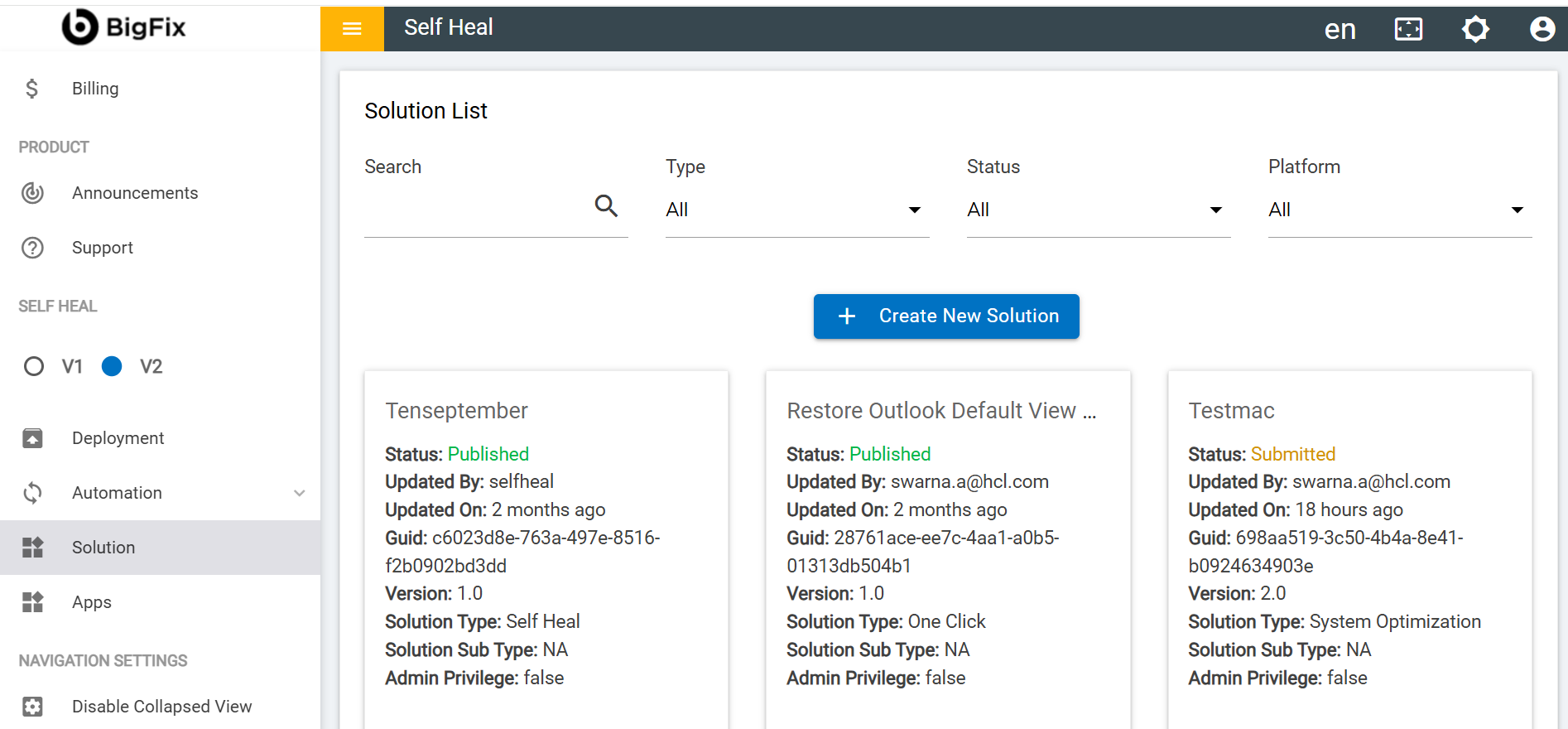
- Upon clicking the 'Create Solution' button, the form for creating a solution will
appear.
Solution is a automation solution that we offer in Self Heal whether OTB (Out of the box) or CCD (custom content development, client specific)
-
On the Create Solution page, Is CCD (Custom Content Development) checkbox is provided to indicate that the solution is client-specific on the base of client provided SOPs.. When selected, it enables tenant admins to map the CCD solution to a designated tenant, ensuring the solution is only available within the intended client environment.
Figure 6. Custom Content Development (CCD) 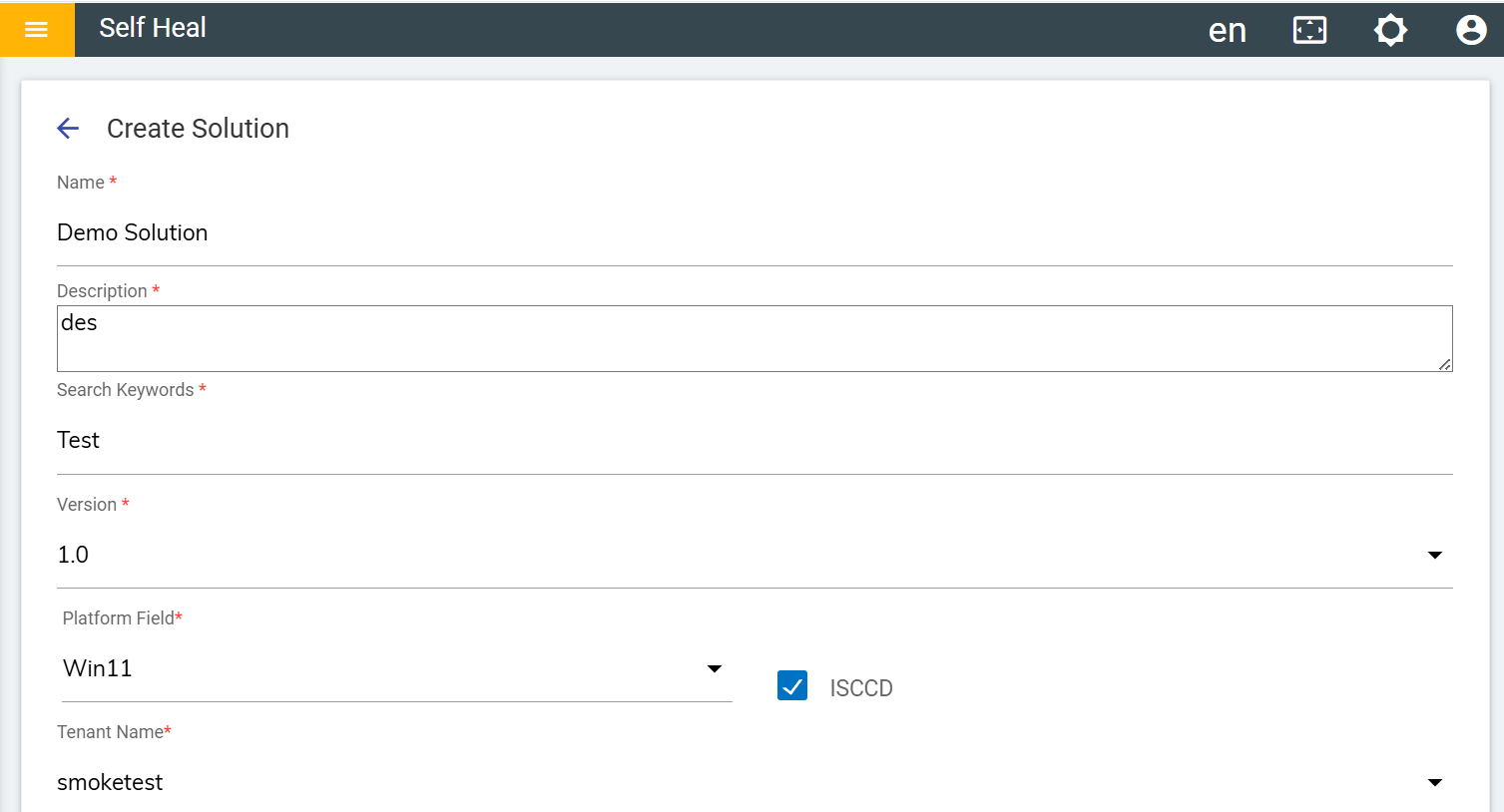
- Upon checking the CCD checkbox, The admin must select a tenant from the available list,
and the solution will be accessible only to that selected tenant.
Figure 7. List of Tenants 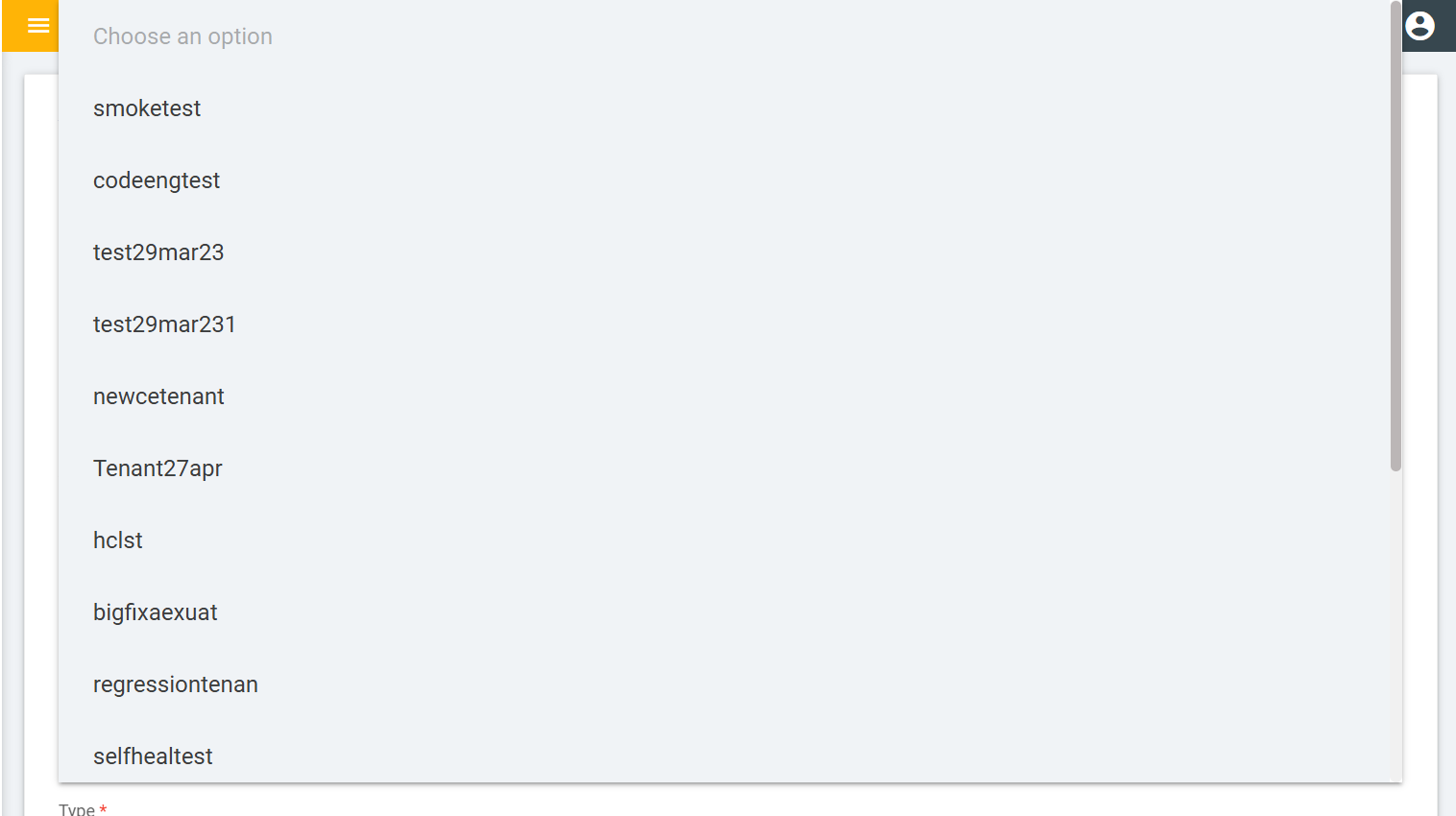
- While creating a solution, the admin must select and upload a script; otherwise, the automation solution cannot be created from the Global Admin Portal.
- Script is a cab or tar file in which automation functionality written by scripter and it
is required while creating an automation solution on Global admin (to upload).
Figure 8. Uploading Script 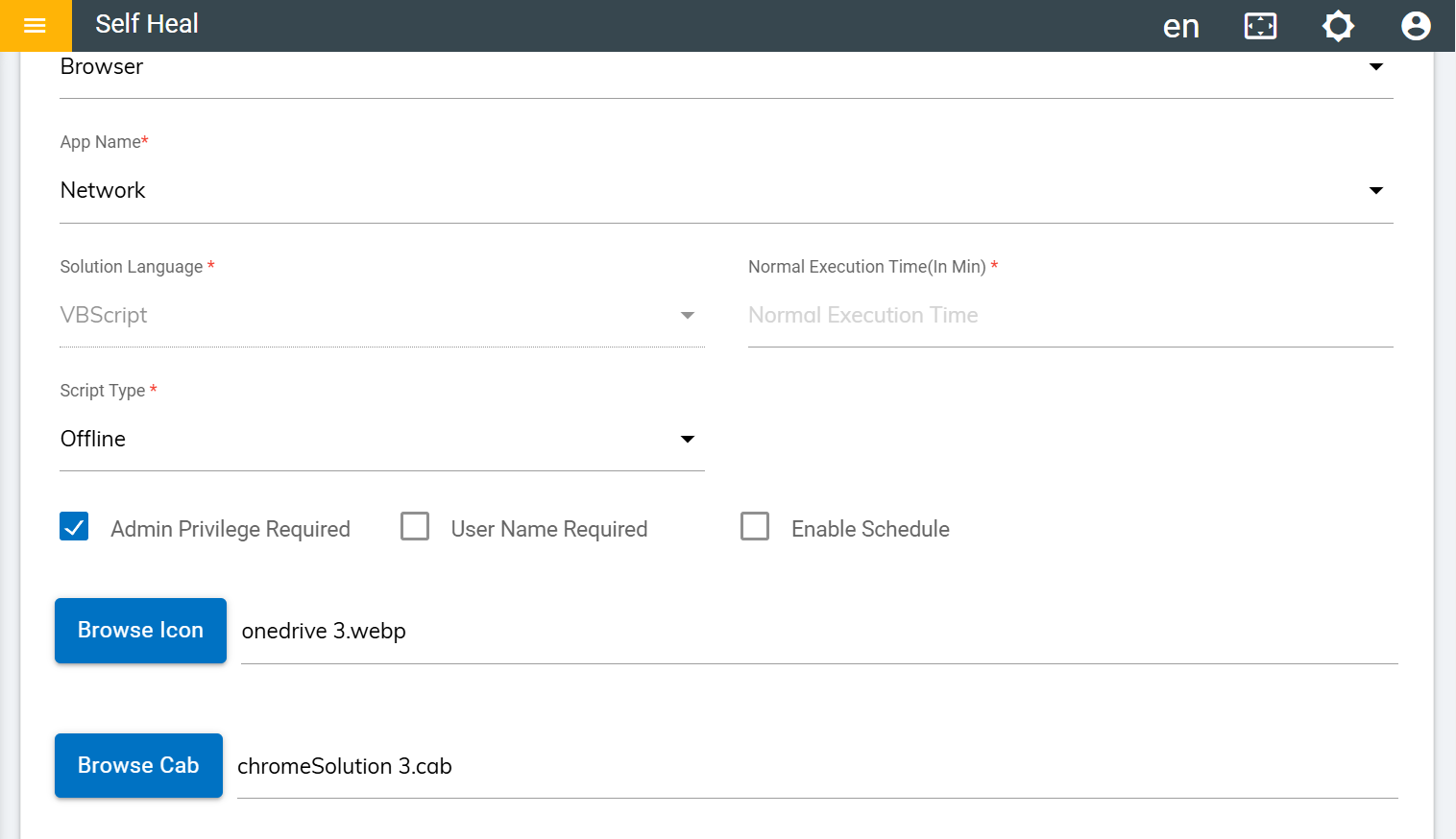
- Once the admin updates the any solution property—such as the title, description, search keyword or image—Post next sync cycle or performing force sync from Agent Application changes will be propagated on Agent Application".
-
Sync customize automation CCD solution on Agent:
- On the next sync cycle or on force sync operation (if initiated by the end user)
CCD automation renders with updated title, description, solution image.
Figure 9. Render updated CCD automation solutions on Agent 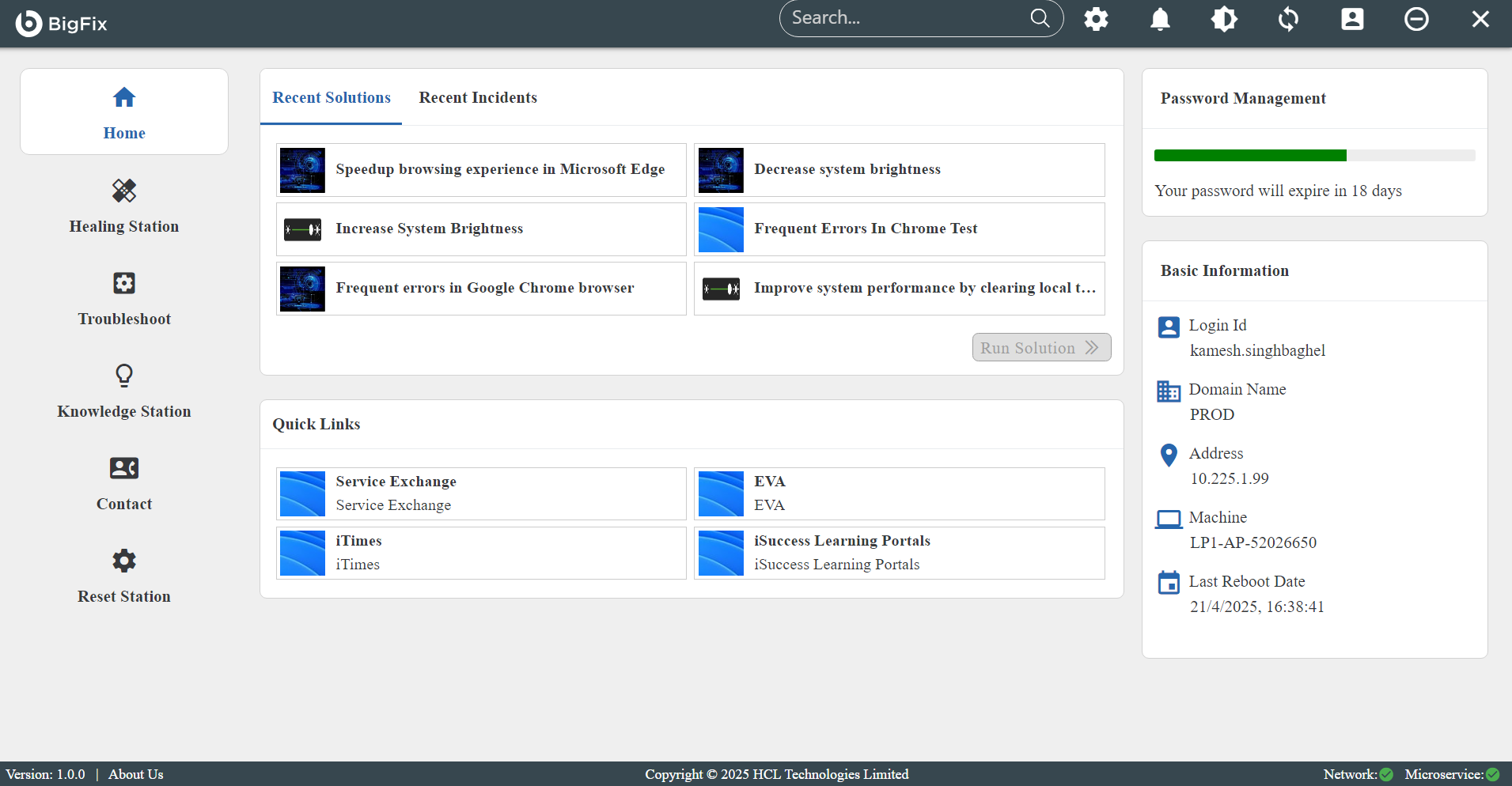
Note:The solution customization feature is currently supported only for CCD (Custom Content Development) solutions within the client-specific bucket. - On the next sync cycle or on force sync operation (if initiated by the end user)
CCD automation renders with updated title, description, solution image.
Edit Solution
An admin can edit the details of a solution by using the edit icon in the Solution page.
- Click the edit icon which corresponds to the solution that he wishes to modify.
Figure 10. Solution Page 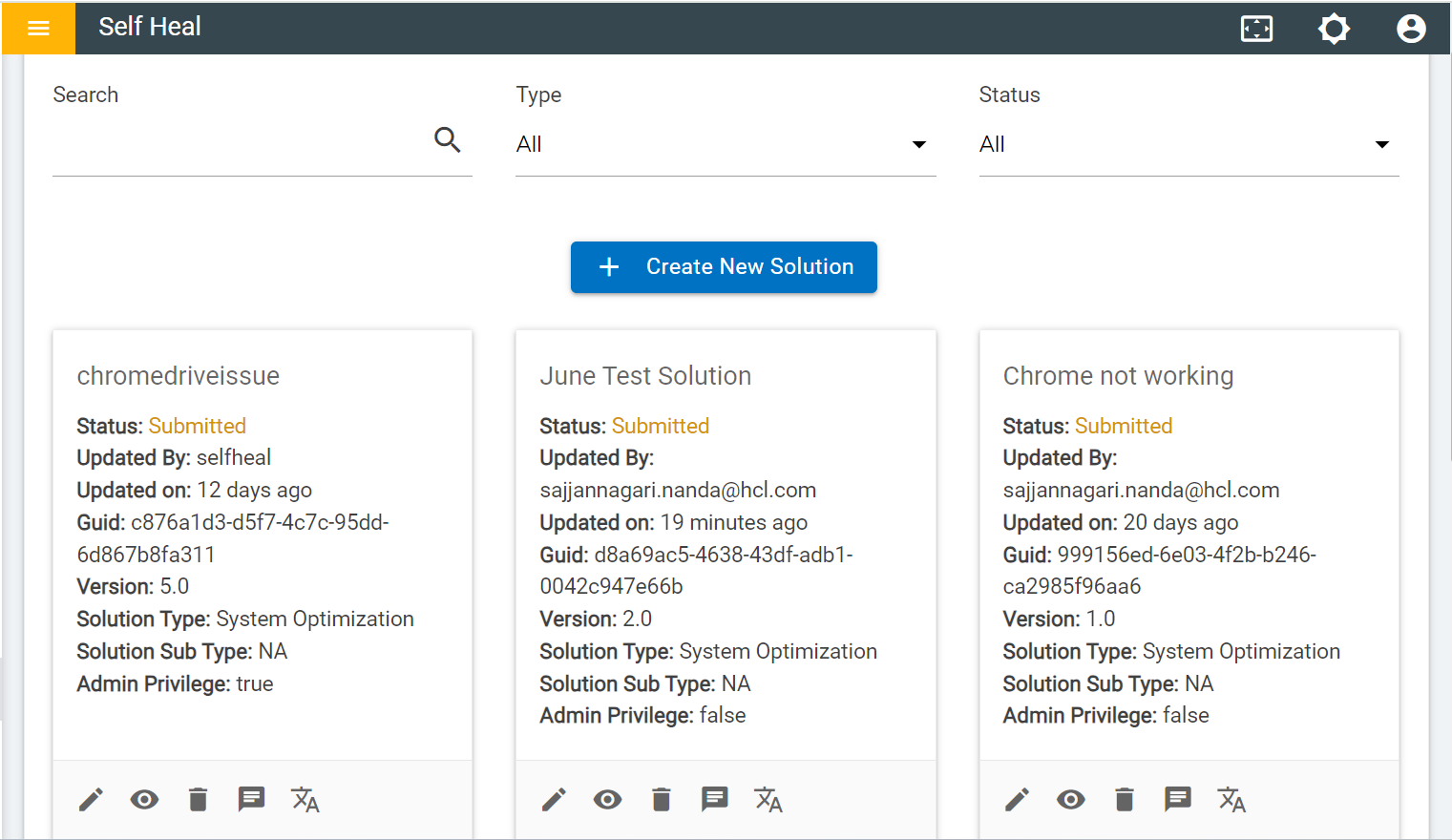
- The Edit Solution page appears below.
Figure 11. Edit Solution 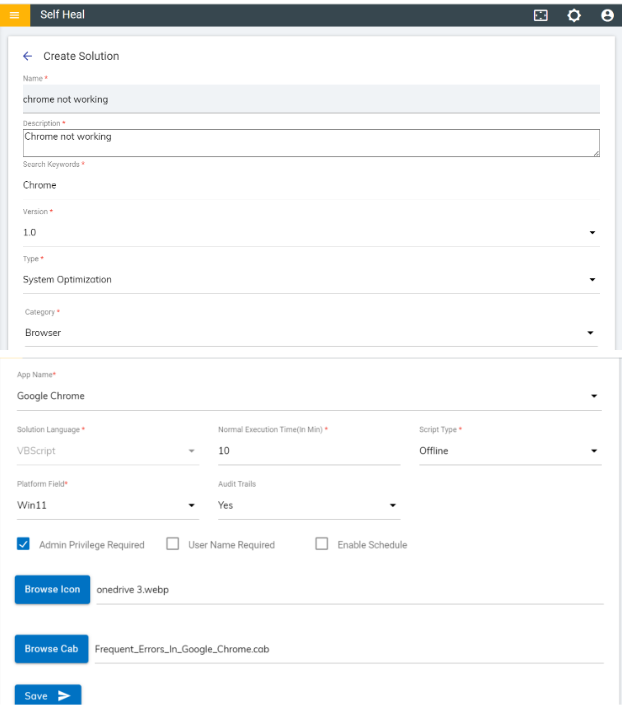
- Modify the details as required and click on Update.
- The details are updated, and the following success message appears on the screen:
View Solution
- To view a solution, click the corresponding View icon placed on each solution on
the solution page.
Figure 12. Solution Page – View Icon .png)
- This redirects the user to the View Solution page.
Figure 13. View Solution Page 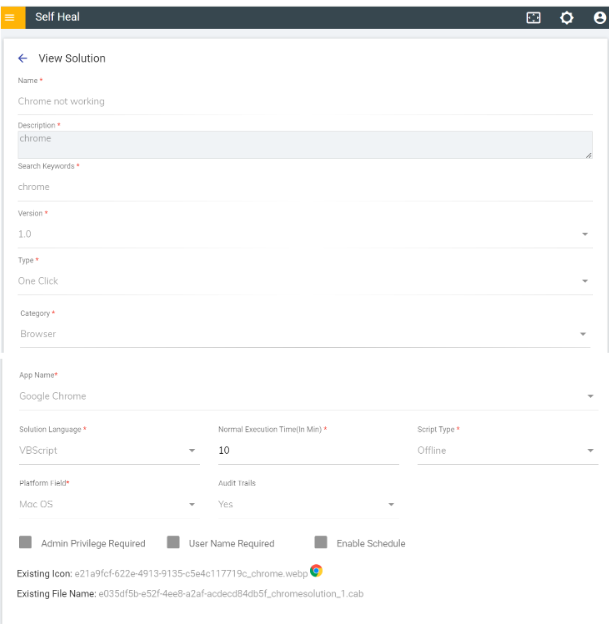
Delete Solution
- An admin can delete a solution using the delete icon on the Solution page.
- Click the delete icon which corresponds to the solution that he wishes to delete.
Figure 14. Solution Page .png)
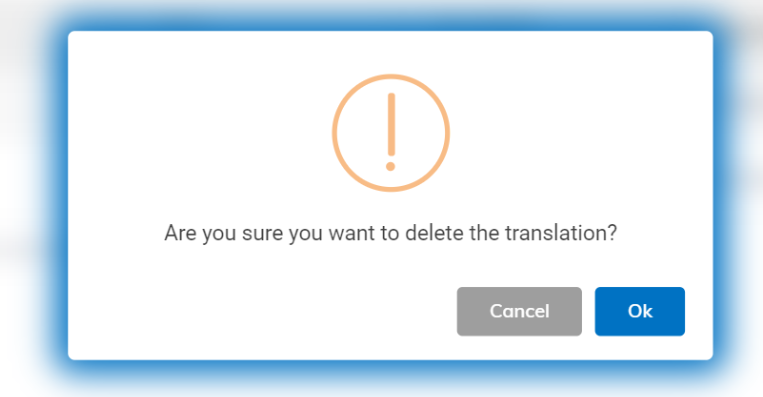
- A confirmation message appears to confirm the delete action. Click OK to delete or click Cancel to cancel the delete action.
- A success message appears appears on the screen.
Message
- The admin can manage the messages that are displayed in the client app using this module.
- To get into the message page click on the message icon
.png) placed in the solution page.
placed in the solution page. Figure 15. Solution Page .png)
- The following page appears:
Figure 16. Solution Message 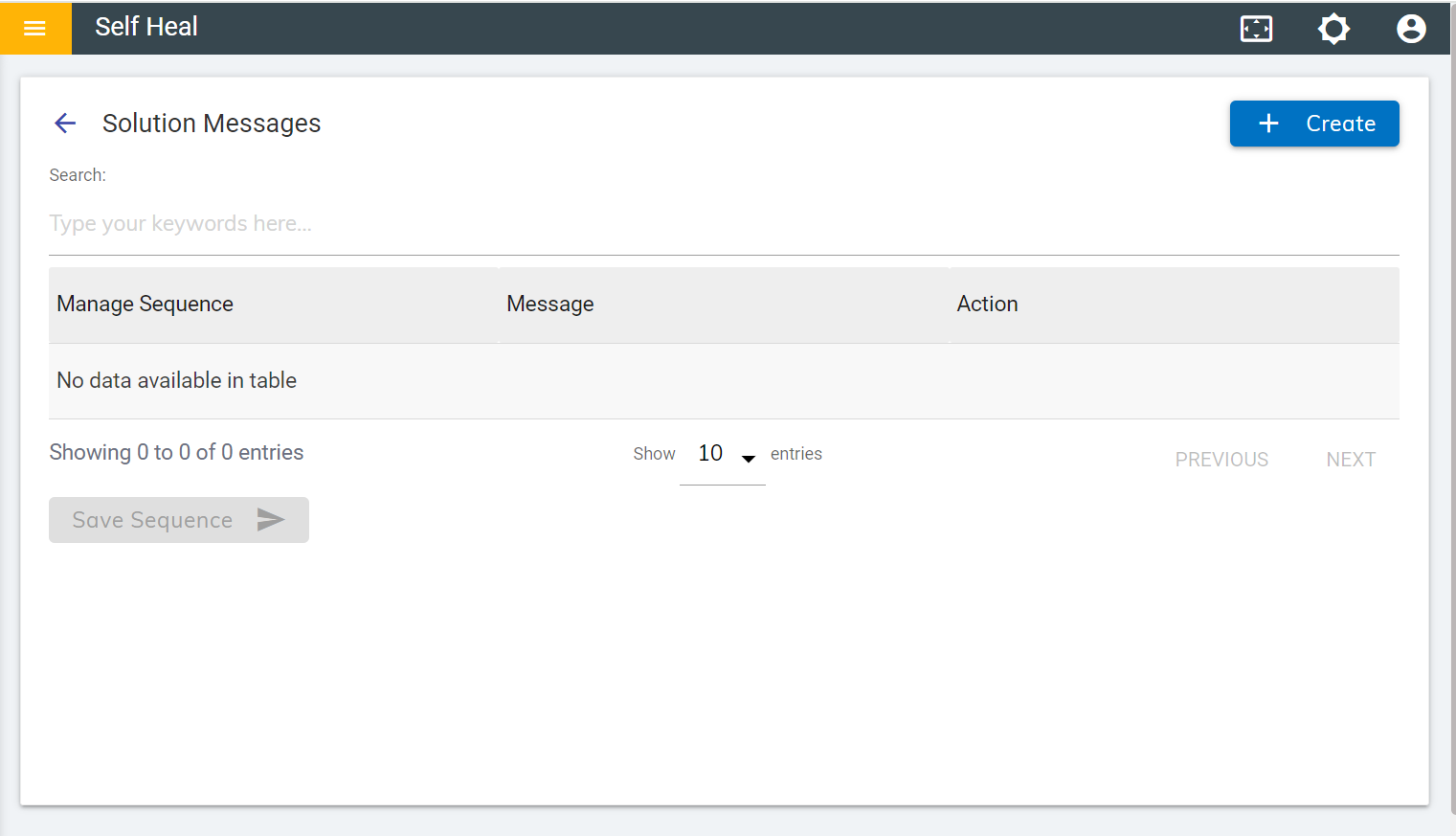
- Create a message for a solution by clicking on the Create button, on the top right corner of the Message page.
- Populate the Message field with the desired message and click Save.
- The following page appears:
Figure 17. Create Solution Message .png)
- Click Ok to save or click Cancel to cancel the Message action.
Figure 18. Confirmation Message 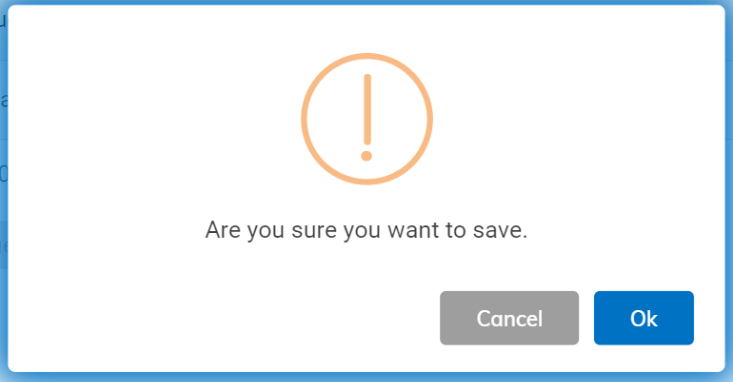
- A new message is added, and a success message appears on the screeen.
- Users can edit a Solution Message by clicking on the edit icon associated with a
message on the Message page.
Figure 19. Edit Success Message 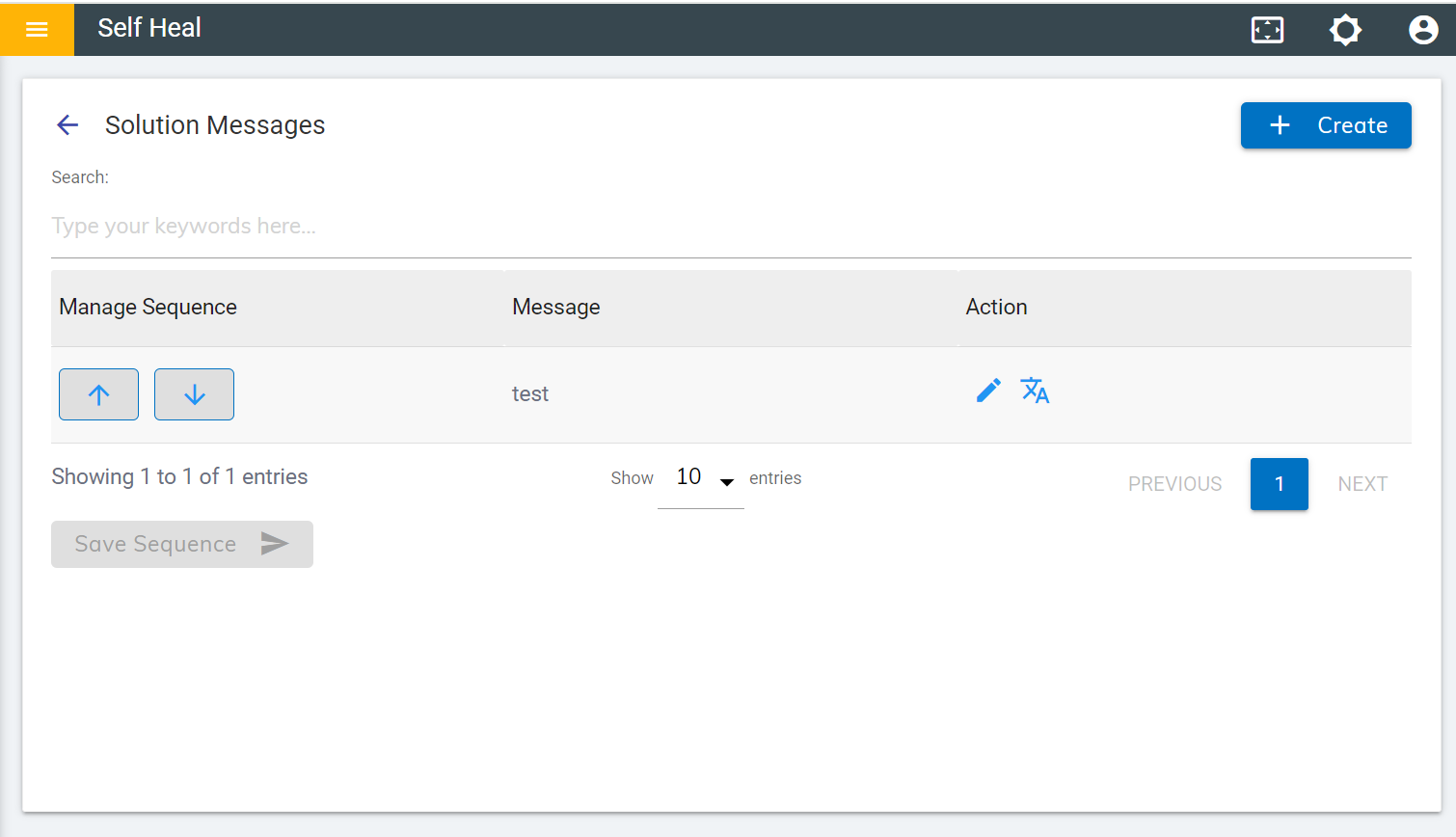
- The following screen appears where the user can update the message.
- Click Update to Update the message or click Cancel to cancel the
Message action.
Figure 20. Edit a Solution Message 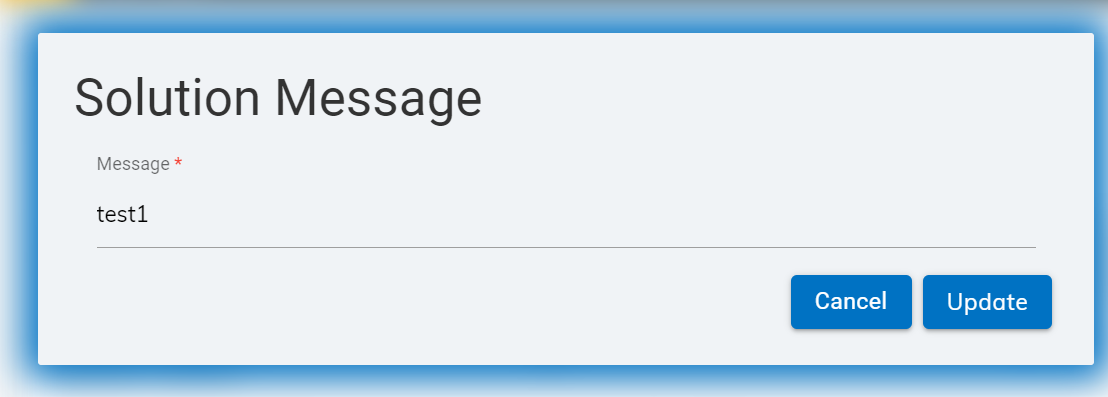
- Modify the message as required and click Update. The following success message appears on the screen.
Translation
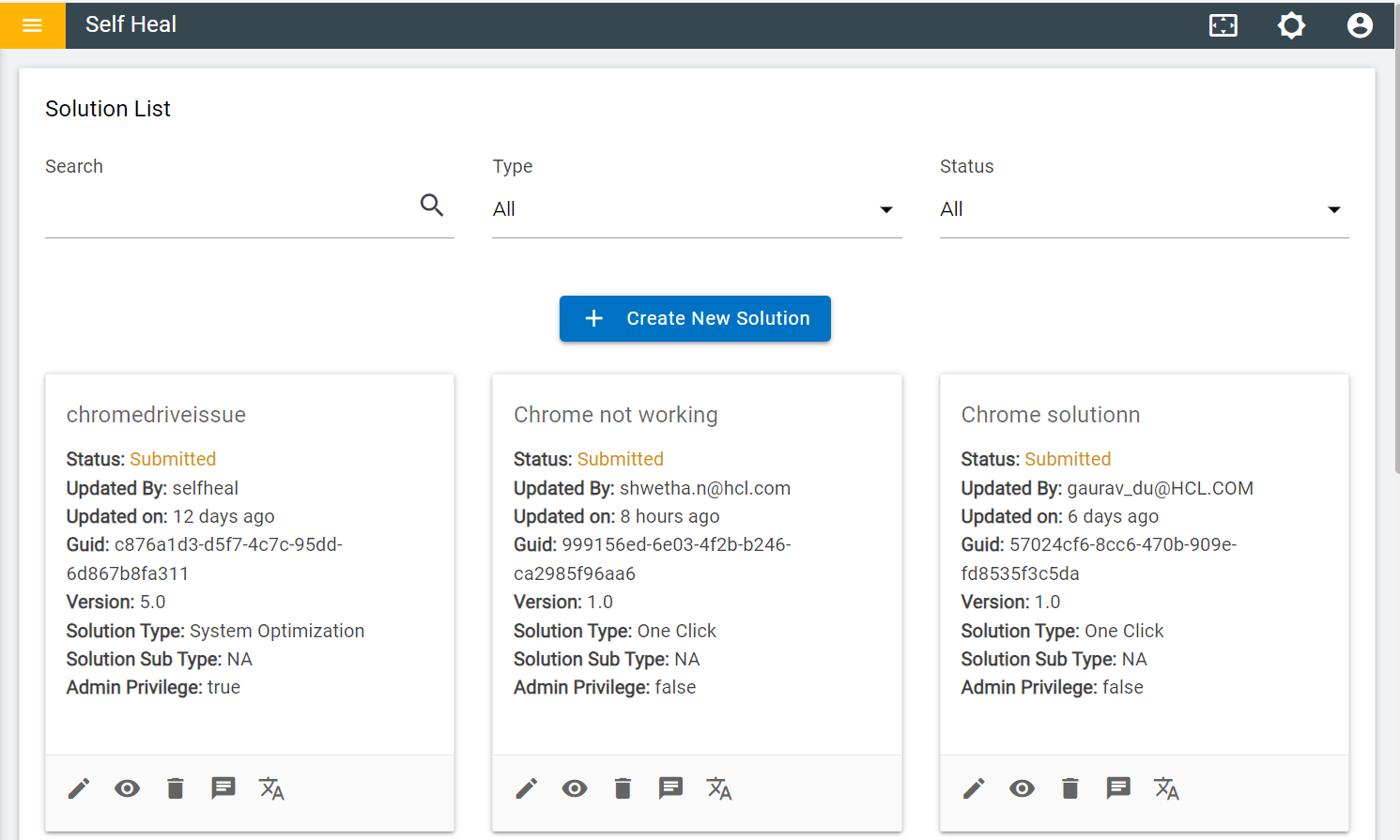
- An admin can translate a solution by using the translate icon in the Solution page.
- Click the translations icon which corresponds to the solution that he wishes to
translate.
Figure 22. Language Translation 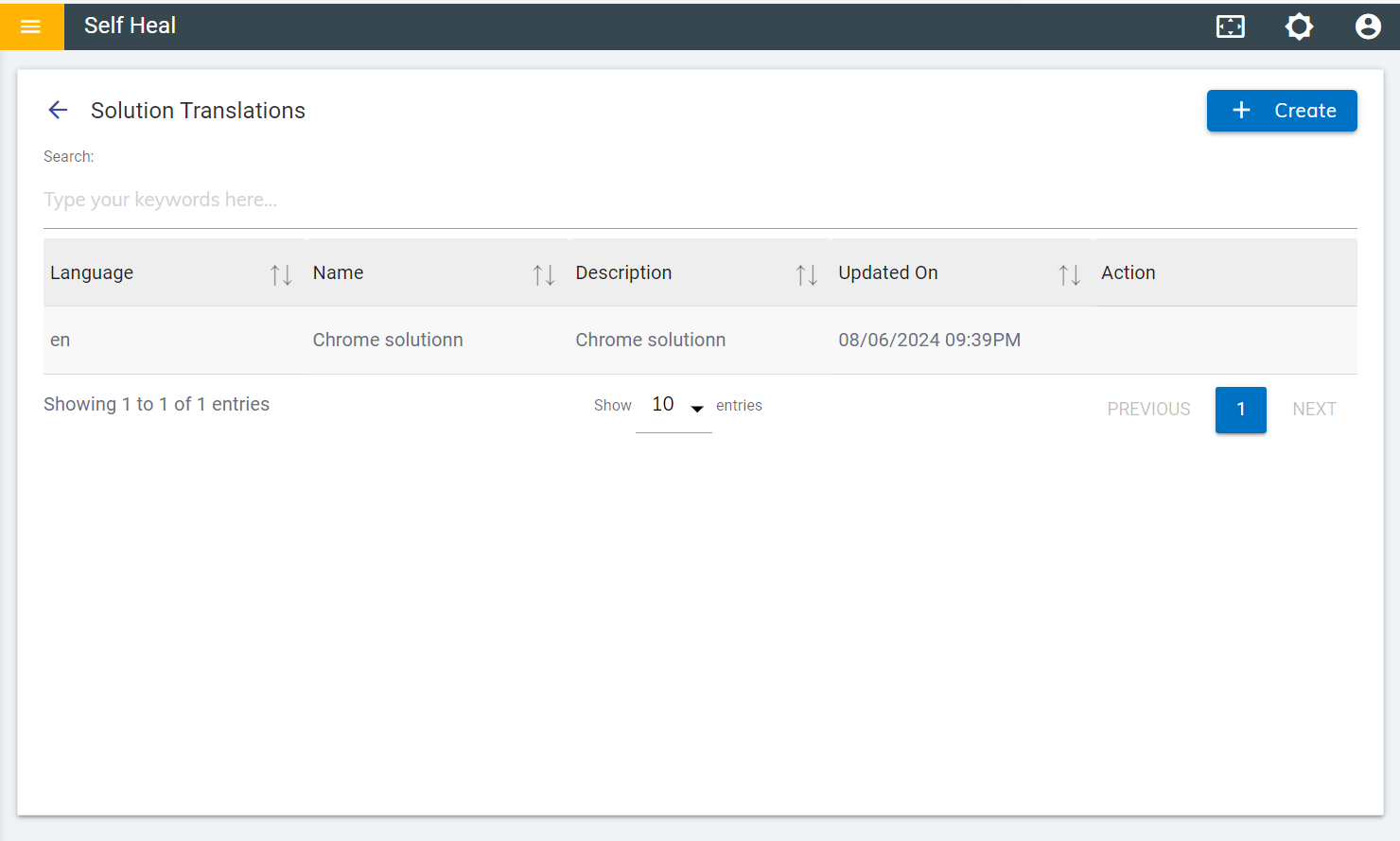
- Create a translation for a solution by clicking on the Create button, on the top right corner of the Solution Translations page.
- The following page appears:
Figure 23. Create Translation 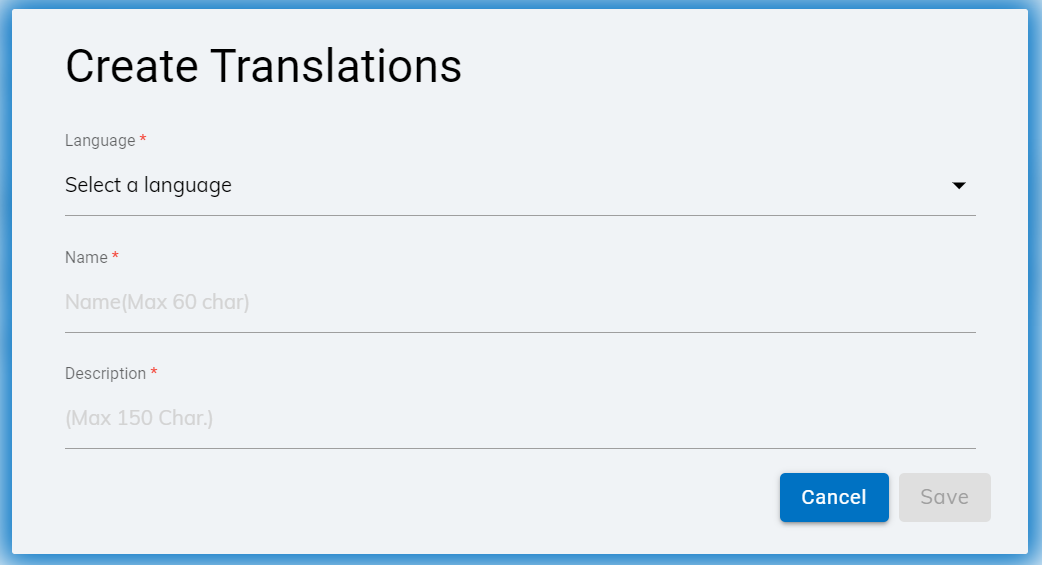
- Fil in the required fields and click on Save.
Figure 24. Translation for a Specific Language 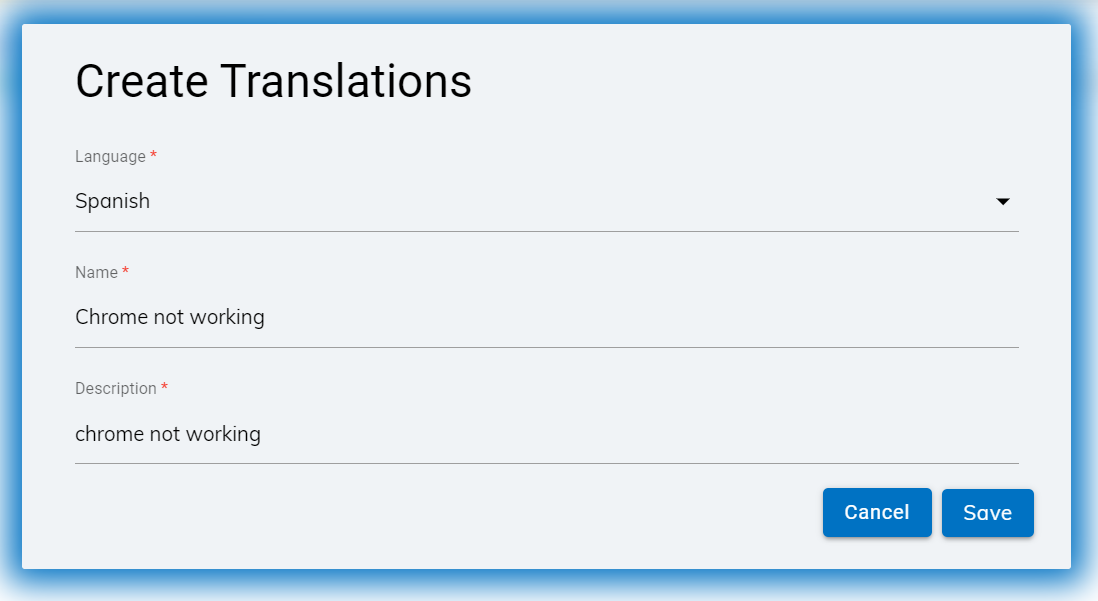
- Click "OK" to save or "Cancel" to abort the translation.
Figure 25. Confirmation Message 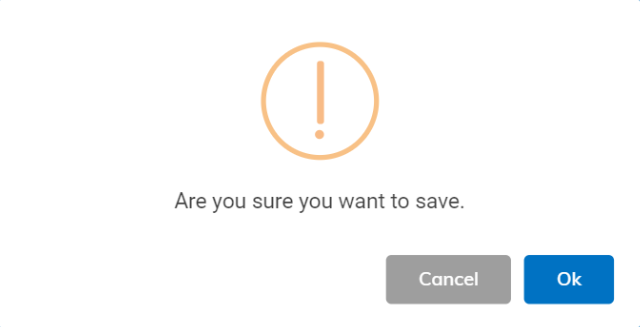
- Click Ok, Translation successful message will appear on the screen.
Figure 26. Success Translation 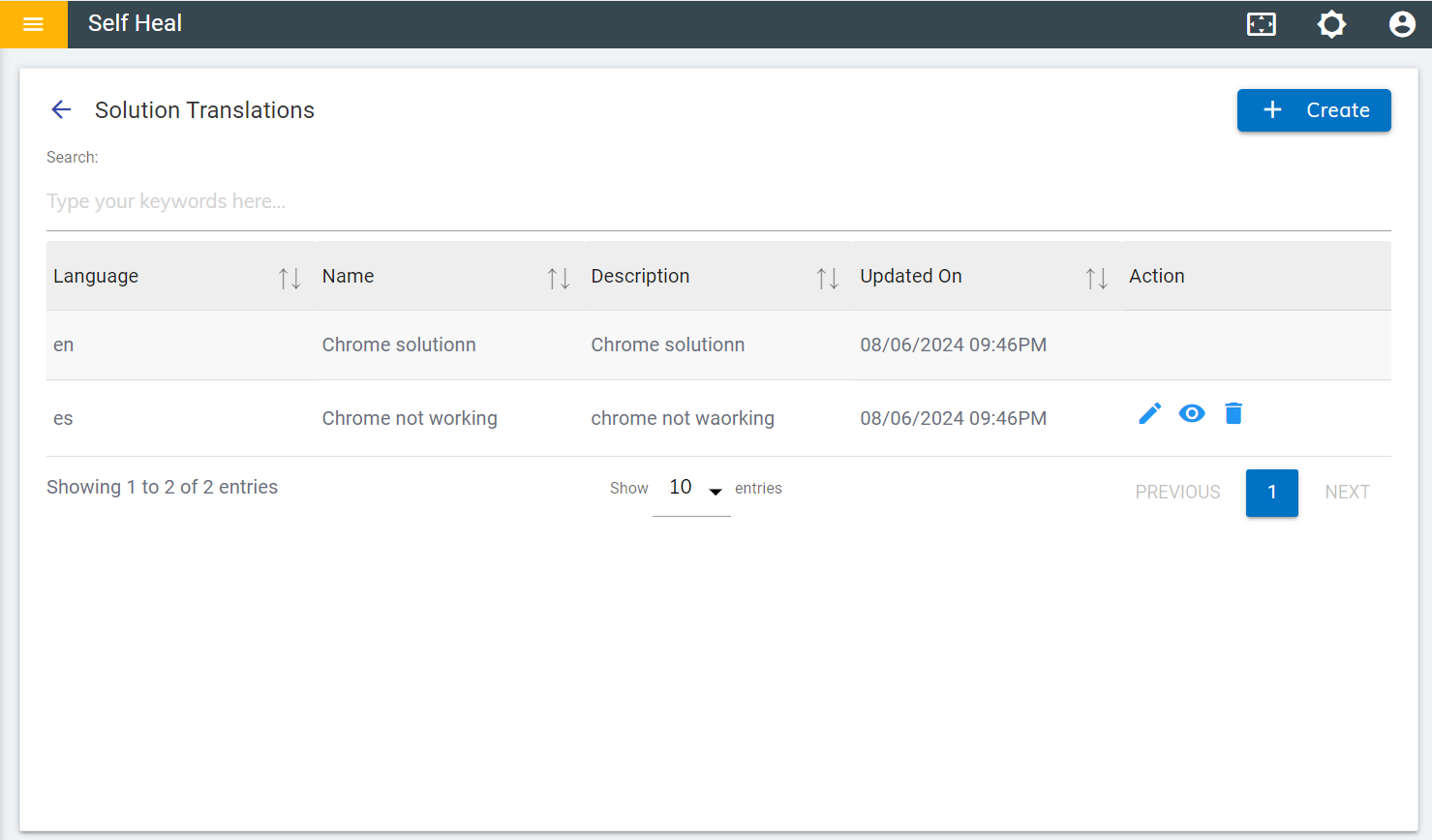
- To edit the solution translation, click on the edit icon in Solution
Translation Page, Modify the changes and click on the Update button.
Figure 27. Edit Translation 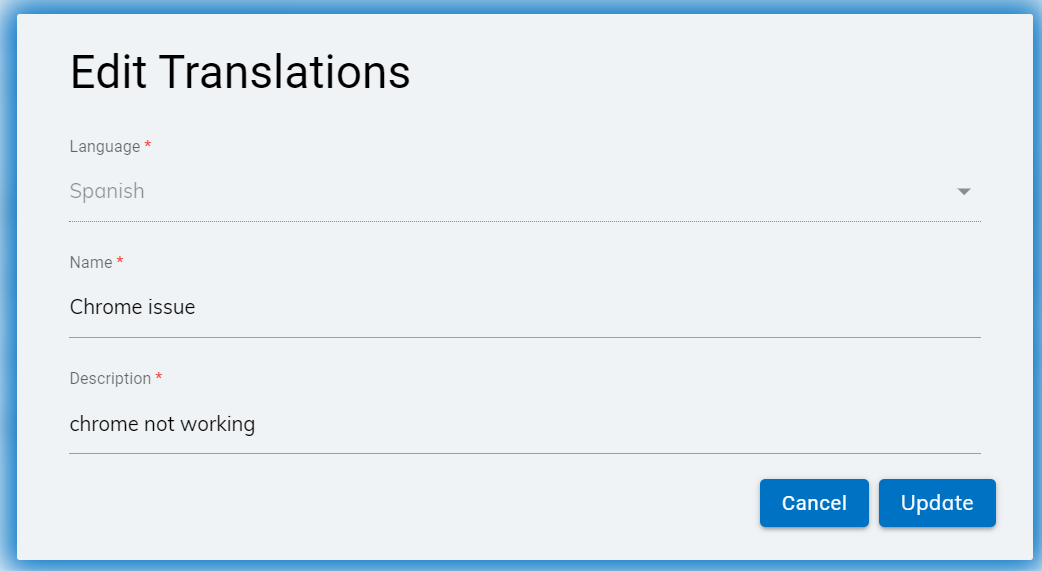
- To View the translation, click on the view icon in solution Translation page.
Figure 28. View icon on Translation page 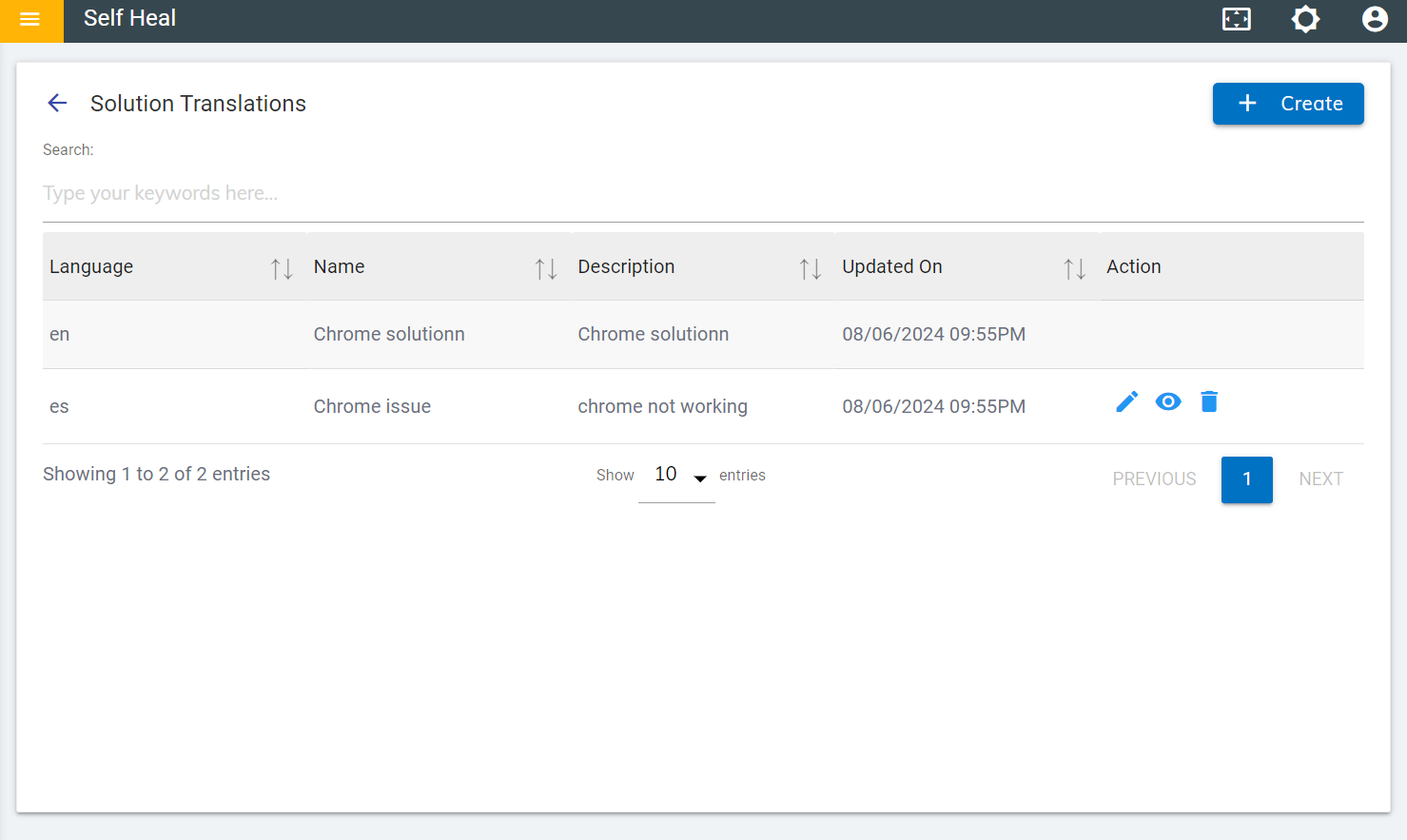
Figure 29. View Translation 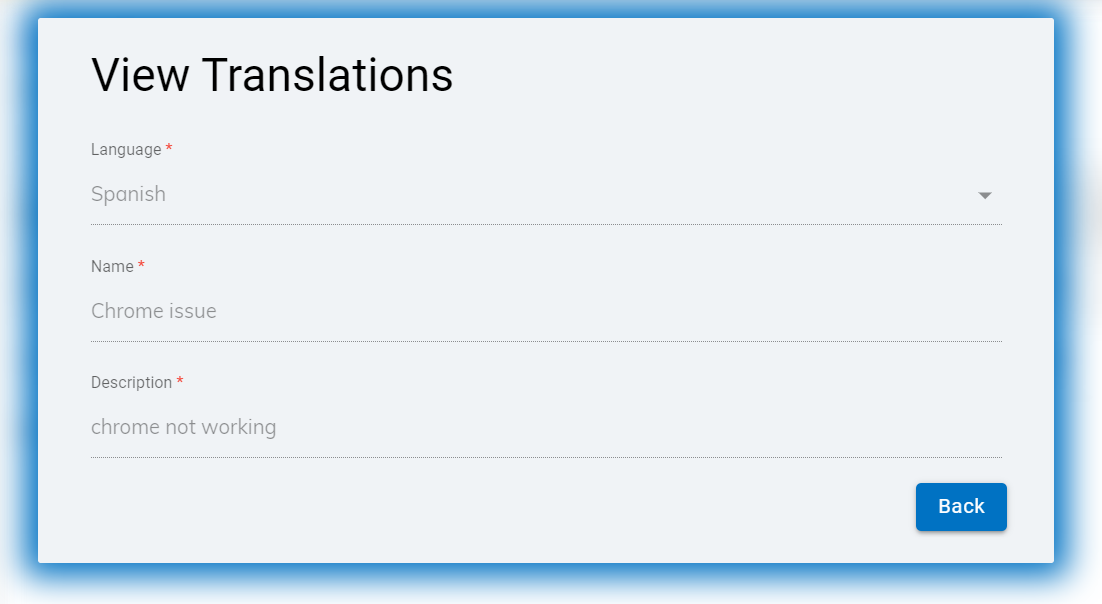
- Click the Back to return to the home page. After clicking Back, the
following page will appear on the screen:
Figure 30. Home Page of Solution Translation 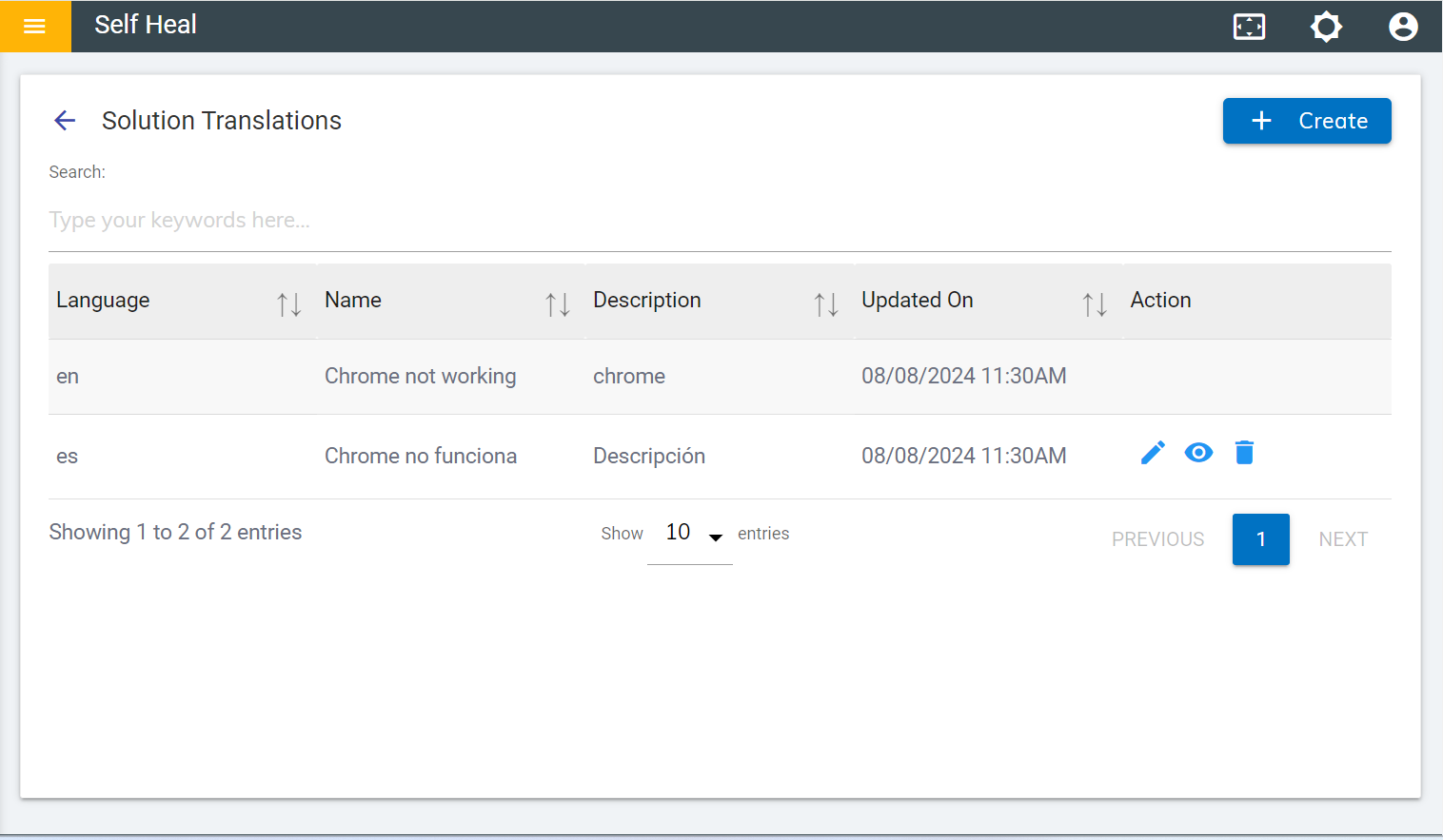
- To Delete the Translation, click on the delete icon in Solution
Translation Page.
Figure 31. Delete icon on Solution Translation .png)
Figure 32. Confirmation Message