
Workblaze/Nexthink Integration
The Nexthink integration with BigFix AEX provides solutions to user’s device related issues within the scope of the information collected and remediation available in the Nexthink server. It solves all the problems faced by the user that falls under out-of-the-box topics defined in the product.
- Log into the Global admin and navigate to Tenants page under Provider tab.
Figure 1. Global Admin Console 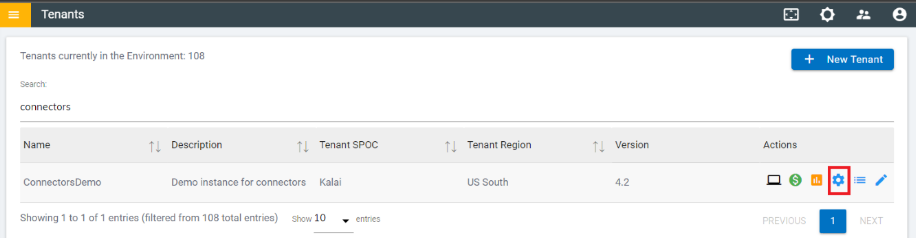
- Click on the configure button
 available in the Actions column.
 - In Tenant’s Configuration page, click on Open link on “Choose Integrations” card.
Figure 2. Tenant’s Configurations Page .png)
- Click on Open link on “Nexthink” connector.
Figure 3. Available Integrations 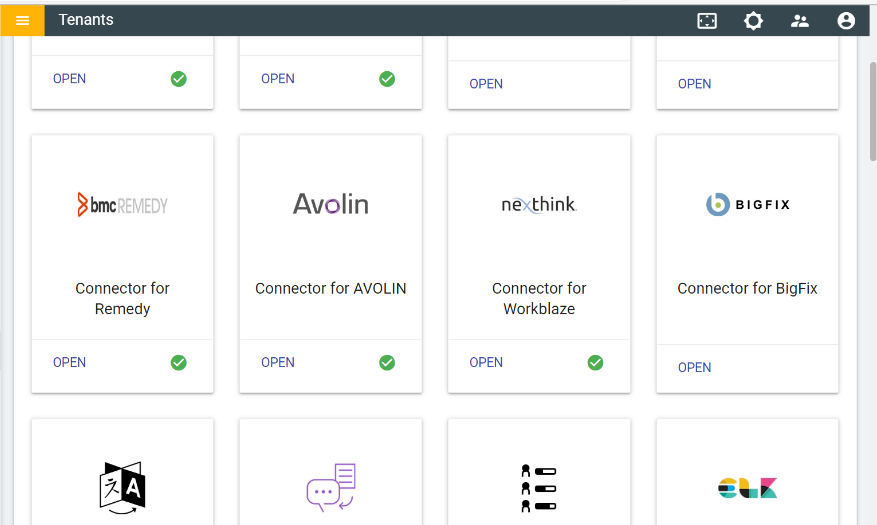
- Populate all the fields in the form.
Figure 4. Workblaze/Nexthink Integration Form 
- To test whether the credentials given are correct, click on the Test button. If it is
correct, tick icon will be shown, else cross icon will be shown.
Figure 5. Test Credentials - Correct 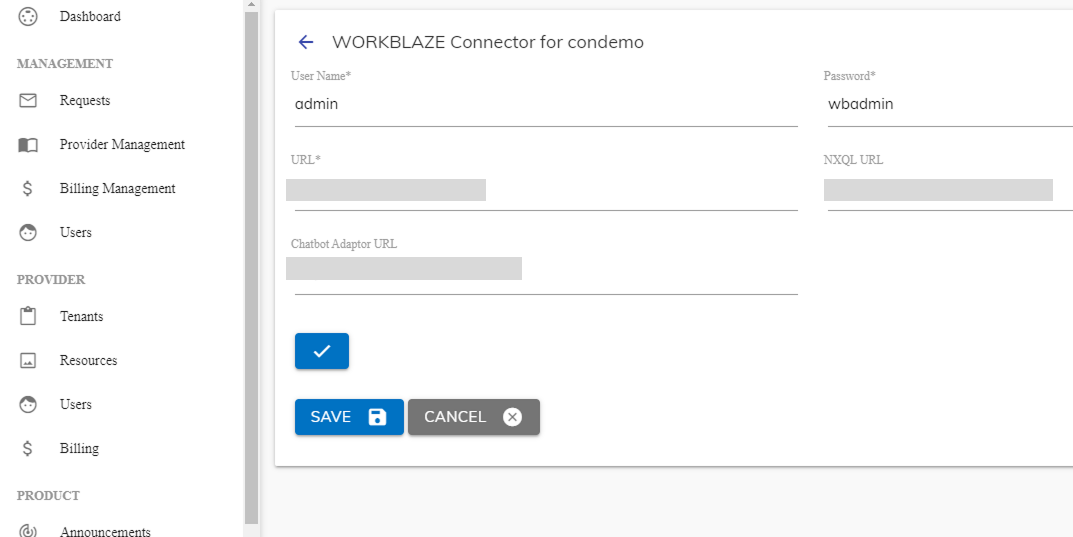
Figure 6. Test Credentials – Not Correct 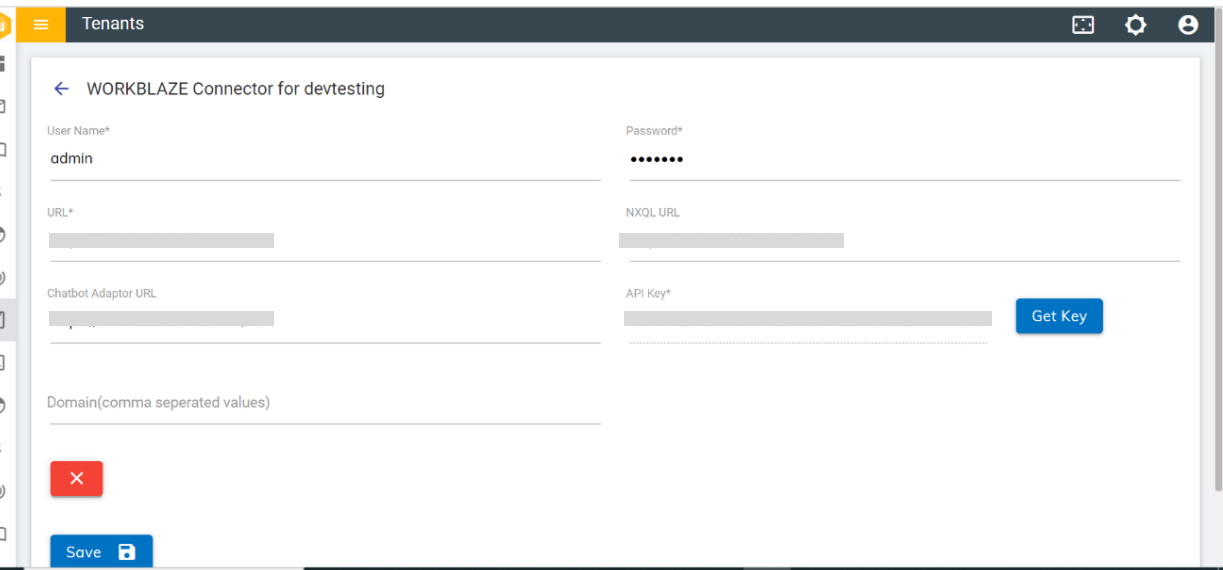
- Click on the Save button to enable the integration.
Figure 7. Integration Success Message .png)
- Launch the instance.
Figure 8. Launch Instance .png)
- In the tenant instance, navigate to Integration module 🡪 List of integrations.
Figure 9. Integration Module 
- Six rules are created for Workblaze:
- WB Find User Devices - Fetches the devices available for the User.
- WB Find User Devices CA - Fetches the devices available for the User using Chatbot adaptor.
- WB Execute Remote Action - Executes the remote action.
- WB Execute Remote Action CA - Executes the remote action using Chatbot adaptor.
- WB Get Remote Action Status - Fetches the status of the remote action.
- WB Get Remote Action Status CA - Fetches the status of the remote action using Chatbot adaptor.
- Click on “Openwhisk” module in the left navigation bar
Figure 10. Openwhisk Module 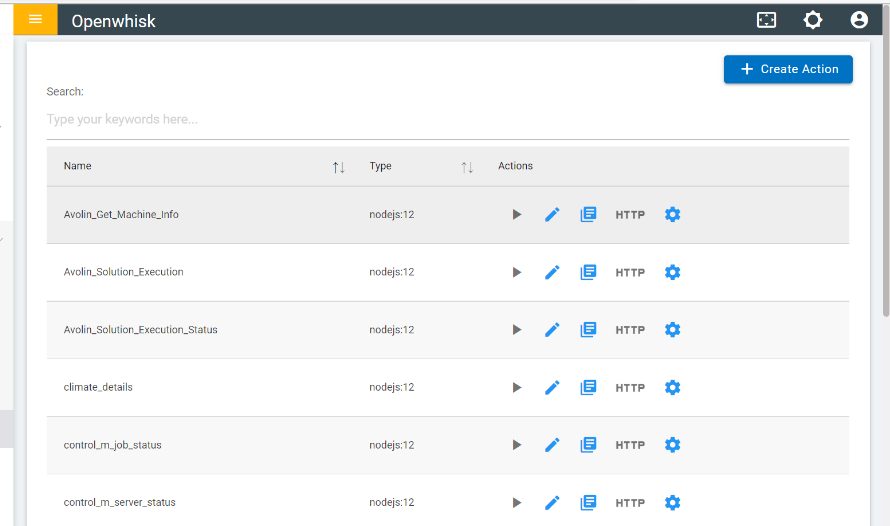
- Six Openwhisk actions are created.
- Workblaze_Find_User_Devices - Fetches the devices available for the User.
- Workblaze_Find_User_Devices_CA- Fetches the devices available for the User using Chatbot adaptor.
- Workblaze_Execute_Remote_Action- Executes the remote action.
- Workblaze_Execute_Remote_Action_CA- Executes the remote action using Chatbot adaptor.
- Workblaze_Get_Remote_Action_Status - Fetches the status of the remote action.
- Workblaze_Get_Remote_Action_Status_CA - Fetches the status of the remote action using Chatbot adaptor.
Note:Ensure you have Nextthink installed on the machine/endpoint for which integration is to be tested.