SCCM (System Centre Configuration Manager) Connector
SCCM, also known as configuration manager, is used for package deployment, patch management and software distribution. BigFix AEX can be integrated with SCCM in a client environment to provide relevant use cases for chat-based package request and deployment. SCCM integration will likely require setting up of the secure gateway in the client environment, ensure it is deployed and configured before SCCM connector is enabled.
To use the SCCM use cases, the Active Directory User discovery needs to be enabled in SCCM to collect this. The detailed steps are documented in the below URL: https://docs.microsoft.com/en-us/mem/configmgr/core/servers/deploy/configure/about-discovery-methods
- To set up SCCM use case with a BigFix AEX tenant, create a new endpoint on the Gateway
application with Authorization Type as SCCM.
Figure 1. SCCM Configuration Endpoint in Secure Gateway 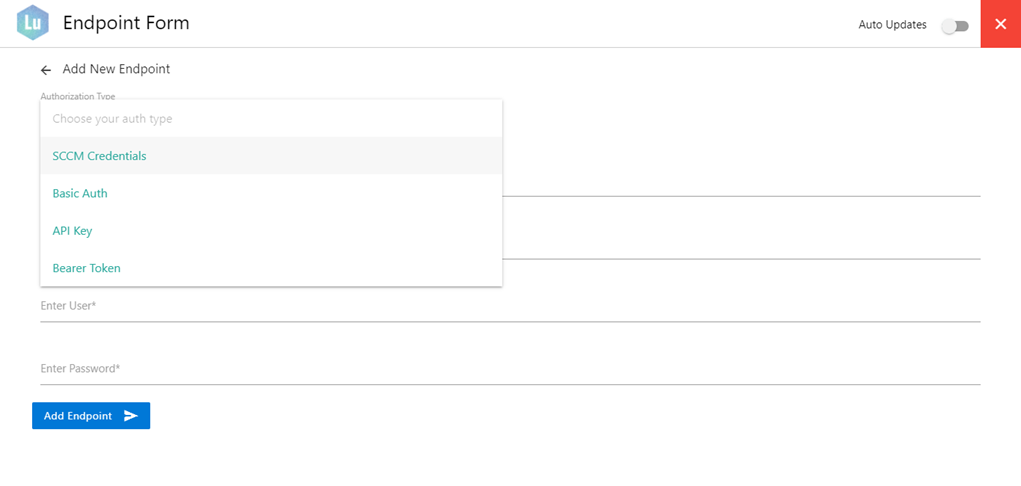
- Enter the credentials which should be the same as your SCCM credentials. The Server
field should be filled with the server on which the SCCM Configuration Manager is hosted.
Make sure the credentials entered should have delegated Administrator rights for SCCM.
Figure 2. SCCM Configuration in Secure Gateway 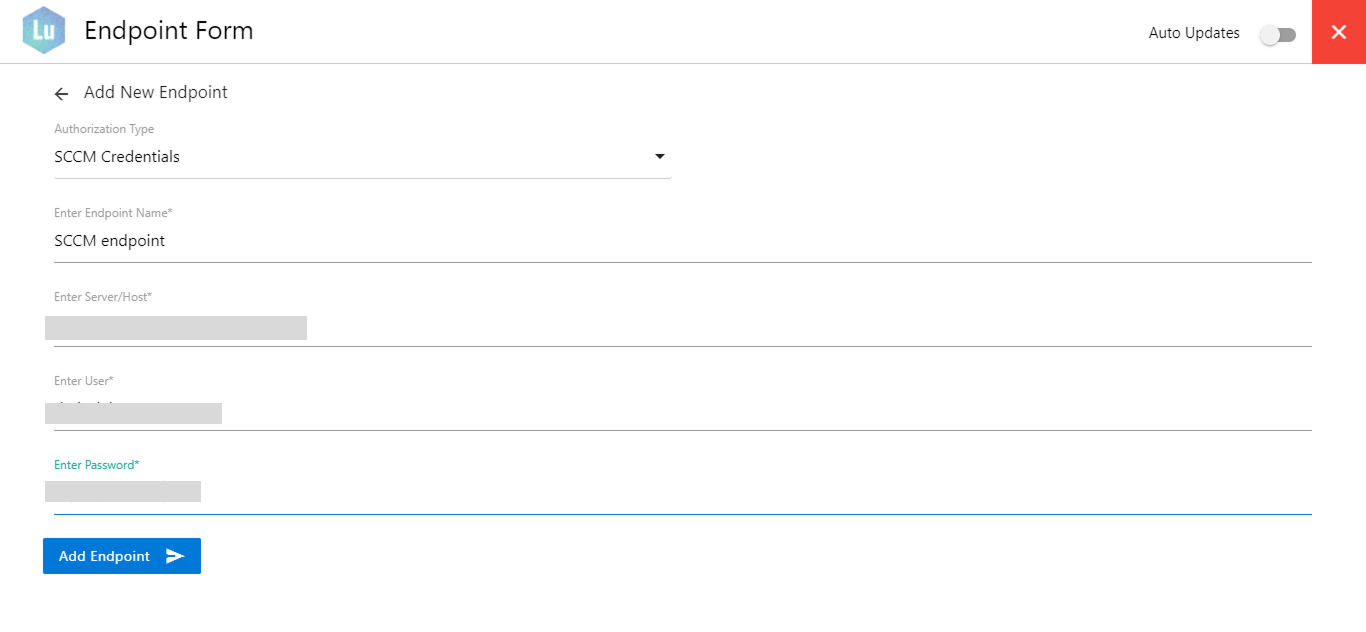
- Once the endpoint is added, go the endpoints list on the application and copy the
Endpoint ID for the newly created endpoint.
Figure 3. SCCM Configuration Endpoint ID 
- Go to your tenant’s integration page on Global Admin and open the SCCM Integration
page.
Figure 4. Tenant Integration Page 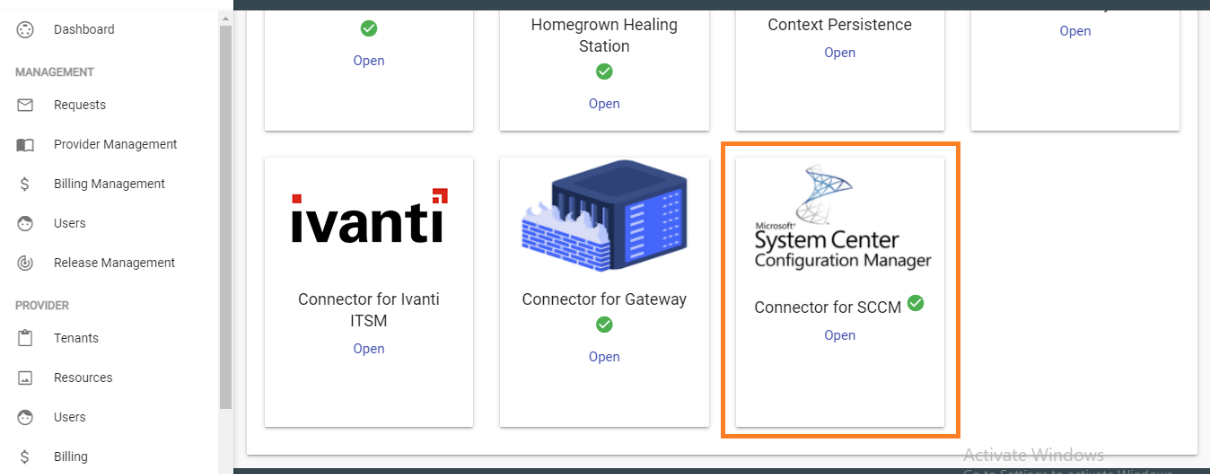
- On the SCCM Connector page, enter the Endpoint ID you copied in step 4 and click on
Save so that endpoint is available for the SCCM connector.
Figure 5. SCCM Configuration Endpoint ID on Integration Page 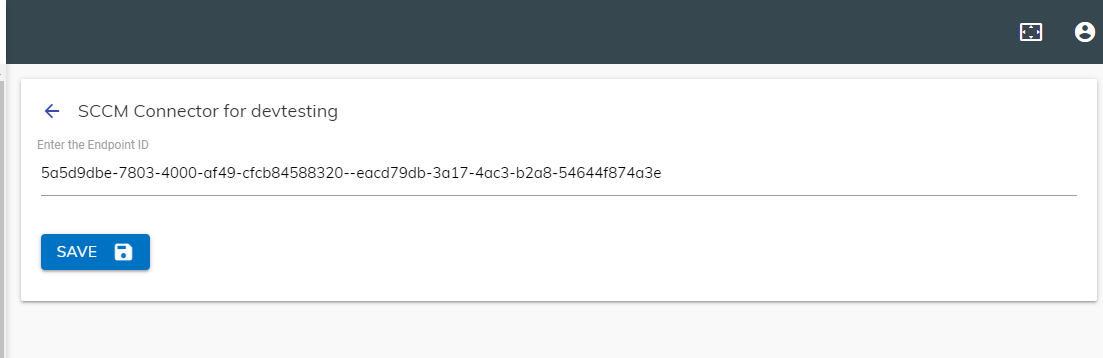
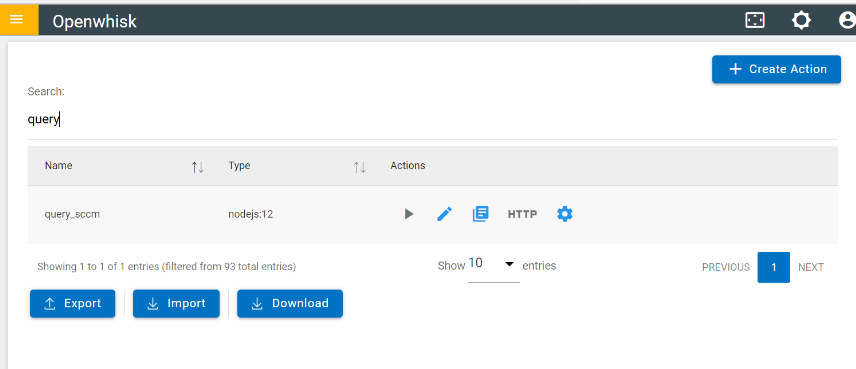
- To confirm that the connector has been successfully activated, check if an Openwhisk
Function called query_sccm has been created. To check this, go to the BigFix AEX Cognitive
Console for your tenant and click on Openwhisk card or Openwhisk from the left panel of the
cognitive console.
Figure 6. BigFix AEX Cognitive Console 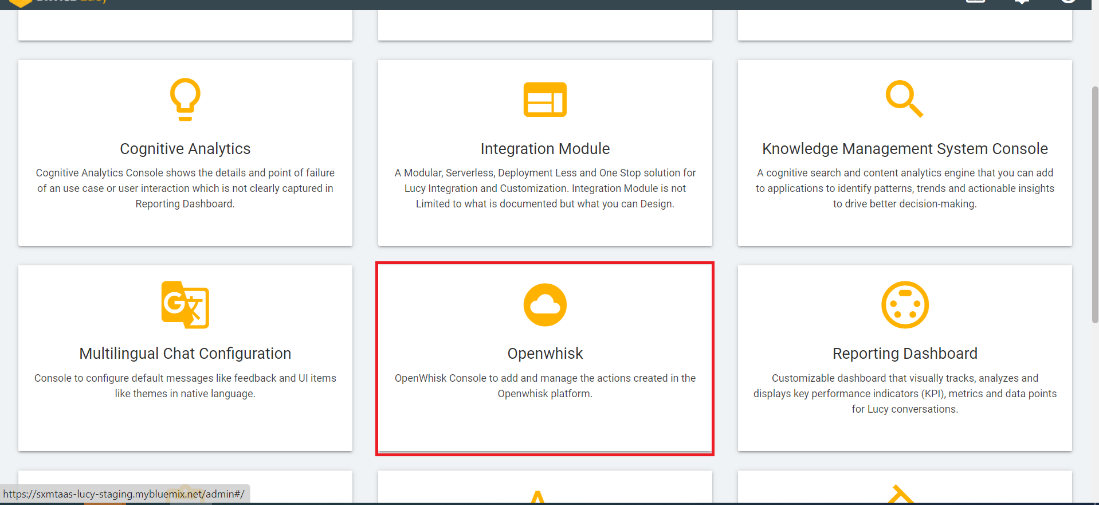
Figure 7. Openwhisk Console Navigation 
- On the Action List search for the function named “query_sccm” and you should see it as
follows:
Figure 8. SCCM Openwhisk Action