Foundation Data Administration
HCL BigFix Service Management application administrator is responsible for configuring and managing the foundation for an enterprise
- Foundation contains the common forms and data that are needed to support HCL BigFix Service Management application and must be configured prior to any other module in HCL BigFix Service Management.
-
Foundation Modules - End to End Foundation modules should be configured in the
following order:
- Company – An entity formed to operate a business enterprise, for example consumer, service provider etc.
- Organization – A business unit within the company, that is structured and managed to pursue collective goals
- Department – A specialized functional area within an organization
- Cost Center – A cost center is a unit within a business to which costs can be allocated
- Location – Physical operating locations of a company (a company can have multiple operating locations)
- User – An individual who uses or operates upon something as a part of the company
- Group – Support users classed together with similar permissions based on their roles
Foundation Data Entities
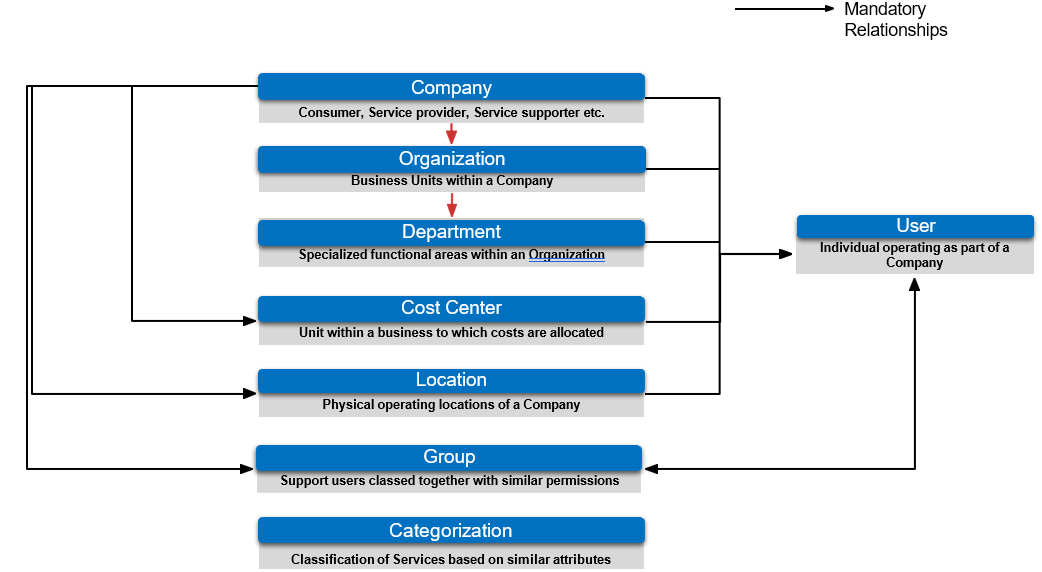
The key entities and their mandatory relationships within an IT Service Management (ITSM) environment helps define how business structures, user roles, and service classifications are connected.
-
Company
- Represents the highest-level entity such as a consumer, service provider, or service supporter.
- It is the foundational element to which all other entities relate.
-
Organization
- Refers to business units within a company.
- These units provide structure and help group related functions under the company.
-
Department
- Specialized functional areas within an organization.
- Examples include HR, Finance, or IT.
- Departments link users more directly to their operational roles.
-
Cost Center
- A unit within the business where costs are tracked and allocated.
- Helps in financial accountability and service cost management.
-
Location
- Denotes the physical operating sites of a company, such as offices, plants, or branches.
- Useful for associating services, resources, or users to a geographical point.
-
Group
- Represents a set of users grouped together with similar roles or permissions.
- Facilitates assignment of responsibilities like service requests or incident handling.
-
Categorization
- Provides a classification of services based on similar attributes.
- Helps streamline service management by grouping related services together.
-
User
- An individual operating as part of a company.
- Users are connected to one or more of the entities (Company, Department, Cost Center, Location, Group) to define their context and access.
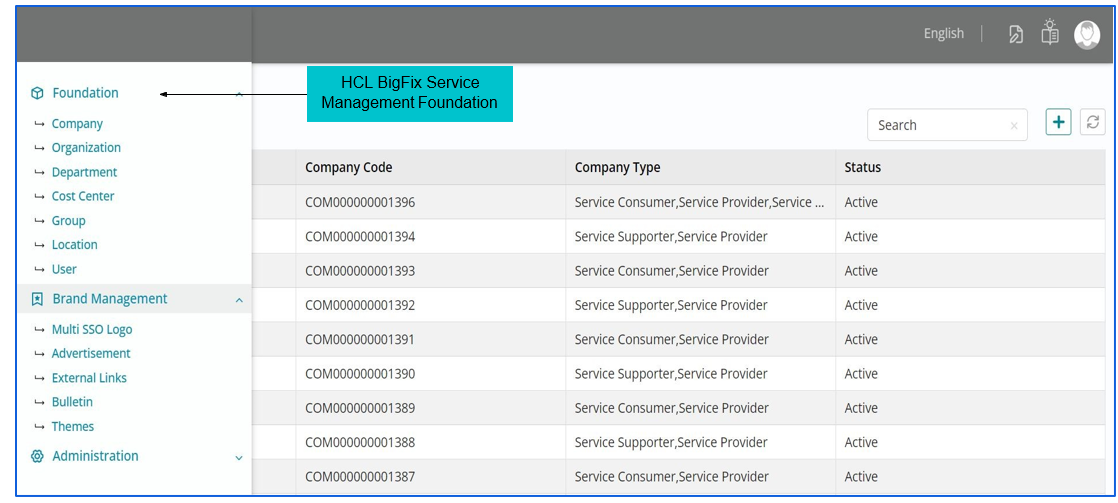
Navigating to Foundation Module
Creating a Company Record
Mandatory fields need to be populated to create a company record
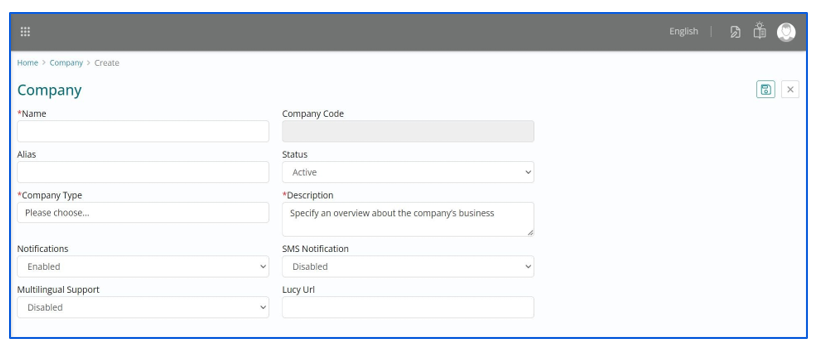
Company Form Break Down - The form to ‘Create a Company’ includes fields as listed below:
- Name - A free text field to fill the actual name of the company being created.
- Alias - A free text field to update a common or familiar name of the company being created.
- Notifications - A drop down with the values (Enabled / Disabled) which can be selected to trigger notifications to the users of this company.
- SMS Notifications - A drop down with the values (Enabled / Disabled) which can be selected to trigger SMS notifications to the users of this company.
- Welcome Message - It’s a greeting communication about the consumer company.
- Description - A free text field to detail the description of the company being created.
- Status - A dropdown with the values (Active / Inactive) respectively indicating whether a company is operational or not.
- Company Type – A list of company types for selection, organized in terms of their actual function.
Types of Companies
Company Types - The type of companies available in HCL BigFix Service Management are listed below:
- Service Provider – An outsourced supplier which offers services in exchange of payment
- Service Supporter – A company that aids a service but does not have the overall responsibility of the service
- Service Integrator – A company managing multiple suppliers of services and integrating them to provide a single business facing IT organization
- Service Orchestrator – A company responsible to provide coordinated management and control of services
- Service Aggregator – A company that enables potential customers to connect with service providers under the aggregators’ brands or trade names.
- Service Consumer – A company that requires the functionality of the service being offered
- Service Payer – A company which is not the consumer but finances the service being offered
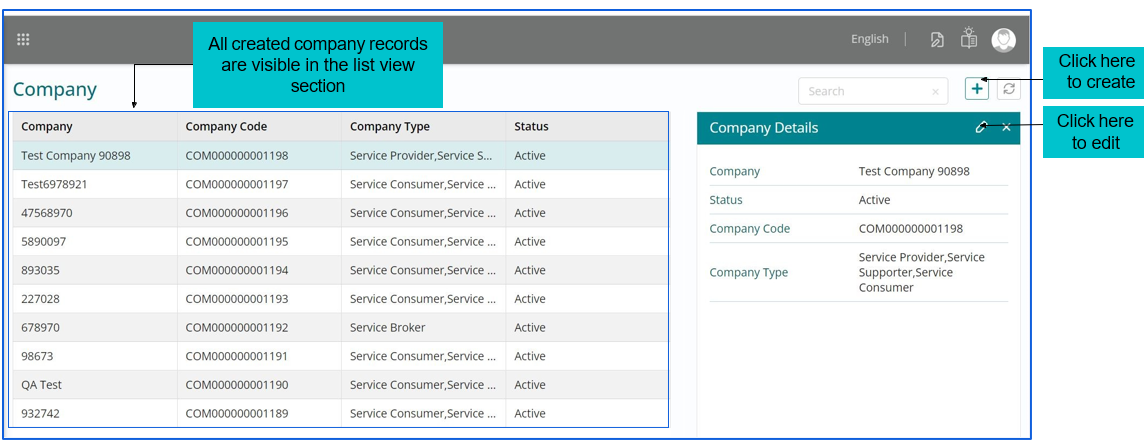
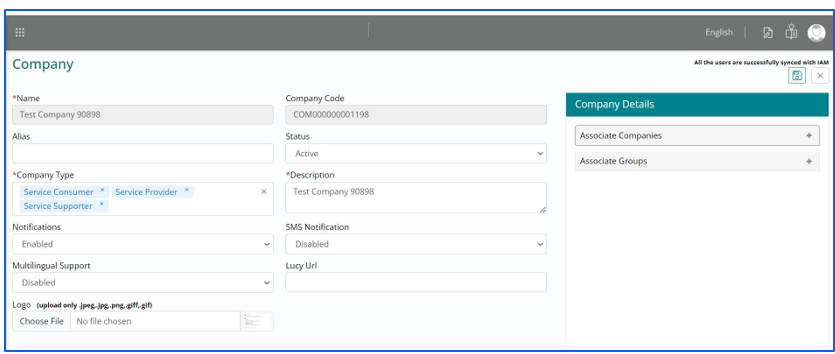
A company once created, would get populated in the list view with visibility of the fields like Company, Company Code, Company Type and status along with search tab.
Few fields would be greyed out in the Edit page, the remaining can be edited appropriately
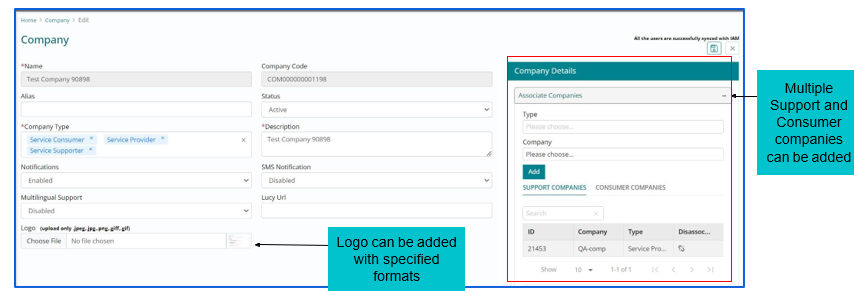
To Associate Companies, Admin needs to select the Type, Company and Association type.
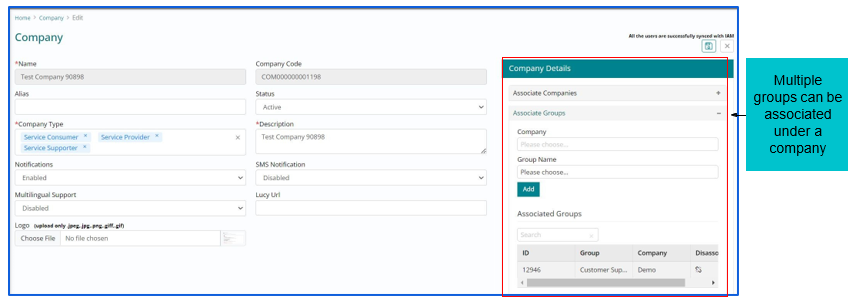
To associate groups, Admin needs to select Company, Group name
All the created organization records are visible in the list view section.
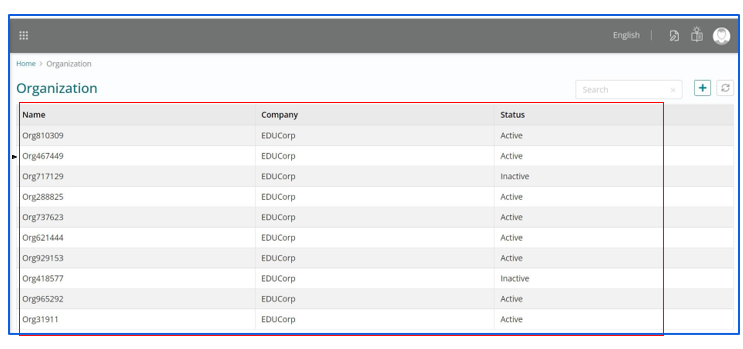
All fields need to be populated to create an organization record.
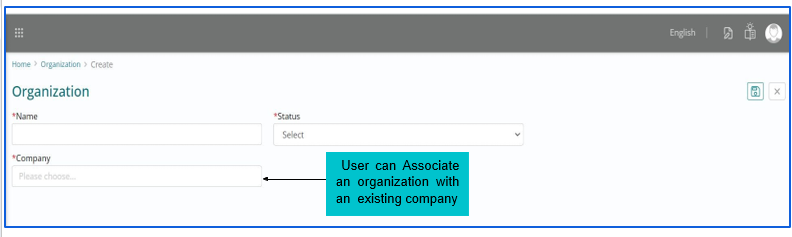
- The form to ‘Create Organization’ includes fields as listed below:
- Name – A free text field to fill the name of the organization being created. An organization name should be unique in nature, else tool would not allow a new company record.
- Status – A dropdown with the values (Active / Inactive) respectively indicating whether an organization is operational or not.
- Company – A dropdown with the list of companies configured, amongst which selection can be made
- An organization once created, would get populated in the list view with visibility of the fields Organization Name, Company (associated company), Status with a search tab.
- An organization record can be created against a specific company only when the company record already exists.
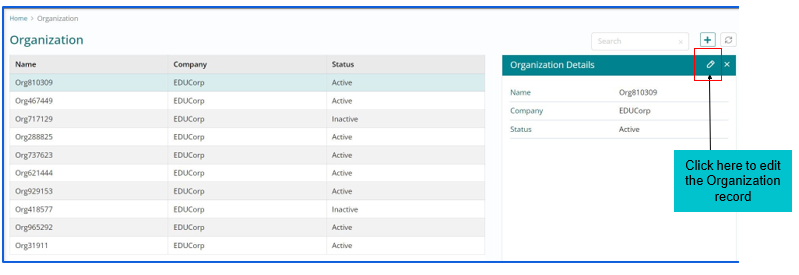
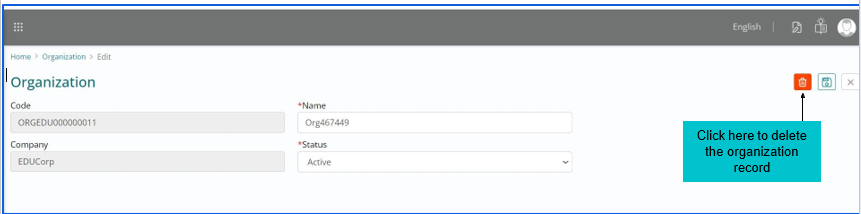
Few fields would be greyed out in the Edit page, the remaining can be edited appropriately
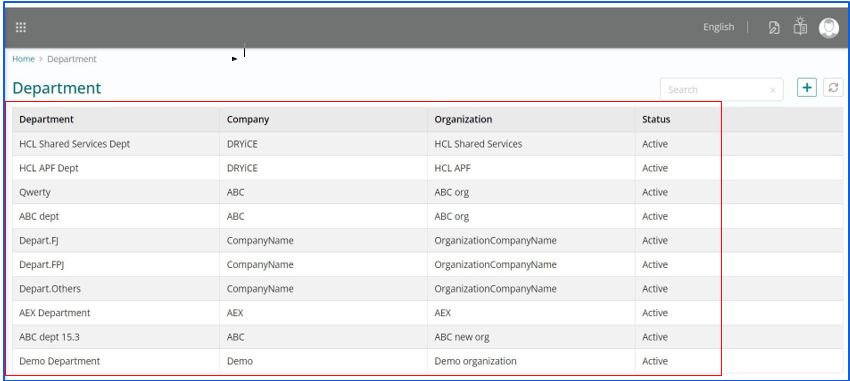
All created department records are visible in the List view section
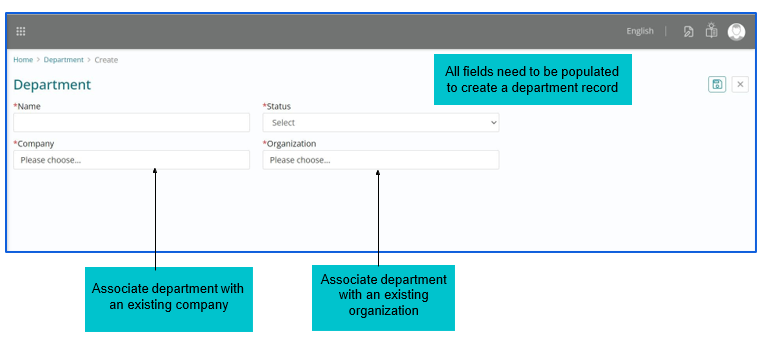
- Name – A free text field to fill the name of the department being created. A department name should be unique in nature, else tool would not allow a new department record
- Status – A dropdown with the values (Active / Inactive) respectively indicating whether a department is operational or not.
- Company – A dropdown with the list of companies configured, amongst which selection can be made.
- Organization – A dropdown with the list of organizations configured, amongst which selection can be made.
- Department Name
- Company Name (company associated to the organization under which department has been created)
- Organization (associated organization)
- Status (Active / Inactive).
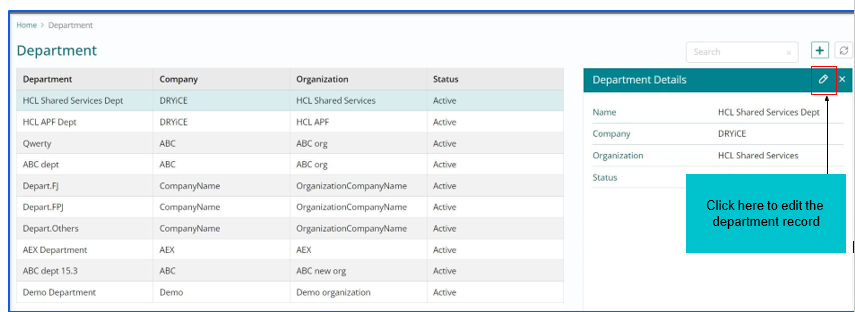
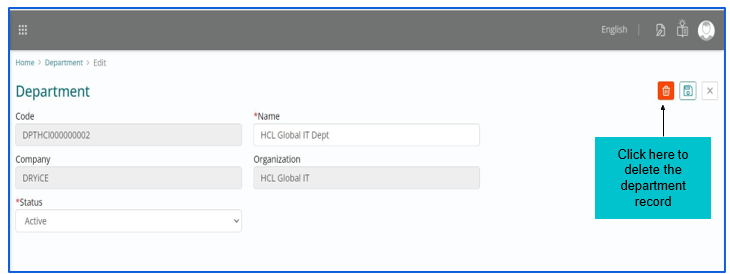
Few fields would be greyed out in the Edit page, the remaining can be edited appropriately
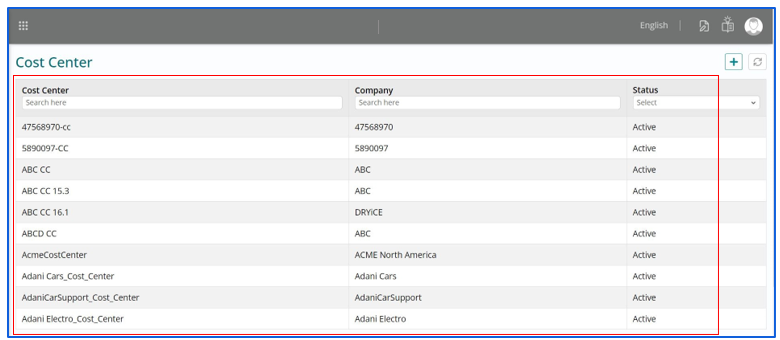
All cost center records are visible in the List view section
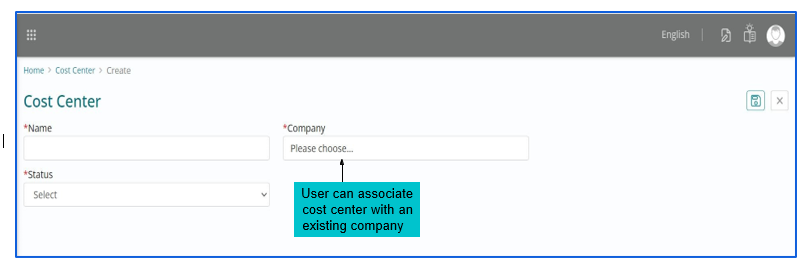
All fields need to be populated to create a cost center record.
-
Configuration of Cost Center - The form to ‘Create Cost Center’ includes fields as
listed below:
- Name – A free text field to fill the name of the cost center being created. A cost center name should be unique in nature, else tool would not allow a cost center record.
- Status – A dropdown with the values (Active / Inactive) respectively indicating whether a cost center is operational or not
- Company – A dropdown with the list of companies configured, amongst which selection can be made
- A cost center once created, would get populated in the list view with visibility of the fields Cost Center Name, Company (associated company) and Status along with filter functionality tab.
- A cost center record can be created against a specific company only when the company record already exists.
Few fields would be
greyed out in the Edit page; the remaining can be edited appropriately.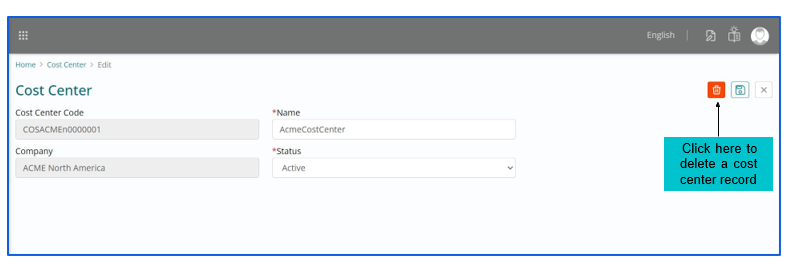
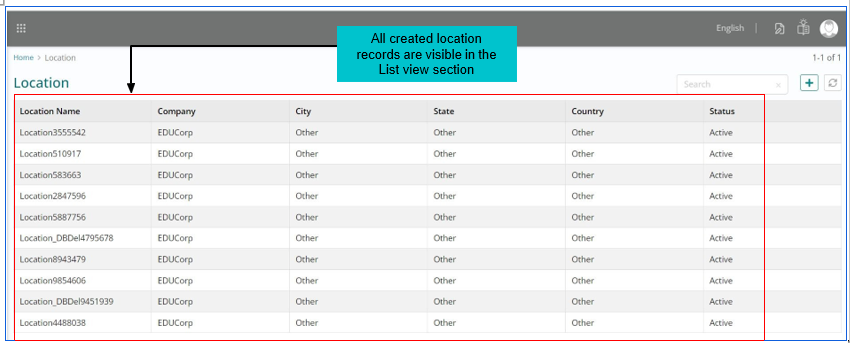
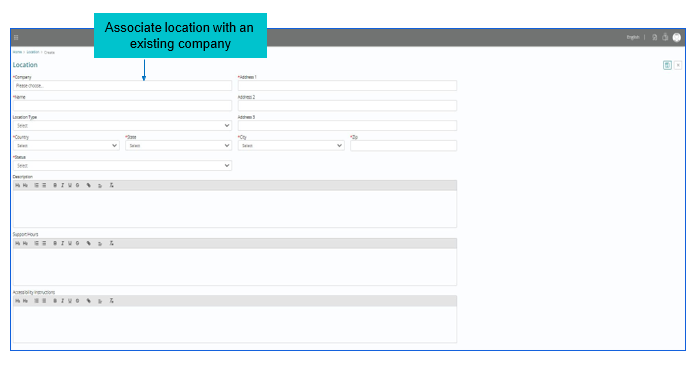
Mandatory fields need to be populated to create a location record.
-
Configuration of Location - The form to ‘Create Location’ includes fields as listed
below:
- Company – A dropdown with the list of companies configured, amongst which selection can be made
- Name – A free text field to fill the name of the location being created
- Address1, Address2, Address3 – Free text fields which need to be filled with the location address
- Country – A dropdown with the list of countries, amongst which an appropriate selection can be made
- State – A dropdown with the list of states that would auto populate based on the country selected
- City – A dropdown with the list of cities that would auto populate based on the state selected
- Zip – A field wherein the numerical code needs to be filled for the location being created
- Location Type – A dropdown with the list of location types amongst which selection can be made
- Status – A dropdown with values (Active/Inactive) indicating whether a cost center is operational or not.
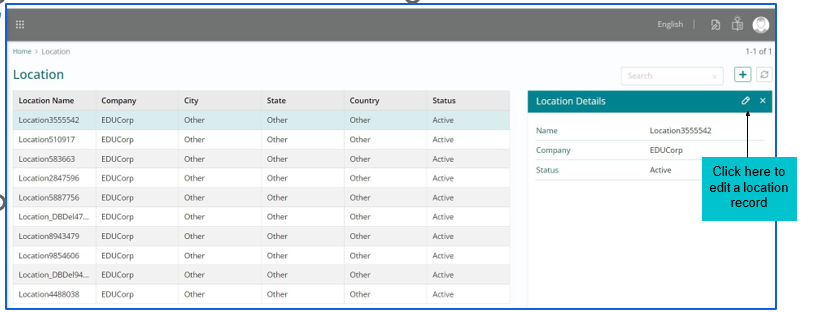
- A Location once created, would get populated in the list view with visibility of the fields Location Name, Company Name (associated company), City, State, Country, Status with a search tab.
- A Location record can be created against a specific company only when the company record already exists.
- A Location name should be unique in nature, else tool would not allow new location record.
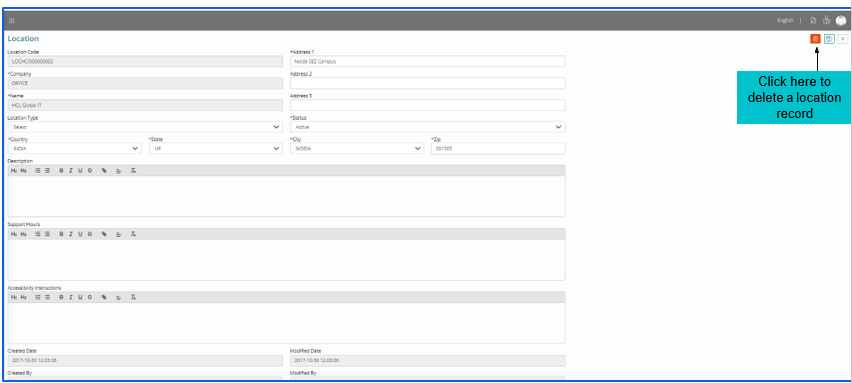
- The edit location page will display automatically populated, non-editable data retrieved from the location record, including fields like Name, Company Name, and the Location Code that has been selected for editing.
- The other fields such as Address, Country, State, City, Zip, Location Type and Status are auto populated from the location record but are editable and can be modified accordingly
- The Save’ button can be used to update the modifications in a location record whereas the ‘Cancel’ button would navigate the admin out of the Edit Location page.
-
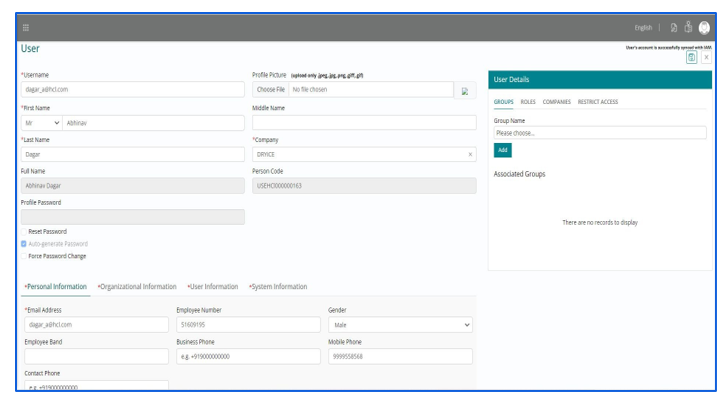
Configuration of User profile - The form to ‘Create User’ includes fields as listed
below:
- Username – A free text field to fill the unique employee ID for a user
- Title – A dropdown with the titles for the user name (Miss / Mr. / Ms.) which can be appropriately selected
- First Name – A free text field to fill the first name of the user being created
- Middle Name – A free text field to fill the middle name of the user being created
- Last Name – A free text field to fill the last name of the user being created
- Company – A dropdown with the list of companies configured, amongst which selection can be made
- The ‘Add User’ page has three levels of information fields that need to be provided while creating a user
- The fields are namely: Personal Information, Organizational Information and User Information with each of the fields having few mandatory fields and few non – mandatory ones.
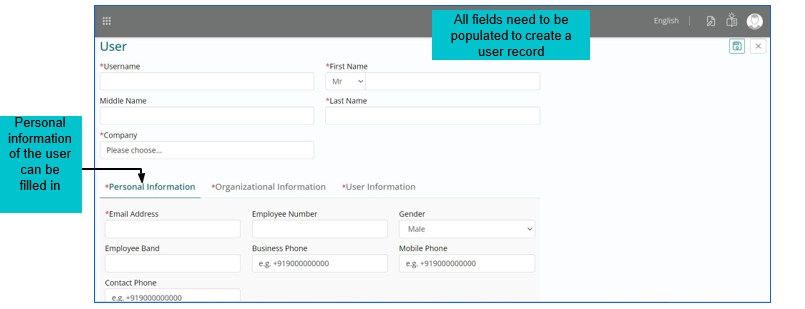
It contains fields as listed below:
- Email Address – A free text field wherein the Email ID of the user being created can be filled
- Gender – A dropdown with the fields Male / Female / Others, one amongst which can be selected for a user
- Employee Number - A free text field to fill the unique employee number / ID for a user
- Employee Band - A free test field to fill the employee band
- Business Phone – A free text field wherein the business phone number of the user can be filled
- Mobile Phone – A free text field wherein the mobile number of the user can be filled
- Contact phone – A free text field wherein any particular number can be filled which would be the primary contact for a user or the number on which the user prefers to be contacted.
-
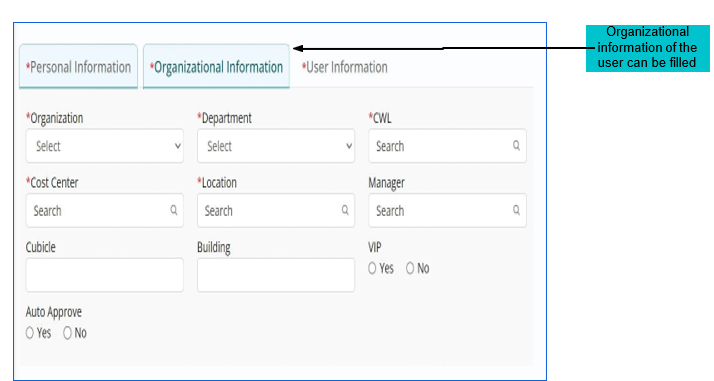
Configuration of User Organizational Information - It contains fields as listed
below:
- Organization – A dropdown with the list of organizations configured, amongst which selection can be made
- Department – A dropdown with the list of departments configured, amongst which selection can be made
- Location – A dropdown with the list of locations configured, amongst which selection can be made
- Cubicle – A free text field which can be filled in with the cubicle details where the user is working out of
- Current Working Location (CWL) – A free text field to fill the current working location of the user
- Cost Center – A dropdown with the list of cost centers configured, one amongst which can be selected
- Manager – A dropdown with the list of other users under the same department, one amongst whom can be selected as the manager for the user being created
- Building – A free text field which can be filled in with the building details where the user is working
- VIP – A field with values (Yes / No) that enables the administrator to choose whether a user is privileged to fall under the very important person (VIP) category.
- Auto Approve - A field with values (Yes / No) that enables the administrator to choose whether a user is privileged for auto approval of the service requests
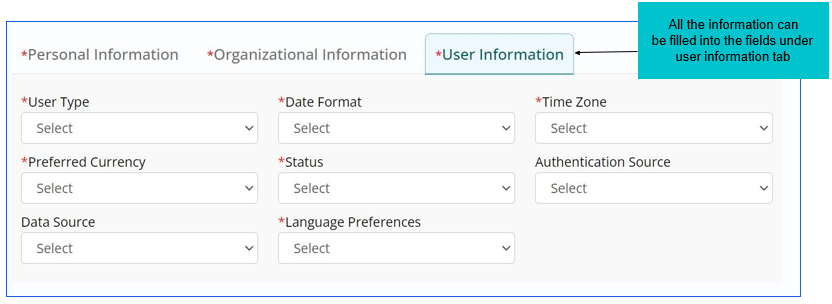
Configuration of User Information - User Information contains fields as listed below:
- User Type – A dropdown with user types: contractor, office employee and supplier, available for selection
- Date Format – A dropdown with the different formats in which a date can be made visible for the user
- Time Zone – A dropdown with the different time zones across the globe available for appropriate selection
- Preferred Currency – A dropdown with the list of currencies of different countries available for selection
- Status – A dropdown with the values (Active / Inactive) respectively indicating whether user is active or not
- Authentication Source – A dropdown with the list of user authentication methods, for example Active Directory
- Data Source – A dropdown indicating the actual source of the user data, i.e., Automated, Manual etc.
Language Preferences – A dropdown with a list of languages, one amongst which can be selected for a user.
Few
fields would be greyed out in the Edit page, the remaining can be edited appropriately.
A user once created, would get populated in the list view with visibility of the fields Company, Name, Email, Username, Employee ID, User Type, Status with availability of search tab and filter functionality.
- A user record can be created only when records for company, organization, department, cost center and location already exist against which the user can be tagged while creation.
- A username need not be unique in nature as multiple users might share the same name, but the User ID must be unique for each user, else the record would not get created.
- The edit user page will show automatically populated, non-editable data retrieved from the user record, including fields such as Full Name and Unique Person Code.
- The other fields such as Organizational information and User information are auto populated from the user record but are editable and can be modified accordingly
- The ‘Save’ button can be used to update the modifications in a user record whereas the ‘Cancel’ button would navigate the admin out of the Edit User page.
Associate Groups to User Records
| Associated Action | Details |
| Associate Groups | User can be associated with groups using “Associate Groups” option |
| View Groups | All the groups that user is associated with can be viewed using “View Groups” option |
| Associate Roles | User can be associated with multiple roles using “Associate Roles” option |
| View Roles | All the roles that user is associated with can be viewed using “View Roles” option |
| Associate Company | User can be associated with multiple roles using “Associate Roles” option |
| View Company | Company that user is associated with can be viewed using “View Company” option |
-
Associating a User - A user can be associated with a company, group and certain
roles if the individual records for each of them have been created.
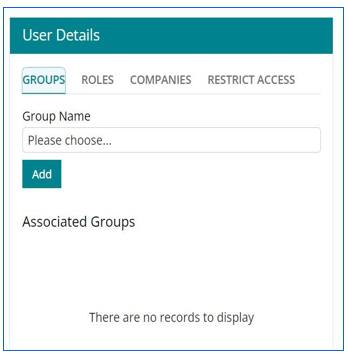
- Navigation to associate groups to a user: Foundation -> User -> Edit User -> Select Group name -> Click Add
- Navigation to view groups associated to the selected user is: Foundation -> User -> Edit User -> Associated Groups
- Navigation to associate roles to a user is: Foundation -> User -> Edit User -> Associate Roles -> Select from dropdown
- Navigation to associate companies to a user is: Foundation -> User -> Edit User-> Companies -> Select from dropdown
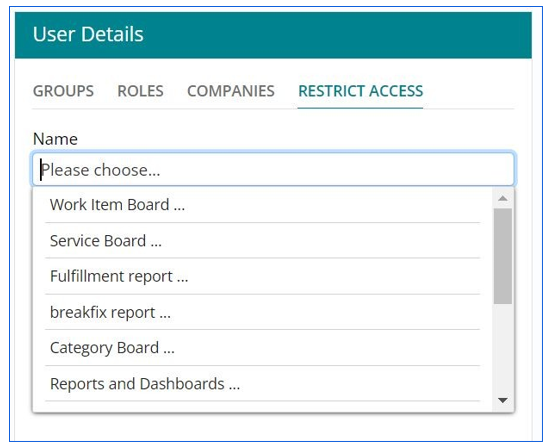
- Navigation to restrict access to a user is: Foundation -> User -> Edit User-> Restricted Access -> Select from dropdown
Associating Roles to User Record
After clicking on the edit user, on the right pane, the roles can be selected from the
dropdown. 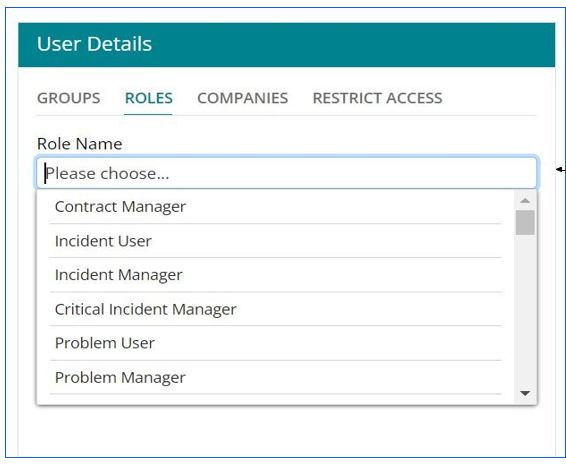
Associating companies with User Record
After clicking on edit user, on the right pane the companies list is displayed in the dropdown.
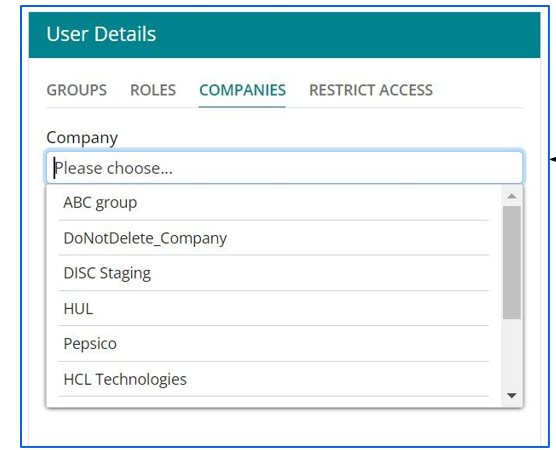
Restricting User Access
Admin can restrict the access for the user which will not be available to the user.