Incident Management
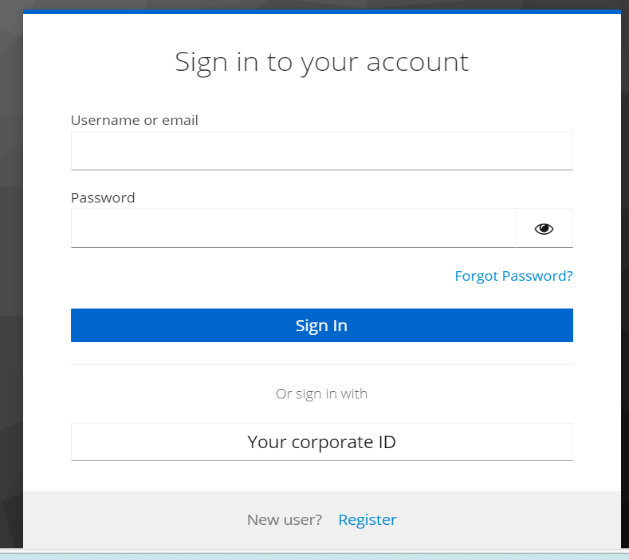
In Request to login, the Support User should:
- Open internet browser (Edge, Chrome) and enter the URL: https://support.dryice.ai
- Provide login credentials to authenticate and login to HCL BigFix Service Management.
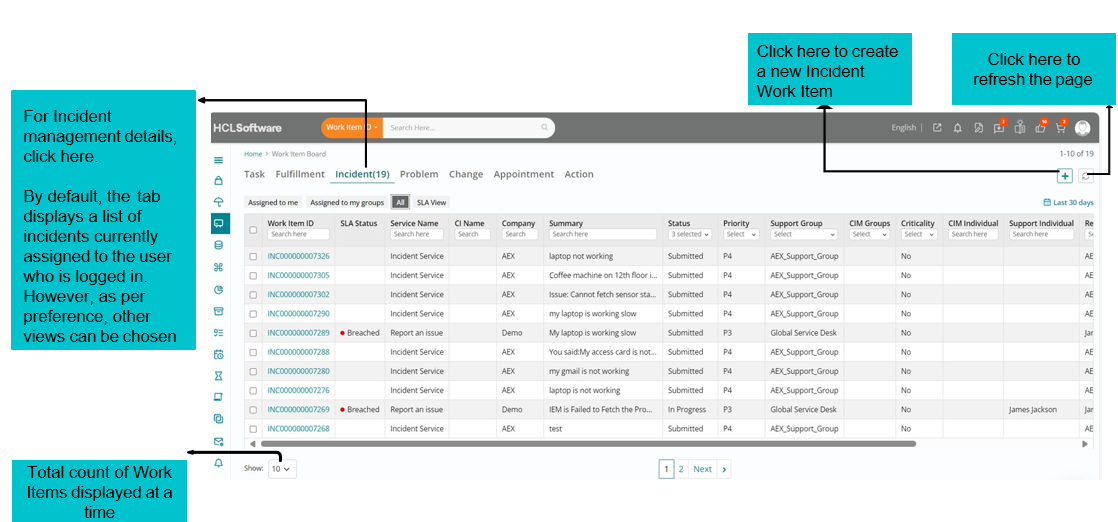
Landing page of Work Item Board
From the Application Menu, click on the Work Item Board.
The User will be presented with the current Work Item Board.
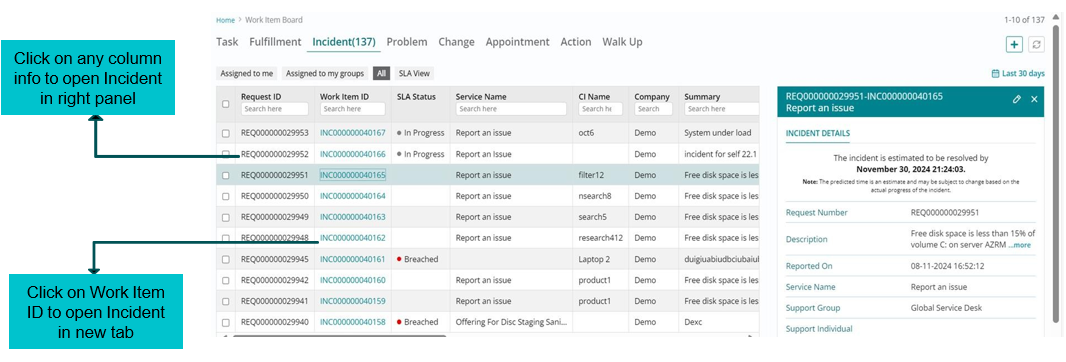
View/ Edit an Incident
Logged incidents can be viewed and edited in same window, however on click of Work Item, the incident will get opened in the new tab, please choose the option as per the requirement.
Creation of New Incident
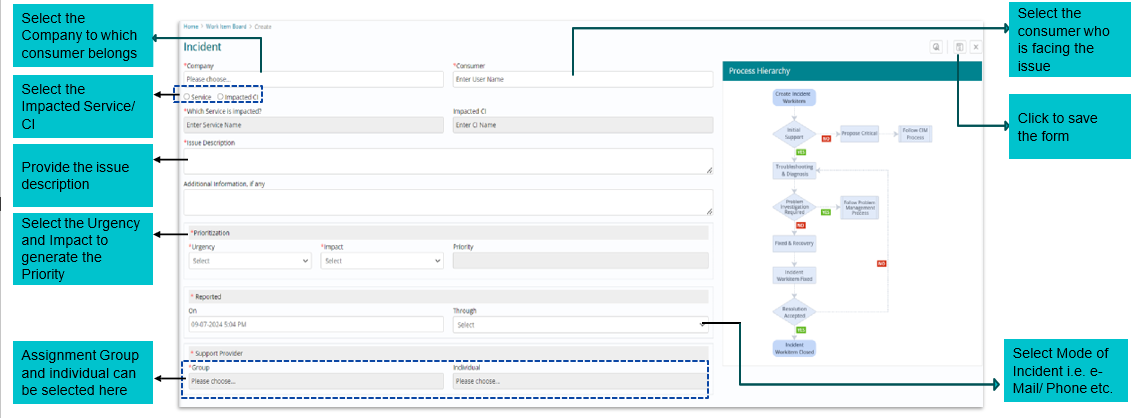
To create a New Incident – click the “+” icon on the right top corner of the Work Item Board. All mandatory fields need to be filled in the below form and saved.
Click to save the form Select the consumer who is facing the issue
Updating Incident Work Item status to ‘In Progress’
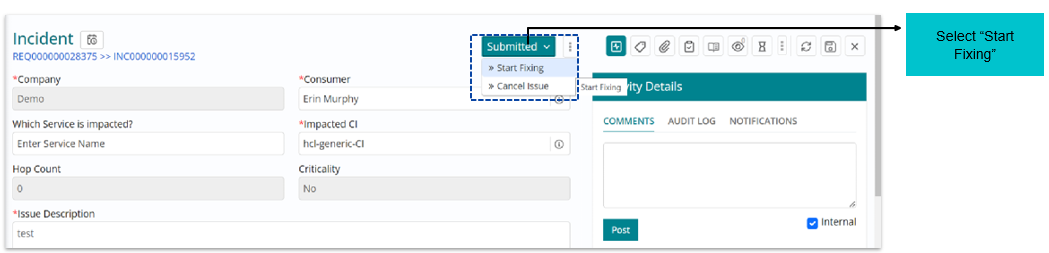
On creation of Incident, it will be in “Submitted” state.
To initiate working on the incident “Start Fixing” option needs to be chosen, this will move the Incident in “In Progress” state.
The status “In Progress” can be seen against the incident request listed on the Work Item board.

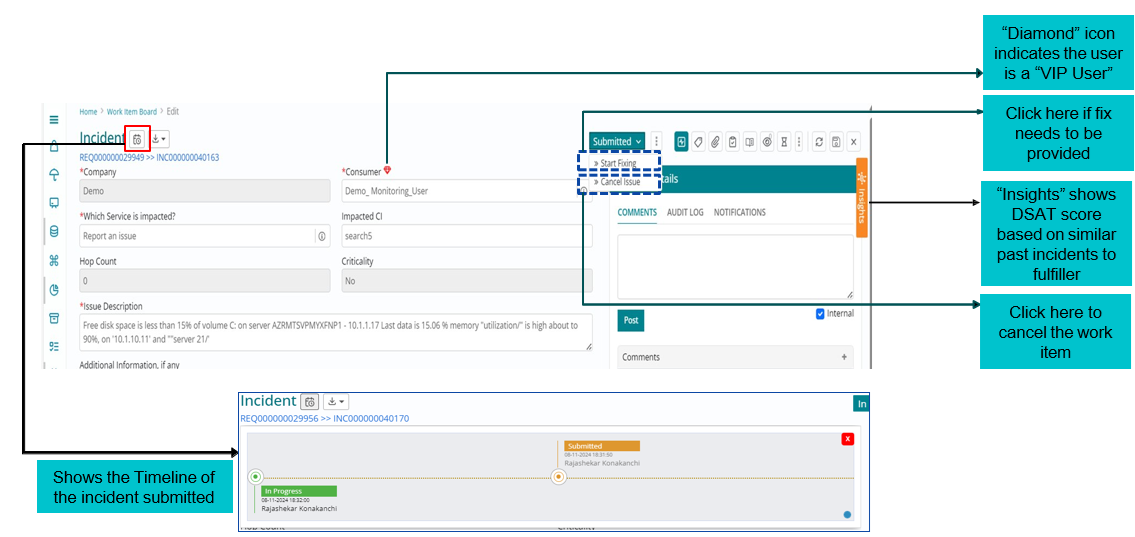
Understanding The Incident Creation Page
While the Incident is in “In Progress” state, other status transition may be done as required.
Incident – Pending (On Hold)
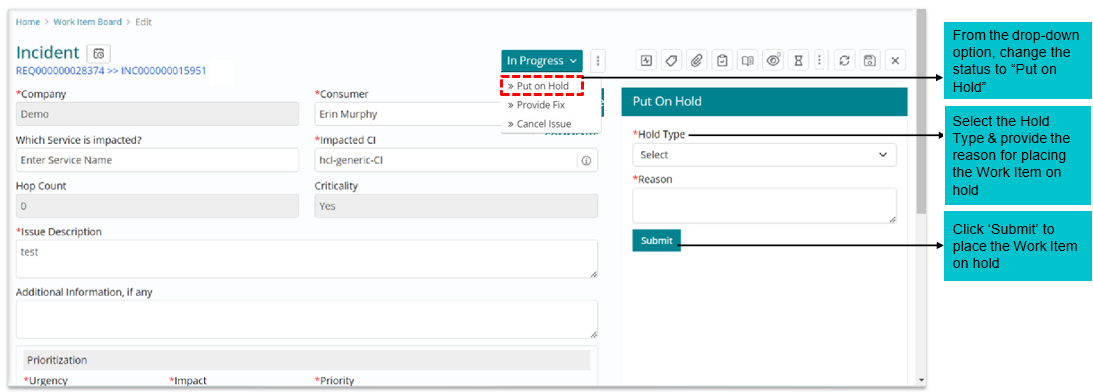
To put the Incident in “Pending” state, select the required hold type (vendor action/ awaiting information etc.) can be chosen and reason needs to be provided.
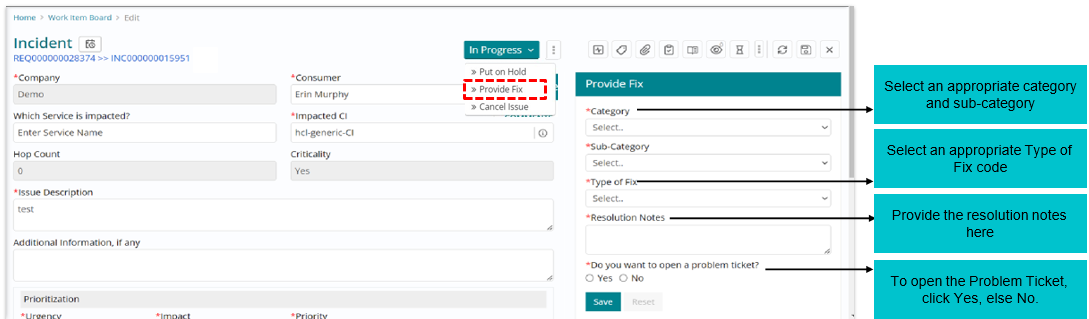
Incident- Providing Fix
To resolve an Incident, click on “Provide Fix” and fill the required details as per the form available, also if required, problem ticket can be opened at this step.
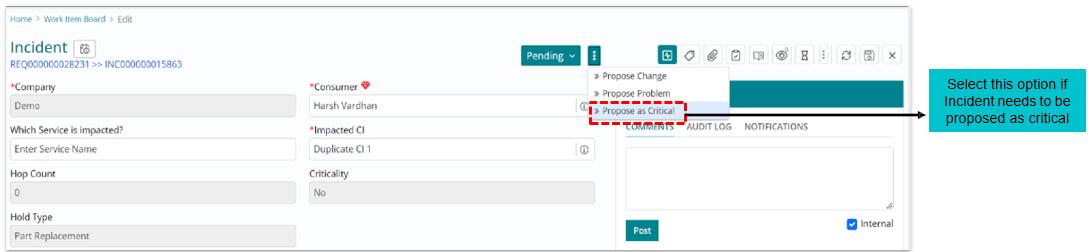
Critical Incident Management (CIM)
An Incident can be proposed critical as per business impact. To propose the Incident, use below depicted option and click on “Propose as Critical”.
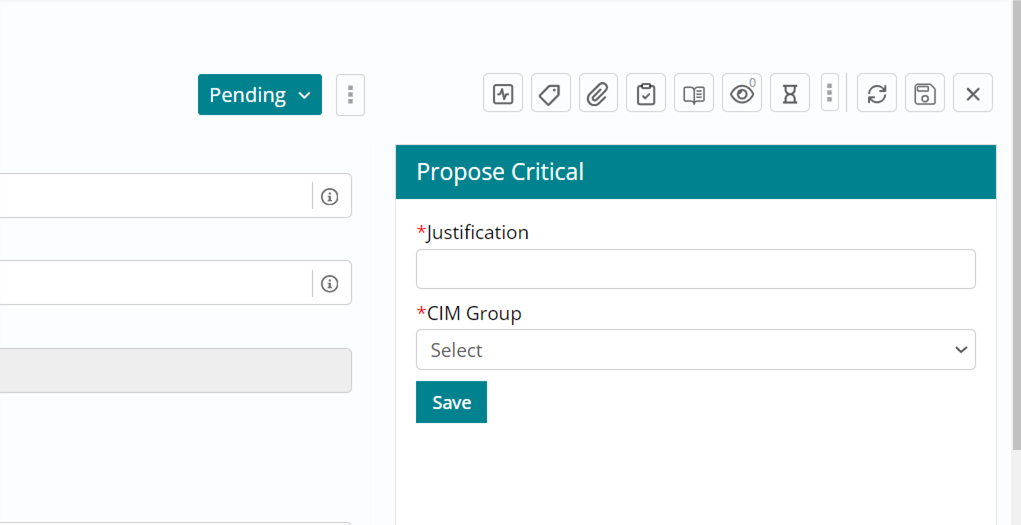
A justification needs to be provided and CIM group needs to be selected.
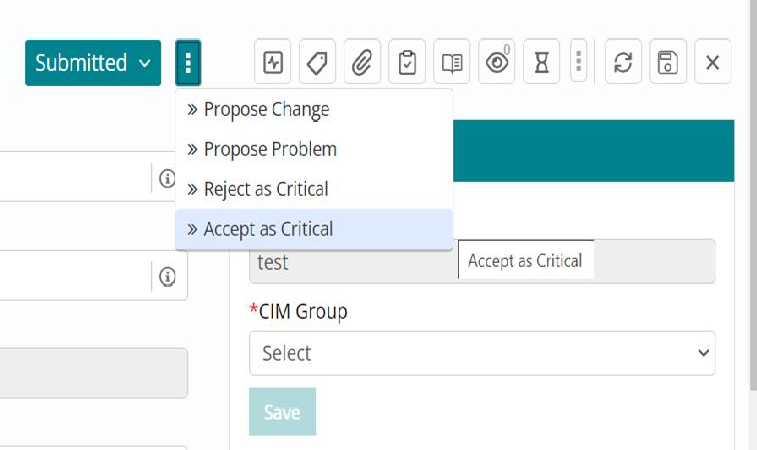
Proposed Incident can be accepted or rejected by any member of CIM Group.
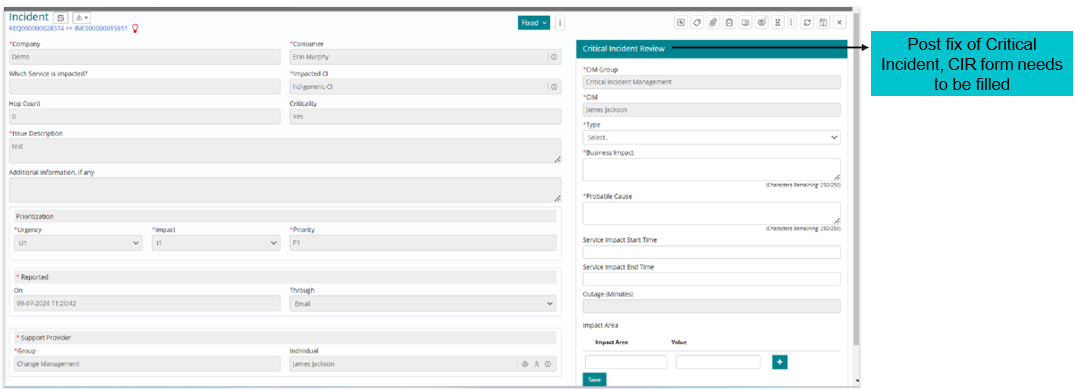
For an Incident that is accepted as a Critical Incident and a fix is provided, a “Critical Incident Review” (CIR) form needs to be filled as shown below.
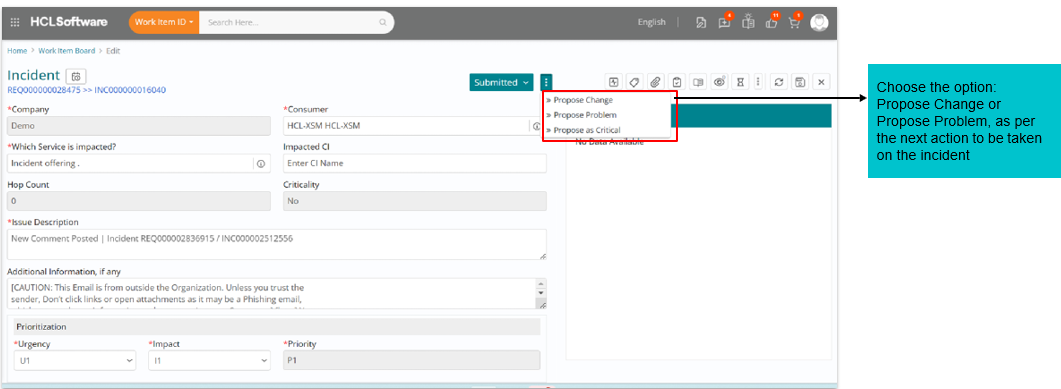
To raise a problem or change via Incident form, use the below option.
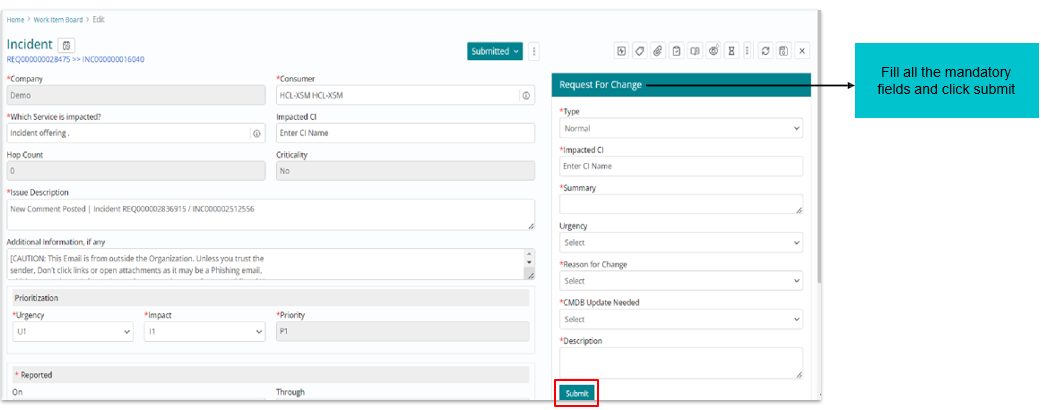
On selecting “Propose change” to raise an RFC via the Incident form, user needs to fill all mandatory fields and submit, this will create an RFC request. The created RFC will automatically get added as the related work item.
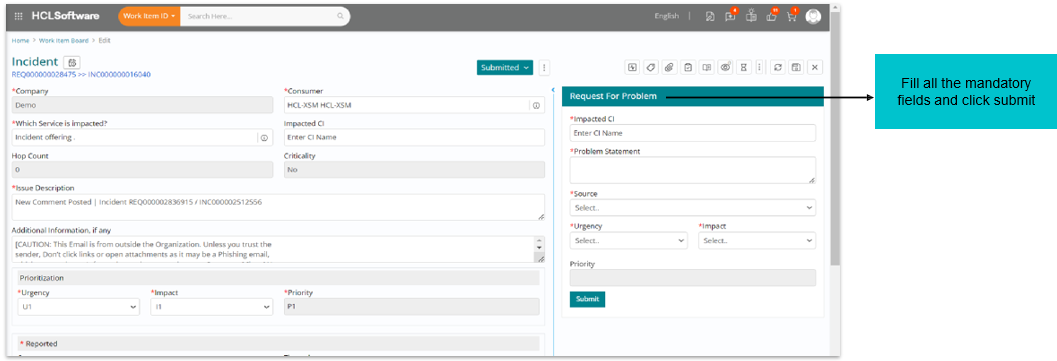
Upon selecting “Propose Problem” to raise a Problem via Incident form, user needs to fill all mandatory fields in the form that appears on the right side and submit. This will create a Problem incident that will get added as a related work Item.
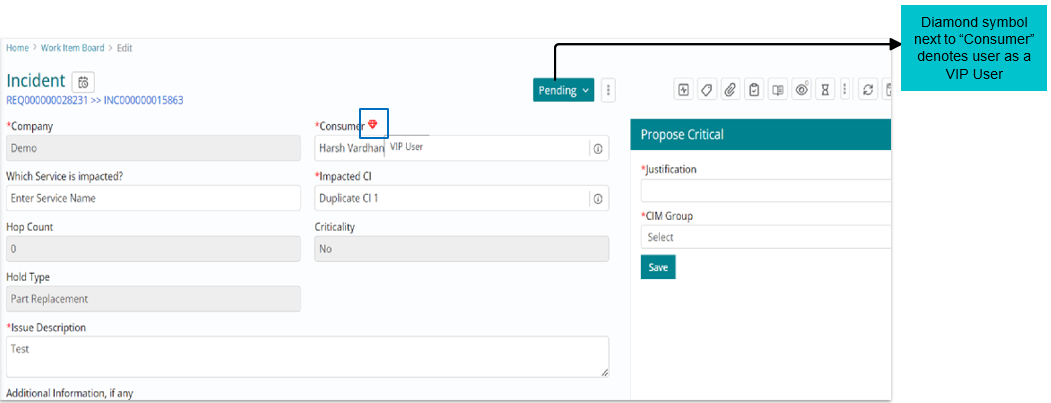
VIP User detection
Any user who is configured as a VIP User/ Power user as per admin configurations, can be recognized with help of the diamond shaped icon alongside “Consumer” field.
Activity Details (Comments, Audit Log & Notifications)
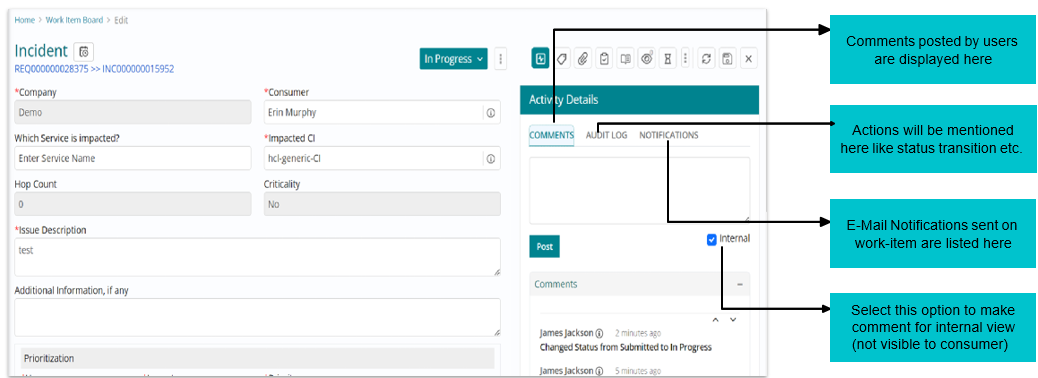
Activity details can be referred to in the section depicted below. New comments can also be posted using this section. Any comment which is not intended for consumer can be restricted and marked as “Internal”.
Custom Attribute
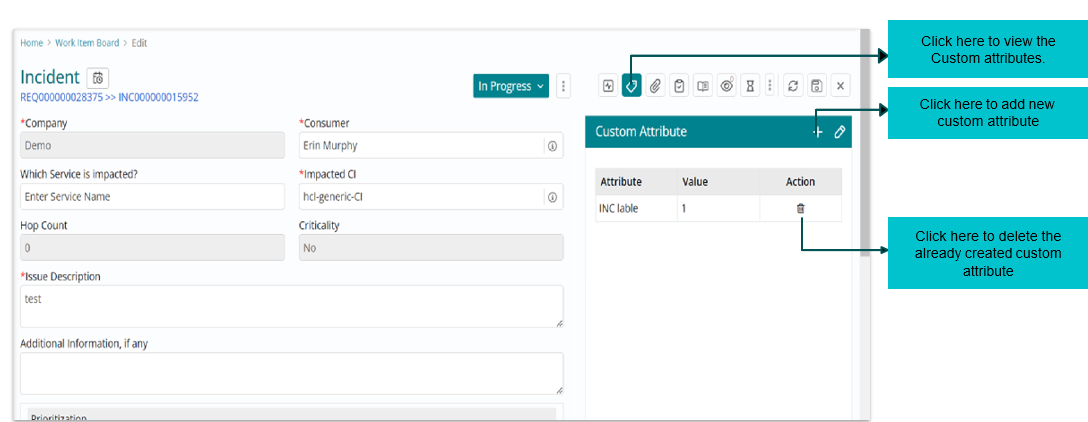
All custom attributes can be viewed by selecting the mentioned icon. New custom attributes can also be created here.
Attachment
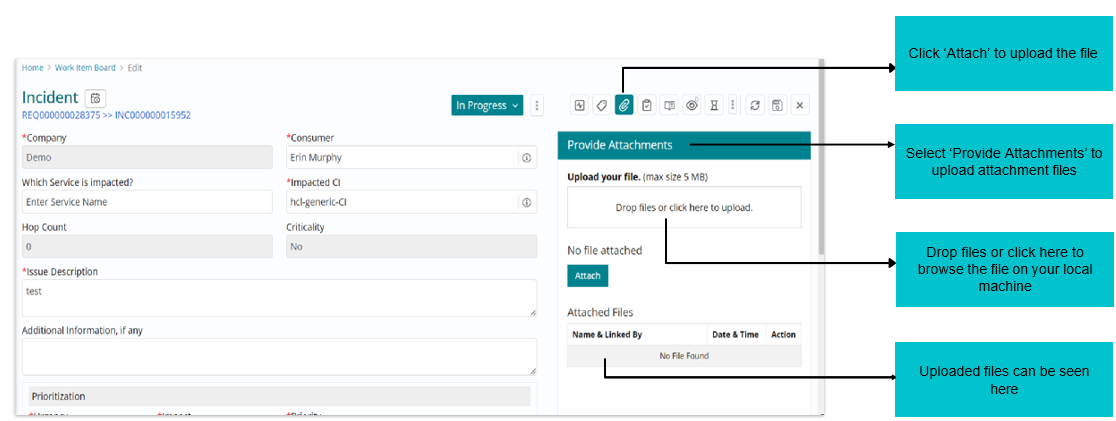
Attachments in different formats can be uploaded using this option. Existing attachments can be downloaded or removed as well.
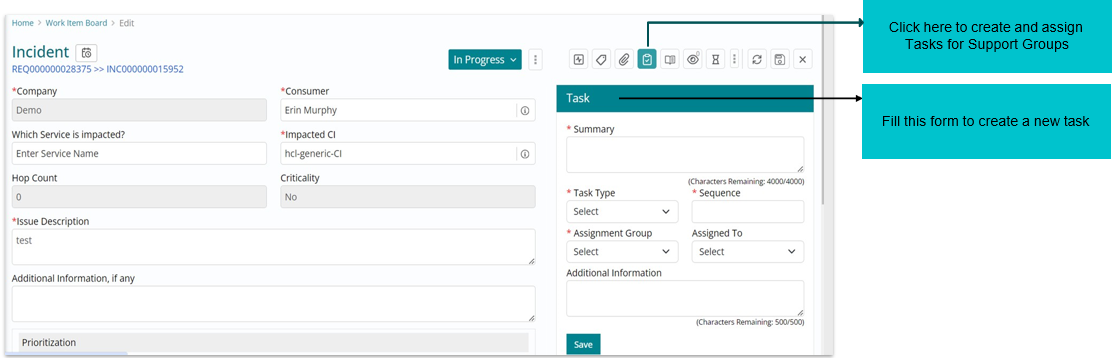
Task Creation
Tasks related to any Incident can be created from this option. Existing tasks listed can also be seen here for visibility.
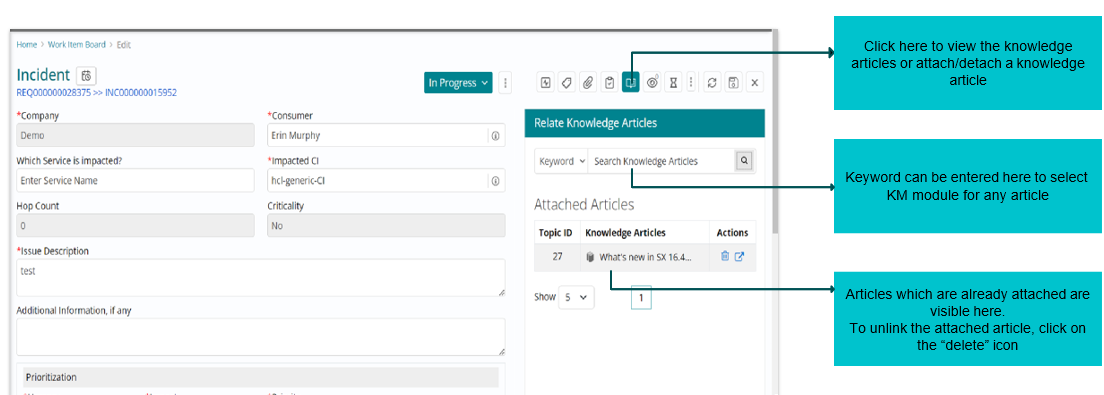
Knowledge Management
Articles from Knowledge management can be searched from this option and can also be linked/ unlinked to the incident.
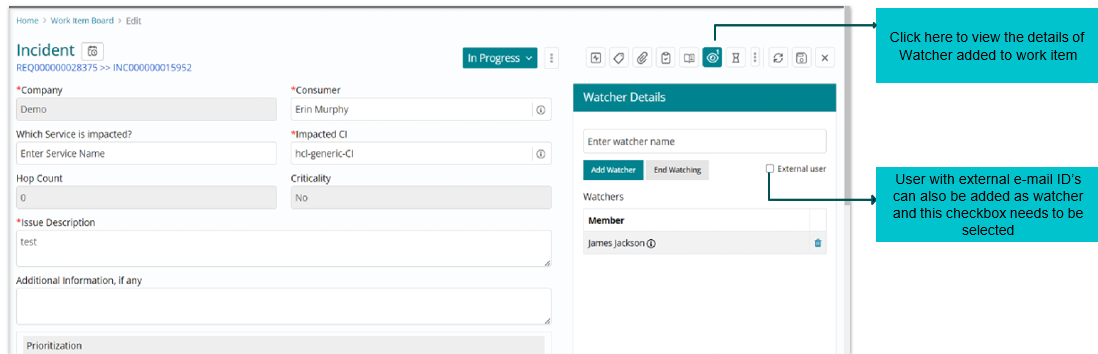
Watcher
Watchers are users who will receive notifications on any action the work Item. Watcher can be added with this option.
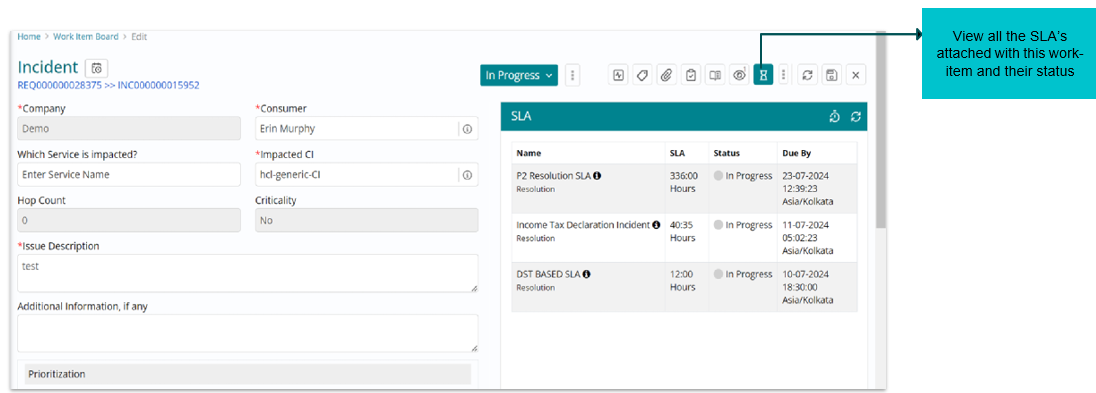
SLA Information
SLAs attached to the work item concerned are displayed along with their status (In Progress, Breached etc.)
More Options
There are few more actions that can be explored by clicking on icon depicted here.
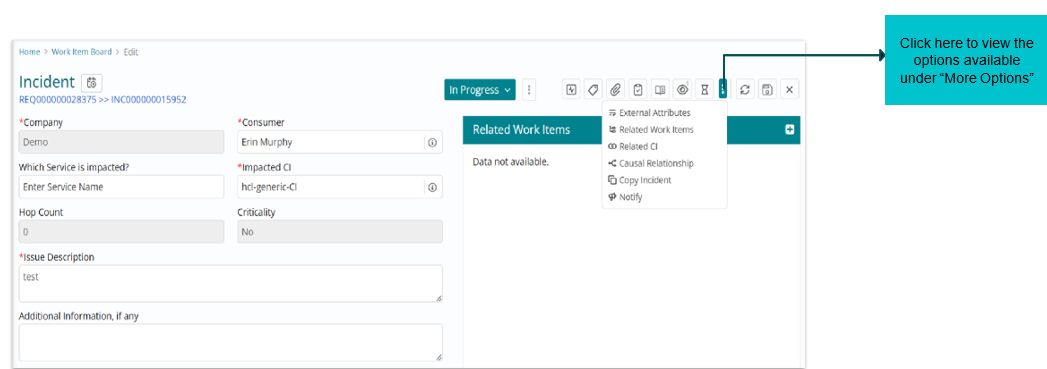
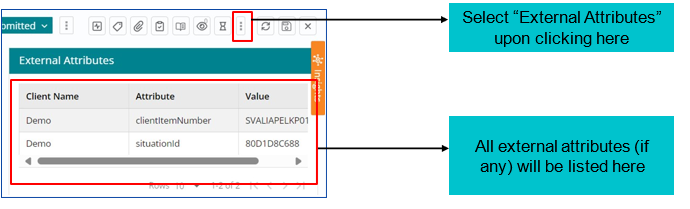
More Options- External Attributes
Through External Attributes, additional information or details about the request that are not part of the standard fields provided by the tool may be added by the user.
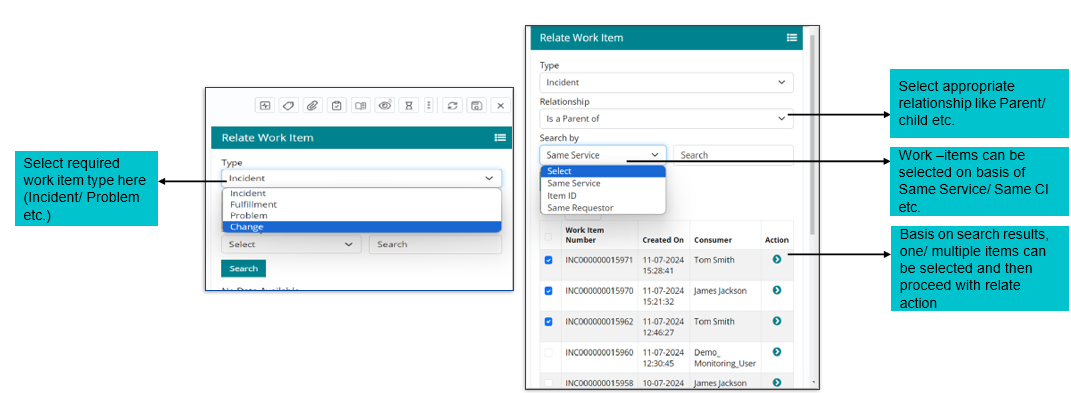
More Options- Related Work Items
Other work items such as Problem, Change, Incidents can also be linked with Incidents with different type of relationships (parent/ child) using this option.
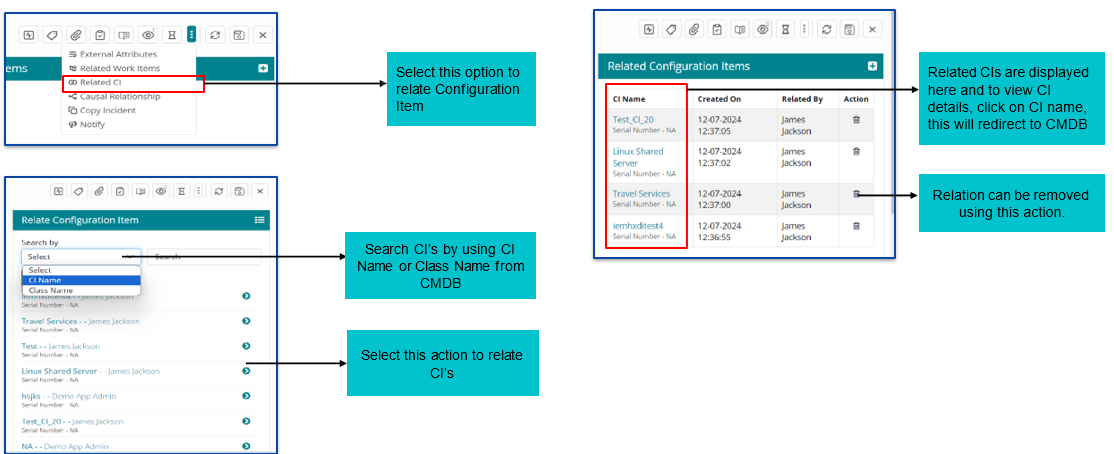
More Options- Related Configuration Item
Configuration Items (CI’s) from CMDB can be also linked to Incidents. To link the CI’s, choose “Related CI” form the “More” option.
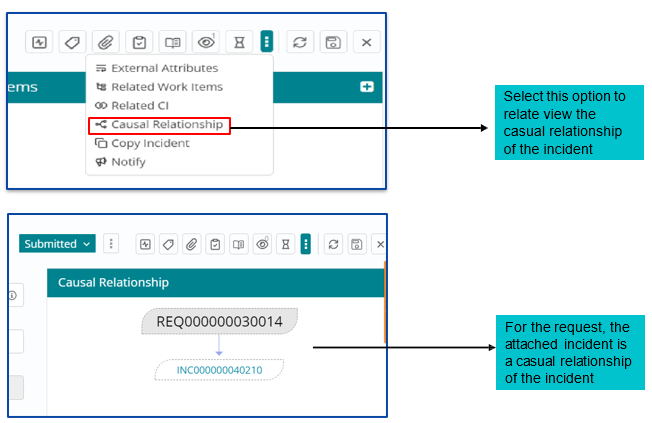
More Options- Causal Relationship
A causal relationship helps to establish a broader context for incidents, allowing IT teams to better understand the potential impact and take appropriate actions.
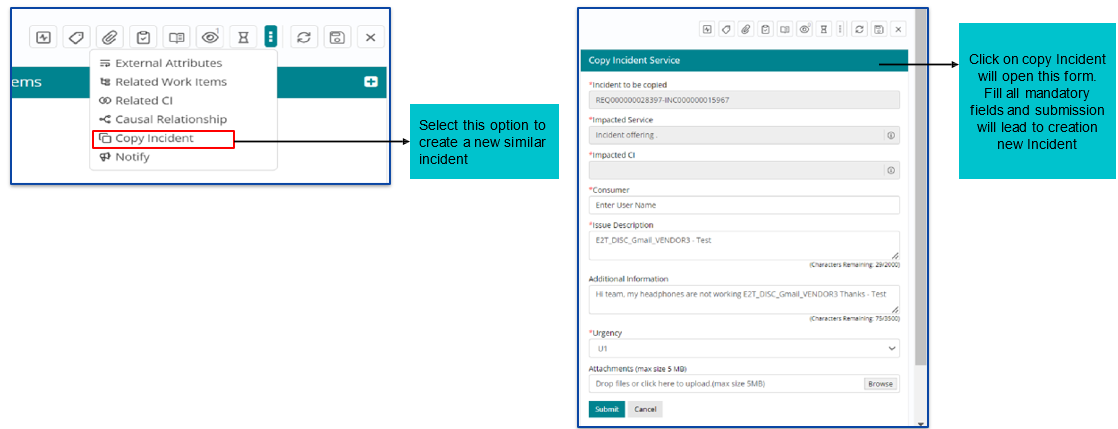
More Options- Copy Incident Feature
To copy and create a new similar request, use this feature.
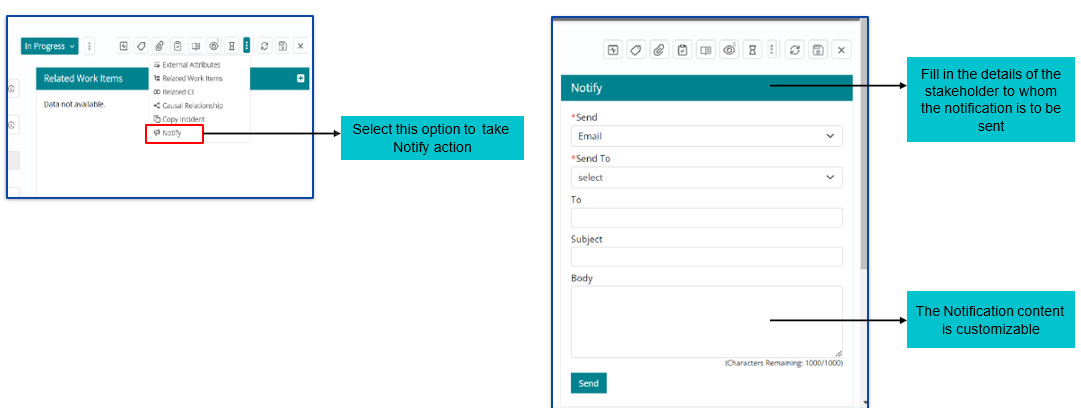
More Options- Notify Feature
Notifications can be sent to the stakeholders via e-mail or SMS on any change in status, any comments added etc.
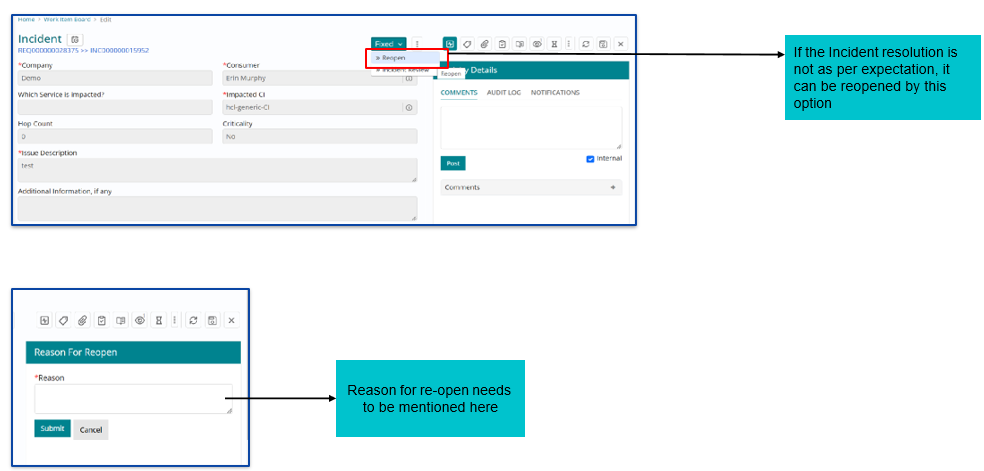
Incident Re-open
If the incident fix is not as per expectation, the incident can be reopened using this option.
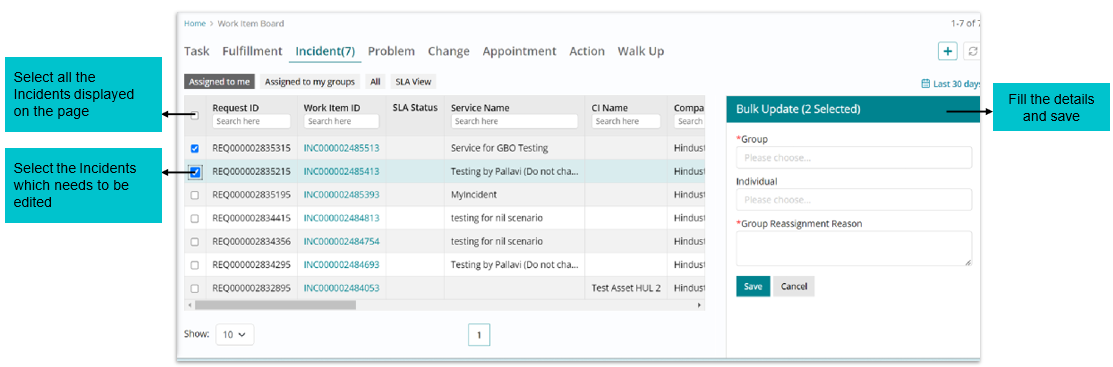
Bulk Edit of Incidents
If support users want multiple tickets in one-go, the bulk edit feature can be used.