
Managing Batch Segments
This topic explains how to create, edit, publish, and manage batch segments using the HCL CDP Marketing Automation Platform. It also covers the underlying logic for building effective segments.
Create a Batch Segment
To create a batch segment, follow the steps below:
- On the Segments page, click + Segment and select Batch to create a batch segment.
- In the New Segment screen, enter the following Segment details:
- Name: Enter a unique name (6–25 characters).
- Tags: Add descriptive keywords or select a keyword to organize and analyze the segment. You can add multiple tags to a segment. For more information about adding tags, refer Add a Tag.
- Segment Priority: select a priority (default is Medium). Set the priority from Highest to Low as needed.
- Description: Provide a brief description (at least 6 characters).
- In the Applied Rules section, an empty group is created by default. Click + Rule to add rules to the group.
- In the Data Source drop-down list, select a data source from the
drop-down list. Available data sources include:
- Transactional Behaviour
- Conversion Insights
- Campaign Interaction
- Customer Demographics
- Customer Events
- To apply rules to the segments, in the Dimension field, define rules by choosing dimensions such as "Last Page Visited" or "Purchase Value".
- In the Aggregate drop-down list, select appropriate available option.
- Choose operators: Use one of the following:
Data Type Operators Interpretation Aggregate Functions Array(Numeric) In In(val1,val2,…) (None) Not In Not in(val1,val2,…) (None) Lesser Than, Greater Than, Less Than Equals, Greater Than Equals, Equals to, Not Equal to Any element from array <operator> value (None) Array(Date) Between Any element Between date1 and date2 (None) Last X Days Any element Between date1 and current date Array<String>e.g. product_holding Contains any element LIKE '%val%' (None) Not Contains any element NOT LIKE '%val%' String e.g. education_level Contains LIKE '%val%' (None) Not Contains NOT LIKE '%val%' Equals to ='Value' Not Equal to !='Value' In In(val1,val2,…) Not In Not in(val1,val2,…) String Lesser Than Count Of Greater Than Less Than Equals Greater Than Equals Equals to Not Equal to Numeric Lesser Than Count Of, Sum Of, Average Of, Min Of, Max Of Greater Than Less Than Equals Greater Than Equals Equals to Not Equal to Date BETWEEN Any element Between date1 and date2 (None) LAST X DAYS Any element Between date1 and current date - Set Values: Assign values to dimensions either from the available drop-down options or manually enter the values.
- To add more rules or create complex logic, use groups:
- Add Rules and Groups: Click + Rule to add another rule to the current group or click + Group to create a nested group.
- Set Logic: Use the AND/OR toggles to define the logical
relationship within and between groups.
- AND: Includes only users who meet all conditions in the group.
- OR: Includes users who meet at least one condition in the group.
- Exclude Users: To exclude users based on specific criteria,
create a group and set its logic to
NOT. For example, a group with the ruleChannel = 'WhatsApp'can be used to exclude all users who interacted via WhatsApp.Remember:- Ensure that the exclude condition is placed at the end of a group or subgroup.
- An exclude condition should be between two groups.
- In a subgroup, if you want to exclude records, the exclude condition must be the last one in that subgroup.
- Avoid placing exclude conditions between more than two parallel groups as it leads to an invalid scenario.
- An "or" condition can be applied to children within an exclude group.
- To manage complex segment views, use the following features:
- Move: Drag and drop a rule or group using the grip dots icon to reorder it or move it to a different parent group. All rules and values within the group will be moved to the new group.
- Clone: Hold the
Ctrlkey and drag the grip dots icon of a group to create a duplicate of that group and all its rules. - Collapse: Click the collapse (-) icon on a group to hide its details and see a summary of its logic.
- If required, click the delete icon to delete a particular rule.Note: You cant delete all the rules. At least one rule is required to create a segment.
- After applying or changing rules, click the Refresh Count button to view
the updated Segment Audience count.Note: A segment count of zero may indicate that the conditions are logically contradictory (e.g.,
Age > 30ANDAge < 20). Review your rules to correct any contradictions. - Click Save Segment to save the Segment.
Edit a Batch Segment
To edit your segment and make changes to it, follow the steps below:
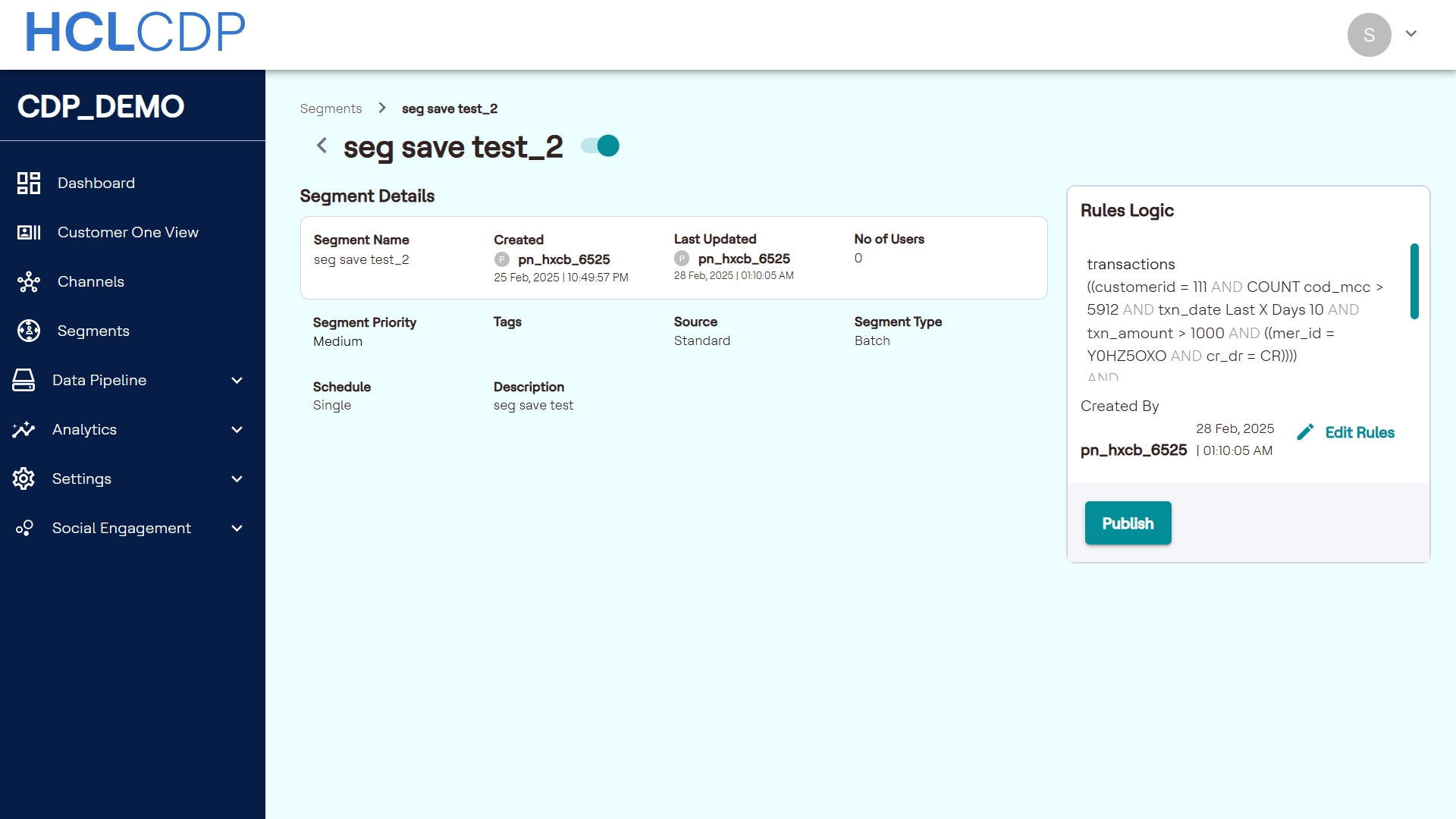
- On the Segments page, click the name of the batch segment you want to edit.
- Click the Edit Rules (📝) icon next to Created By, to start the editing, and implement changes to the batch segment.
- Click Update Segment to apply the changes made.
- As a result, a pop-up window will appear notifying the Segment Edited Successfully.
- Click View the Segment to examine the changes made.
Publish Batch Segment
You can select the user profile attributes and schedule them to send the segmented user data to Amazon S3. To publish batch segment data, follow the steps below:
- On the Segments page, select a batch segment, and click Publish.
- In the Publish Segment pop-up window, click the calendar icon to select the date and time to send the segment data to the Amazon S3.
- To set up a recurring export, select the Repeat checkbox and configure
the following:
- Frequency: Set the schedule to run daily or weekly.
- End Date: Specify a date to stop the recurring export.
- In the Path field, enter the folder path and file name (e.g.,
foldername/filename.csv) where the CSV file should be saved in the S3 bucket.Note: If you do not defined a path, the file is saved to the default path, displayed in UI, with the namesegmentexport.csv. - Below the Return checkbox, you can define the demographics and event attributes
to publish.
- Click the DEMOGRAPHIC tab, and select attributes to publish. Click the > icon to move them to the Original Field vs Custom Field section.
- Similarly, click the EVENT tab, select an event from the drop-down list, and then select the attributes to publish. Click the > icon to move them to the Original Field vs Custom Field section.
- (Optional) In the Original Field vs Custom Field section, edit the names in the Custom Field column to customize the headers in the exported CSV file.
- Click Publish to schedule the profile publish. The segment data will be exported as a CSV file to the configured S3 bucket.
Sample Usecases
Use Case 1: Create the "Recent VIP Customers" Segment
This usecase walks you through creating a simple segment to find customers who spent over $200 in a single transaction within the last 30 days.
- On the Segments page, click +Add Segment and select Batch.
- In the New Segment screen, enter the following details:
- Name: Recent VIP Customers
- Description: Customers who spent over $200 in the last 30 days.
- In the Applied Rules section, a default group with AND logic is already created. Click + Rule to add the first condition.
- Define the first rule to identify recent purchases:
- Data Source: Select Transactional Behaviour.
- Dimension: Select Purchase Date.
- Operator: Select LAST X DAYS.
- Value: Enter
30.
- Click + Rule again within the same group to add the second condition.
-
Define the second rule to identify high-value transactions:
- Dimension: Select Purchase Value.
- Operator: Select Greater Than.
- Value: Enter
200.
- (Optional) Click Refresh Count to preview the audience size.
- Click Save Segment.
Use Case 2: Create the "Engaged Housing Loan Prospects" Segment
This usecase walks you through creating a complex segment to find high-value prospects interested in housing loans, while excluding existing customers and those who have opted out.
- On the Segments page, click +Add Segment and select Batch.
- In the New Segment screen, enter the following details:
- Name: Engaged Housing Loan Prospects
- Description: High-value users interested in housing loans, excluding existing customers and opt-outs.
- The main group logic should be AND. This will serve as the primary inclusion group.
- Add the Age Rule: In the default AND group, click +
Rule and define the condition:
- Data Source: Customer Demographics
- Dimension: Age
- Operator: Greater Than
- Value: 30
- Add the Lifetime Value Rule: Click + Group and then click +
Rule. Define the condition using an aggregate:
- Data Source: Transactional Behaviour
- Dimension: Purchase Value
- Aggregate: Sum Of
- Operator: Greater Than
- Value: 5000
- Create the Nested Interest Group: Inside the main AND group, click + Group to create a nested sub-group.
- Change the logic for this new sub-group to OR.
- Add the Campaign Interest Rule: Inside the OR sub-group, click
+ Rule and define the condition:
- Data Source:
Campaign Interaction - Dimension: Campaign Name
- Operator:
Contains - Value: housing loan
- Data Source:
- Add the Page Visit Rule: Inside the same OR sub-group, click
+ Rule and define the condition:
- Dimension: Last Page Visited
- Operator:
Contains - Value:
mortgage-rates
- Create the Exclusion Group: At the main level (parallel to the first AND group), click + Group.
- Toggle the Exclude button to exclude anyone matching the rules inside it.
- Add the Existing Customer Rule: Inside the Exclude group,
click + Rule and define the condition:
- Data Source: Customer Demographics
- Dimension: product_holding
- Operator: Contains
- Value: Housing Loan
- Add the Opt-Out Rule: Inside the same Exclude group, click
+ Rule and define the condition:
- Dimension: Response
- Operator: Equals to
- Value: Opt-out
-
(Optional) Click Refresh Count to preview the final audience size.
-
Click Save Segment.