
Creating an Embedding and Vector database Configuration
You can either add a new configuration in dominoiq.nsf or edit an existing configuration document for a given Domino IQ server.
Procedure
- Using the Domino Administrator client, open the Domino IQ database , dominoiq.nsf, on the Domino IQ Administration server.
- Select the Configurations view and click the Add Configuration button, or select an existing configuration document and click the Edit Configuration button.
-
Click the Embedding Model tab.
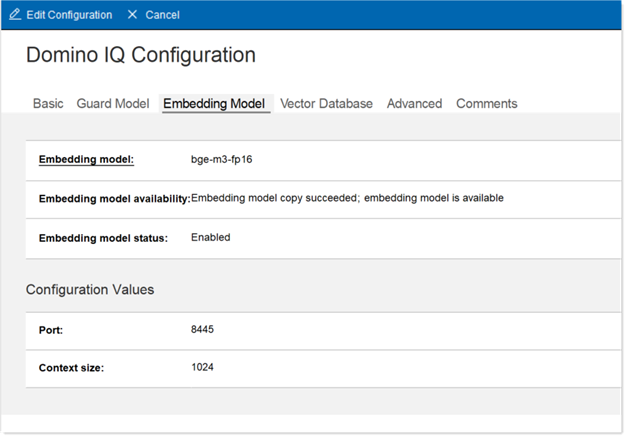
- In the Embedding Model field, select an available embedding model.
- Set the embedding model status to Enabled.
- Set the port for running the embedding model llama-server to change the default port.
- Change the context size for embedding model if the embedding model chosen supports a higher context size than 1024.
-
Click on the Vector Database tab.
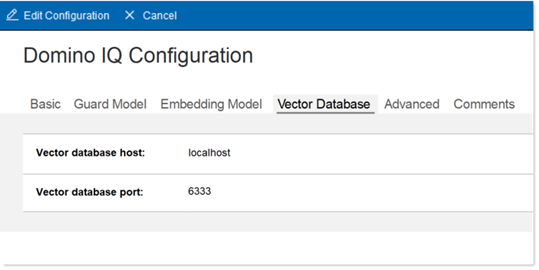
- Optionally, change the port for the Vector database server. Also optionally change the host if running multiple partitions.
- Click on the Advanced tab.
-
Scroll down to the Embedding model options section and
tune the number of concurrent requests, GPU offloading parameters, and any
special parameters needed to run the embedding model.
Note: If these special parameters are not enabled based on the embedding model used, the embedding server instance, while running updall to generate the vector index of RAG-enabled databases, will return HTTP error 400 or 500 to updall. This might cause indexing to abort.
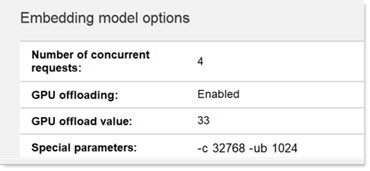
- It is recommended that the context size for running the embedding model is set (by using the -c <ctx-size-tokens> parameter) to a higher number proportional to the number of concurrent requests. Each incoming embedding request will have the context token size be limited to total context size divided by the number of concurrent requests. It is recommended that this parameter is set to 32768 or higher to avoid errors like "input tokens is larger than max context size" while running the updall -w or -k console command on RAG-enabled databases.
- The embedding server also further breaks down the request context into smaller batches of tokens to process. This is controlled by the physical batch size using the -ub <batch-size-tokens> parameter. It is recommended that this parameter is set to 1024 to avoid errors like "input tokens too large to process" while running the updall -w or -k console command on RAG-enabled databases.
- RAG-based commands increase the size of the prompts sent to the LLM. It is recommended that the context size under the LLM options on the Advanced tab be increased, using the Special parameters field. As an example, specifying "-c 32768" with 4 concurrent requests under the LLM Options sections will provide the AI inference engine a token context size of 8192 per request.
- Save the Configuration document.