Managing content sources
Use the Search Admin UI to manage content sources.
A content source represents a single search engine index where items are indexed and searched. The following content source types are available:
- Digital Asset Management (DAM)
- Java Content Repository (JCR)
- People
- Portal
- Web Content Manager (WCM)
- Website
Note
DAM and People content sources do not have an associated crawler. Instead, they use the Content Push API to push documents directly to the search index. For more information about content sources that use crawlers, refer to Crawlers.
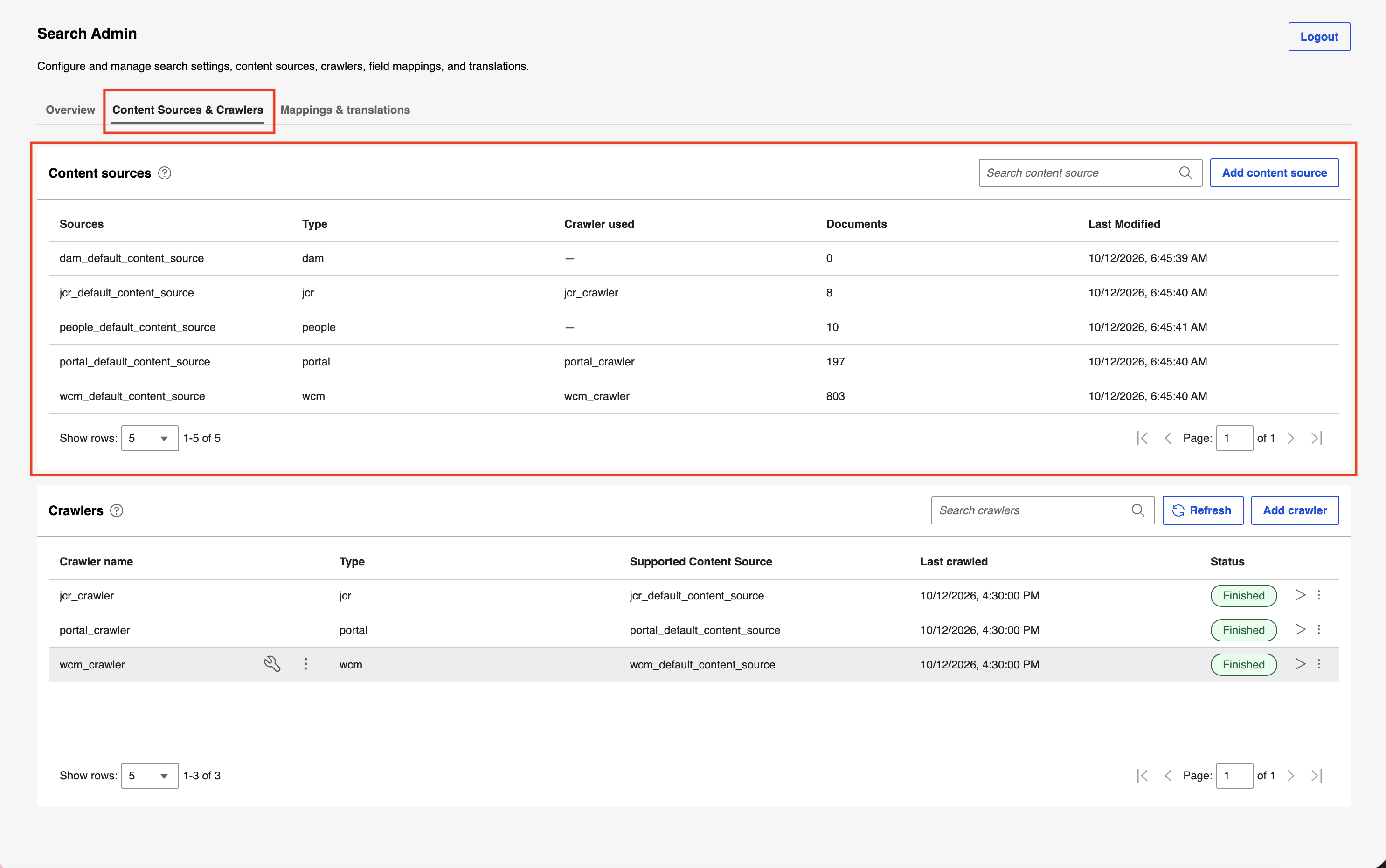
Content Sources & Crawlers tab
On the Content Sources & Crawlers tab, you can do the following tasks:
Viewing content sources
In the Content sources section, view the list of existing content sources.
Creating a content source
-
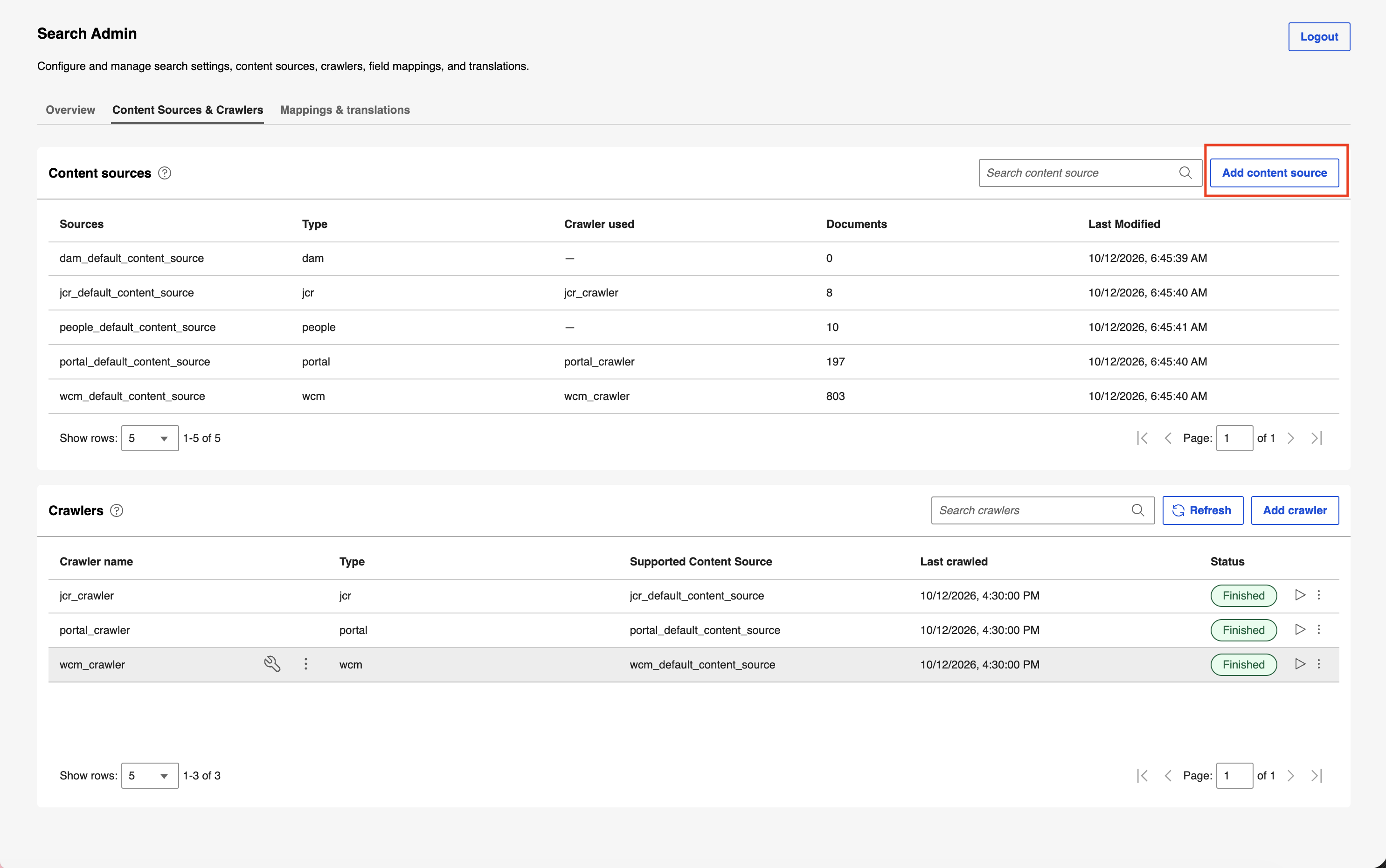
Select Add content source.
-
Enter the following details:
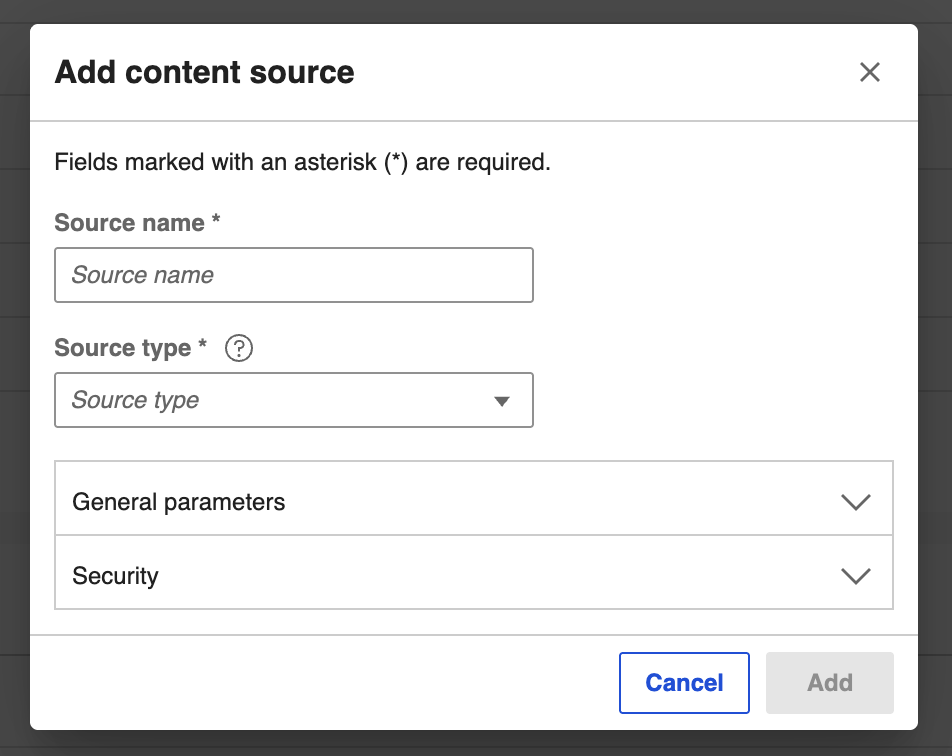
- Source name: Enter a unique name for the content source (for example,
dam_default_content_source). - Source type: Select the content source type from the drop-down list (WCM, DAM, JCR, PORTAL, PEOPLE, or WEBSITE).
- General parameters: Expand the section to configure the following connection parameters:
- ACL Lookup Host: Enter the host URL used for Access Control List (ACL) lookups (for example,
https://dx-deployment-haproxy). - ACL Lookup Path: Enter the endpoint path used for ACL lookups (for example,
/wps/mycontenthandler). - API Base URL: Enter the base URL of the source service API (for example,
https://dx-deployment-haproxy). - API Path: Enter the endpoint path for the content API (for example,
/dx/api/dam/v1).
- ACL Lookup Host: Enter the host URL used for Access Control List (ACL) lookups (for example,
- Security: Expand the section to configure the following authentication settings:
- Authentication (Type): Select the authentication method that the search service uses to connect to the content source:
- None for sources that allow anonymous access. Selecting None requires no additional settings.
- Basic for HTTP basic authentication.
- Form for form-based login.
- If you select Basic or Form, enter the following additional details:
- Username: Enter the username of an account that has permission to read the content you want to index (for example,
wpsadmin). - Password: Enter the password for the specified account. The password is masked as
********in API responses. - Login path: Enter the path where the authentication request is sent (for example,
/wps/mycontenthandler/!ut/p/um/currentuser).
- Username: Enter the username of an account that has permission to read the content you want to index (for example,
- If you select Form, enter the following additional details:
- Username field: Enter the name of the username input field in the login form (for example,
username). - Password field: Enter the name of the password input field in the login form (for example,
password).
- Username field: Enter the name of the username input field in the login form (for example,
- Authentication (Type): Select the authentication method that the search service uses to connect to the content source:
For the full definition of each property, refer to Configuring a content source by using the REST API.
- Source name: Enter a unique name for the content source (for example,
-
Select Add, or select Cancel. If you select Cancel, select Discard to discard changes or Keep editing to return to the dialog box.
Viewing content source properties
- Hover over a content source row.
-
Select the Properties icon.
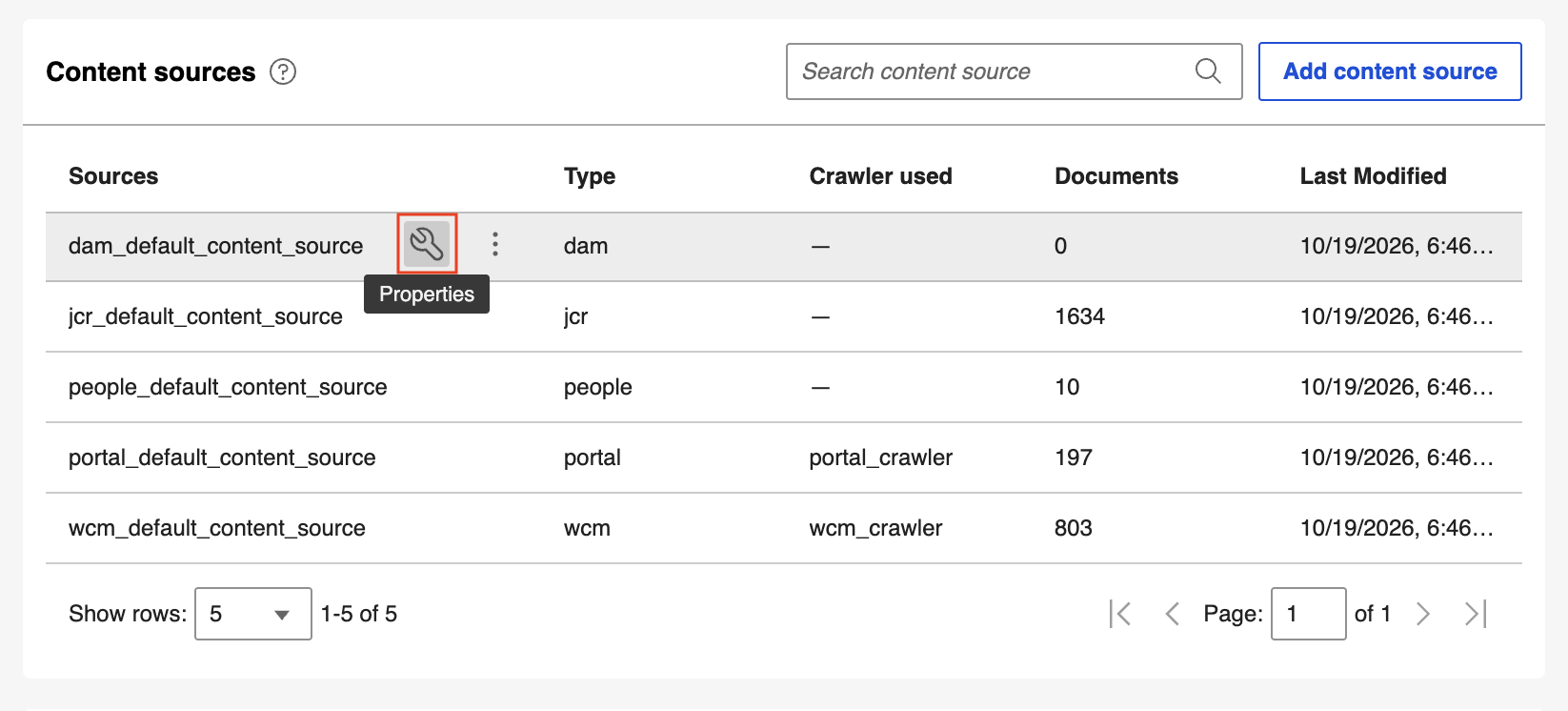
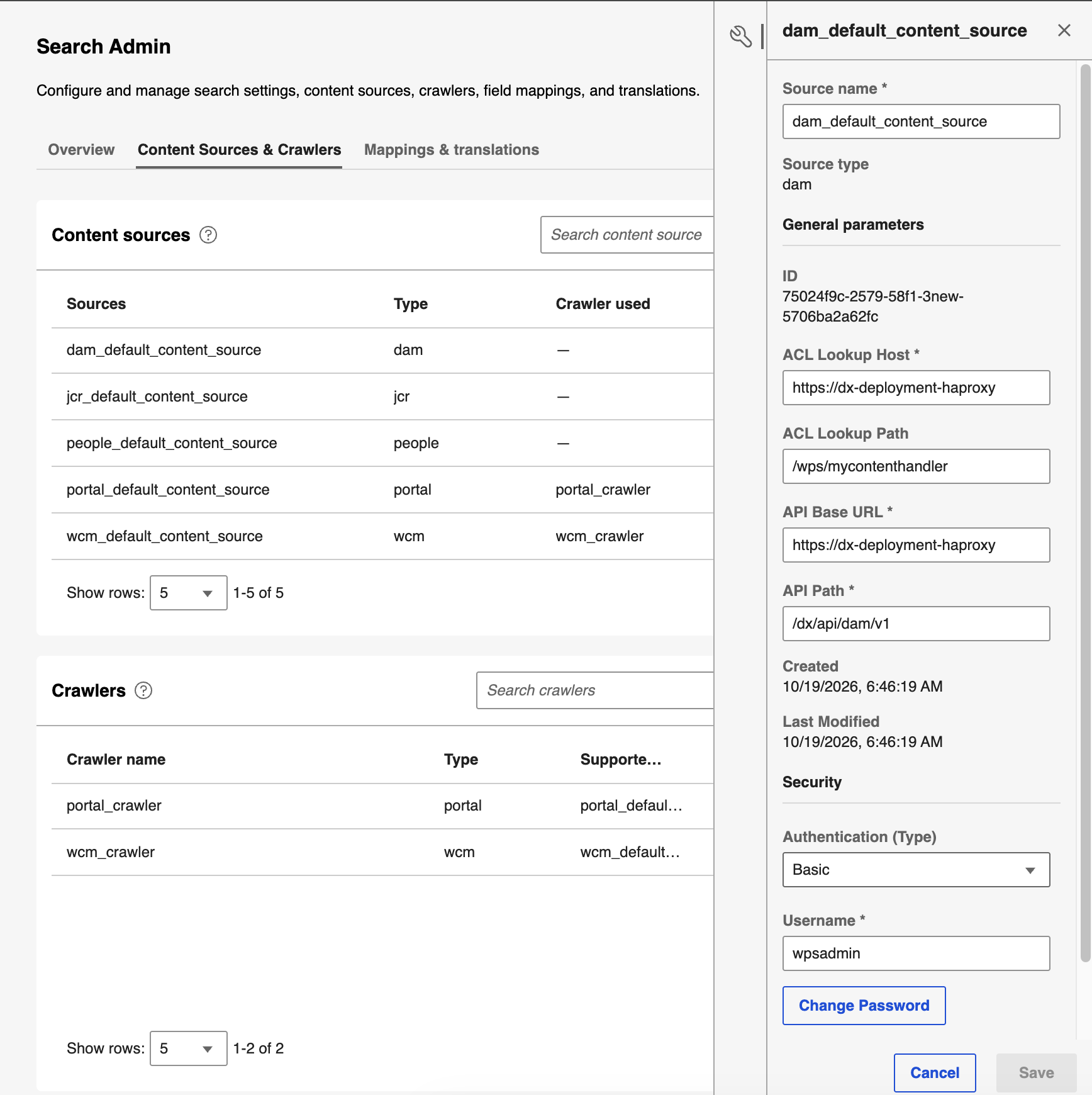
The Properties panel displays the source name and type, general parameters (such as ID, ACL lookup host and path, and API base URL and path), and security settings (such as authentication type, username, and login path).
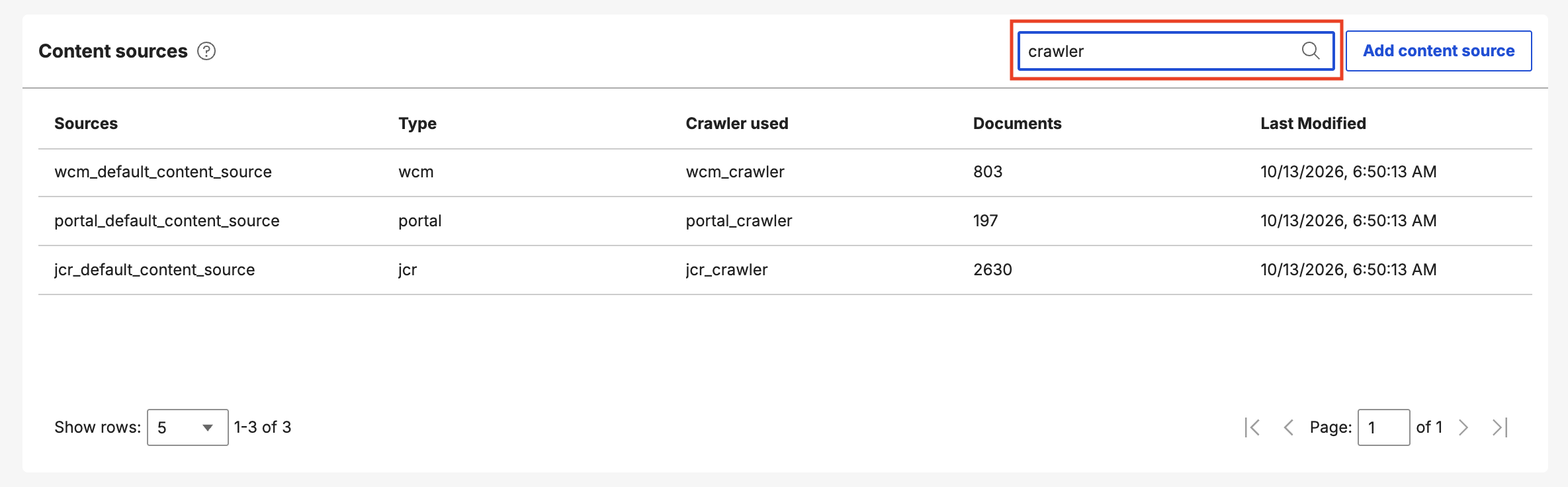
Searching for a content source
- Select the Search content source box and enter a search term.
- Select the search icon or press Enter. The list filters to show all content sources that match the search term you entered.
Updating a content source
- Hover over a content source row.
- Select the Properties icon.
-
In the Properties panel, edit the properties, and then select Save.
Deleting a content source
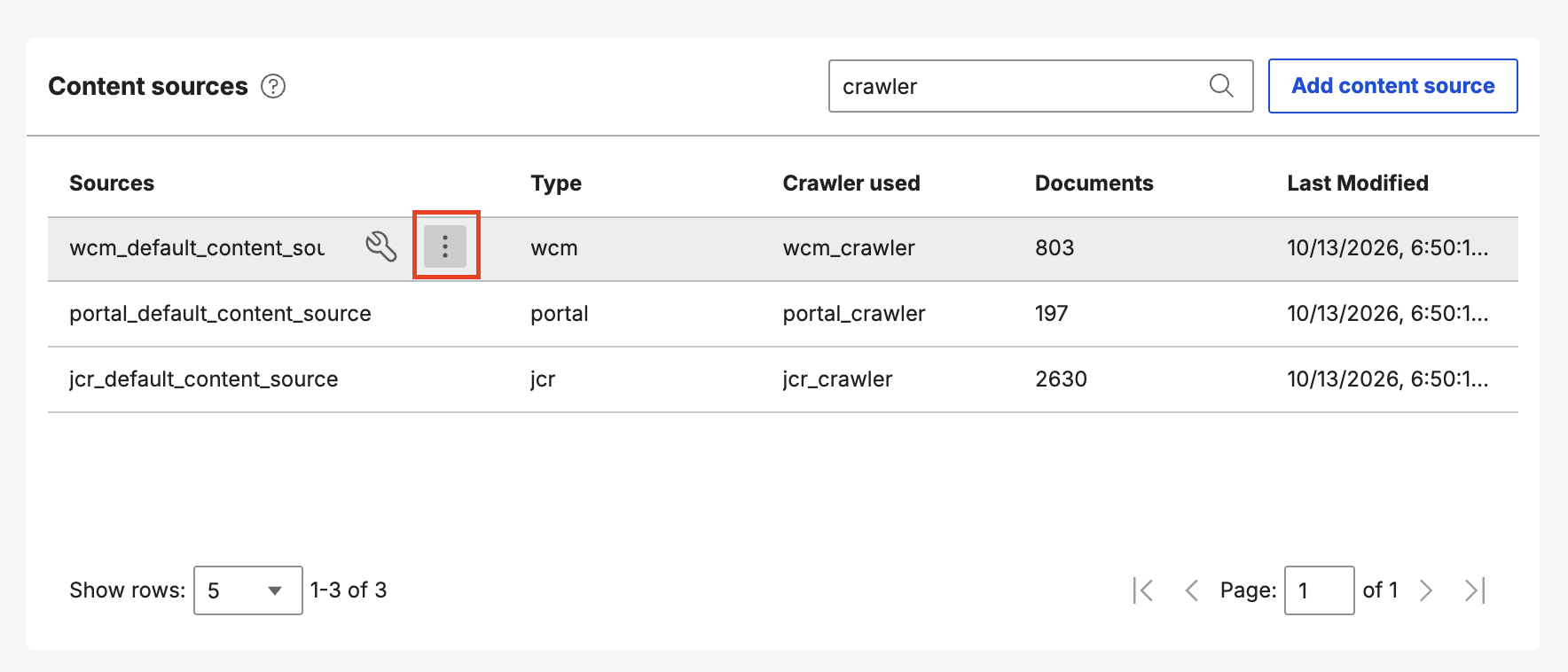
- Hover over a content source row.
-
Select the More actions icon.
-
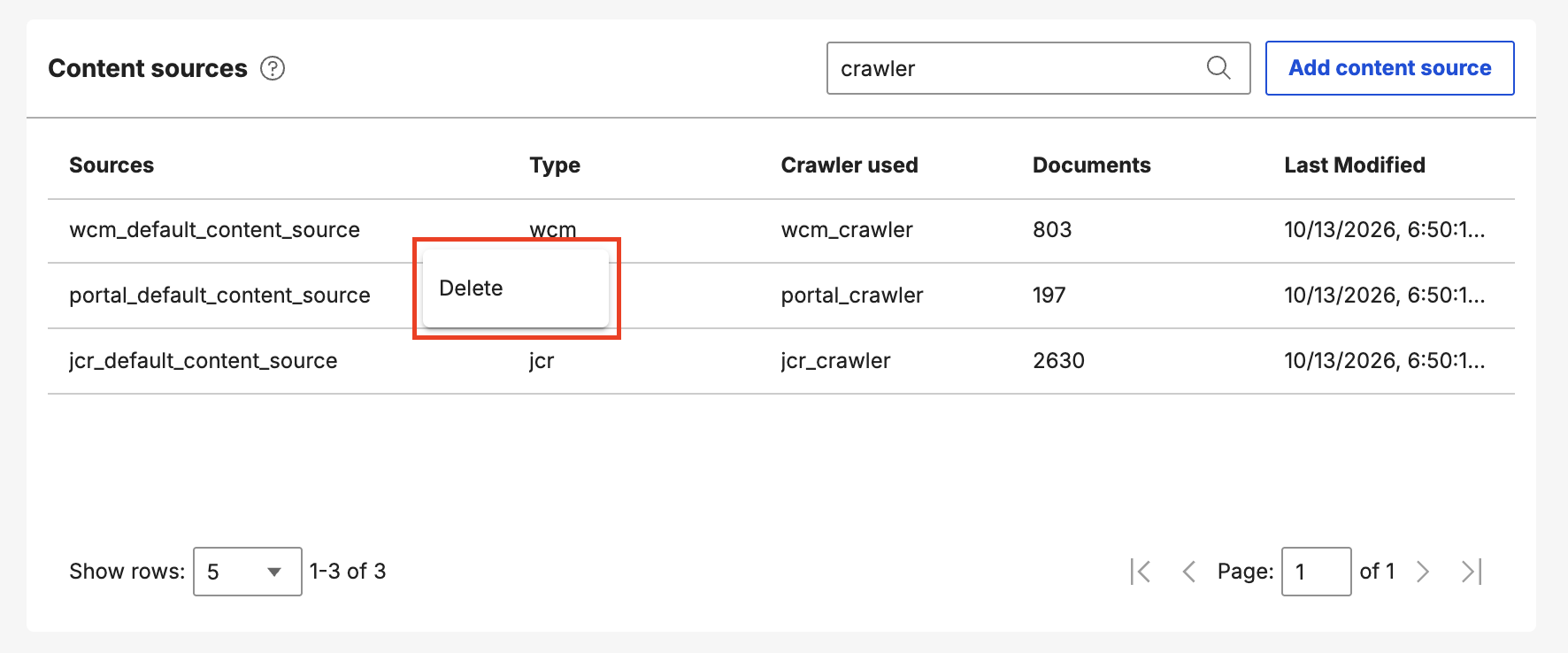
Select Delete.
-
In the confirmation dialog box, select Delete to continue, or select Cancel.
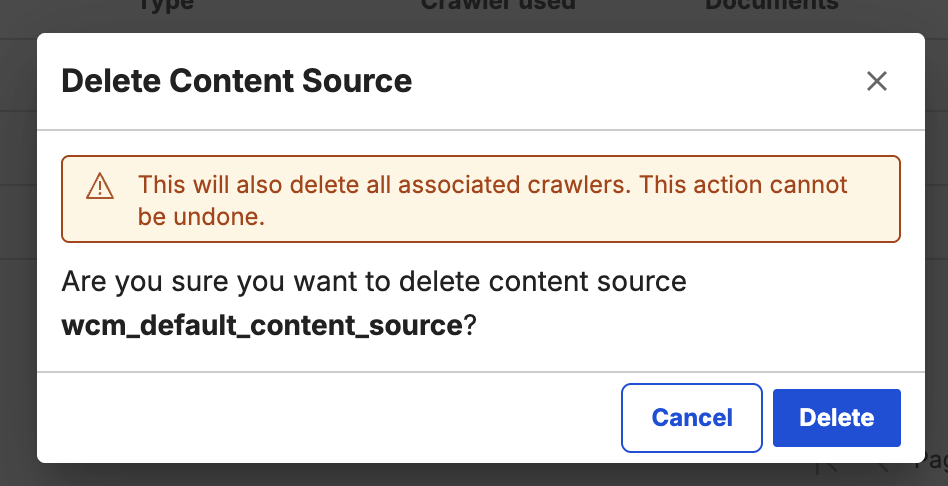
Deleting a content source removes it from the list and makes it unavailable for search indexing. If the content source has an associated crawler that is not currently running, the crawler is also deleted.