
Changing custom fields labels
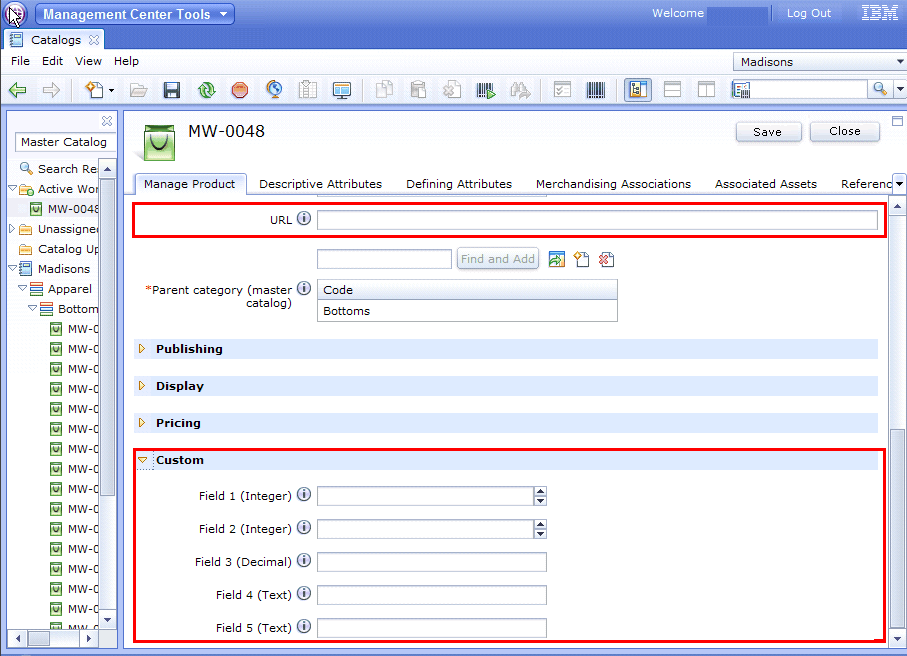
You can change the labels of custom fields. The product properties Manage Product tab contains a Custom section. In this section, you can change the field labels, or help text to suit your business needs.
Procedure
- Open WebSphere Commerce Developer and switch to the Enterprise Explorer view.
- Complete one of the following steps:

 In the Enterprise Explorer view, expand .
 In the Enterprise Explorer view, expand .
- Modify one of the following files to change the section
name, field label, and information help text:
Option Description CatalogPropertyPane.lzx- Open the CatalogPropertyPane.lzx file for editing.
- Change the section name by identifying the property group you
want to work with.
- Locate the
wcfPropertyGrouptag that controls the name of the Custom section.
The value of the<class extends="wcfPropertyGroup" 1groupTitle="${catalogResources.additionalInformationSection.string}" name="catManageAdditionalInformation" open="false">groupTitleattribute controls the name of the Custom section. To change the section name, change the value of thegroupTitleattribute using the resource bundle to define the text for user interface.
- Locate the
- Change the field label and information help text by identifying
the property widget label you want to work with. For example, to change
the label and information help text for Field1 widgets:
- Locate the
wcfPropertySteppertag that controls the Field 1 (Integer) label and information help text.
To change the label and information help text, change the value of the<!-- Property: Field 1. A custom input box for the catalog entry property. --> <wcfPropertyStepper minimumValue="-2147483648" maximumValue="2147483647" objectPath="CatalogEntryExtraProperties" 1promptText="${catalogResources.catalogEntryExtraPropertiesField1_DisplayName.string}" propertyName="xprop_field1" 2extendedHelpText="${catalogResources.extendedHelpText_field1.string}"/>promptTextattribute andextendedHelpTextattribute using a resource bundle to define the text for user interface.
- Locate the
- Repeat the previous step for the other fields: Field 2 (Integer), Field 3 (Decimal), Field 4 (Text), and Field 5 (Text).
- Save your changes.
CatalogPropertyPane.def- Open the CatalogPropertyPane.def file for editing.
- Change the section name by identifying the property group you
want to work with.
- Locate the
PropertyGroupelement that controls the name of the Custom section.
The value of the<PropertyGroup definitionName="catManageAdditionalInformation" groupTitle="${catalogResources.additionalInformationSection}" open="false">groupTitleattribute controls the name of the Custom section. To change the section name, change the value of thegroupTitleattribute using the resource bundle to define the text for user interface.
- Locate the
- Change the field label and information help text by identifying
the property widget label you want to work with. For example, to change
the label and information help text for Field1 widgets:
- Locate the
PropertyStepperelement that controls the Field 1 (Integer) label and information help text.
To change the label and information help text, change the value of the<PropertyStepper extendedHelpText="${catalogResources.extendedHelpText_field1}" maximumValue="2147483647" minimumValue="-2147483648" objectPath="CatalogEntryExtraProperties" promptText="${catalogResources.catalogEntryExtraPropertiesField1_DisplayName}" propertyName="xprop_field1"/>promptTextattribute andextendedHelpTextattribute using a resource bundle to define the text for user interface.
- Locate the
- Repeat the previous step for the other fields: Field 2 (Integer), Field 3 (Decimal), Field 4 (Text), and Field 5 (Text).
- Save your changes.
- Modify one of the following files to change the name of
the fields in the grid.
Option Description CatalogEntryGrid.lzx- Open the CatalogEntryGrid.lzx file for editing.
- Change the field name in the grid. For example, to change the
grid name for Field1:
- Locate the
wcfGridSteppertag that controls Field 1 name in grid.
To change the field name in the grid, change the value of the<wcfGridStepper name="xprop_field1" minimumValue="-2147483648" maximumValue="2147483647" objectPath="CatalogEntry/CatalogEntryExtraProperties" propertyName="xprop_field1" 1text="${catalogResources.productField1_ColumnHeader.string}" visible="false" width="120"/>textattribute using a resource bundle to define the text for user interface. - Repeat the previous step for the other fields: Field 2 (Integer), Field 3 (Decimal), Field 4 (Text), and Field 5 (Text).
- Save your changes.
- Locate the
CatalogEntryGrid.def- Open the CatalogEntryGrid.def file for editing.
- Change the field name in the grid. For example, to change the
grid name for Field1:
- Locate the
GridStepperelement that controls Field 1 name in grid.
To change the field name in the grid, change the value of the<GridStepper maximumValue="2147483647" minimumValue="-2147483648" name="xprop_field1" objectPath="CatalogEntry/CatalogEntryExtraProperties" propertyName="xprop_field1" text="${catalogResources.productField1_ColumnHeader}" visible="false" width="120"/>textattribute using a resource bundle to define the text for user interface. - Repeat the previous step for the other fields: Field 2 (Integer), Field 3 (Decimal), Field 4 (Text), and Field 5 (Text).
- Save your changes.
- Locate the
- Restart the test server.
What to do next
| Version | Steps |
|---|---|
|
|

|