Four Eyes Approval Capability
Enabling Four Eyes Approval Capability on the BigFix Server.
Description
The Four Eyes Approval feature is used to prevent console operators from unilaterally taking actions on the endpoints within their control. After this feature is enabled, operators taking console actions will require the approval of a console operator who is also a member of a specified "approvers" Role.
Access
Only System Administrators and Master Operators with access to the Site Administrator Private Key Password can access and configure this feature.
How to use it
Follow the steps below to enable this feature in your deployment:
- To open the BigFix Administration Tool, click the Start menu on your computer and select BigFix >BigFix Administration Tool.
- When the tool dashboard opens, click the Advanced Options tab and Click Add.
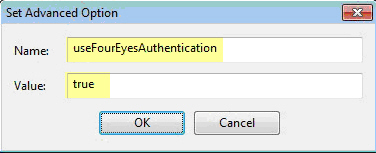
- In the Name field, type “useFourEyesAuthentication”; in the Value
field, type “true”; and then click OK.
- Click OK to exit the BigFix Administration Tool.
- Restart the BES Root Server service on your BigFix server and restart the BigFix Console.
- From the Console, click the Tools>Create Role.
- Enter a name for the role (e.g., Approvers) and click OK. Note: The Role does not require any additional/special permissions.
- Make one or more BigFix operators members of the role. Note: The BigFix Operators can be Local or AD/LDAP.
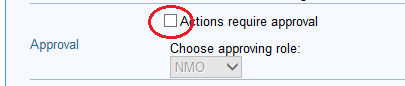
- Click the Operators node in the Console navigation tree. This will open an Action window. In the Details tab, select the Actions Require Approval check box and select the role created in the previous step from the drop-down list.
- Click Save Changesat the top of the window.
NOTE: Do not require approval from your own console actions. As a best practice, ensure that another Master Operator sets this option for you.
LIMITATION: WebUI does not support the Four Eyes Authentication Capability. Operators that want to deploy actions from the WebUI must have Approval disabled in their configuration.