
Registering the AIX Download Plug-in R2
Register the AIX Download Plug-in R2 and configure IBM Login Multi-Factor Authentication (MFA) through the AIX Deployment Wizard so that the plug-in can install patches for third-party applications such as NTP, OpenSSH, and OpenSSL.
This topic contains the following sections:
- Registering the AIX Download Plug-in R2
- Configuring IBM Login MFA via AIXDeploymentWizard for the AIX Download Plug-in R2.
Registering the AIX Download Plug-in R2
Use the Manage Download Plug-ins dashboard to register the AIX Download Plug-in R2 to install patches for third-party applications such as NTP, OpenSSH, and OpenSSL.
Before you begin
You must complete the following tasks:
- Subscribe to the Patching Support site to gain access to the Manage Download Plug-ins dashboard.
- Activate the Encryption Analysis for Clients analysis, which is available from the BES Support site.
- Activate the Download Plug-in Versions analysis, which is available from the Patching Support site.
- If you want to encrypt endpoints, deploy the Enable Encryption for Clients Fixlet, which is available from the BES Support site.
About this task
When you register the download plug-in on a computer without the plug-in, the plug-in is automatically installed and the configuration file is created.
If a download plug-in is already installed on the computer, the configuration file is overwritten.
Procedure
- From the Patch Management domain, click .
- From the Servers and Relays table, select the server on which the download plug-in is to be
registered.Important: You must always register the download plug-in on the BigFix server.
- From the Plug-ins table, select AIX Plug-in R2.
- Click Register. The Register AIX Plug-in wizard displays.
Figure 1. The Register AIX Plug-in R2 wizard 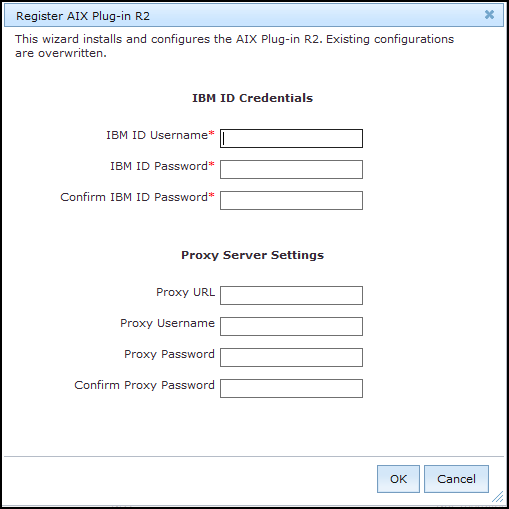
- Enter your IBM ID and password to download the available updates that you are entitled under an applicable warranty or support agreement.
- Optional: Enter the proxy parameters if the downloads must go through a proxy server.Note: Only basic authentication is supported.
- Proxy URL
- The URL of your proxy server. It must be a well-formed URL, which contains a protocol and a host
name. The URL is usually the IP address or DNS name of your proxy server and its port, which is
separated by a colon. For example:
http://192.168.100.10:8080. - Proxy Username
- Your proxy user name if your proxy server requires authentication. It is usually in the form of
domain\username. - Proxy Password
- Your proxy password if your proxy server requires authentication.
- Confirm Proxy Password
- Your proxy password for confirmation.
- Click OK. The Take Action dialog displays.
- Select the target computer.
- Click OK.
Results
You successfully registered the AIX Download Plug-in R2.
Configuring IBM Login MFA for the AIX Download Plug-in R2
Configure IBM Login Multi-Factor Authentication (MFA) through the AIX Deployment Wizard so that the AIX Download Plug-in R2 can automatically download AIX OpenSSH and OpenSSL packages.
- Register the AIX Download Plug-in R2. For more information, see Registering the AIX Download Plug-in R2.
- Gather the latest AIX site so that the RegisterAIXPluginR2 tab is available in the AIX Advanced Deployment Wizard.
About this task
The AIXR2_MFA_Login_Agent generates an authentication that the AIX Download Plug-in R2 uses to download OpenSSH and OpenSSL packages from IBM. After authentication, it is automatically copied to the download plug-in directory on the BigFix server and used by the plug-in for subsequent downloads. You can refresh the RegisterAIXPluginR2 from the same dashboard when it expires.
Procedure- Gather the latest Patches for AIX site, then open and click the RegisterAIXPluginR2 tab.
Figure 2. The RegisterAIXPluginR2 tab in the AIX Advanced Deployment Wizard 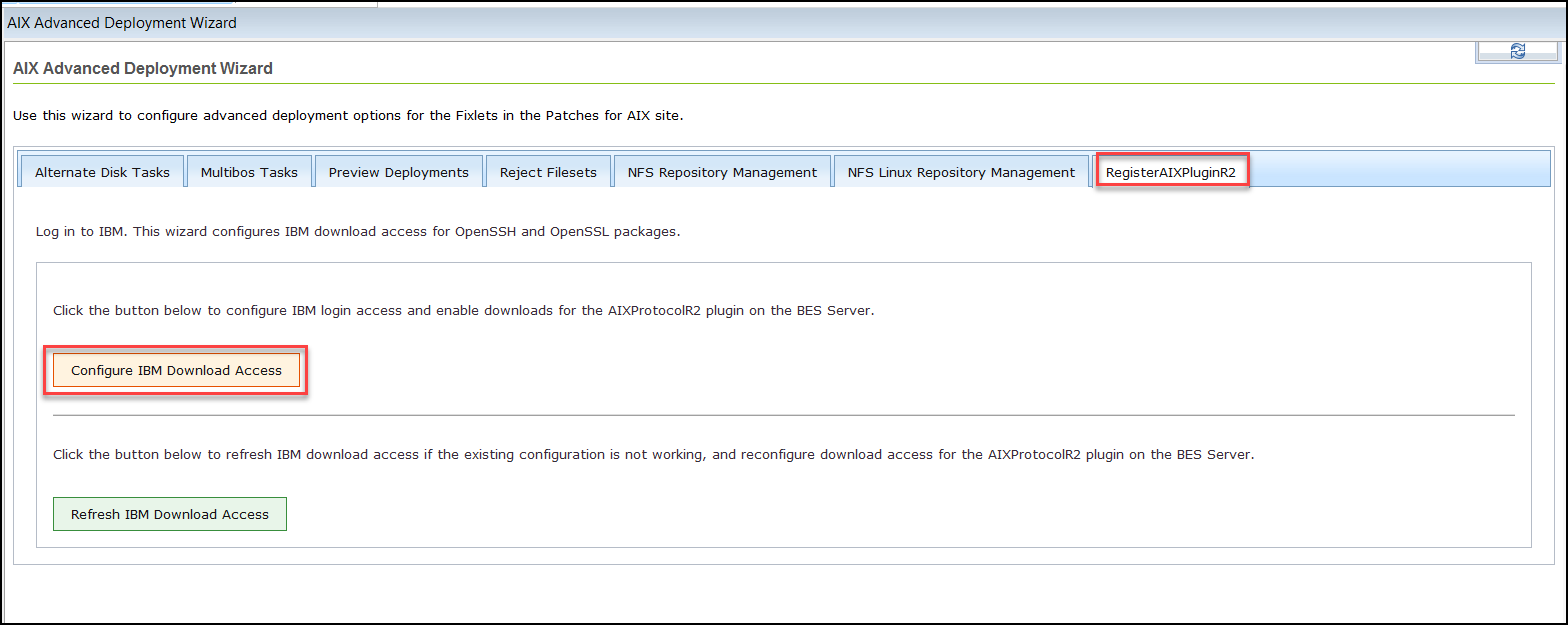
- Click Configure IBM Download Access. You are redirected to the IBM login page in a Chrome browser window.
- Enter your IBM credentials to login to IBM. After successful authentication, the Take Action dialog is displayed.
- From the Take Action dialog, select the target BigFix
server computer and click OK.Note: Wait a few seconds for the target computer to appear in the list before selecting it.
- To refresh IBM download access if the existing configuration is not working, and reconfigure download access for the AIXProtocolR2 plug-in on the BES server, return to the RegisterAIXPluginR2 tab and click Refresh IBM Download Access. Complete the IBM login and the Take Action dialog again, as described step 2 thru step 4.
What to do next