
Custom Policy Builder
The Custom Policy Builder allows you to create and manage custom policies using a Data Definition File (DDF). A DDF provides a structured way to define policies by specifying configurations, rules, and parameters in a hierarchical format.
Key benefits
The Custom Policy Builder simplifies custom policy creation by:
- Expanding policy options for Windows, macOS, Android, and iOS/iPadOS.
- Offering predefined templates with ready-to-edit DDF files for easy customization.
- Allowing users to upload a Device Definition File (DDF) to define settings and parameters.
- Providing a structured tree view for easy policy editing.
- Enabling users to preview and validate policies before applying them.
- Allowing users to copy policy code for external use, ensuring easy backup and offline review and modifications
Supported Platforms
- Windows
- Windows Desktop (Windows 10 and Windows 11)
- Android
- Work Profile
- Fully Managed
- Bring Your Own Device (BYOD)
- Apple
- macOS
- iOS/iPadOS (Supervised vs. Unsupervised devices)
Prerequisites
- BigFix MCM and BigFix Mobile 3.3 installed.
- Master Operator permissions to create and apply policies.
1. Accessing the Custom Policy Builder
- Navigate to .
- Click Create Policy .
- Select Custom Policy Builder.
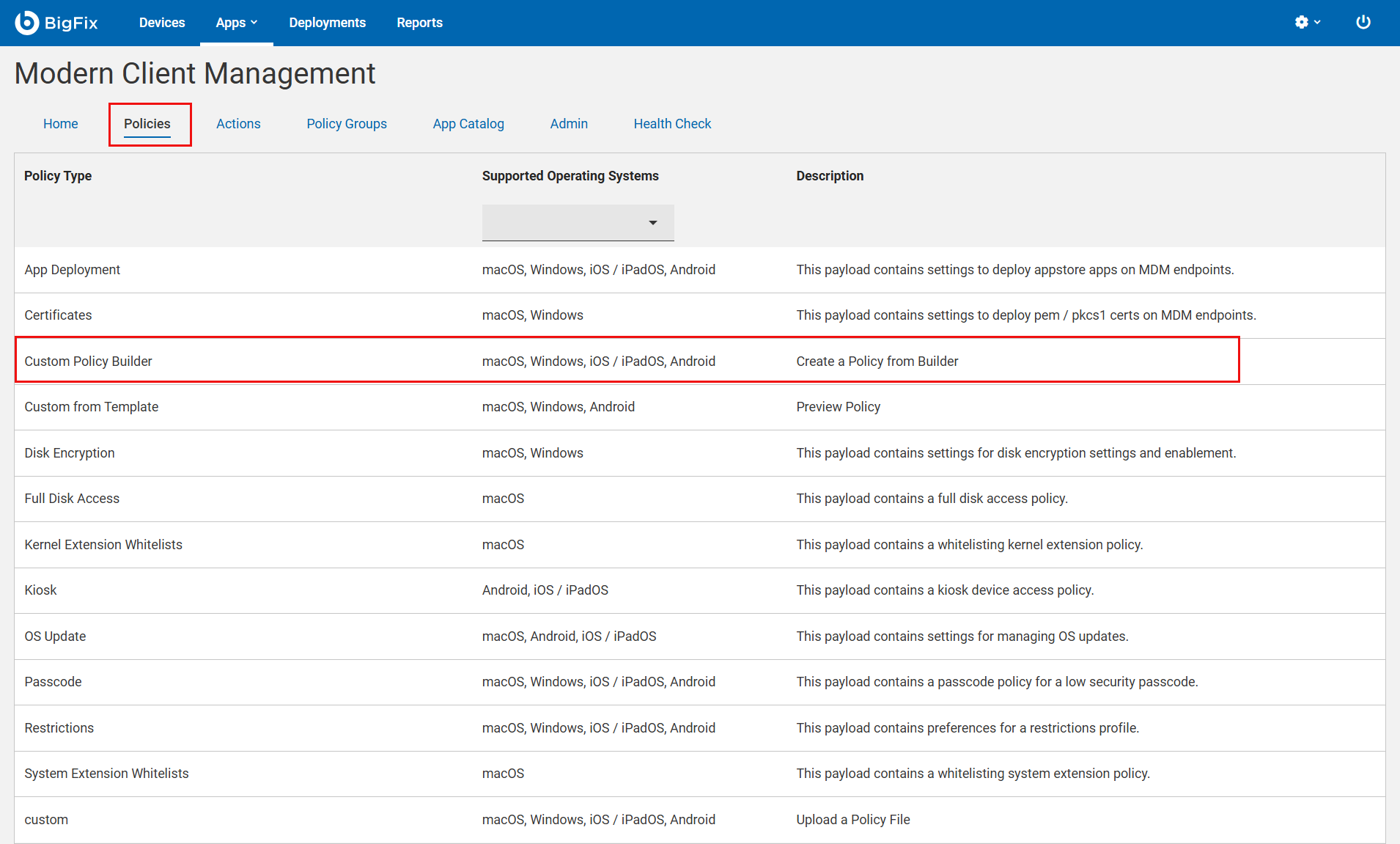
- The Custom Policy Builder opens, allowing you to create or edit a policy.
2a. Using a default DDF Template
BigFix provides preloaded DDF templates for all supported operating systems.
You can select a template, fill in the parameters, and quickly create a custom
policy. This eliminates the need to upload a DDF if a default template meets your
requirements.
- From the Select a Policy from Data Definition drop down menu, select a default DDF template.
- Expand the tree structure and modify the required parameter values as needed.
2b. Creating a Custom Device Definition File (DDF) Template
- What is a DDF?
- A DDF is a structured file that defines the settings, configurations, and parameters for managing devices in an IT environment. It can be formatted in JSON, XML, or YML, depending on the system requirements. It is used to create and enforce device-specific policies.
- How to create and upload a DDF?
-
- Select an Operating System: From the Custom Policy Builder page, choose the OS for which you need a DDF.
- Access Official DDF Sources: Click the info icon,
which redirects you to the official site or GitHub repository
where DDF are available.
- device-management/mdm/profiles at release · apple/device-management · GitHub
- Configuration service provider DDF files | Microsoft Learn
- google-api-dotnet-client/DiscoveryJson/androidmanagement.v1.json at main · googleapis/google-api-dotnet-client · GitHub
- device-management/mdm/profiles at release · apple/device-management · GitHub
- Download DDF: Download the required DDF from the repository and save with the extension .ddf.
- Upload: Click Upload to browse
through the saved .ddf file and select it.
- If there are errors in the DDF, an error message appears with details on necessary corrections.
- When DDF is successfully uploaded, it becomes available under Select a Policy from Data Definition drop-down menu as a Custom DDF Template.
- Policy configurations are displayed in a tree structure. You can further edit to modify the template as needed.
- You can expand the tree structure and provide the requirement details to create a custom policy.
- Manage DDF Files
-
- Edit DDF: Editing allows you to rename the file, add or remove fields, and adjust parameters. The policy tree structure updates dynamically based on the selected fields. You can edit DDF that you have uploaded. You cannot edit default DDF.
- Delete DDF: Remove an uploaded DDF if it is no longer needed. You cannot delete default DDF.
- Download DDF: Save a copy of a DDF to modify it externally.
3. Creating a cusom policy
- On the Custom Policy Builder page, enter a unique name for the policy.
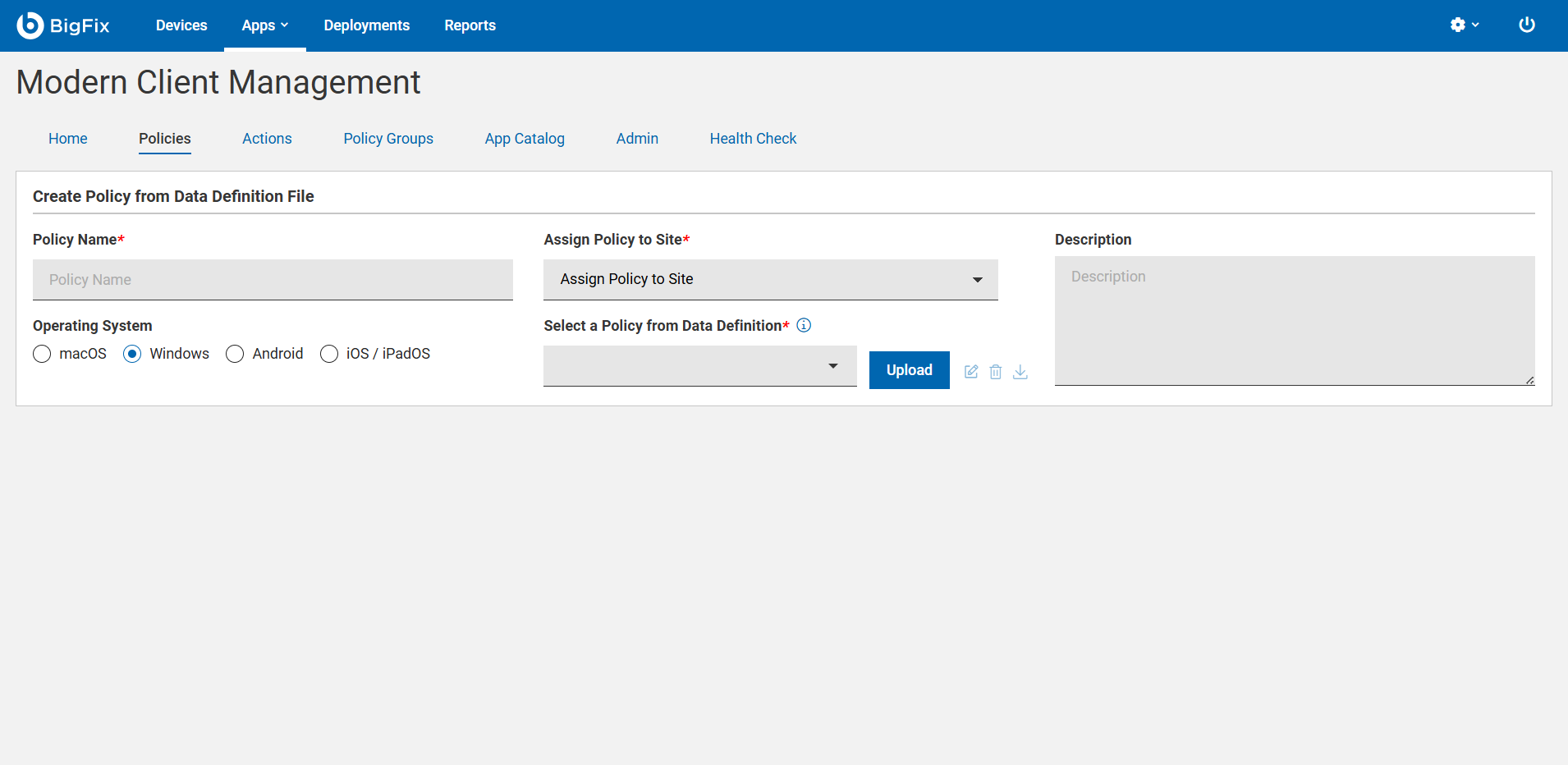
- Assign the policy to a site.
- Provide a meaningful description to the policy.
- Select an operating system.
- Use a default DDF template or upload a DDF template to further customise the
policy.
- To create a policy from the preloaded Data Definition File (DDF), from the Select a Policy from Data Definition drop down menu, select a DDF.
- To upload a Data Definition File (DDF), click Uploadand browse through to select a saved DDF.
- The configurations from the selected DDF template is displayed as a tree structure. Collapse or expand nodes as needed and provide all the necessary information. Mandatory fields are displayed with red asterisk mark.
-
- Preview the Policy
-
- Preview Policy: This feature allows users to view the generated policy in JSON, XML, or YML format, depending on the selected operating system. As parameters are modified, the policy file updates automatically in real time, ensuring users always see the latest version before applying or exporting the policy.
- Validate: The Save button remains disabled until all mandatory parameters are filled. The system validates the syntax and checks for missing parameters to ensure the policy is complete and valid before saving.
- Copy to Clipboard: This option is available when a default or custom DDF file is selected. Clicking Copy to Clipboard copies the DDF file, allowing the user to paste it into a text editor (e.g., Notepad) and save it for future use, such as external review.
- Cancel Changes: Click Cancel to discard unsaved changes.
- Click Save to store the policy.
Managing a custom policy created using Policy Builder
- Save as Copy
The Save as Copy feature allows users to duplicate an existing DDF or policy configuration while ensuring the original remains unchanged.
How It Works:- Select a policy that you have created from Policy Builder and click edit.
- Enter a New Name: The system requires a unique
name to create a copy.Note: If the same name as the original policy name is used to save as a copy, a warning message appears, preventing duplication.
- Click Save as Copy: This creates a new policy without altering the original policy.
Deployment & Management
- Add the created custom policy to a policy group.
- Deploy the policy group to MDM server or directly onto the selected devices.
Best Practices for Custom Policy Creation
- Use a well-structured DDF to avoid errors.
- Preview and validate before deploying.
- Assign policies to test devices before full deployment.
- Regularly update and maintain custom policies for compliance.