
Android private app version management
Manage and distribute multiple versions of your organization’s internal Android apps securely through BigFix Mobile, using Google Play Console integration for controlled testing and phased releases.
Prerequisites for Android Private App Versioning
To manage multiple versions of your organization's private apps, you need the following:
| Prerequisite | Purpose |
| Google Play Developer Account | To publish and manage apps in Google Play Console |
| Service Account (GCP) | For secure API access between MDM and Google Play Console |
| Enterprise Address ID | Identifies your organization for private app distribution |
Adding and managing versions of Android private app
- Adding a private app for the first time:
-
- Associate Google Play console developer account with BigFix WebUI .
- Add an Android App (for the first time).
-
Testing and validating the app: When a private app is uploaded, the WebUI assigns it to the production track by default. To test the app before deployment, you can change the track from production to a test track.
By default, Alpha is the designated test track. You can also create a custom test track and assign the private app to it.- Creating a custom track: To create a custom track
and assign it to a private app, complete the
following:
- From the App Catalog, select the uploaded private app for which the track name is production.
- Click Update Details.
- On the Update Details popup, click the
Change track drop down menu
and select Custom.
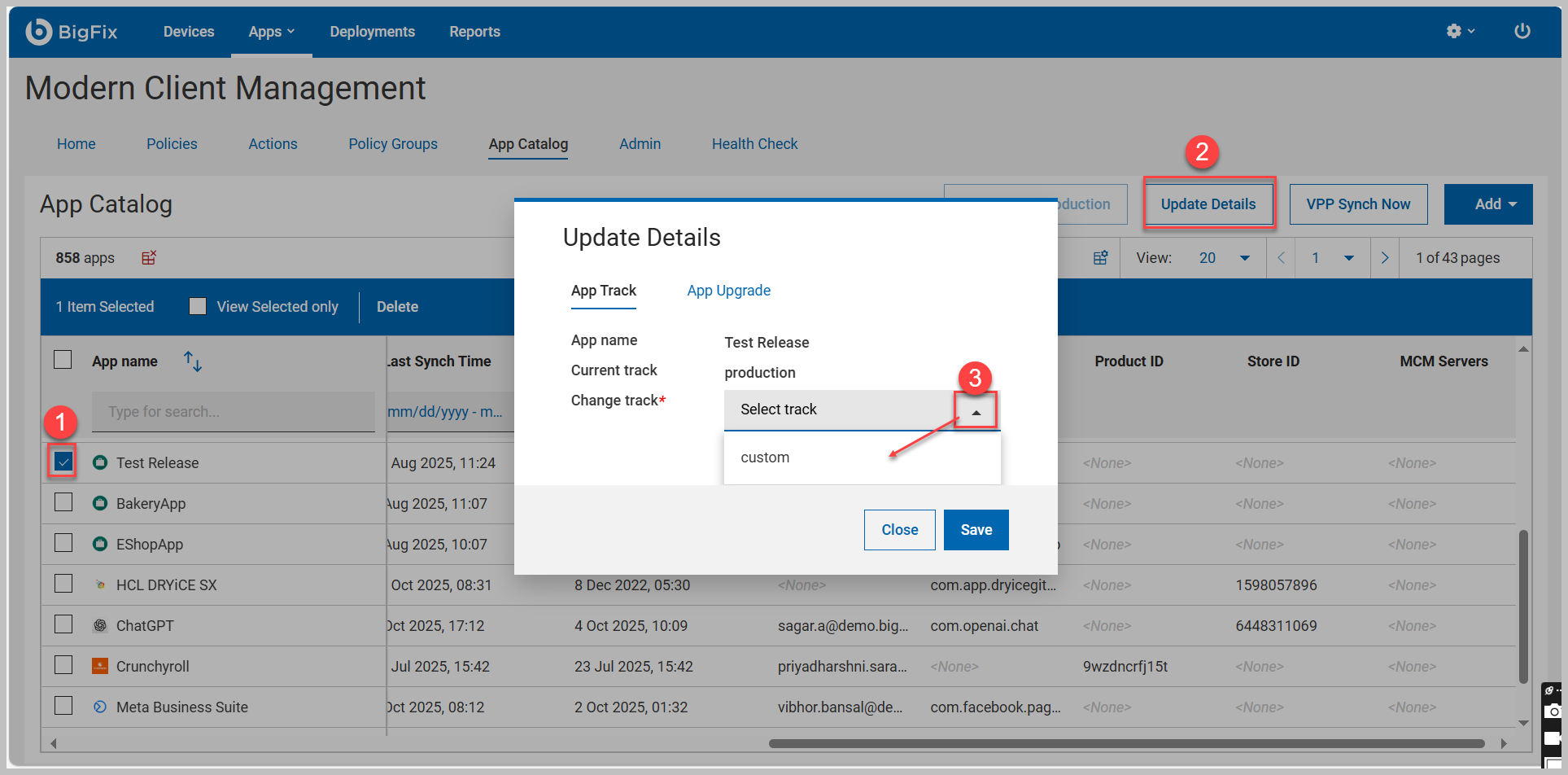
- After selecting custom, you can see Custom track text box. Enter a meaningful name for your custom test track.
- Click Save. The track for the selected app is changed to the custom track.
- Creating a custom track: To create a custom track
and assign it to a private app, complete the
following:
- Enable the organization to access your track: When a private app
is uploaded from the WebUI, it is initially owned by your
developer account, not by the Managed Google Play enterprise
linked to your organization.
To make the app available within your enterprise, you must change its ownership to Managed by Organization in the Google Play Console.
This action allows the app to be accessed by all users and devices in the Managed Google Play enterprise connected to your BigFix Mobile environment.
You must perform this step once for each testing track (including the default Alpha track) before creating an app deployment policy. To enable organization access to your testing track, follow these steps:
- Login to Google Play console with developer account.
- Select the respective app. The app specific page is displayed.
- From the side pane expand and select Closed
testing

. - On the next page, click Manage track corresponding to your testing track (alpha or your custom track).
- On the next page, select the Testers tab, scroll down and under Manage organizations track availability choose the organization that can access your track, and click Save. Wait a few minutes for Google to complete the review process. Once the review is finished, you can create an app deployment policy that includes this private app and its associated testing track details.
- Upgrading an existing private app
-
- Select the existing custom track to upgrade. Add versioning to the custom track
- Deploy from the custom track using the app policy to the (test) devices (for testing purpose ). If the app is already deployed to the test device, the latest version of the app in the custom or alpha track will be auto updated in the test devices.
- Promoting from a test track to production
-
- When the App is available in custom track, but not deployed in
production
- Click Promote to production.
- Deploy the app with the production track through a policy to the end devices.
-
When the production App is already available in end devices
- Select the app from the app catalog grid
- Update details
- App upgrade - upload the next version of the app (based on the selected track, the latest version of the track becomes available in the app catalog)
- Promote to production. The latest version of the app in the production track will be auto updated in the end devices.
- When the App is available in custom track, but not deployed in
production
- Create an app policy based on the track.
- Deploy the App policy: Use Smart Groups or manual selection to deploy the correct policy to testing or production devices.
How App Versioning is Managed Through Policy
BigFix uses app policies to manage which version a device receives:
-
Devices receive the app version from the selected alpha track or custom track
-
Devices default to the latest version on the respective track. The device automatically pulls new versions from the assigned track
This allows targeted delivery of versions to specific user segments.
How the End Device Gets the Latest App
- Policy Deployed: MDM server sends a policy to the device
- Track Used: the device installs the APK from that track
- Google Review Passed: App must be approved and published in the selected track
- App Update Triggered: Auto-updates are applied
Known behaviors and workarounds
-
APK Upload Limit in WebUI
-
Behavior: When attempting to upload an APK file larger than 50 MB through the BigFix WebUI, the system throws an error and the upload fails.
-
Workaround: To upload APKs larger than 50 MB, use an alternative method such as uploading via the Google iFrame. This defect is already raised and will be fixed in the next release.
-
- once we got this issue, navigate to apps -> android -> public apps -> app store -> private apps -> check the app which we upload -> selectAfter select, the app will available in the app catalog, by default the app store without track. So, change the track by selecting the app and update the track to Production/custom/alpha
Frequently Asked Questions (FAQs)
| Question | Answer |
| Can APKs be deployed to Alpha, Beta, Production, or Custom tracks? | Yes, using Google Play Console or Developer API |
| Can beta builds be promoted to production without re-uploading APKs? | Yes, through the Play Console UI or API |
| Is it possible to revert to a previous APK version? | No, but you can create a new track with the older version and update the device policy |
| Can customers choose the track during upload? | Yes, using the Edits API. In UI, this must be changed manually |
| Can I unpublish an APK? | No, Google Play Developer API does not support unpublishing; a new track must be used |
Errors and Troubleshooting
| Issue | Solution |
| App not updating | Ensure policy includes correct track name. Verify Google review/publish status; check device network |
| Delay in updates | Wait 5–10 mins after publish |
| Track already exist error | This is expected when the same APK is reused across tracks; ensure track configuration is correct |