
Manage Developer Account
Android private apps are internal applications developed specifically for your organization and distributed only to enterprise users. These apps must be tested by the quality assurance team using testing tracks (such as alpha or custom) before being released to production. A Google Play Developer account is required to access and manage these testing tracks.
About this task
-
For information on creating a Google play console developer account, refer to the official documentation by Google at Required information to create a Play Console developer account.
-
To create a Google Play Developer Account for a group, you need to choose the "Organization" account type. This allows you to manage multiple users and grant them various permissions to access and modify your apps within the Play Console.
-
Log in to the Google Play console and copy the developer account information.
- Go to the Google Play Console and sign in using your Google Play Developer account credentials.
- From the left navigation menu, select Settings > Developer account > Account details.
- Locate the Developer Account ID field on the Account details
page.
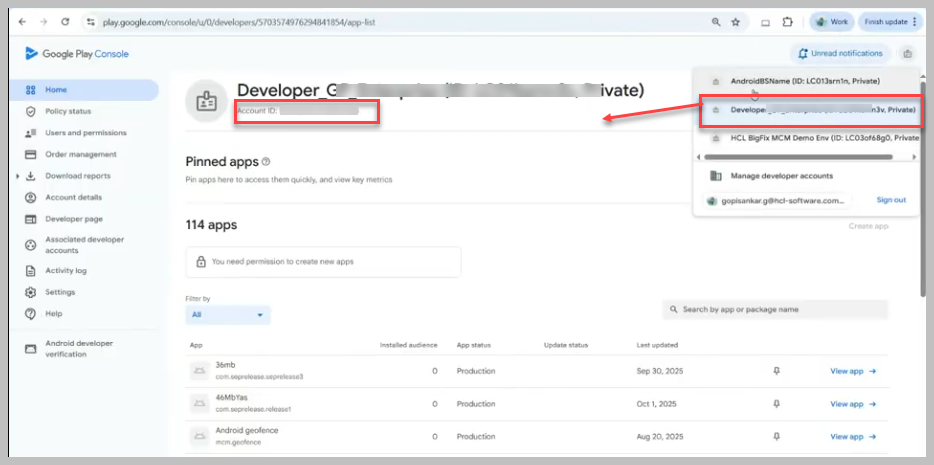
- Copy the Developer Account ID — this value is required when
configuring private app versioning in BigFix Mobile.
Tip: Only users with administrative access to the Google Play Developer account can view and copy this information.
-
Log in to WebUI and navigate to .

- Enter valid Google Developer Account ID and click Save.
Based on the entered developer account and the uploaded Android apps and track configurations, the relevant details are displayed under App Catalog.