Fixlet Stream Details Page
The Fixlet Stream details page provides a centralized view of a specific Fixlet Stream, including its configuration, subscribed devices, selected Fixlets, and deployment activity. From this page, you can monitor compliance, review automation settings, and activate, edit, or delete the stream.
- A Fixlet Stream remains inactive until automation is created and activated.
- Once automation is active, deployment activity appears in the Deployments tab.
- Automation status is reflected immediately in the Overview tab.
- Compliance and count values are not immediate. They update after the subscribed devices report their state again. See Device Count and Relevant Fixlet Count Take Time to Update.
To monitor the fixlet streams, expand Resolve from the side navigation, and then select Fixlet streams. Click the required Fixlet Stream card. The Fixlet Stream details page opens.
The page header shows the stream ID and name, for example 292 - FS_test_1771_001, and the page has the following tabs:
- Overview
- Evaluated devices
- All targeted devices
- Fixlets
- Deployments
Overview tab
The Overview tab displays a high-level summary of the Fixlet Stream’s status and configuration.
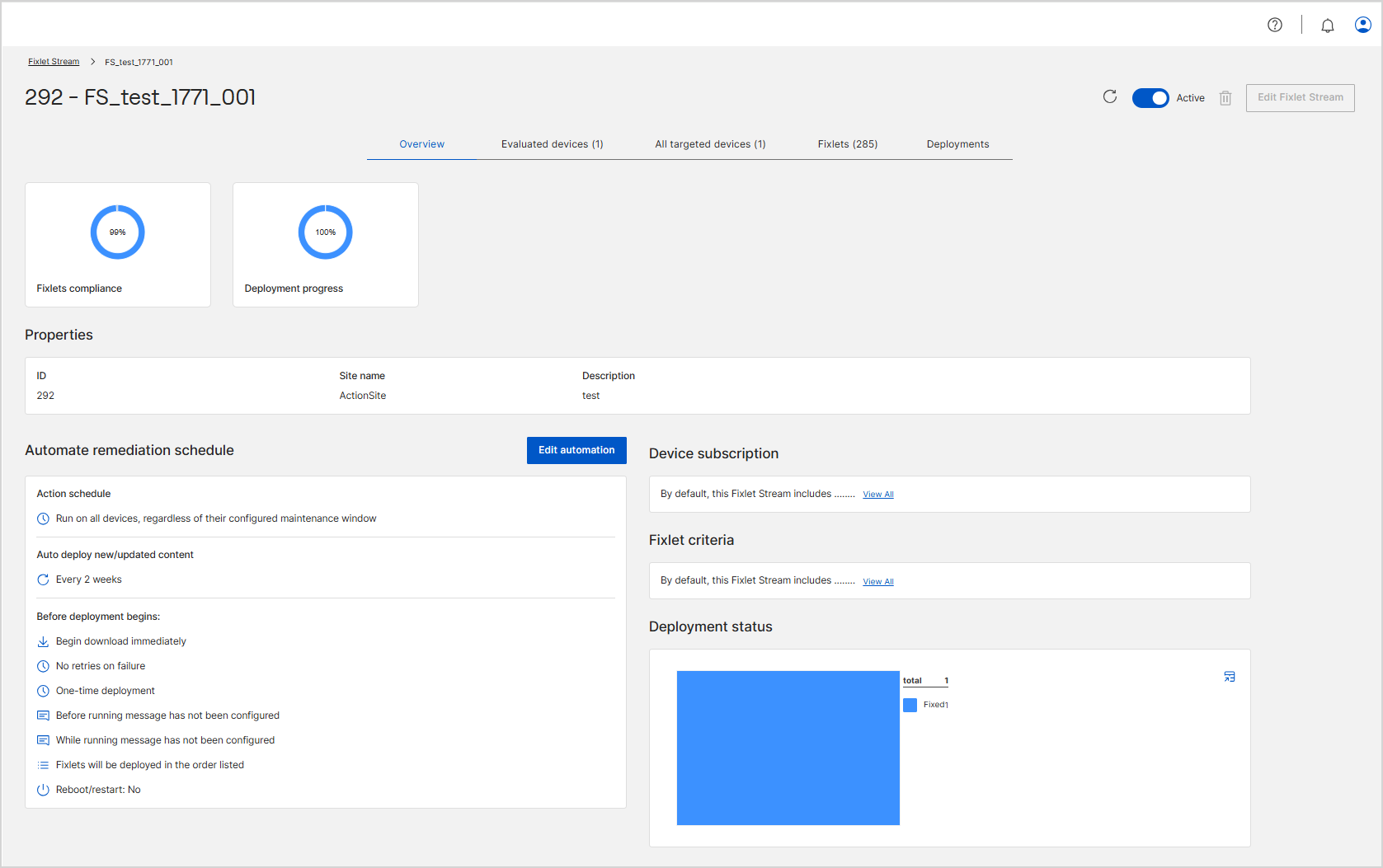
Fixlets compliance: Shows the overall compliance percentage for Fixlets included in the stream, as a ring chart.
Deployment progress: Displays the current deployment status for the stream, as a ring chart. If no deployments have occurred, the card shows No data available.
Automate remediation schedule:
Displays the configured automation settings, including:
- Action schedule: The deployment time range and the days of the week, for example Time range: 07:59 PM - 08:59 PM, client time zone and Days of week: Sun.
- Auto deploy new/updated content: The refresh frequency, for example On the 2 day of the month.
- Before deployment begins: The download, retry, message, order, and reboot behavior.
If automation has not been configured, this section indicates that no automation is defined.
Device subscription:
Shows the device conditions that were defined for the Fixlet Stream, for example Name contains 46, ID = 1612992728. To change these conditions, deactivate the stream and then click Edit Fixlet Stream.
Fixlet criteria: Shows the conditions that select the Fixlets for the stream, for example DefaultAction is not, Title not contains. Select View All to read the full set of conditions.
Deployment status: Summarizes the outcome of the deployments that the stream generated, broken down by state with a total. If the stream has not deployed anything yet, the panel shows No deployment data found.
Status: The toggle in the upper-right corner shows whether the Fixlet Stream is Active or Inactive. Use it to activate or deactivate the stream. A delete icon and the Edit Fixlet Stream button appear next to the toggle.
Properties: Displays the ID, Site name, and Description of the Fixlet Stream.
-
Edit Options:
- Edit automation: Change the automation settings, including the action schedule, the action sequence, and the automation schedule. See Editing a Fixlet Stream automation.
- Edit Fixlet Stream: Opens the Fixlet Stream configuration so you can update its details and criteria. Available only when the stream is inactive. See Editing a Fixlet Stream.
If you edit a filter and the tabs still show the previous results, refresh the data. On the Fixlet Streams landing page, click the refresh icon in the top-right corner, or reload the browser page. See Troubleshooting.
Working with the data tables
The Evaluated devices, All targeted devices, Fixlets, and Deployments tabs each present their records in a data table with the same set of controls:
- Filter: Narrows the rows of the table. Build each condition from a Property, an Operator, and a Value. See Table filter.
- Density: Sets the row spacing to Compact, Standard, or Comfortable. See Density.
- Search: Finds records in the table. Type in the search box above the table to filter the rows as you type.
- Sort: Orders the rows by a column. Select the sort icon in a column header to switch between ascending and descending order. See Sorting Data.
- Column options: Select the options icon in a column header to change how that column is displayed.
Above each table, an item count shows how many rows you selected out of the total, for example 0 of 2 items. If the table holds more rows than the page shows, select More at the lower right to load further rows.
Evaluated devices tab
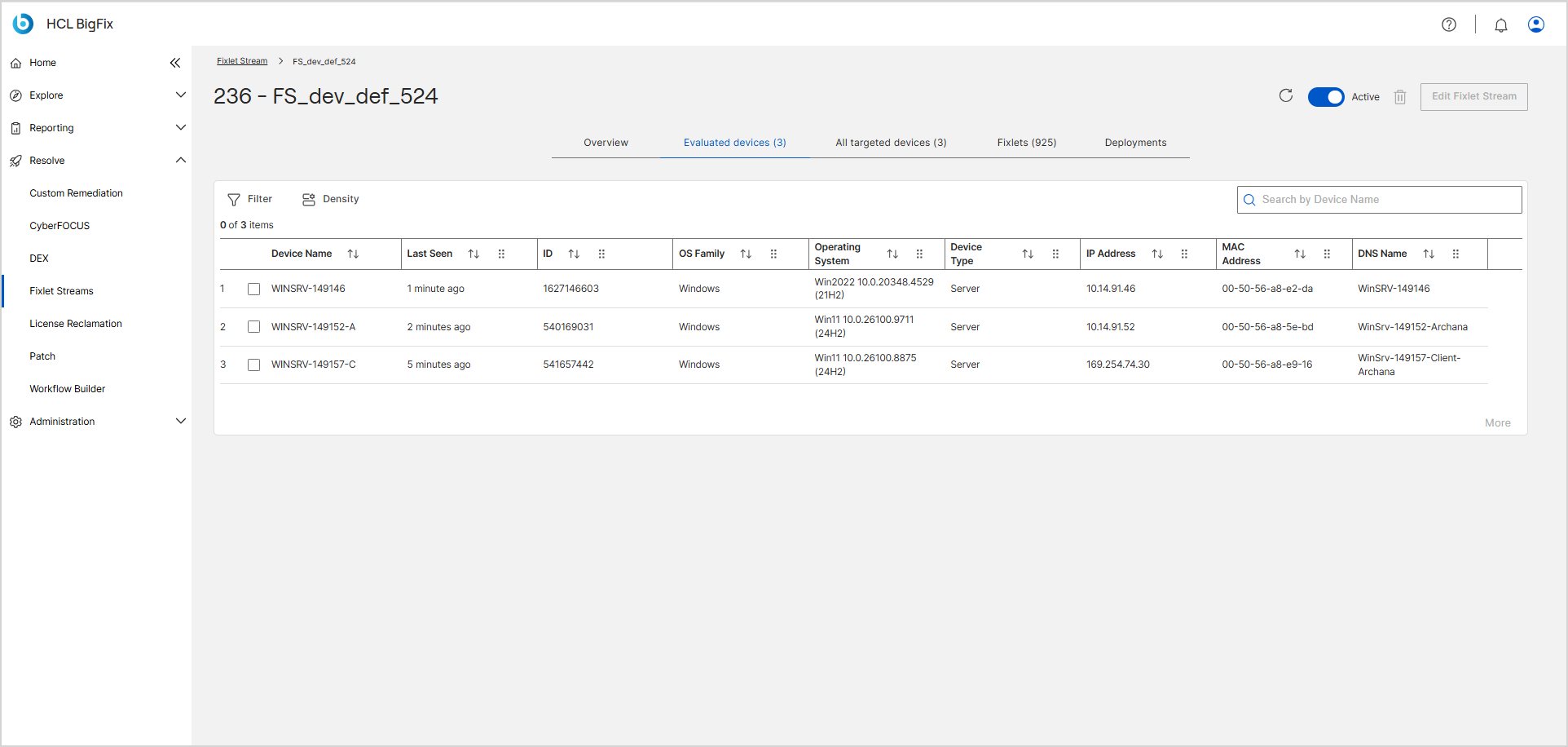
The Evaluated devices tab lists the targeted devices that have reported to the BigFix server since the Fixlet Stream was created. A device that matches the device subscription but has not reported since then does not appear on this tab. For example, a device that has not reported for a month is listed on All targeted devices only. As each targeted device reports, it is added to this tab, and the list updates as reporting devices begin or stop matching the subscription criteria. To see newly reported devices, click the refresh icon in the upper-right corner of the details page.
The table reports Device Name, Last Seen, ID, OS Family, Operating System, Device Type, IP Address, MAC Address, and DNS Name. On this tab, the Operating System column reports the build that the device last sent, for example Win11 10.0.26100.9711 (24H2).
All targeted devices tab
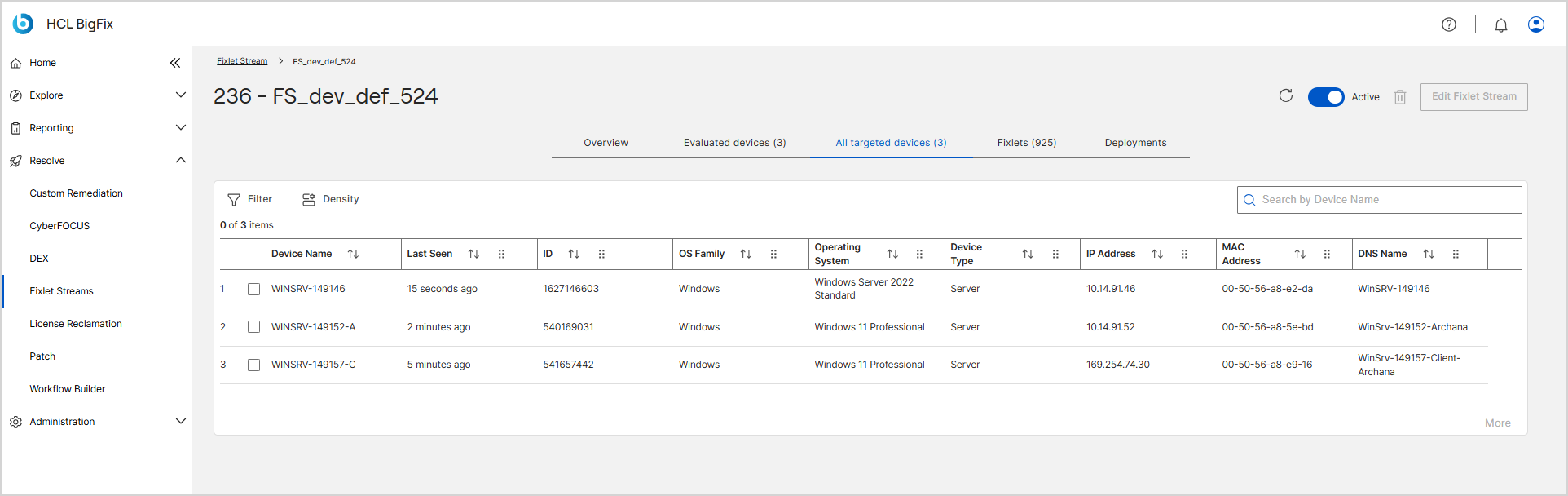
The All targeted devices tab lists every device that the device subscription targets, whether or not the stream has evaluated it yet.
The table reports the same columns as the Evaluated devices tab, but the Operating System column reports the product name, for example Windows Server 2022 Standard or Windows 11 Professional.
Compare the two tabs to confirm that every targeted device is reporting. A device that appears on All targeted devices but not on Evaluated devices has not reported since the stream was created. To check, review the device's Last Seen value on this tab. A device whose Last Seen value is recent, for example a few seconds or a minute ago, also appears on Evaluated devices after you refresh the page. See Device Count and Relevant Fixlet Count Take Time to Update.
Fixlets tab
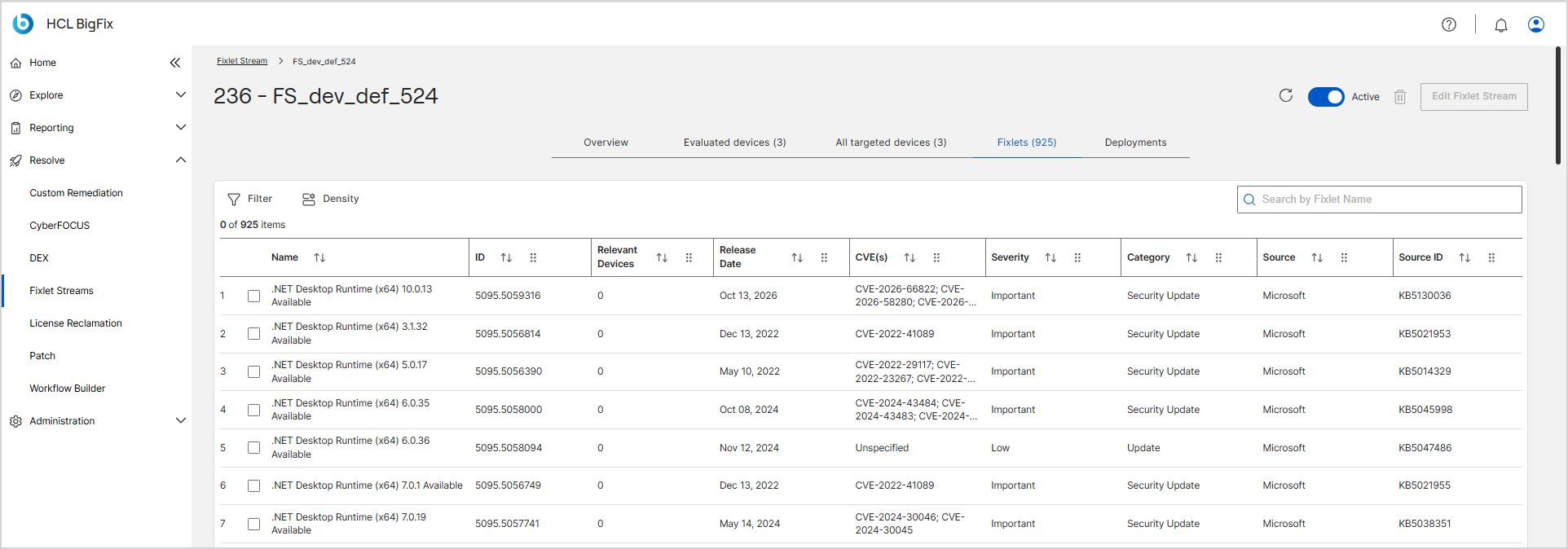
The Fixlets tab displays all Fixlets included in the Fixlet Stream. This list is continuously updated as new Fixlets match the stream criteria or existing Fixlets become irrelevant.
The table reports Name, ID, Relevant Devices, Release Date, CVE(s), Severity, Category, Source, and Source ID. A column shows [ null ] or [ empty ] when the Fixlet carries no value for it.
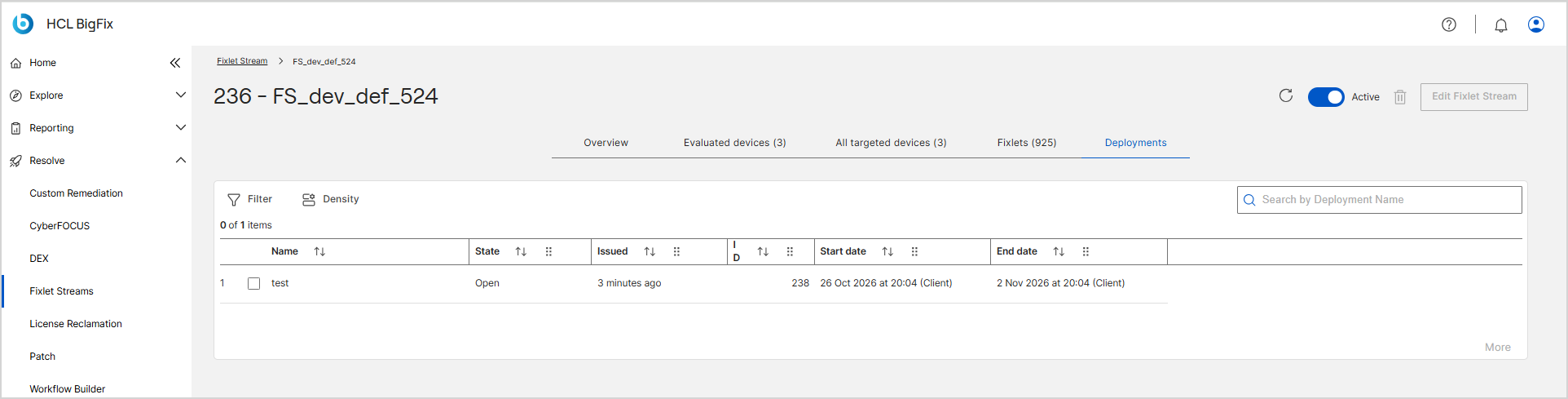
Deployments tab
The Deployments tab displays deployment activity generated by the Fixlet Stream automation. A deployment appears only after the automation creates an action, which happens only when the Fixlets are relevant to at least one subscribed device. If no deployments have occurred, the page displays No data available.
The table reports Name, State, Issued, ID, Start date, and End date. The Name column shows the automation name that you entered on the Summary step of the wizard. The start and end dates report the client time zone, for example 26 Oct 2026 at 20:04 (Client). An open deployment that has no fixed schedule shows [ null ] as its start and end date.