Editing a Fixlet Stream
Edit a Fixlet Stream to change its name, description, Fixlet criteria, or device criteria. A stream must be inactive before you can edit it.
Before you begin
- You must have permission to manage Fixlet Streams.
- The stream must be inactive. The Edit Fixlet Stream button is unavailable while a stream is active. See Activating and deactivating a Fixlet Stream.
About this task
Expand Resolve from the side navigation, select Fixlet Streams, and then click the name of the stream.
Procedure
- Deactivate the stream if it is active.
-
Click Edit Fixlet Stream.
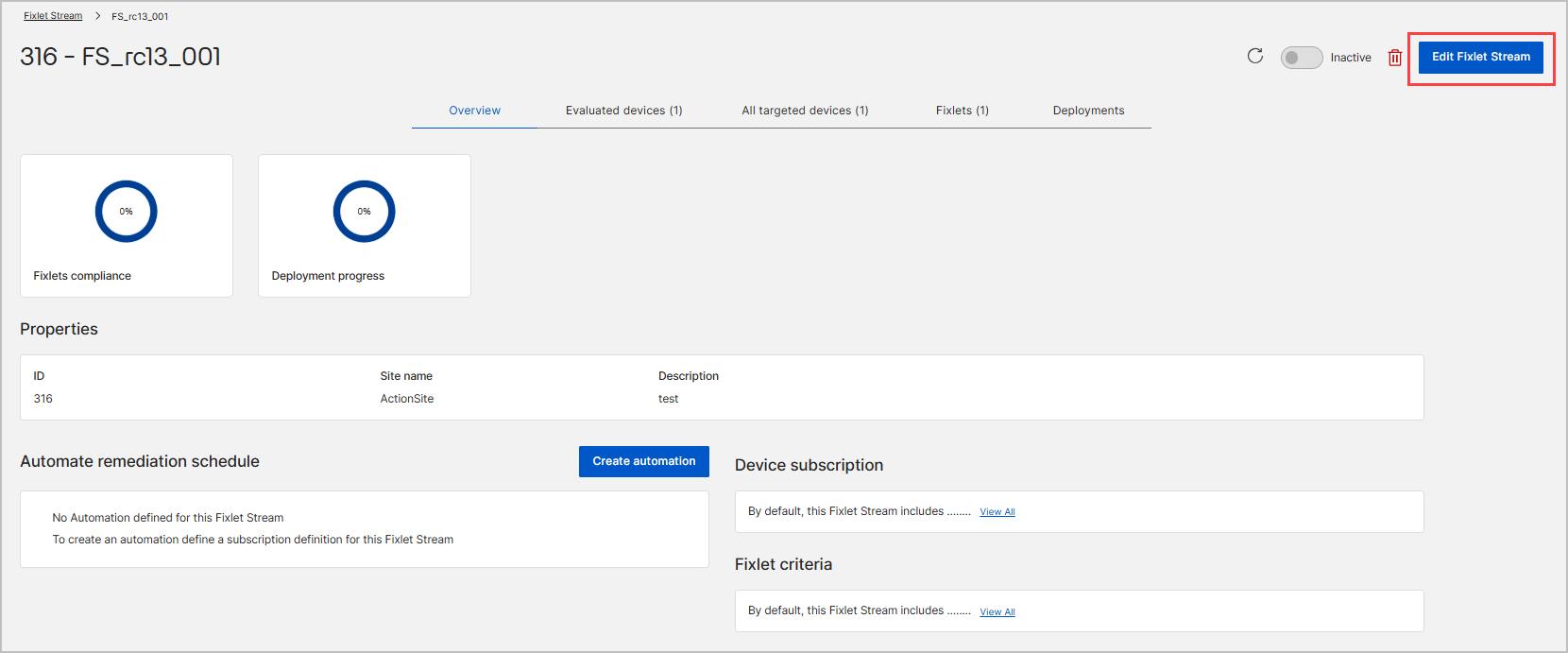
The Create Fixlet Stream wizard reopens with your current settings.
-
Update the properties, Fixlet criteria, or device criteria.
For what each step of the wizard controls, see Create Fixlet Stream.
-
Click Edit on the Summary step to save your
changes.
If the Fixlets, Evaluated devices, or All targeted devices tab still shows the previous results after you edit a filter, click the refresh icon in the top-right corner of the Fixlet Streams landing page, or reload the browser page. See Troubleshooting.
What to do next
Editing a stream does not restore the automation that was deleted when you deactivated it. Create the automation again to resume deployments. See Creating an automation for a Fixlet Stream.