Activating and deactivating a Fixlet Stream
Activate a Fixlet Stream to start deploying Fixlets on the schedule defined in its automation. Deactivate a stream to stop deployments and to unlock the edit and delete actions.
Before you begin
- You must have permission to manage Fixlet Streams.
- The Fixlet Stream must already have an automation defined. See Creating an automation for a Fixlet Stream.
About this task
Expand Resolve from the side navigation, select Fixlet Streams, and then click the name of the stream. The status toggle in the upper-right corner of the details page shows the current state.
Procedure
-
To activate the stream, set the status toggle to
Active.
The toggle is available only when the stream already has an automation. If no automation is defined, click Create automation on the stream card or in the Automate remediation schedule panel instead. Creating an automation also activates the stream. See Creating an automation for a Fixlet Stream.
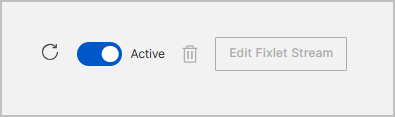
The stream starts deploying Fixlets to subscribed devices on the schedule defined in the automation.
-
To deactivate the stream, set the status toggle to
Inactive.
-
In the Deactivate Fixlet Stream dialog, review
the stream name and the warning that the automation will be
deleted.
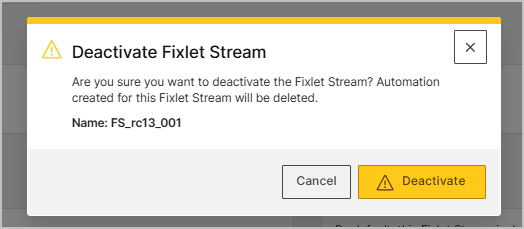
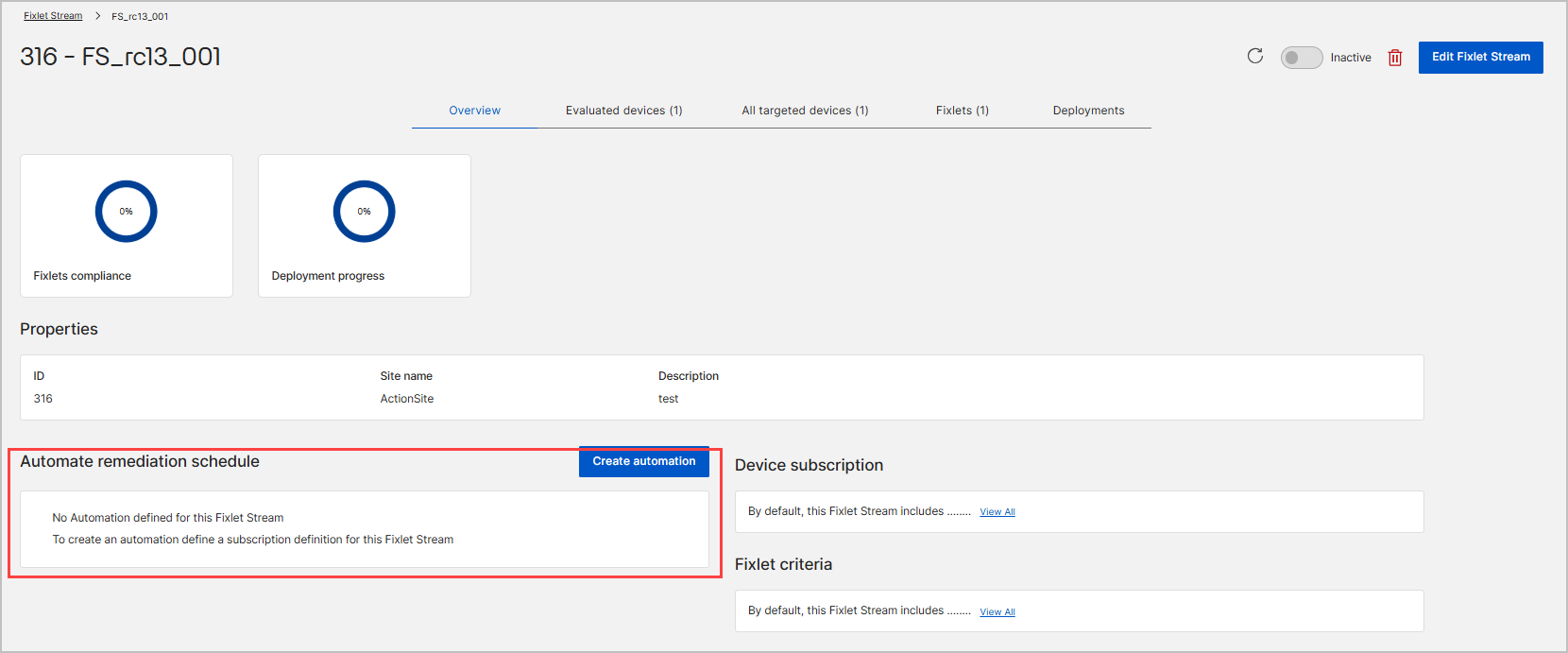
The status changes to Inactive, the Automate remediation schedule panel reports that no automation is defined, and the edit and delete controls become available.
-
In the Deactivate Fixlet Stream dialog, review
the stream name and the warning that the automation will be
deleted.
What to do next
After you activate a stream, monitor progress from the Overview and Deployments tabs of the Fixlet Stream Details Page.