Device Groups
Device groups help you organize devices and target actions, policies, or maintenance settings. BigFix UI supports two types of device groups:
- Dynamic device groups: Update memberships automatically as devices start or stop matching the defined conditions. You filter devices by properties, by existing device group membership, or with a relevance expression.
- Static device groups: Allow you to manually organize devices by explicitly adding or removing individual devices. Membership in a static group does not change automatically and remains exactly as defined by the user.
BigFix UI does not support the following types of device groups:
- Server-based groups
- Manual groups whose membership is determined by client settings (client-evaluated manual groups)
These groups are not available in BigFix UI. To view and manage them, use the BigFix Console. For more information, see Known limitations.
Key Capabilities
-
Visual Insights: Use interactive donut and pie charts to view the ratio of static to dynamic groups and identify the largest groups by member count.
-
Automatic Updates: Dynamic groups update memberships automatically as devices start or stop matching defined filter conditions.
-
Centralized Management: View, edit, or delete existing groups directly from a single dashboard.
-
Targeted Actions: Organize devices to streamline the deployment of actions, policies, or maintenance windows.
-
Site Ownership: Every dynamic device group belongs to a site. You select the site when you create a dynamic group, and the Site Name and Site Type columns in the Device Groups table show which site owns each group. Site selection is not available for static device groups. For more information about sites, see Sites.
Device Groups Page Interface
You can navigate to the Device Groups page using one of two methods:
-
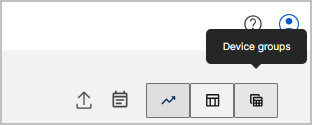
Click the Device groups icon located in the top-right corner of the Device explorer - Overview page.
-
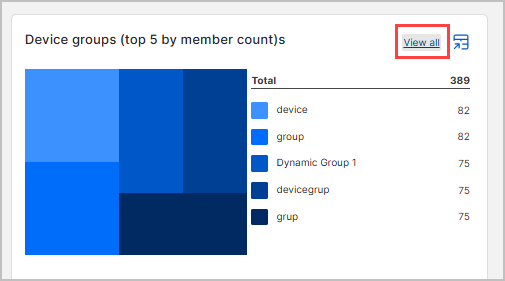
Click the View all link next to the Device groups (top 5 by member count) chart.
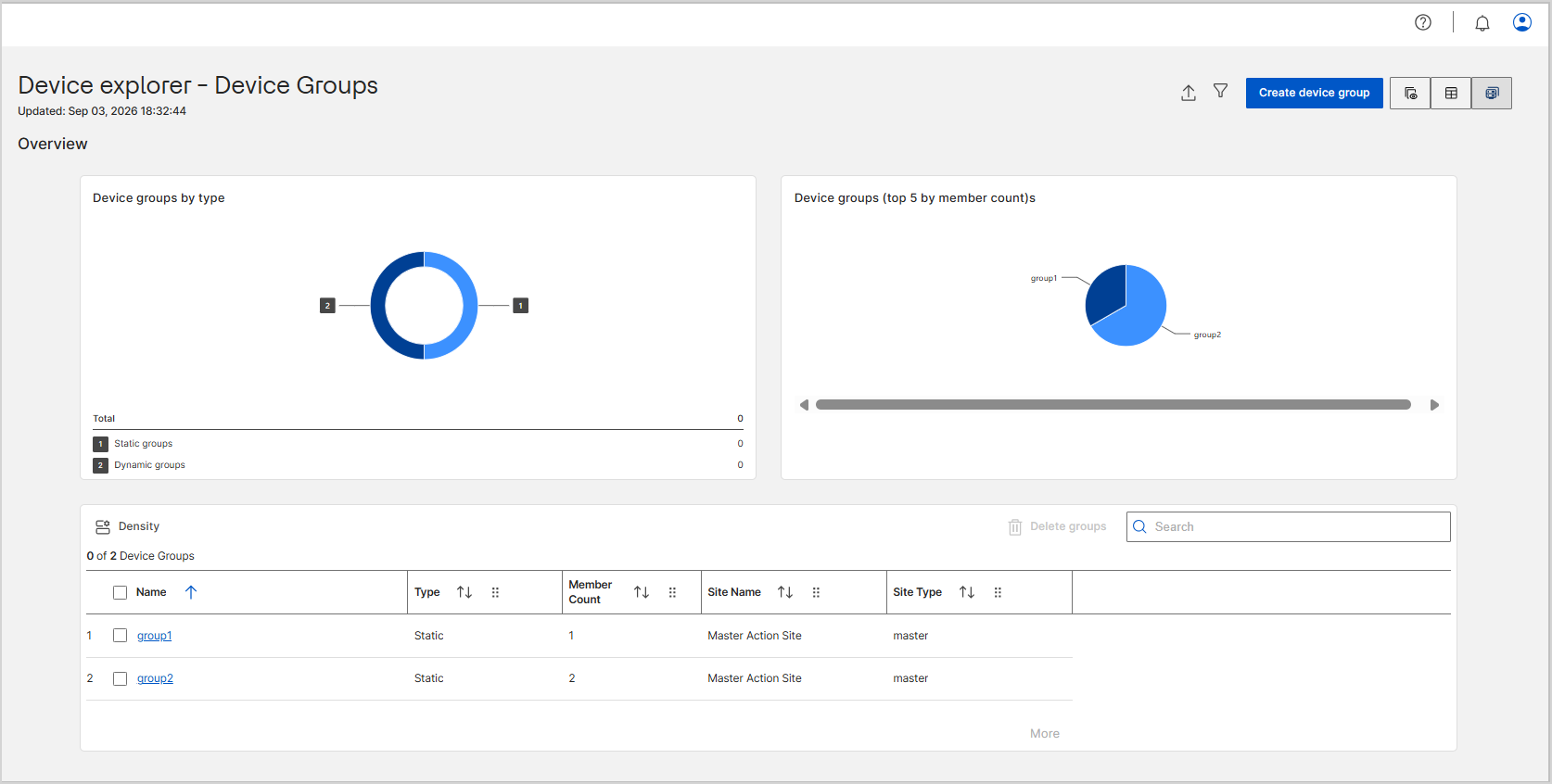
Once on the Device explorer - Device Groups page, you can interact with the following elements:
-
Overview Charts: Includes a "Device groups by type" donut chart and a "Device groups (top 5 by member count)s" pie chart to provide high-level distribution insights.
-
Device groups by type: A donut chart that displays the total count and distribution of static versus dynamic device groups in your environment.
-
Device groups (top 5 by member count): A pie chart that identifies the five largest device groups based on the number of member devices, allowing you to quickly spot your most populated groups.
-
-
Device Groups Table: Lists all available groups, displaying their Name, Type, Member Count, Site Name, and Site Type. Use the following controls to manage the table view and actions:
-
Sort: Click the up or down arrows next to any column header to sort the data in ascending or descending order.
-
Density: Click the Density icon to adjust the table row spacing. Choose from Compact, Standard, or Comfortable.
-
Delete groups: Select the checkbox next to one or more device groups, then click this button to permanently remove them.
-
Search: Enter text in the search bar to quickly filter and find specific device groups.
-
-
Device Group Details Page: Clicking a specific group name in the table redirects you to its details page, which contains:
-
Overview Tab: Displays core properties (Group name, Group type, Current members, and Site for dynamic groups) and a table listing all current members of the group. You can click the Manage group button here to edit the group's conditions or name.
-
Relevant Fixlets Tab: Lists the Fixlets that apply to the devices in the group. You can select Fixlets and click Deploy directly from this tab.
-
Deployments Tab: Shows a history of deployments targeted at this group, allowing you to monitor status or use the Delete and Stop buttons for active or expired deployments.
-
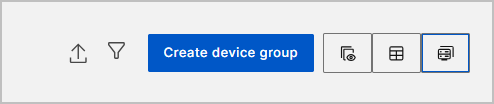
- View and Utility Bar: Located at the top right of the Device
explorer - Device Groups page:
-
Export: Click the Export icon to download the device groups list in CSV or Excel format for offline analysis or record-keeping. For detailed steps, see Exporting Data and Exporting Charts.
-
Filter: Click the Filter icon to narrow down the device groups displayed in the table based on specific properties and conditions. For detailed steps, see Global filter.
- Create device group: Click this button to open the configuration side panel and define a new dynamic or static device group. For detailed steps, see Creating and Managing Device Groups and Managing Static Group Membership.
- Overview: Click the Overview icon (chart symbol) to switch back to the Device explorer - Overview page.
- List: Click the List icon (table symbol) to switch back to the Device explorer - List view page.
-