Managing Static Group Membership
Static device groups allow you to manually organize devices by explicitly adding or removing individual devices. Membership in a static group does not change automatically and remains exactly as defined by the user.
In BigFix UI, you can create a static device group directly from a device’s details page or add the device to an existing static group. You can also select several devices in the device table and add them to a static group in one action. This approach is useful when you want precise control over which devices are included for administrative actions, testing, or targeted operations.
How Static Device Groups Work
- A static group contains only the devices that you manually add.
- Devices remain members of the group until they are explicitly removed.
- From a device’s details page, you can:
- Create a new static group and add the current device to it.
- Add the device to one or more existing static groups that it is not already part of.
- From the device table on the Device explorer - List view page, you can add one or more selected devices to a static group.
- All static groups associated with a device are displayed in the Groups of which this device is a member section on the device details page.
- Static groups can be managed centrally from the Groups view.
Create a New Static Device Group from a Device
Use this procedure when you want to create a new static group and immediately include the selected device.
- From the BigFix UI navigation, open Devices.
- Select a device to open the device details page.
- In the Groups of which this device is a member section, click Add to
static group.
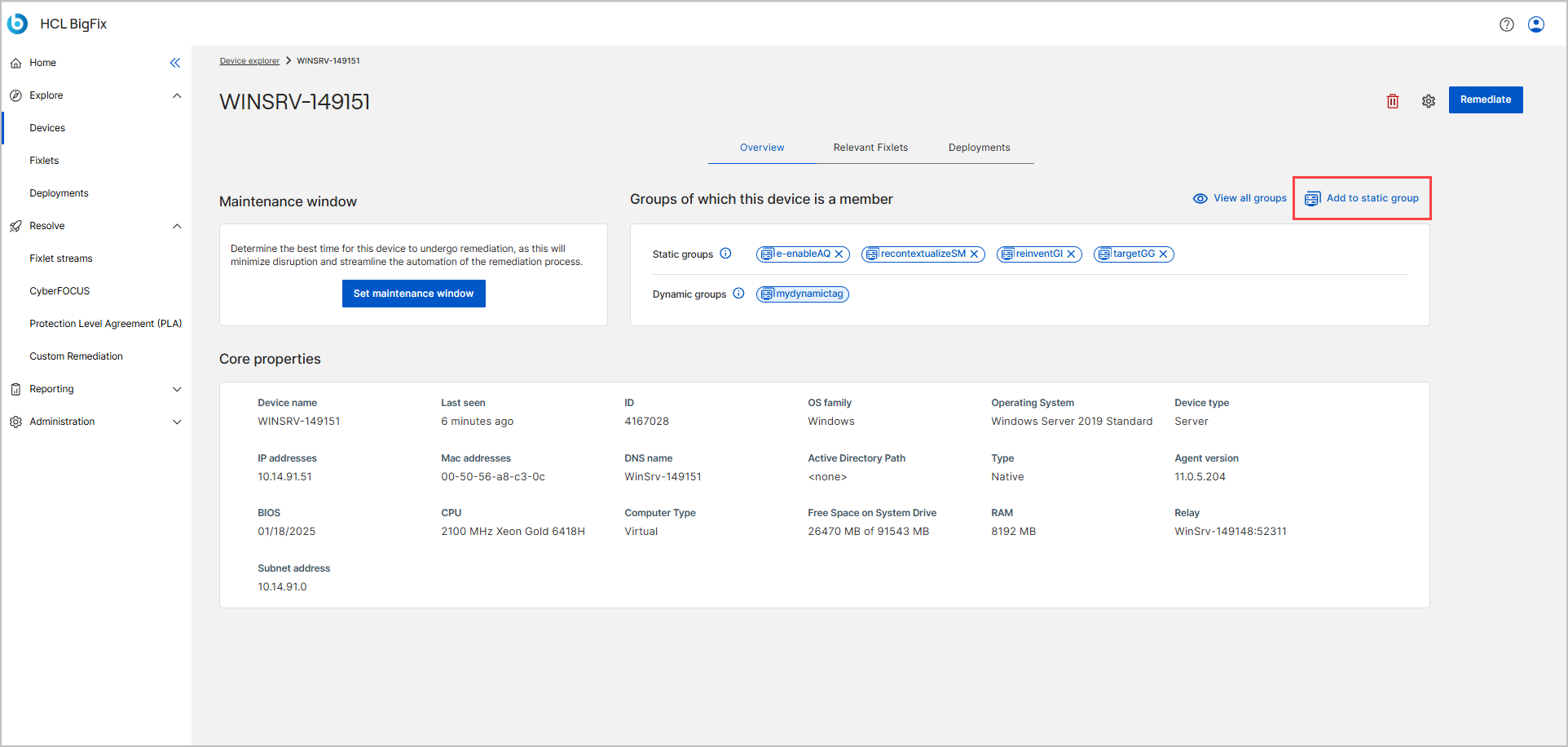
- In the Add to static group dialog:
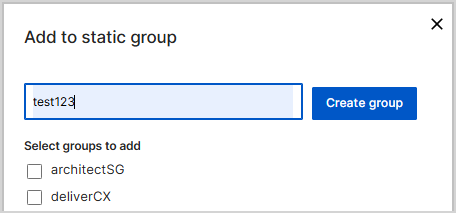
- Enter a name for the new static group.
- Click Create group.
The group appears in the static groups membership list.

Add a Device to an Existing Static Device Group
Use this procedure to add the device to one or more static groups that already exist.
- Open the device details page from device list.
- Click Add to static group from the devices detail page.
- In the dialog, select one or more static groups from the list.
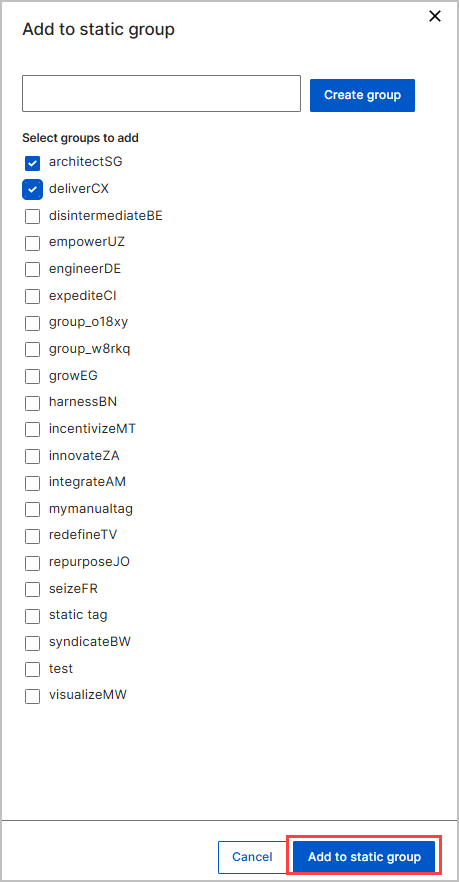
Only static groups that the device is not already a member of are available.
- Click Add to static group.
The device is added to the selected static groups.
The updated group membership is reflected on the device details page.
Add Devices to a Static Device Group from the Device Table
Use this procedure to add one or more devices to a static group without opening each device details page.
- From the BigFix UI side navigation, expand Explore and select Devices.
- Switch to the List view page using the view icons in the top-right corner.
- In the device table, select the checkbox next to each device that you want to add. A counter above the table, such as 1 of 56 Devices, shows how many devices you selected.
- From the command bar, click Select action and choose
Add to static group.

- In the Add to static group dialog, select an existing static group, or enter a name to create a new static group for the selected devices.
- Click Add to static group.
Result The selected devices are added to the static group. The updated membership appears in the group details page and in the Groups of which this device is a member section of each device.
Remove a Device from a Static Device Group
You can remove a device from a static group without affecting other devices in the same group.
- Open the device details page.
- In the Groups of which this device is a member section, locate the static group.
- Click the X icon next to the static group name to remove the device from
the static group.

Result The device is no longer a member of the static group. The static group itself remains available for use.