Frequently Asked Questions (FAQs)
This FAQ provides comprehensive answers to common questions about BigFix Server Automation, including its benefits, key use cases, licensing, installation, configuration, troubleshooting, and virtualization support. It covers best practices, supported software, and guidance for resolving common issues to help users effectively deploy and manage Server Automation in their environments. The document is intended to assist technical users in optimizing automation workflows and maintaining system reliability.
General and licensing
- What are the benefits of Server Automation?
-
Server Automation enables you to automate the Lifecycle of both physical and virtual servers and enforce best practices across all servers. You can use it to automate best practice processes by sequencing Fixlets, Tasks, and Baselines across multiple endpoints. Server Automation also provides hypervisor capabilities, enabling you to do things like create virtual machines.
You can use Server Automation as a single tool to manage all of your virtual and physical servers, eliminating the need to use multiple tools. It provides the following benefits:- Benefit to IT:
- Automated sequencing of BigFix Fixlets, Tasks, and Baselines.
- Lifecycle management of virtual servers. This extends the virtual capabilities already in TEM for Patch Management, Lifecycle/security & compliance.
- Automated sequencing of tasks for business applications (OS patching in particular).
- Benefit to business:
- Reduced costs through higher levels of automation and improved IT efficiency in managing data center servers.
- Reduction of costs through the consolidation of tools & teams. Provides streamlined management of ALL server endpoints from a single UI.
- Cost savings through the potential reduction of human errors. Accelerated service delivery by extending automation to groups of related management servers (e.g. Business Applications running on multi-tiered Server Clusters).
- Benefit to IT:
- What are the key use cases of Server Automation? What are examples of automation tasks that you can complete?
- Here are links to Server Automation sample videos that demonstrate some
key use cases:
- Use Server Automation to automate a multi-tier application deployment. See the demo video for more details.
- Use Server Automation to automate the deployment of Oracle Database 11g. See the demo video for more details.
Example
You can use Server Automation to automate IT processes that otherwise involve a lot of manual and error-prone work. For example, you can use Server Automation to patch systems like web servers in an orderly sequence. You could create an Automation Plan to fully automate the patching of systems such as a cluster of web servers, without any loss of service.
To accomplish a task such as this, you create an Automation Plan and add a step to the plan for each of the key stages in the patching process. For example, you could create an Automation Plan with two steps. Each step could contain the same baseline that completes the following work:- The first component in the baseline increases the CPU usage.
- The second component in the baseline stops the web servers.
- The third component in the baseline patches the web servers.
- The fourth component in the baseline restarts the web servers.
- The final component in the baseline sets the CPU usage back to its normal usage level.
To implement this to run in separate stages, known as steps, you would simply create two steps in your Automation Plan and add this same baseline to each step. To run the Automation Plan, click Take Action.
Then, when you are specifying the targets for each step, you would specify different targets for step 1 and step 2.
You would specify some of the web servers as targets for step 1, and the remaining web servers as targets for step 2. This would ensure that while step 1 is running and patching some of the web servers, the web servers you specified as targets in step 2 remain up and running and providing service to your websites. Then when step 1 has completed, the web servers patched as part of step 1 are back up and running and powering your website, and then step 2 will begin and will take down the web servers specified as part of step 2. Then when step 2 has completed, the patching has completed and all web servers are back up and running and powering your web sites.
- What are the Server Automation licensing requirements?
- Server Automation is available to customers who are licensed to use BigFix Lifecycle. There are no additional license requirements.
- What do I need to install to use Server Automation?
- You need to install the Automation Plan Engine. The Automation Plan
Engine is the component that processes Automation Plans. To use the
virtualization software, you need to install a management extender for
VMware. These installations are simple and you install them by running
Fixlets.
For complete installation instructions for Server Automation, click here.
- What software and software versions are supported by BigFix Lifecycle Server Automation?
- Refer to the Supported content topic to learn about the complete list of supported software for BigFix Lifecycle Server Automation.
- How does Server Automation work?
- Server Automation enables you to automate IT workflows, such as the
configuration of servers or a server build process.To automate your workflow, you create an automation plan in the Server Automation user interface or via the SA REST API. You then execute the plan. The automation plan is a container that controls the automation flow. The plan contains a number of steps, one for each stage in your automation workflow. For example, you can use an automation plan to complete the following workflow:
- Create a new virtual machine.
- Patch the newly created virtual machine with a baseline.
- Restart the newly created virtual machine.
- Install middleware on that virtual machine.
Troubleshooting
- What are the limitations when managing step actions with non-master operators?
-
There can be limitations when managing step actions with non-master operators.
In BigFix Server Automation, plan execution and control actions (such as stop, resume, and monitoring step actions) are tightly bound to the operator used to configure the REST API. If a different type of operator attempts to control the plan (for example, to stop a step action), the operation may fail or be disabled due to internal session privilege enforcement. This behavior applies across all Plan Engine versions and is based on the current design of Server Automation and Plan Engine.
Refer to the following points for a better understanding:- Server Automation Plan Engine binds its session to the operator used to configure the REST API.
- If a Non-Master Operator (NMO) triggers a plan via a REST API configured by a Master Operator (MO), the plan may start, but the stop and step control actions will be disabled for the NMO.
- Similarly, if an MO triggers a plan via an NMO-configured REST API, the plan may start, but step actions fail due to privilege mismatch.
- Full control (trigger, manage, stop) is only supported
when:
- The same operator (MO or NMO) is used for both configuration and execution, or
- Different MOs are involved (for example, MO1 configures, MO2 triggers).
- A Plan Engine restart is required after REST API reconfiguration to apply the new session context.
- After completing a gather and upgrading the Automation Plan Engine, some image icons disappeared from the UI and a red x is displayed instead. What is causing this?
- You might see an intermittent issue after upgrading the Automation Plan
Engine and completing a gather. If this issue occurs, some image icons
on the UI might not display correctly.
This issue has no functional impact and you can correct it by clicking Refresh on the console.
- I scheduled an Automation Plan to run at a future date and time but the Automation Plan ran immediately. Why?
- You must upgrade the Automation Plan Engine. Server Automation domain upgrades are automatically updated in your BigFix console. Automation Plan Engine upgrades must be installed by running the Install Latest Automation Plan Engine Task.
- When executing some of the virtualization Fixlets, I am seeing warnings on some of the tabs on the Take Action dialog box. What is wrong?
- Because of a BigFix issue, some of the tabs on the Take Action dialog box display warning signs when you are running the virtualization Fixlets. These warnings are not important and you can ignore them. There is some tooltip help when you move your mouse over each of the tabs that displays an additional explanation.
- I noticed duplicate pre-fetch step actions for an automation plan. How did this happen?
- If you have an automation plan with pre-fetch steps running and then reboot the server, a duplicate action is created for each pre-fetch step in your automation plan. However, this has no functional impact on the running of the automation plan. Once the pre-fetch downloads have been completed, delete any duplicate actions that have been created.
- A failure step runs for a Fixlet step that has a fixed state. How did this happen?
-
In some rare cases, a failure step might run for Fixlet steps that are showing a Fixed status in the Automation Plan Action Status dashboard.
This occurs because a Fixlet Action might have failed, but is no longer relevant (this is dependent on the Fixlet relevance and action script) and so will eventually be reported as 'Fixed' instead of 'Failed'. BigFix assumes a Fixlet has succeeded if it is no longer relevant.Note:This behavior occurs only for Fixlet steps. - I am seeing an intermittent XML parsing console error message on V8.2. What is causing this?
- When gathering a new version of the Server Automation site, you might notice an intermittent XML console error. This error message has no functional impact and you can ignore it.
- On the Take Action screen, some of the steps in my Automation Plan are not showing applicability. Why is this?
- This occurs if the source Fixlets are unavailable, for example if the source Fixlet has been deleted or is on a different site. The system cannot determine the applicability of Fixlets if the source Fixlet is unavailable, and therefore the Use applicability option doesn't work.
- I am trying to run an Automation Plan but I'm receiving encryption errors. What is causing this?
- In rare circumstances, you might see encryption errors. To resolve any
encryption-related issues, complete the following:
- Check that the keystore file generated at Server Automation plan engine startup, called peKeyStore.jks, exists in the C:\Program Files (x86)\BigFix Enterprise\BES Server\Applications\PlanEngine directory.
- If it does, rename it, for example peKeyStore.jks.old.
- Restart the plan engine:
- Rename the file C:\Program Files (x86)\BigFix Enterprise\BES Server\Applications\Config\PlanEngine.xml file. For example, you could rename it to C:\Program Files (x86)\BigFix Enterprise\BES Server\Applications\Config\PlanEngine.xml.draft
- Wait 30 seconds (or if you have Task Manager open, you should see the automation plan engine Java process end.)
- Rename the file back again to C:\Program Files (x86)\BigFix Enterprise\BES Server\Applications\Config\PlanEngine.xml
- On Linux systems, core dumps are filling up the disks. How can I resolve this?
- Java core dumps are generated in the
/var/opt/BESServer/Applications/PlanEngine directory. If left unattended
over a period of time, you might notice the disk filling up because a
lot of these core dumps have been generated. To correct this problem:
- Disable the server plugin from starting the plan engine by
renaming the configuration
file:
$>mv/var/opt/BESServer/Applications/Config/PlanEngine.xml
$>mv/var/opt/BESServer/Applications/Config/PlanEngine.xml.stop - Start the plan engine manually so any errors can be
noted:
$> cd /var/opt/BESServer/Applications/PlanEngine
$> . ./bin/planengine.sh start - The plan engine does not start properly, and missing shared objects are reported in the shell window. Make a note of these.
- Use yum to determine what lib(s) are missing, based on the
missing reported shared
objects:
$> yum whatprovides <shared object name>
Note:The most common missing shared object noted to date is libgcc_s.so.1. - Use yum to install the appropriate version of the associated
providing
library:
$> yum install <library name>
Note:The most common missing shared library noted to date is libgcc.i686. - Retry running the plan engine again; this time there should be
no errors and the Automation Plan Engine should remain
running:
$> cd /var/opt/BESServer/Applications/PlanEngine
$> . ./bin/planengine.sh start - After you have confirmed that the engine is running correctly, stop the engine by pressing Ctrl+C in the shell window.
- Restore the server plugin configuration file back to its
original name (to restore automatic startup of the
engine):
$>mv/var/opt/BESServer/Applications/Config/PlanEngine.xml.stop
$>mv/var/opt/BESServer/Applications/Config/PlanEngine.xml - Finally, tail the engine console log file to ensure the
automatically started engine is functioning correctly and no
errors are
reported:
$> tail -100f /var/opt/BESServer/Applications/Logs/pe_console.log
- Disable the server plugin from starting the plan engine by
renaming the configuration
file:
- I am trying to run an Automation Plan but I'm receiving an error that the system cannot find the public key to encrypt the data. What is causing this?
- This issue is caused by the plan engine and the dashboard variables
(created by the engine) related to parameter encryption being out of
sync. The user commonly comes across this error when they don’t
correctly follow the installation procedure mentioned at Migrating from Automation Plan Engine
(Single node) to the Automation Plan Engine (Multinode) or
vice-versa while upgrading for the first time to MultiNode
from the existing Pre-Multinode version (Single Node). The error message
is as follows:
Figure 1. Error message box 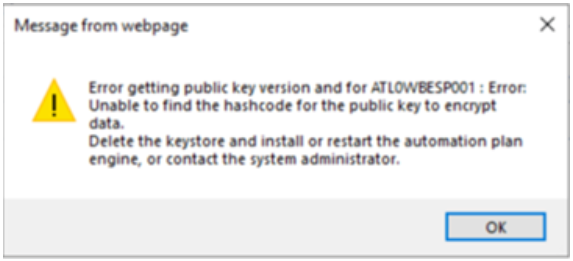
To resolve this issue, complete the following:- Check that the keystore file generated at Server Automation
plan engine startup, called
peKeyStore.jks, exists in the
following path depending upon OS:
- For Windows® platforms, the C:\Program Files (x86)\BigFix Enterprise\BES Client\Applications\PlanEngine directory.
- For Linux® platforms, the /var/opt/BESClient/Applications/PlanEngine directory.
- If the keystore file exists in this directory, rename it, for example peKeyStore.jks.old.
- Also, ensure the old plan engine (Single Node) is uninstalled properly as per the procedure steps mentioned at Uninstalling the Automation Plan Engine
-
Restart the plan engine using Server Automation Task 1075 Restart Automation Plan Engine (Multinode).
This regenerates the keys and synchronizes with the dashboard variable again.
- Next, take action on any Automation Plan. It should work now without displaying the error alert message.
- Check that the keystore file generated at Server Automation
plan engine startup, called
peKeyStore.jks, exists in the
following path depending upon OS:
Installation and upgrade
- What are the installation prerequisites for Server Automation?
- Refer to the Server Automation Supported Content product documentation topic for more details.
- I am trying to install the latest Automation Plan Engine but the installation has failed. What has caused this?
- When installing the Automation Plan Engine, the installation might fail
if the BES Server Plugin Service cannot be restarted. If this happens,
you must manually stop the MFS process for the BES Server Plugin Service
from the Microsoft Windows Task Manager.
You must then start the BES Server Plugin Service and try the installation of the Automation Plan Engine again.
- Where is the Automation Plan Engine log file?
- The Automation Plan Engine log file, pe_console.log, is available in the \BES Server\Applications\Logs subdirectory of the installation directory, for example, C:\Program Files (x86)\BigFix Enterprise\BES Server\Applications\Logs.
- After installing the Automation Plan Engine, the engine restarts with an error in the installation log file. What is causing this?
- The Automation Plan Engine is restarting with the following error in the
C:\Program Files (x86)\BigFix Enterprise\BES
Server\Applications\Logs\pe_console.log
file:
If you experience this error, the BigFix platform username and password are not configured correctly. The BigFix platform username and password are the credentials used to log in to the BigFix console. During the Automation Plan Engine installation and configuration, enter these credentials using Task 87 (WARNING: TEM Platform Username and Password credentials are not configured correctly) in the Server Automation domain.2012-12-06 06:59:27,604 INFO [main] (cli.PlanEngineLauncher:172) :: IZNENG109I Starting the Automation Plan Engine ... 2012-12-06 06:59:33,038 INFO [PlanEngine] (util.AccessChecker:96) :: IZNENG0135I The Platform API cannot be reached. Ensure that the Username and the Password are correct. 2012-12-06 06:59:33,041 INFO [PlanEngine] (util.AccessChecker:102) :: IZNENG140E There is a API error in the calling Script: {0}. {1} 2012-12-06 06:59:33,043 INFO [PlanEngine] (cli.PlanEngineLauncher:153) :: IZNENG094I The received command is : "quit" 2012-12-06 06:59:33,044 INFO [PlanEngine] (cli.PlanEngineLauncher:184) :: IZNENG113I Shutting down the Automation Plan Engine ... - How do I know if my Server Automation installation was successful?
- The Automation Plan Engine log file,
pe_console.log, is available in the \BES
Server\Applications\Logs subdirectory of the installation
directory, for example, C:\Program Files (x86)\BigFix
Enterprise\BES Server\Applications\Logs. To verify that
the Automation Plan Engine is installed correctly and has started, check
for the following lines at the start of the log
file:
2012-08-23 13:15:20,235 INFO [main] (cli.PlanEngineLauncher:255) :: IZNENG025I \ Plan Engine (build number 0.49) starting in JVM with PID (4508) ... 2012-08-23 13:15:20,235 INFO [main] (cli.PlanEngineLauncher:259) :: IZNENG026I \ Plan Engine CLI initializing ... 2012-08-23 13:15:20,235 INFO [main] (cli.PlanEngineLauncher:130) :: IZNENG001I \ Received command: "start" - How do I upgrade the Automation Plan Engine?
- A Fixlet to upgrade the Automation Plan Engine becomes relevant when
your installed version is older than the version in the Fixlet. To
upgrade, you run the Task from your BigFix console when it becomes
relevant. From the Automation node, click Setup and
Maintenance and select the Install Latest
Automation Plan Engine Fixlet.
Also, for upgrading the Automation Plan Engine from single node to multi-node, refer to Migrating from Automation Plan Engine (Single node to Multinode) or vice-versa in our product documentation.
- Do I need to upgrade the Server Automation domain?
- No, when you acquire the Server Automation site, all updated site content is gathered automatically. When Server Automation domain updates are available, they are automatically updated in your BigFix console.
Configuration and best practices
- Do I need to configure the Automation Plan Engine?
- You can choose to configure the Automation Plan Engine to control its performance and how it operates. You can configure the polling interval and the logging level. To configure the Automation Plan Engine, you modify properties in the config.xml file.
- How does the Automation Plan Engine determine when a step action has been processed?
- The Automation Plan Engine runs your Automation Plan, one step at a
time, by opening, processing, and then stopping each step in the order
that you specify when you create the Automation Plan. Automation Plans
are processed as follows:
- The Automation Plan Engine begins processing the Automation Plan action.
- The Automation Plan Engine opens a step action.
- The Automation Plan Engine processes the step action on the endpoints that you specify.
- If the step action is successful, the Automation Plan Engine stops the step action and proceeds to the next step action.
- If the status for a step action is Failure and the step has no failure step, the Automation Plan action is stopped.
- If the Automation Plan contains a failure step for the failed step action, the Automation Plan Engine runs the failure step before the Automation Plan action is stopped.
- If the prior step action is successful, the Automation Plan Engine opens the next step action and begins processing it.
- I stopped an Automation Plan step action that was running. However, I noticed that the Automation Plan continued to run. How did this happen?
- To stop an Automation Plan that is running, you must first stop the
Automation Plan action, and then stop the open step action. Only one
step action is open at any one time.
If you stop an Automation Plan step action without first stopping the Automation Plan action, the Automation Plan Engine continues to process the Automation Plan action, generating new step actions as it does so.
- The Automation Plan Engine has shut down unexpectedly. Why has this happened?
- The Automation Plan Engine detects particular conditions under which it
can no longer function correctly. For example, if credentials become
invalid, the Automation Plan Engine cannot function as normal. In these
situations, the Automation Plan Engine automatically shuts itself down.
The Automation Plan Engine shutdown and recovery occurs in the following
situations:
- The Automation Plan Engine fails to communicate with Web Reports.
- The Web Reports Service might be disabled.
- Web Reports user credentials fail or become invalid.
- BigFix console user credentials fail or become invalid.
- Can Server Automation affect BigFix platform performance?
- Server Automation does not affect platform performance when you configure Server Automation correctly. To ensure that it functions well, ensure that the maximum number of open actions on the system does not exceed 2,500. Note also that the Automation Plan Engine creates actions as it processes your Automation plans. You should also check that the number of closed actions on the system does not exceed 10,000. To check the number of closed actions, go to the Deployment Health Checks dashboard from the BigFix Management domain, navigate to the BES Console Health section, and expand the Stopped And Expired Actions section.
- Can I export an Automation Plan to another system?
- Yes. To export an Automation Plan:
- Note the ID of the Automation Plan that you want to export. The ID is displayed in the ID column for the Automation Plan in the Automation Plans panel.
- Go to the All Content domain and click Fixlets and Tasks. Enter the ID of the Automation Plan that you want to export.
- Click Export, specify a file name and location, and click Save.
Virtualization
- I cannot access all of the virtualization content. What is wrong?
- You need to enable the Virtual Endpoint Manager license to access all of the Server Automation virtualization content. Enable the VEM license by going to the License Overview section in the BigFix Management domain.
- How do I create a template for creating virtual machines that includes a BigFix agent?
- When using the VMware Create Windows virtual machine from
template Task, you can create a template that includes a
BigFix agent that will register the newly created virtual machines
created from the template. This procedure is available here and is also described
below. To include the BigFix Client on a computer image that will be
deployed multiple times:
- Install the BigFix Client on the computer that will be imaged. After installation, the BigFix Client will register with the BigFix Server and will write certain registry keys and files to the hard drive after registration. You must remove these registry keys and files.
- Stop the BigFix Client in the Windows services dialog.
- Remove the registry values RegCount, ReportSequenceNumber, and ComputerID (if they exist) at HKEY_LOCAL_MACHINE\SOFTWARE\BigFix\EnterpriseClient\GlobalOptions.
- Delete the __BESData folder in the BigFix Client installation folder (default is C:\Program Files\BigFix Enterprise\BES Client).
Note:For information about how to convert a virtual machine to a template, click here.- If the computer is restarted or if the BigFix Client is started for any reason, the BigFix Client will re-register and you will need to perform the steps above again.
- The BigFix Server has built-in conflict detection and resolution so if for any reason you fail to perform the above steps, the BigFix Server will notice that there are multiple BigFix Clients with the same ComputerID and force the BigFix Client to re-register and everything will work normally. However, we do recommend you perform the steps above to avoid having a grayed-out BigFix Client (the first imaged computer) in the computer list in the BigFix Console.
- On 64-bit systems the registry path is: HKLM\Software\Wow6432Node\BigFix\EnterpriseClient\GlobalOptions and the default directory path is: C:\Program Files (x86)\BigFix Enterprise\BES Client.
- How do I create a template for creating virtual machines that includes a BigFix agent?
- When using the VMware Create Linux virtual machine from
template Task, you can create a template that includes a
BigFix agent that will register the newly created virtual machines
created from the template. To include the BigFix Client on a Linux
computer image that will be deployed multiple times:
- Install the BigFix client on the computer to be imaged. After installation, the BigFix client registers with the BigFix server.
- Stop the BigFix client by entering the following command: # /etc/init.d/besclient stop.
- Edit the file besclient.config and delete the three lines beginning with ReportSequenceNumber, ComputerId, and RegCount.
- The default location of the besclient.config file is /var/opt/BESClient/besclient.config.
- Delete the __BESData folder. The default location for this folder is /var/opt/BESClient/__BESData.
- My virtualization devices, hypervisors, and virtual machines, are greying out and changing color to black. What is causing this?
- Computers that are greyed out in the BigFix console are considered to be
offline. Computers are considered offline if the BigFix client has not
reported in a specified amount of time. By default, the BigFix clients
send a heartbeat signal every 15 minutes, and if the BigFix server has
not received a heartbeat signal for 45 minutes by default from a
particular BigFix Client, the computer will be marked offline.You can configure the length of time between heartbeats and the amount of time to wait before marking a computer offline in the BigFix console under . Set the heartbeat interval by changing the value for the Send heartbeat every setting. To change the length of time to wait before marking a computer offline, modify the value for Mark as offline after setting.Note:Setting the grey out time too low could have an impact on performance.
- I have issued concurrent virtualization requests using Server Automation but these requests are not being processed. What is wrong?
- In some circumstances, if you have issued concurrent Server Automation
Virtualization requests, the Server Automation management extender
processes can hang, with each process competing to complete the command.
This results in just one request being active, and the requests are not
processed concurrently, but in sequence.
The Server Automation Virtualization management extender supports up to five concurrent virtualization requests. However, because of this issue where processes compete to complete the command, the concurrency can be reduced to between one and five processes.
The above scenario is valid when using the Management Extender, but the issue is solved to a greater extent when one uses the Plugin Portal.
Globalization
- Why can't I find log files for my locale for Linux?
- Some log files are not supported in other locales, such as Japanese. You might need to use the English language versions of the log files.