
Record sequence with browser
About this task
These are the options when recording a multi-step operation:
- AppScan browser (recommended)
- By default, AppScan browser is selected. You can either record without login or log in and
then record the multi-step sequence.
- Record (without login): AppScan will record using the built-in browser, without logging in.
- Log in and then record: When the browser opens you can log in, if needed, and then record your multi-step sequence. By default the Log in and then record checkbox is applied.
Note: If you use this option and then record login requests as part of the sequence, parameters and cookies received will always be treated as Dynamic, even if they are Login requests, and even if you change their tracking to Login Value. - External browser
- Active only if you have configured AppScan to use an external browser for scanning (Tools > Options > Use External Browser > Select Browser). If possible it is recommended to use the AppScan browser, as it records extra information that improves login success during scanning. Use the external browser only if recording the login with the AppScan browsers does not work for your application.
Important: During playback of a multi-step operation, in-session detection is Off (see
Login method). This means
that AppScan® does not verify that it is logged in.
Therefore, if the failure of the multi-step operation will cause the user to be logged out of the
application, it is important that login be recorded as part of the sequence (so it will be replayed
each time the sequence runs). If this is not done the multi-step operation may fail.
Procedure
-
Click Record sequence and select one of the record
options (see above).
The selected browser opens.
- Click on links and fill in fields as necessary to reach the required pages. You can use the Pause button if you want to click links without recording them as part of the operation.
- Close the browser.
The sequence appears in the Sequences pane. Sequences are automatically named in order: "Sequence 1", "Sequence 2" etc., but you can rename by typing into the name field using the Rename option on the vertical three-dot menu.
You can optionally change the playback method using the toggle button.- Request-based playback (default) sends the raw HTTP requests
from the recording. This method is usually faster.
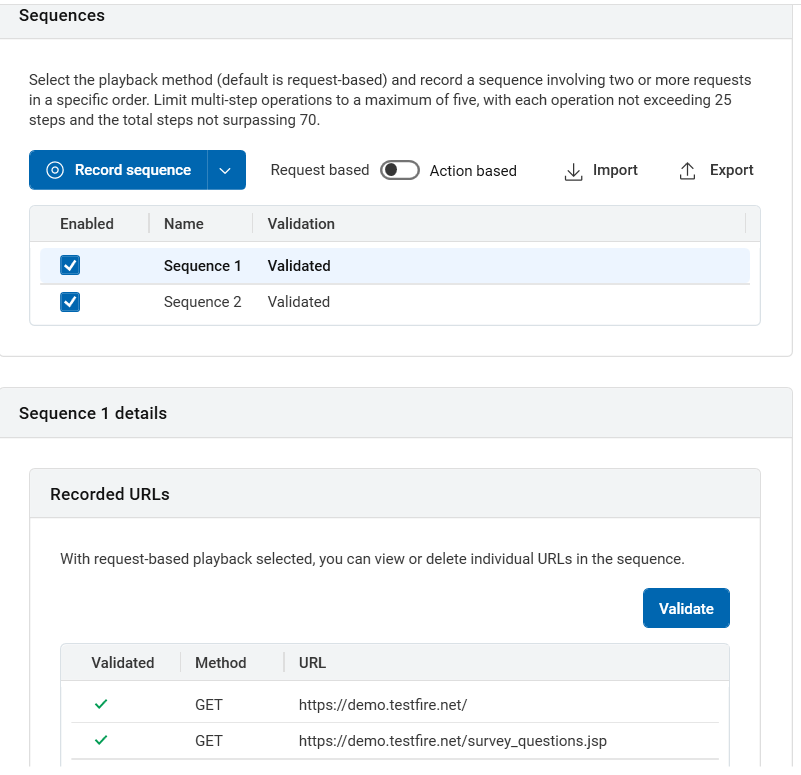
- Action-based playback replays the clicks and keystrokes of
the user. Reasons for selecting this method could be that the site
includes a lot of JavaScript, or that some of the requests in the
request-based playback were marked with a red X when you attempted
to validate them. This method can increase scan time.
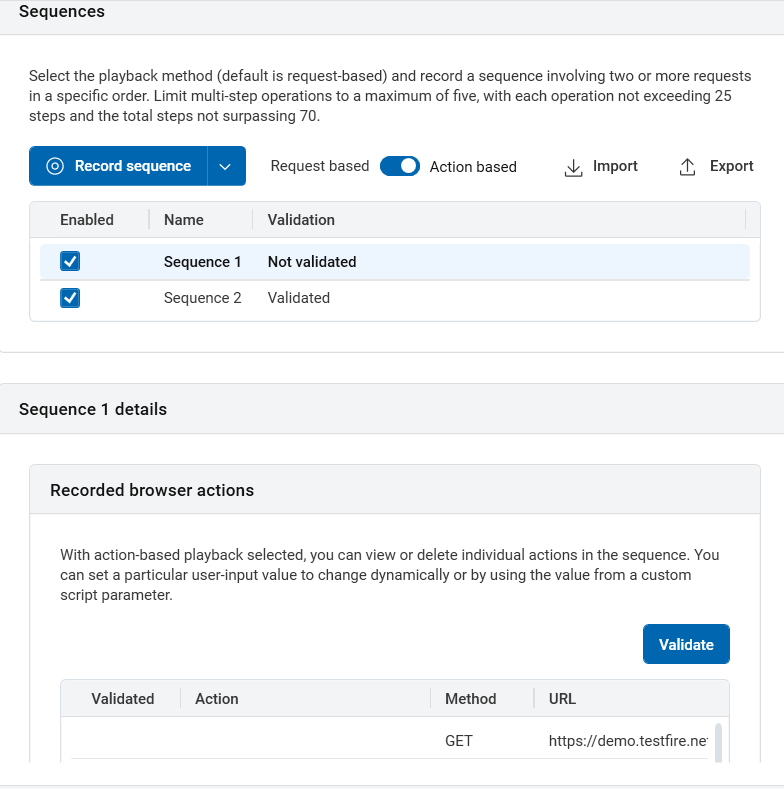
Note: If your scan is configured to use an external browser (Tools > Options > Use external browser) and you encounter recording issues, disable action-based recording by setting Gui.RecordUserActionsInExternalBrowser to False under Tools > Options > Advanced, then try again.Note: If your site requires users to log in and you selected Request-Based Login, you must select Request-based Multi-Step Operations too, otherwise the Multi-Step Operations will not be sent. - Request-based playback (default) sends the raw HTTP requests
from the recording. This method is usually faster.
-
Click Validate.
AppScan replays the sequence, and a green check-mark appears next each request or action that is successfully replayed. If a request or action is not successful a red X appears next to it.
Vertical three-dot menu options:- Show in browser: View any URL in the browser.
- Troubleshoot options are displayed only after you validate the
sequence.
- Show replayed request: Displays the replayed request on the browser.
- Compare recorded with replayed: Displays the comparison between the recorded and replayed requests.
- Copy URL: Copy the URL.
- Test: To test the URL individually.
- Don't test: The URL will still be included when playing the sequence, but will not be tested individually.
- Play sequence before testing request: If a step is set to be tested individually, select Play sequence before testing request > No if it is not necessary to play the previous steps in the sequence each time this URL is tested.
- Set dynamic value
- Revert to original value
- Edit: Available only for values that can be edited.
- Delete: Remove any unnecessary step. After doing this click the Validate button, to check that the sequence still stays in-session.