
Multi-step operations
Record and manage multi-step operations that are required to reach specific parts of the application that could otherwise be missed.
- User adds one or more items to a shopping cart
- User fills in payment and shipping details
- User receives confirmation that the order is complete
In the case of the above example, you would record a single sequence: Page 1 > Page 2 > Page 3. AppScan® would extract the necessary sub-sequences from this sequence, as required. (When testing Page 2, it would send a Page 1 request first; when testing Page 3, it would send Page 1 followed by Page 2.)
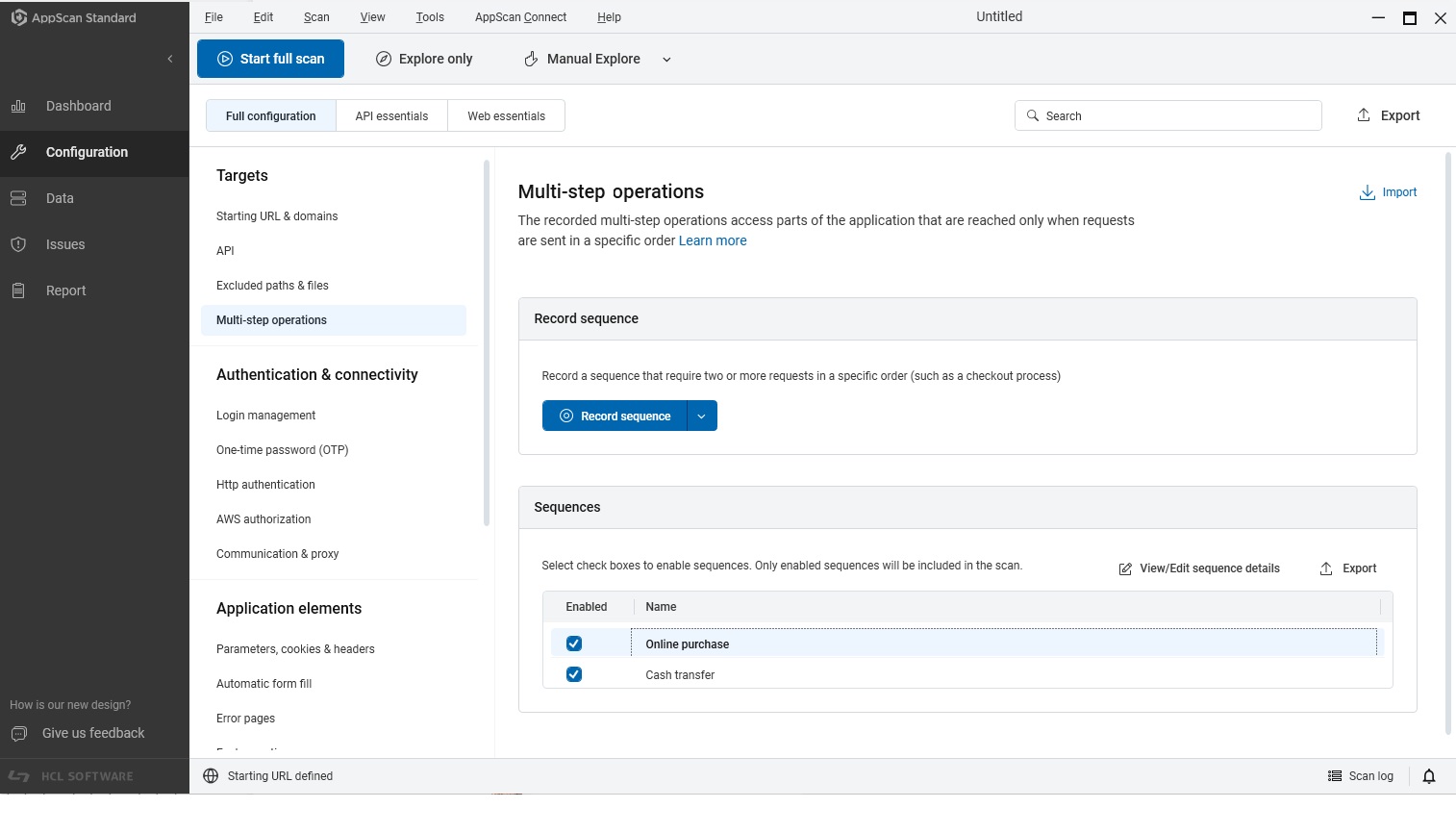
|
Setting |
Details |
|---|---|
| Sequences | |
|
Record sequence |
Click to record a new sequence. If you have configured login details, you can click the down arrow to select them. For more information, see Record sequence with browser. |
|
Playback method |
When you record a multi-step operation,
AppScan records both the actions and the requests. You can select which of them will be used
for the scan:
Note: If you load a
sequence that was recorded in a version of AppScan that did not support action-based
playback, request-based playback is used for that sequence, even if action-based
playback is selected. Note: If you select Action-based playback
for a multi-step operation, you must also select Action-based as the login method. If
necessary, record the Login sequence again (see Login management). Note: If your scan is configured to use an external
browser (Tools > Options > Use external browser) and you encounter recording
issues, disable action-based recording by setting
Gui.RecordUserActionsInExternalBrowser to
False under Tools > Options >
Advanced, then try again.
|
|
Import |
Import a sequence (SEQ file) exported from a different scan. |
|
Export |
Export the selected sequence as a SEQ file to use in a different scan. |
|
Sequence list |
Lists all recorded multi-step operations for this scan. |
|
Sequence name |
The name of the sequence that is selected in the List of Sequences. The check box next to each one indicates if the sequence is enabled for this scan. |
 |
Options available on the three-dot menu:
|
|
Sequence details |
|
| Validate | Click this to check that the sequence is valid. Only after validation the Troubleshooting options are enabled. |
|
Recorded URLs |
Shows the links or actions in the selected sequence.
|
|
Log in before sequence replay |
If selected, each time a Multi-Step Operation is played, AppScan will log in first. This option is cleared if you record the login as part of the multi-step operation. |
|
Allow play optimization |
(Request-based playback only) When selected (default), AppScan® attempts to optimize scan time by avoiding unnecessary playback. You should not disable this setting unless you find that AppScan® is missing parts of the application due to play optimization. The Scan Log can help in determining this. |
|
Test in Single-Thread mode |
AppScan® may send two or more requests simultaneously if they don't require the replaying of a sequence between them. If this results in parts of the application being missed, select this check box. |
|
Sequence Variables |
Lists variables that were received while recording the sequence(s) and indicates those that AppScan® has determined should be tracked. These may be session IDs or other variables. You can change the status of variables in this list to improve how AppScan® deals with them (for details, see Sequence variables). |
Related topics: