
Opening AppScan 360° for the first time
To use AppScan 360°, you must first:
Logging in to AppScan 360° for the first time
To log in for the first time:
- Either navigate to the AppScan 360° service URL as specified during installation, or configure DNS entry for AppScan 360° machine.
- Enter the default Admin account credentials:
Username Admin Password Admin12!
Uploading a license file to AppScan 360°
Note: For purposes of consistency with the AppScan on Cloud user interface,
AppScan 360° uses the term subscriptions interchangeably
with the term license.
To upload a license file as a new AppScan 360° user:
- If you are a new user, copy the organization ID from the
license dialog.

- Create a deployment in My HCLSoftware (MHS), specify entitlements, and download the license file. For additional information, see Managing AppScan 360° deployments in My HCLSoftware.
- From the license dialog box, click Upload.
- Browse to the file location of the downloaded license file and select it.
- Click Activate license.
To upload a license file as an existing AppScan 360° user:
- Manage the deployment in MHS and download the license file.
- Log in to AppScan 360°.
- Select .
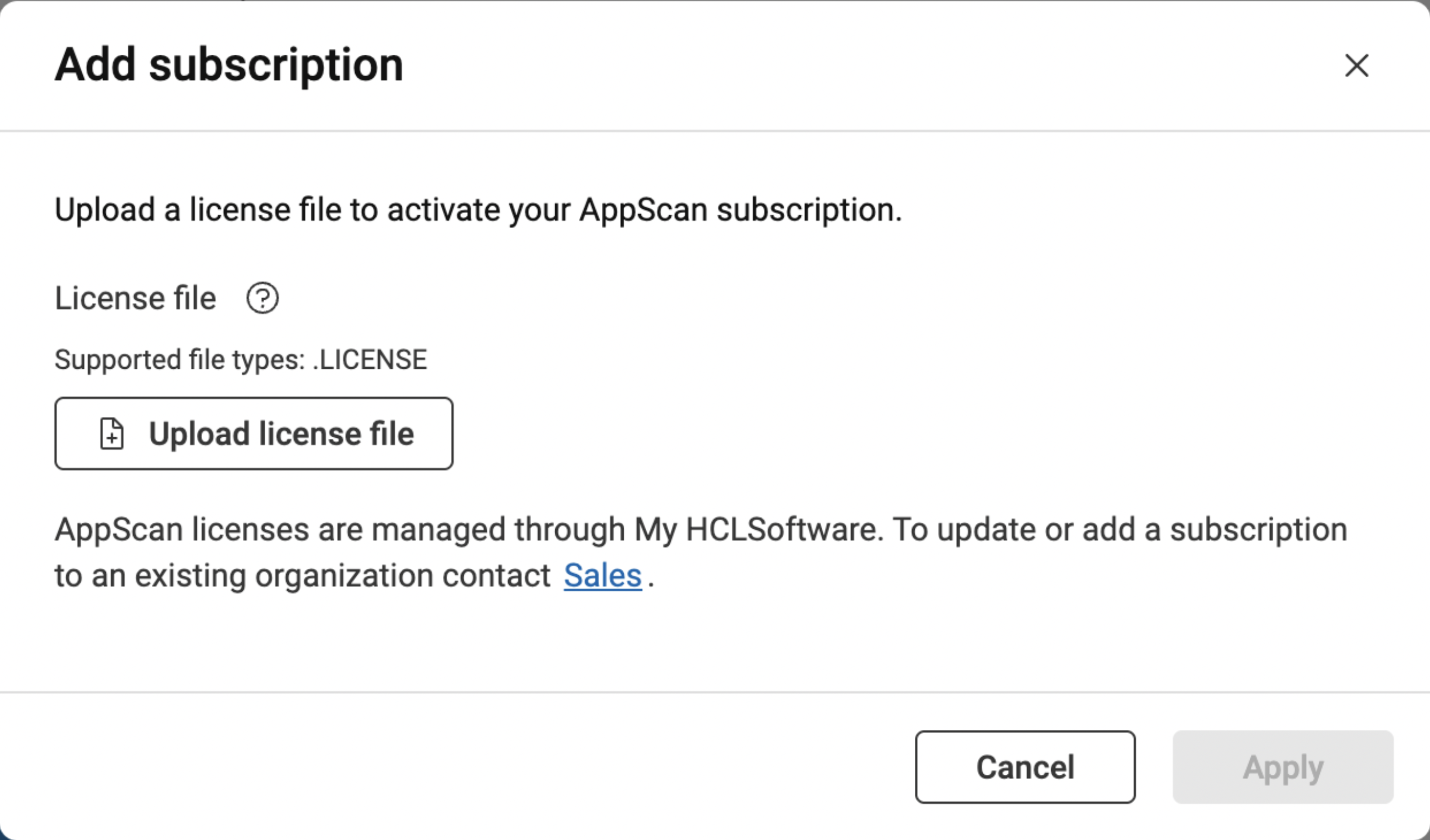
- Click Upload license file.
- Browse to the file location of the downloaded license file and select it.
- Click Apply.
Note: Each installed instance of AppScan 360°
is managed by a single deployment and associated license
file; attempting to create multiple deployments and multiple
license files for a single installed instance of AppScan 360°
may have unintended results.
Adding users
You can add users manually, configure AppScan 360° to on-board new users automatically, or to require them to be invited by an administrator through the user interface.
Users added manually are added as
regular users. You can manually promote any user to
Administrator.
Note: Once you promote
at least one LDAP user to Admin, the default Admin account
(that was created during the installation) is disabled.
Define your method for on-boarding
new users:
For more details, see Managing users
- AutoOnboard: Any user with access to the server can log in to AppScan 360°.
- GroupsAccess: Any user in an authorized group (defined below) can log in to AppScan 360°.
- ManualOnboard: Users must be invited using the Add Users button on the page.
Logs
AppScan 360° saves logs in the shared (file)
storage assigned to the AppScan 360°
service under /storagemount/logs.