
Managing AppScan 360° deployments in My HCLSoftware
AppScan 360° licenses are managed through the My HCL Software (MHS) portal. Create a license deployment in MHS, specify license entitlements, and download a license file from MHS, then upload that file to AppScan 360°.
Creating a new deployment
- Log in to MHS using the credentials associated with your account.
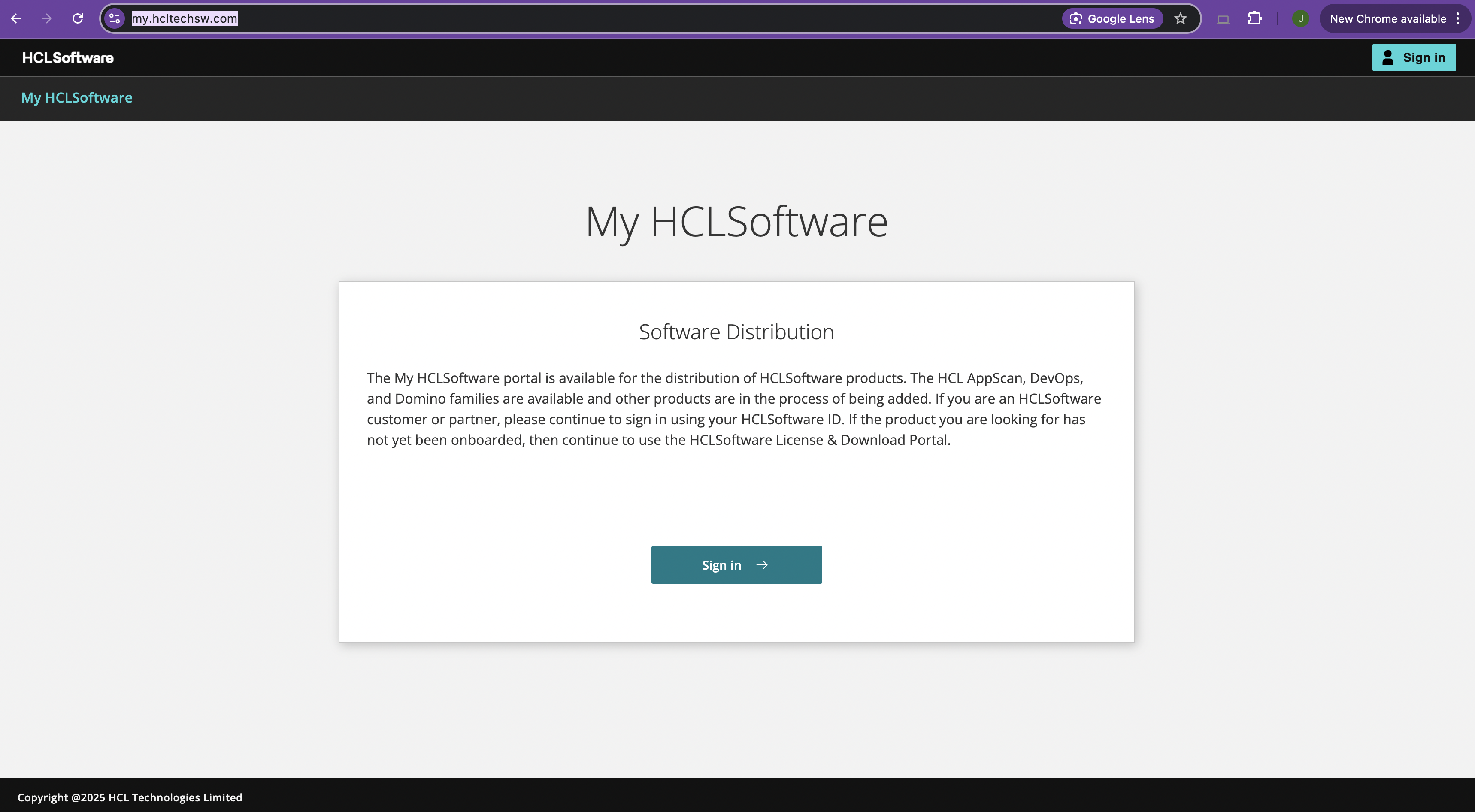
- Click Deployments.
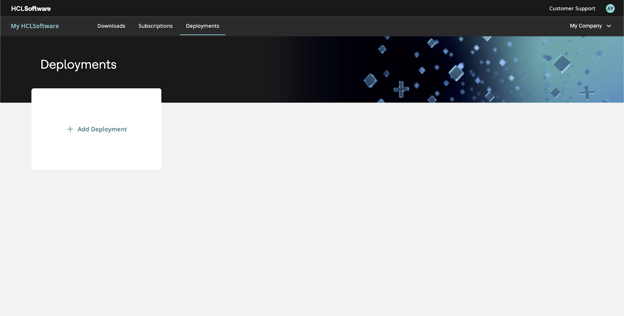
- Click Add Deployment.
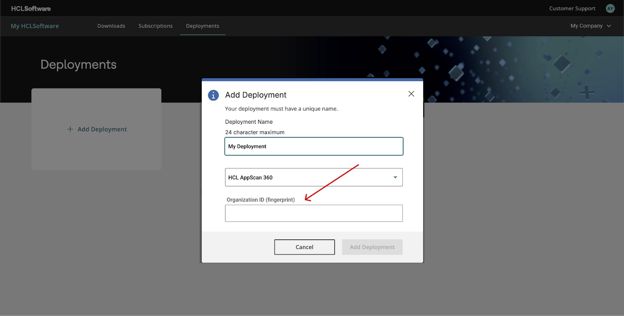
- Give the deployment a unique name.
- Choose AppScan 360 as the type.
Available types are linked to the MHS credentials you used at login. You can choose from products for which you or your organization has purchased licenses only.
- Paste the organization ID copied from the license dialog in AppScan 360° into the Organization ID (fingerprint) field.
- Click Add Deployment.
Note: We do not recommend creating more than one deployment for your organization. Each installed instance of AppScan 360° is managed by a single deployment; attempting to create multiple deployments and multiple license files for a single installed instance of AppScan 360° may have unintended results. - Allocate your license entitlements (license seats) across the components of
your purchased deployment.
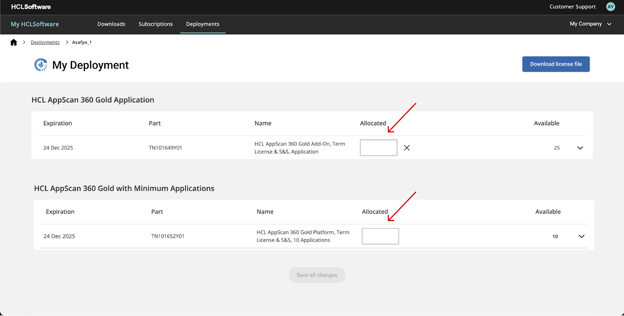
- For each component of the product, type a number into the
Allocated field that is less than or
equal to the number listed in the Available
column.
You must allocate at least one entitlement to the platform first before you can allocate any to product add-ons.
- Click Save all changes.
MHS adds a card for the newly created deployment to the MHS Deployments page.
- For each component of the product, type a number into the
Allocated field that is less than or
equal to the number listed in the Available
column.
- Right-click the menu in the top right corner of the deployment card and
select Download license file.
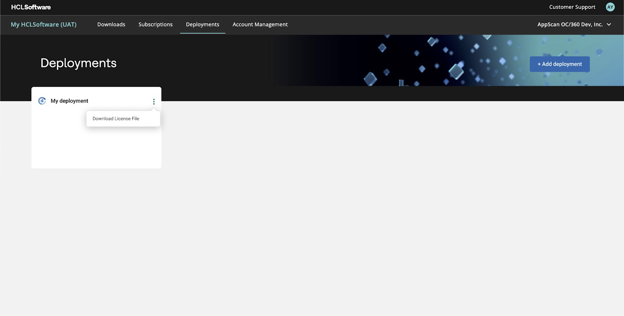
Note the location of the license file for upload within AppScan 360°.
Managing entitlements in existing deployments
If you are an existing AppScan 360° customer, you must download your license file from MHS before upgrading to AppScan 360° version 1.6.0 or later. As MHS has replaced FNO for all download and licensing activities, HCL has transferred all licensing and entitlements data to MHS.
- Log in to MHS using the credentials associated with your account.
- Click Deployments.
- Select the relevant deployment associated with your AppScan 360°
installation.There may be more than one deployment listed. Ensure that you select the correct deployment.Note: We do not recommend creating more than one deployment for your organization. Each installed instance of AppScan 360° is managed by a single deployment; attempting to create multiple deployments and multiple license files for a single installed instance of AppScan 360° may have unintended results.
- Allocate your license entitlements (license seats) across the components of your
deployment.
- For each component of the product, type a number into the
Allocated field that is less than or equal to
the number listed in the Available column.
You must allocate at least one entitlement to the platform first before you can allocate any to product add-ons.
- Click Save all changes.
- For each component of the product, type a number into the
Allocated field that is less than or equal to
the number listed in the Available column.
- Right-click the menu in the top right corner of the deployment card and select
Download license file.
Note the location of the license file for upload within AppScan 360°.