
Configuring user authentication
Authenticate users for AppScan 360° using either single sign-on (SSO) or LDAP authentication.
- Single sign-on (SSO) using OpenID Connect (OIDC) through Keycloak, Okta, or
Microsoft EntraID.
Open ID Connect is an authentication layer on top of OAuth 2.0, allowing clients to verify the identity of the end-user based on authentication performed by an Authorization Server, as well as to obtain basic profile information about the end-user in an interoperable and REST-like manner.
- Microsoft Active Directory or Domino (LDAP) via port 389/636/TCP
Active Directory authenticates and authorizes all users and computers in a network, assigning and enforcing security policies for network access.
Domino LDAP provides authentication and authorization services using the Domino directory, enabling centralized identity management and allowing applications to query and validate user credentials.
- Only one authentication method can be active at a time. If SSO is enabled, LDAP cannot be used simultaneously.
- If authentication is configured during installation (using the configuration file), those settings take precedence over the user interface settings and the user interface settings for authentication appear in read-only mode.
- For self-signed certificates, they must be provided during installation if you plan to configure SSO through the user interface later.
- Once an LDAP or SSO user is promoted to Administrator, the default Admin account created during installation is disabled.
Configuring single sign-on (SSO) authentication
AppScan 360° supports single sign-on (SSO) through OpenID Connect (OIDC). This allows enterprises to integrate AppScan 360° with identity providers (IdPs) such as Okta or Keycloak, thus allowing users to log in with corporate credentials.
Registering with identity providers
To set up Okta for AppScan 360°:
-
Register AppScan 360° as an OIDC application on organization's Okta or EntraID SSO Services.
-
Configure redirect URIs.
- The URI’s should be in following formats:
- Login URI--https://{as360ApplicationURL}/api/v4/signin-oidc
Logout URI--https://{as360ApplicationURL}
-
Receive the client ID and secret for use in setup in AppScan 360°.
-
Create a Realm with confidential client.
-
Validate redirect URIs.
-
The URI’s should be in following formats:
-
Login URI--https://{as360ApplicationURL}/api/v4/signin-oidc
Logout URI--https://{as360ApplicationURL}
-
-
Validate post logout redirect URIs, web origins, and enable OIDC standard flows.
-
Note: Users can use Keycloak for SSO that includes integration with LDAP.Please note down the following details once registration is completed-Authorization Endpoint, Client ID, Client Secret for use in AppScan 360°.
Configuring single sign-on in AppScan 360°
- Log in to AppScan 360° as an administrator.
- Go to .
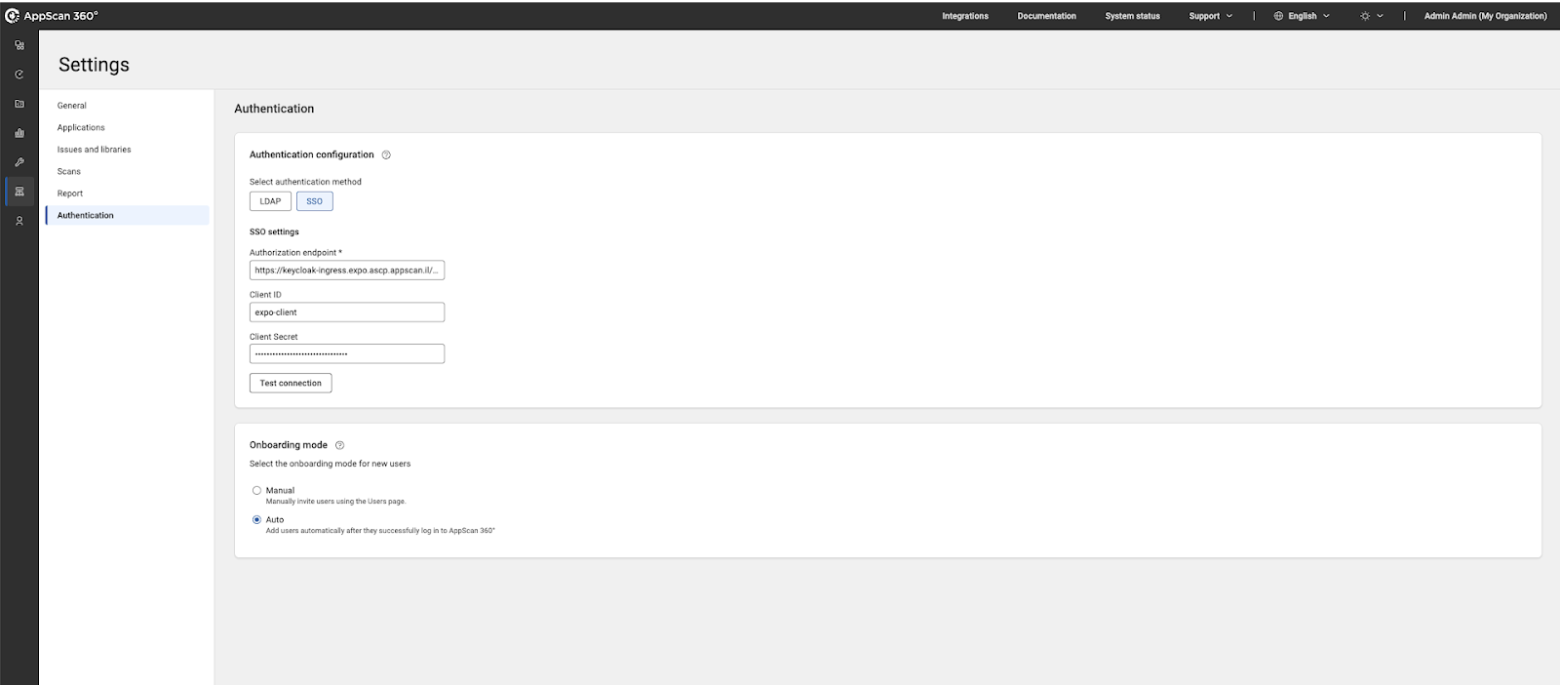
- Select SSO as the authentication method.
- Specify identity provider details as follows:
Field Description Authorization endpoint The OIDC authorization/discovery endpoint URL of your identity provider. Client ID Unique identifier assigned to AppScan 360° when registered as a client application in your identity provider. Client secret Secret key issued by the identity provider for secure communication with AppScan 360°. - Select onboarding mode:
- Manual – Users must be invited by an Administrator using
Access Management → Users.
When a user's email is added during manual onboarding, the current validation from AppScan 360° is not present to check whether it is a valid email ID.
- Auto – Any valid identity provider user who logs in is
automatically added to AppScan 360°.
Choose Auto only if all identity provider users are able to access AppScan 360°.
- Manual – Users must be invited by an Administrator using
Access Management → Users.
- Click Test connection to validate the setup.
- Click Save before exiting the screen.
User login workflow
- From the AppScan 360° login page, user click Login
with SSO.
AppScan 360° redirects to identity provider login.
- At the identity provider login, user enters appropriate organization
credentials.
Upon successful login, user is redirected back to AppScan 360°.
Configuring LDAP authentication
AppScan 360° supports authentication through LDAP (Lightweight Directory Access Protocol). You can integrate with either Active Directory or Domino LDAP by configuring the appropriate provider type. This allows users to log in with their enterprise directory credentials.
Configuring LDAP in AppScan 360°
- Log in to AppScan 360° as an administrator.
- Go to .

- Select LDAP as the authentication method.
- From the LDAP provider type list, choose either Active Directory or Domino LDAP.
- Specify details as follows:
Field Description Domain Domain name (for Active Directory) or directory root domain Target OU Organizational Unit or Base DN path used to search for users Username/password Service account credentials used for LDAP binding Enable SSL Enable or disable secure LDAP (LDAPS) - Select onboarding mode:
- Manual – Users must be invited by an Administrator using
Access Management → Users.
When a user's email is added during manual onboarding, the current validation from AppScan 360° is not present to check whether it is a valid email ID.
- Auto – Any valid identity provider user who logs in is
automatically added to AppScan 360°.
Choose Auto only if all identity provider users are able to access AppScan 360°.
- Manual – Users must be invited by an Administrator using
Access Management → Users.
- Click Test connection to validate the setup.
- Click Save before exiting the screen.