
Configure OneDrive
OneDrive is a Microsoft Cloud service that provides access to all your Z and I Emulator for Windows configuration files from anywhere. It also stores and protects your files and allows you to share them with other users. When a user uses a different account with OneDrive, all the configured files get synced with the OneDrive user account.
User can also configure OneDrive with Z and I Emulator for Windows profile directory, Macro directory and Tool Bar icons directory. For more details, refer to below sections.
Configure Profile Directory with OneDrive
A user can configure profile directory with OneDrive either during Z and I Emulator for Windows installation using %OneDrive% variable or after installation through Preference Utility.
- Set %OneDrive% as profile directory during installation.
- Select all users “Custom Application Data Folder” option and give the
variable path.
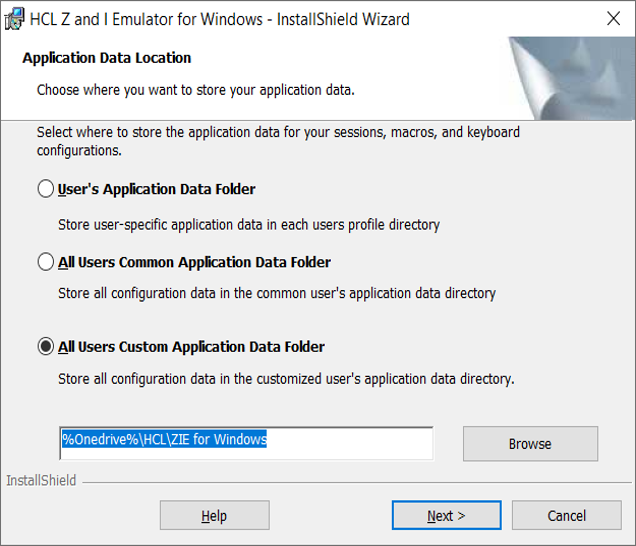
- After successful configuration, a user can load all session files from OneDrive.
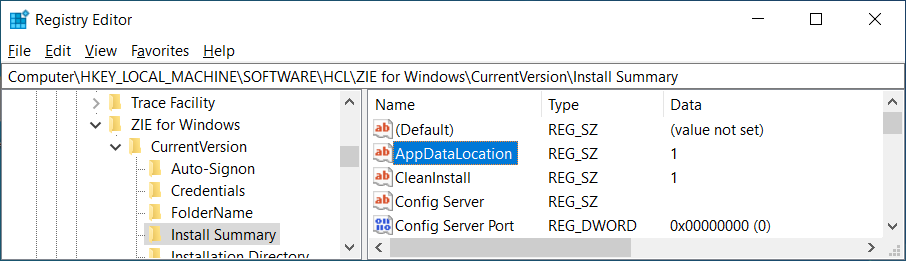
Registry path: Computer\HKEY_LOCAL_MACHINE\SOFTWARE\HCL\ZIE for Windows\CurrentVersion\Install Summary
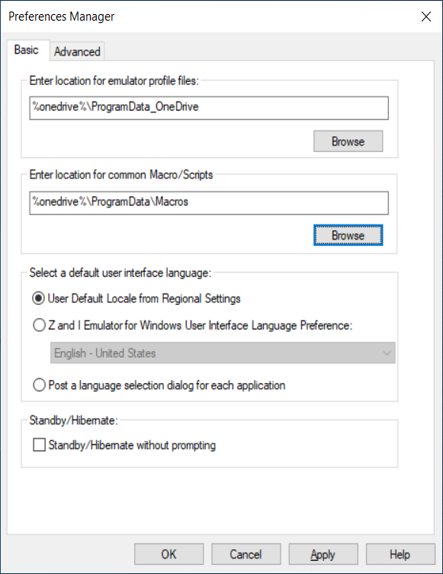
- Open the Preference Utility.
- Enter the %OneDrive% variable path under Enter location for emulator profile files field and click OK.
- After successful configuration, a user can load all session files from OneDrive.
Configure Z and I Emulator for Windows Tool bar icons Directory with OneDrive
- Open the pcswin.ini file.
- Under the [ToolBar] section, set the IconPath to OneDrive
path.
Once user configures the above keyword in pcswin.in, the tool bar files (*.bar) use the OneDrive path to load all the custom icons ignoring the local custom tool bar icon file path. The icon files are looked up in “IconPath” location with its name. If the file is not found, the user is informed with a message box and loads the default icon.
Configure Macro Directory with OneDrive
- Open the pcswin.ini file.
- Under the [Macro] section, set the DIR to OneDrive path.
Configure OneDrive Single Sign-On
-
Open the Preference Utility Manager (userpm).
-
Select the OneDrive checkbox.Note:
-
If the user is not signed in to OneDrive, a OneDrive sign-in dialog will appear.
-
If already signed in to OneDrive, the path
%onedrive%is automatically set in the Profile Directory edit box.
-
-
Click the Apply button.Note:
-
This action will store the
%onedrive%path in the registry under the profile directory key. -
A registry key for Onedrive Enabled is also created or updated with the value “T” indicating that OneDrive is enabled.
-
Configure UI Synchronization for Session Files
-
Ensure the Profile Directory path is set to a OneDrive location.
-
Open the Session Manager (pcsfe) dialog box.
-
In the Details tab, a new Status column is visible if session files are loaded from OneDrive.Note:
- If the Profile Directory is not OneDrive, the Status column is hidden.
- You can view the sync status in both Large Icon View and
Small Icon View:
- Synced Sessions: A green indicator appears at the top-left corner of the session icon.
- Not Synced Sessions: The icon remains unchanged (no additional indicator is shown).
- The given %onedrive% variable path will be expanded to full path in
Preferences for a user. The variable path is stored in the
following directory.Computer\HKEY_CURRENT_USER\SOFTWARE\HCL\ZIE for Windows\CurrentVersion\Preferences
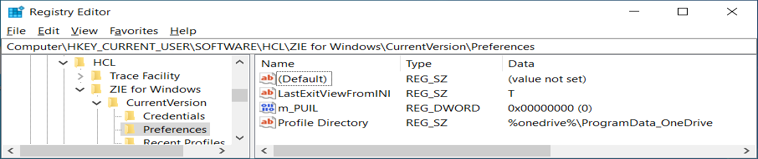
- All configuration files associated with session files can use the variable path, any change in session will rewrite the session file with full path.