
Installing the ZIE Host Access Toolkit
Perform the following basic steps to install the Host Access Toolkit on a Windows system:
- Right click on the ZIEWeb_HACL_Windows_x64.exe.
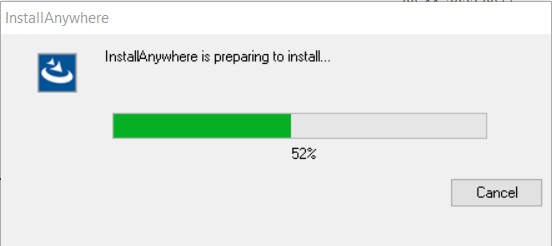
- Click Run as Administrator, the following InstallAnywhere is preparing to install
screen displays.
- Select Language. By Default, the English language is displayed. The user can select the
appropriate language from the drop down list.
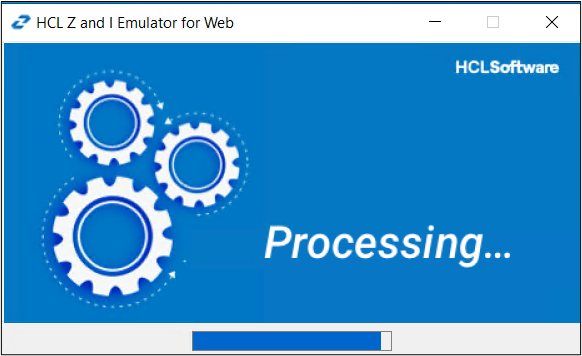
- Click OK.
- The Introduction screen displays.
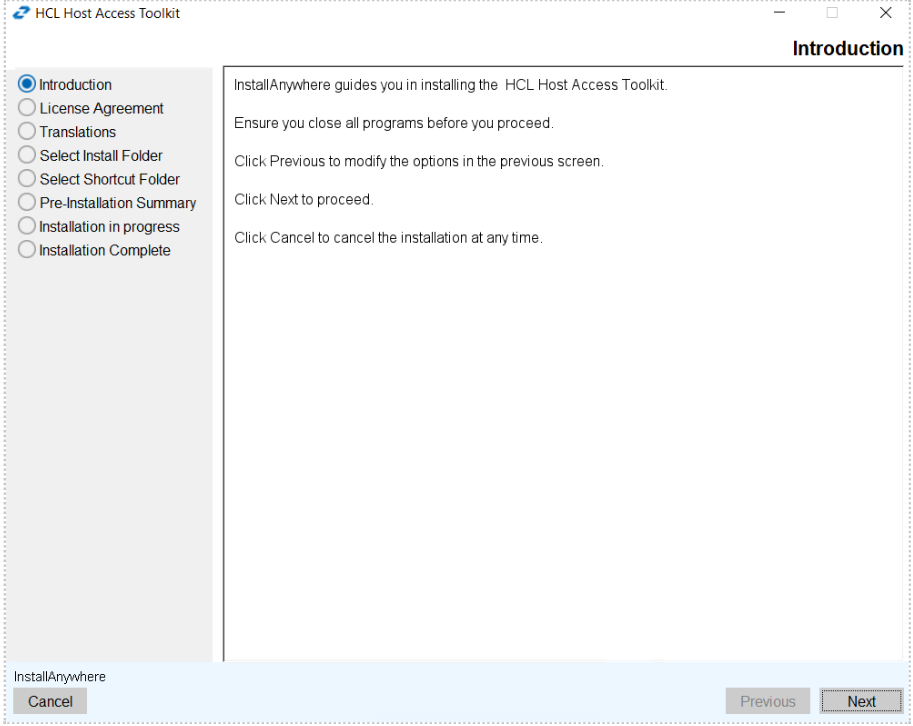
- Click Next.
- The License Agreement screen displays. Click I accept the items of the License
Agreement.
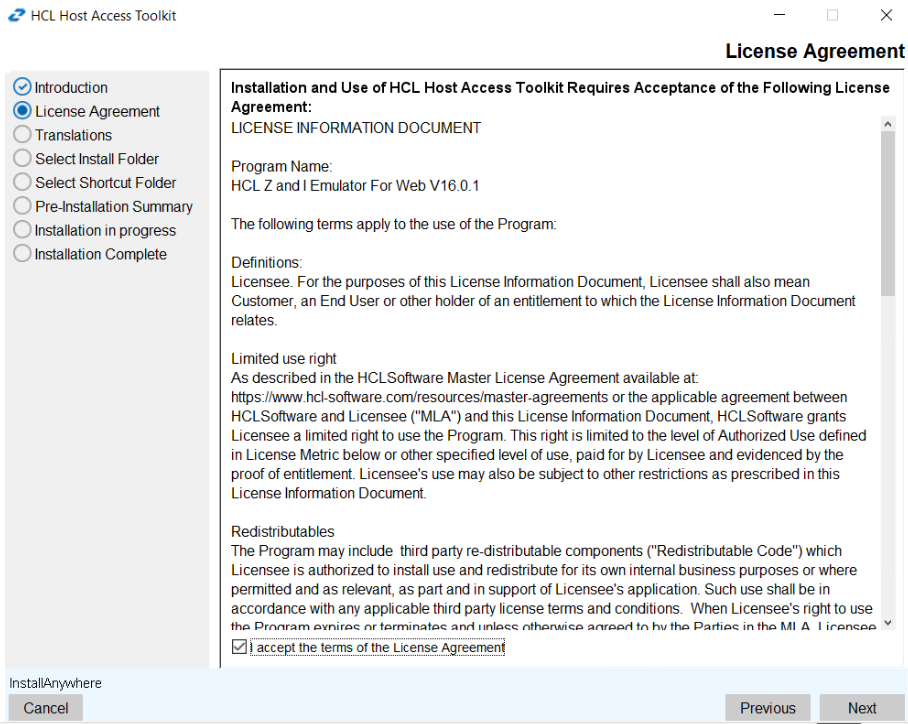
- Click Next.
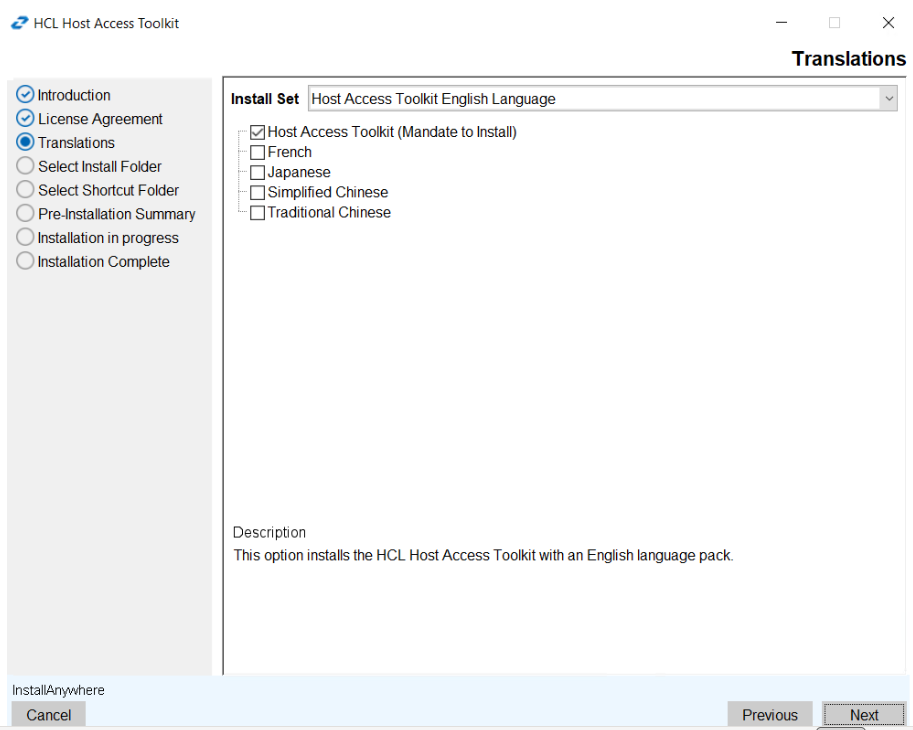
- The Translation screen displays. The user can select the multiple language
translation.
- Click Next.
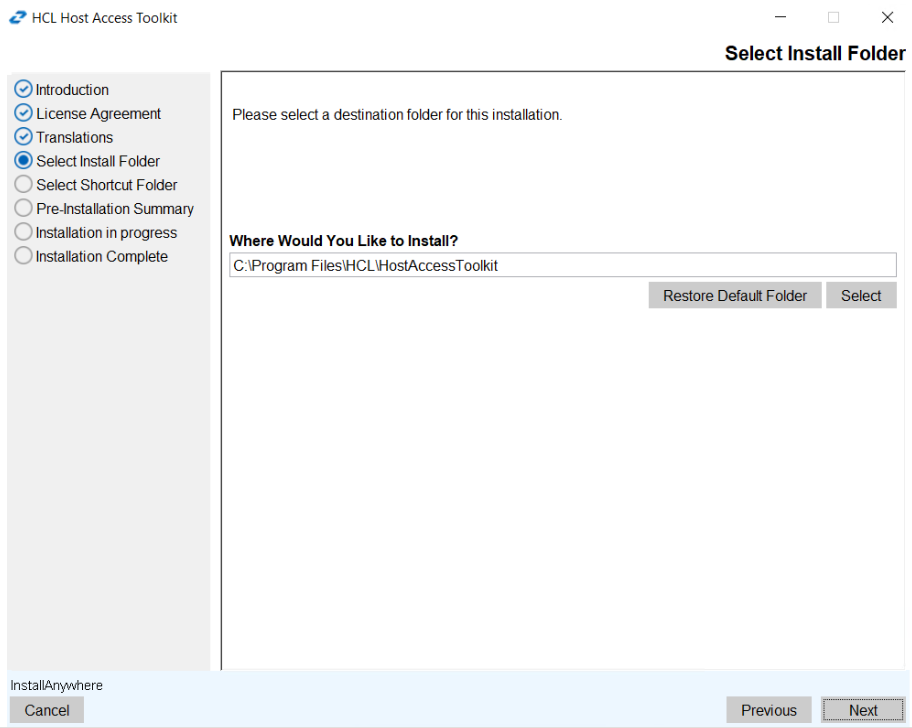
- The Choose Install Folder to install the product screen displays. (Here, the user
can choose the customized.
 Note:
Note:- The user can restore the default folder.
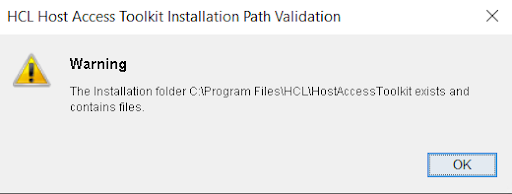
- If the install folder is already existing then the error message get displayed as:
"C\Program Files\HCL\HostAcccessToolKit exists and contails files".
- Click OK.
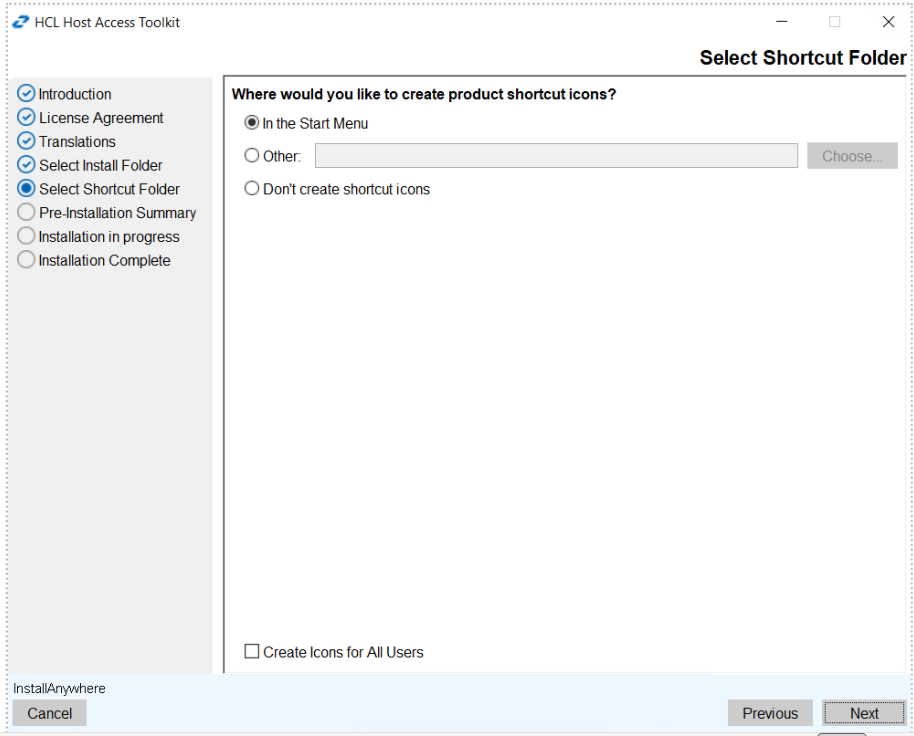
- The Select Shortcut Folder screen appear. Select the required option to create
the shortcut icon.
- Click Next.
- The Pre- installation Summary screen displays to review the summary details, for
example, product name, install folder, host on-demand server location, and disk space
information.
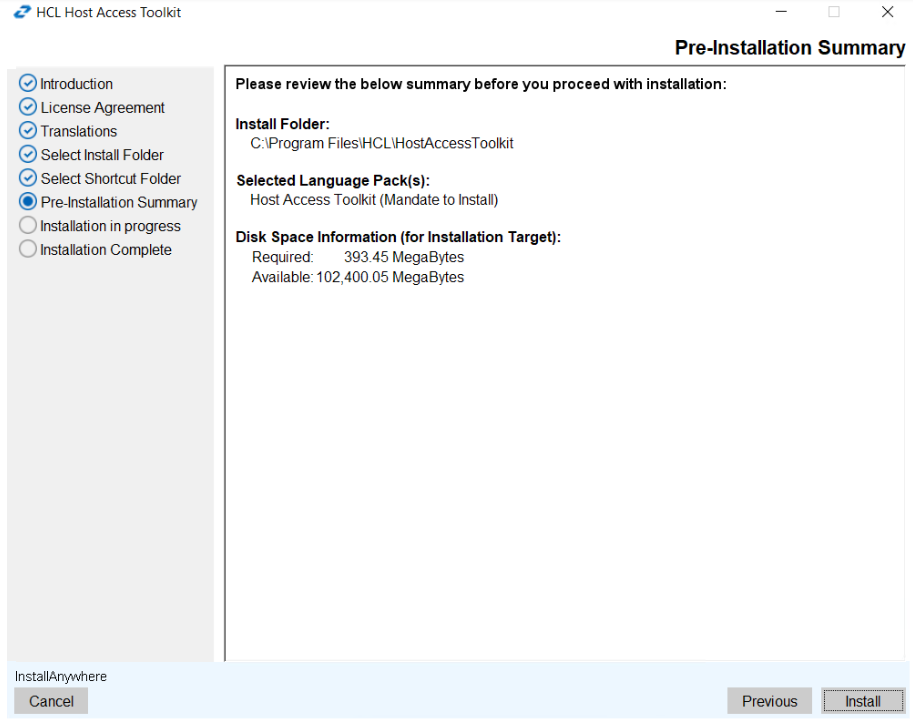
- Click Install. The installation process gets started.
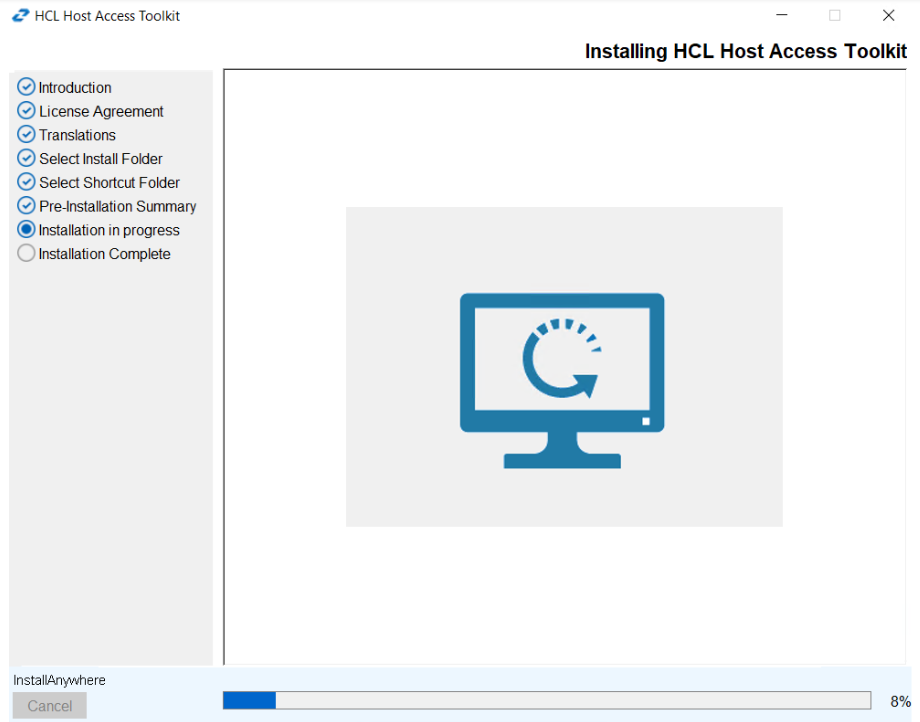
- Once the extraction is completed. The Install Complete screen displays.
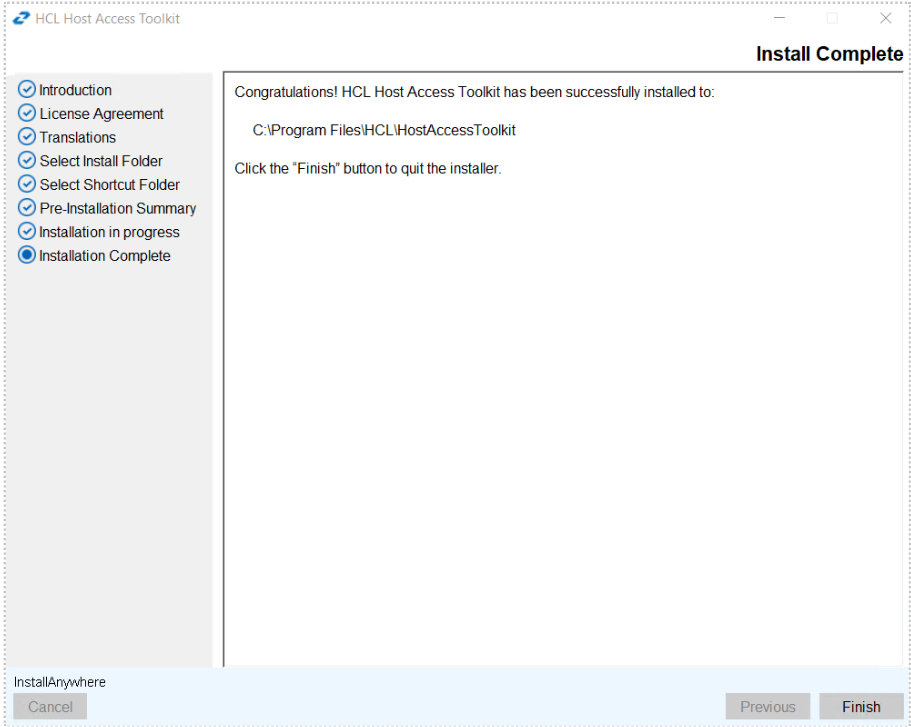
- Click Done. It creates the shortcut for easy access.